Instagram messages are supposed to be where memes, plans, gossip, customer questions, and “Did you see this Reel?” conversations happily live. So when you tap the messages icon and get a black screen instead, it feels like your phone has decided to become a tiny, expensive rectangle of mystery.
The good news: an Instagram Messages black screen is usually fixable. In most cases, it is caused by a temporary app glitch, a bad internet connection, corrupted cache files, an outdated Instagram version, display-mode conflicts, account restrictions, or a platform-side outage. In plain English, your DMs are probably not gone forever. Instagram may simply be refusing to load them like a dramatic theater curtain that got stuck halfway down.
This guide explains how to fix the Instagram Messages black screen using six practical solutions for iPhone and Android. We will start with the fastest fixes and move toward deeper troubleshooting. Whether your Instagram DMs show a blank page, blacked-out text, a frozen inbox, or a conversation that refuses to load, these steps will help you narrow down the cause and get your messages working again.
Quick Answer: How Do You Fix the Instagram Messages Black Screen?
To fix the Instagram Messages black screen, first force close and reopen the app, then check your internet connection. If that does not work, update Instagram, restart your phone, clear the app cache on Android, or reinstall Instagram on iPhone. You should also check dark mode, display settings, account status, and possible Instagram outages. If the issue continues, report the problem inside the Instagram app.
Why Instagram Messages May Show a Black Screen
The Instagram DM black screen can appear in different ways. Some users see a completely black inbox. Others can open the messages tab, but individual chats turn black or blank. Sometimes the message list loads, but the text is unreadable. In other cases, the loading spinner appears forever, as if it has accepted a full-time job.
Common causes include temporary app bugs, weak Wi-Fi or mobile data, outdated app versions, corrupted temporary files, dark mode conflicts, device software problems, or Instagram server issues. Sometimes the problem is not on your phone at all. If Instagram is experiencing a partial outage, the feed may still work while DMs fail, which makes the problem extra confusing.
Before trying all six solutions, do a quick check: can you load your Instagram feed? Can you open Reels? Can you send messages from another device or from a browser? If Instagram messages work elsewhere, the problem is likely your phone or app installation. If DMs fail everywhere, the issue may be account-related or platform-side.
Solution 1: Force Close Instagram and Check Your Connection
Start with the simple stuff. Yes, it sounds basic. Yes, tech support has been saying “turn it off and on again” since dinosaurs roamed near dial-up modems. But there is a reason: temporary app sessions can freeze, fail to sync, or get stuck loading old data.
How to force close Instagram on iPhone
Open the App Switcher, swipe until you find Instagram, then swipe up on the Instagram preview to close it. Reopen Instagram and go back to your messages. If the screen still turns black, restart your iPhone and try again.
How to force stop Instagram on Android
Open your recent apps screen and swipe Instagram away. For a stronger reset, go to Settings > Apps > Instagram > Force stop, then reopen the app.
Check Wi-Fi and mobile data
Instagram DMs need a stable connection to load conversations, images, videos, message requests, and synced chat history. Try switching from Wi-Fi to mobile data, or from mobile data to Wi-Fi. If you are using public Wi-Fi at a school, hotel, airport, or café, the network may block or throttle parts of Instagram. In that case, mobile data may work better.
Also disable VPNs or proxy apps temporarily. Some VPN connections can slow down Instagram or route traffic through servers that trigger unusual loading behavior. You do not need to delete the VPN; just turn it off long enough to test your messages.
Solution 2: Update Instagram and Your Phone Software
If Instagram messages suddenly show a black screen after an app update, you may be dealing with a bug. Ironically, the fix may be another update. App developers regularly release patches for crashes, broken layouts, loading errors, and compatibility problems.
Update Instagram on iPhone
Open the App Store, tap your profile icon, scroll to available updates, and tap Update next to Instagram if it appears. If you do not see Instagram listed, search for Instagram in the App Store and check whether the button says Update or Open.
Update Instagram on Android
Open the Google Play Store, tap your profile icon, choose Manage apps & device, then check for updates. If Instagram is listed, tap Update. You can also search for Instagram directly in the Play Store and update it from the app page.
Update your operating system
Instagram also depends on your phone’s operating system. If your iPhone or Android version is outdated, the app may not behave properly. On iPhone, go to Settings > General > Software Update. On Android, go to Settings > System > System update, though the exact path may vary by brand.
After updating, restart your phone. Then open Instagram and test your messages again. This gives the app a fresh launch after the new files are installed.
Solution 3: Clear Instagram Cache or Reinstall the App
Cache files are temporary data Instagram stores to make the app load faster. Usually, cache is helpful. It remembers images, profile data, and other small pieces of information so Instagram does not have to fetch everything from scratch. But when cache files become outdated or corrupted, they can cause strange bugs, including blank screens, black messages, freezing, and loading loops.
Clear Instagram cache on Android
Android gives you a direct way to clear app cache:
- Open Settings.
- Tap Apps or Apps & notifications.
- Select Instagram.
- Tap Storage or Storage & cache.
- Tap Clear cache.
Do not tap Clear data unless you are comfortable resetting the app completely. Clearing cache removes temporary files. Clearing data may log you out and remove local app settings.
Clear Instagram cache on iPhone
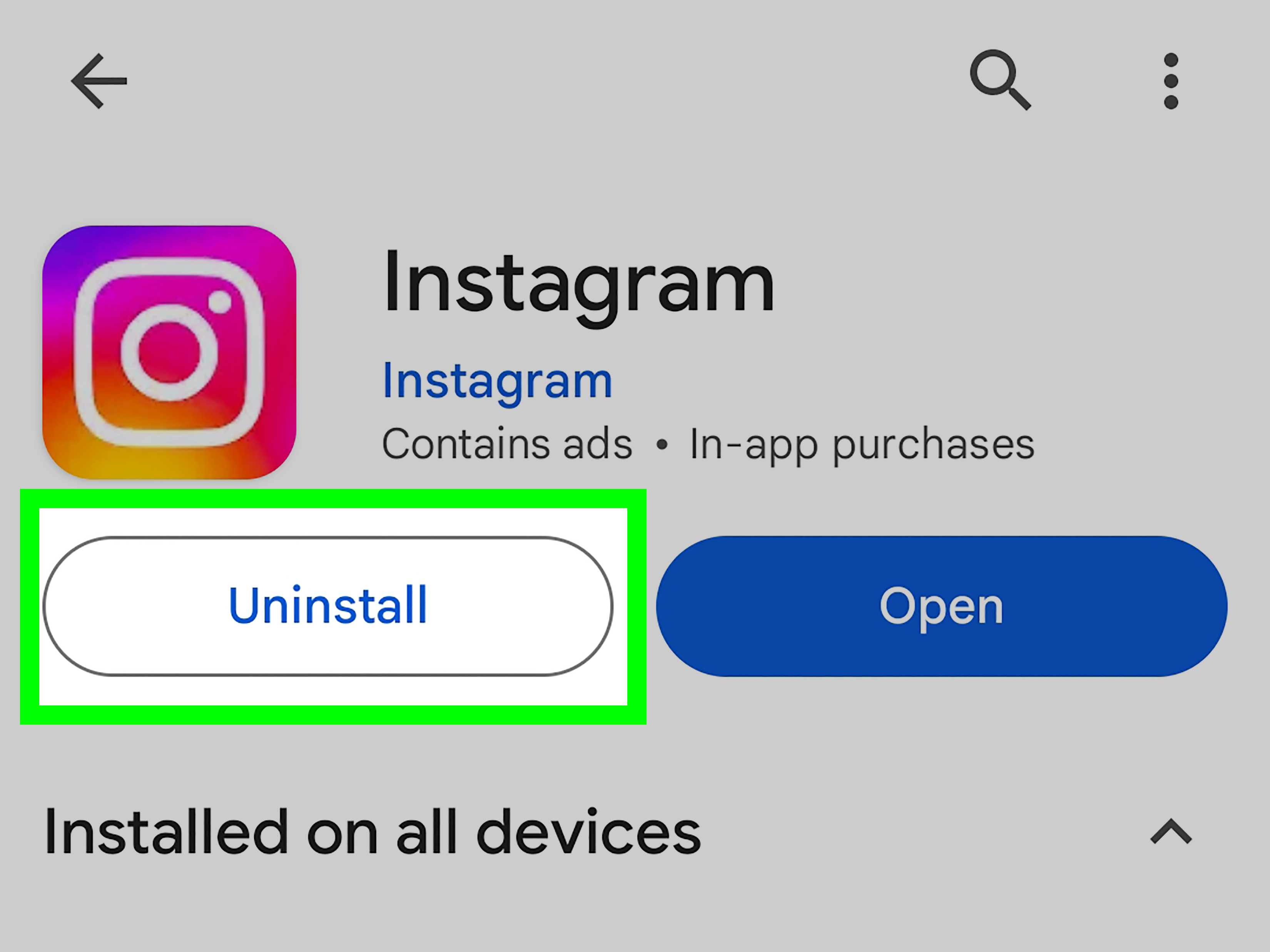
iPhone does not usually offer a simple “clear cache” button for individual apps. The most reliable method is to delete and reinstall Instagram:
- Press and hold the Instagram app icon.
- Tap Remove App.
- Choose Delete App.
- Restart your iPhone.
- Reinstall Instagram from the App Store.
- Log in and test your messages.
Reinstalling Instagram often fixes stubborn black-screen problems because it removes damaged local files and installs a clean copy of the app. Your posts, followers, and DMs are tied to your Instagram account, not the app installation on your phone, so reinstalling should not delete your account content.
Solution 4: Check Dark Mode, Display Settings, and Accessibility Options
Sometimes the Instagram Messages black screen is not a full loading failure. Instead, the messages may be there, but the colors are broken. This has happened before with blacked-out Instagram messages, where text or chat bubbles became difficult to read because of a display bug or theme conflict.
Switch dark mode on or off
If your DMs look blacked out rather than completely missing, test your phone’s display mode. On iPhone, go to Settings > Display & Brightness and switch between Light and Dark. On Android, go to Settings > Display and turn dark theme on or off.
Then reopen Instagram. If the text becomes readable again, the issue may be related to how Instagram is rendering colors in your current theme.
Review color filters and contrast settings
Accessibility settings can also affect how apps look. Check whether color inversion, high contrast text, color correction, or reduce transparency options are enabled. These tools are useful, but a buggy app interface may not always play nicely with them.
On iPhone, review Settings > Accessibility > Display & Text Size. On Android, review Settings > Accessibility and check display-related options. Turn one setting off at a time, test Instagram, and then restore anything you need for comfort or visibility.
Solution 5: Log Out, Check Account Status, and Remove Risky Third-Party Apps
If Instagram messages show a black screen only on one account, but work on another account on the same phone, the problem may be account-specific. This can happen when Instagram is syncing account data poorly, applying temporary limits, or dealing with unusual activity.
Log out and log back in
Open Instagram, go to your profile, tap the menu icon, then go to Settings and privacy. Scroll down and log out. Close Instagram, reopen it, and log back in. This refreshes your account session and can fix message-loading issues caused by a stale login token.
Check Instagram Account Status
Instagram may limit certain features if it detects activity that looks spammy or violates platform rules. Go to your profile, open the menu, choose Settings and privacy, and look for Account Status. If Instagram shows a warning, restriction, or removed content notice, follow the instructions there.
Remove suspicious third-party apps
Apps that promise follower tracking, mass unfollowing, secret profile views, automated DMs, or “who blocked me” reports can cause account problems. Many of these tools require risky access to your Instagram account. If your messages started acting weird after connecting a third-party service, remove its access, change your password, and enable two-factor authentication.
To be clear, not every third-party tool is evil. But if an app asks for your Instagram login and then acts like a digital raccoon in your account, it is time to take away the keys.
Solution 6: Check for Instagram Outages and Report the Problem
If you have tried everything and Instagram messages still show a black screen, the problem may be on Instagram’s side. Social platforms can have partial outages where feeds, stories, or Reels work, but DMs fail. That is why your friend may say, “Instagram works fine for me,” while your inbox is staring into the void.
How to check if Instagram is down
Search the web or check outage-tracking sites for current Instagram reports. You can also search social platforms for phrases like “Instagram DMs down” or “Instagram messages not working.” If many users are reporting the same issue at the same time, waiting may be the only real fix.
Report the black screen to Instagram
Instagram lets users report technical problems from inside the app. Go to your profile, open the menu, tap Help, then choose Report a problem. In some versions of the app, you can also shake your phone to bring up the reporting menu. Describe the issue clearly, such as: “Instagram messages open to a black screen. Feed loads normally. I have updated the app, restarted the phone, and reinstalled Instagram.”
Add screenshots if possible. A detailed report helps Instagram understand whether the issue is tied to a device model, operating system version, account type, or app release.
What Not to Do When Instagram Messages Go Black
Do not panic-delete your account. Do not keep entering your password into random “Instagram repair” websites. Do not download unofficial APK files from suspicious sources just because a forum comment says it fixed the issue. And please do not throw your phone onto the couch with Olympic-level force unless the couch has signed a liability waiver.
Stick with safe troubleshooting: update, restart, clear cache, reinstall, check settings, review account status, and report the problem. These steps solve most Instagram DM black screen issues without putting your account or device at risk.
Experience Section: What Fixing the Instagram Messages Black Screen Usually Feels Like
The Instagram Messages black screen is especially annoying because it often looks more serious than it is. When a chat screen turns black, many users immediately assume their messages were deleted, their account was hacked, or Instagram has personally chosen them for a tiny emotional obstacle course. In real-world troubleshooting, however, the issue usually behaves like a loading problem rather than a permanent data loss problem.
A typical experience goes something like this: you open Instagram, the home feed works, Reels play, stories load, and everything seems normal. Then you tap the messages icon. Suddenly, nothing. Maybe the inbox is blank. Maybe the screen is black. Maybe one chat opens but refuses to show the conversation. This is the point where most people close the app, reopen it, and whisper something deeply unprintable at their phone.
The first helpful clue is whether other parts of Instagram still work. If the feed and profile pages load, your internet connection is probably not completely dead. But DMs may still be more sensitive to weak connections because they need to sync real-time data. Switching from Wi-Fi to mobile data often reveals the truth quickly. If messages load on mobile data, the Wi-Fi network was the villain all along, wearing a tiny fake mustache.
Another common pattern is the “one account works, one account does not” situation. This can happen when users manage multiple Instagram accounts. A personal account may load DMs perfectly, while a business or creator account shows a black screen. In that case, logging out, checking Account Status, and testing the account on another device can save a lot of time. If the same account fails everywhere, it is less likely to be your phone and more likely to be account-side or server-side.
Cache problems are also surprisingly common. On Android, clearing the Instagram cache is often the sweet spot because it removes temporary junk without fully resetting the app. On iPhone, reinstalling Instagram usually plays the same role. This is the digital equivalent of cleaning a messy desk: the desk was not broken, but good luck finding anything under three coffee cups, old receipts, and a mysterious cable from 2014.
Display bugs can feel the strangest. Some users do not have a missing inbox; they have unreadable messages because the background and text colors clash. Switching dark mode on or off can instantly make the problem disappear. That does not mean dark mode is bad. It simply means apps sometimes get confused when system themes, accessibility settings, and app design updates collide.
The most frustrating experience is when nothing works because Instagram itself is having issues. This is when patience becomes a troubleshooting step, which nobody enjoys. If thousands of people are reporting broken DMs at the same time, reinstalling the app twelve times will not magically repair Instagram’s servers. At that point, the best move is to report the problem, avoid risky “fix” tools, and wait for Instagram to patch the issue.
Final Thoughts
The Instagram Messages black screen is irritating, but it is usually not the end of your conversations. Start with the fastest fixes: force close Instagram, check your connection, and restart your phone. Then update the app, clear cache or reinstall, test display settings, review account status, and check whether Instagram is experiencing an outage.
Most users will fix the issue before reaching the final step. If you do need to report the bug, include specific details about your phone, app version, account type, and what you already tried. That gives Instagram a better chance of identifying the problem.
Note: Menu names can vary slightly depending on your phone model, operating system version, and Instagram app version. If one path does not match your device exactly, look for similar labels such as Apps, Storage, Display, Accessibility, Help, or Account Status.