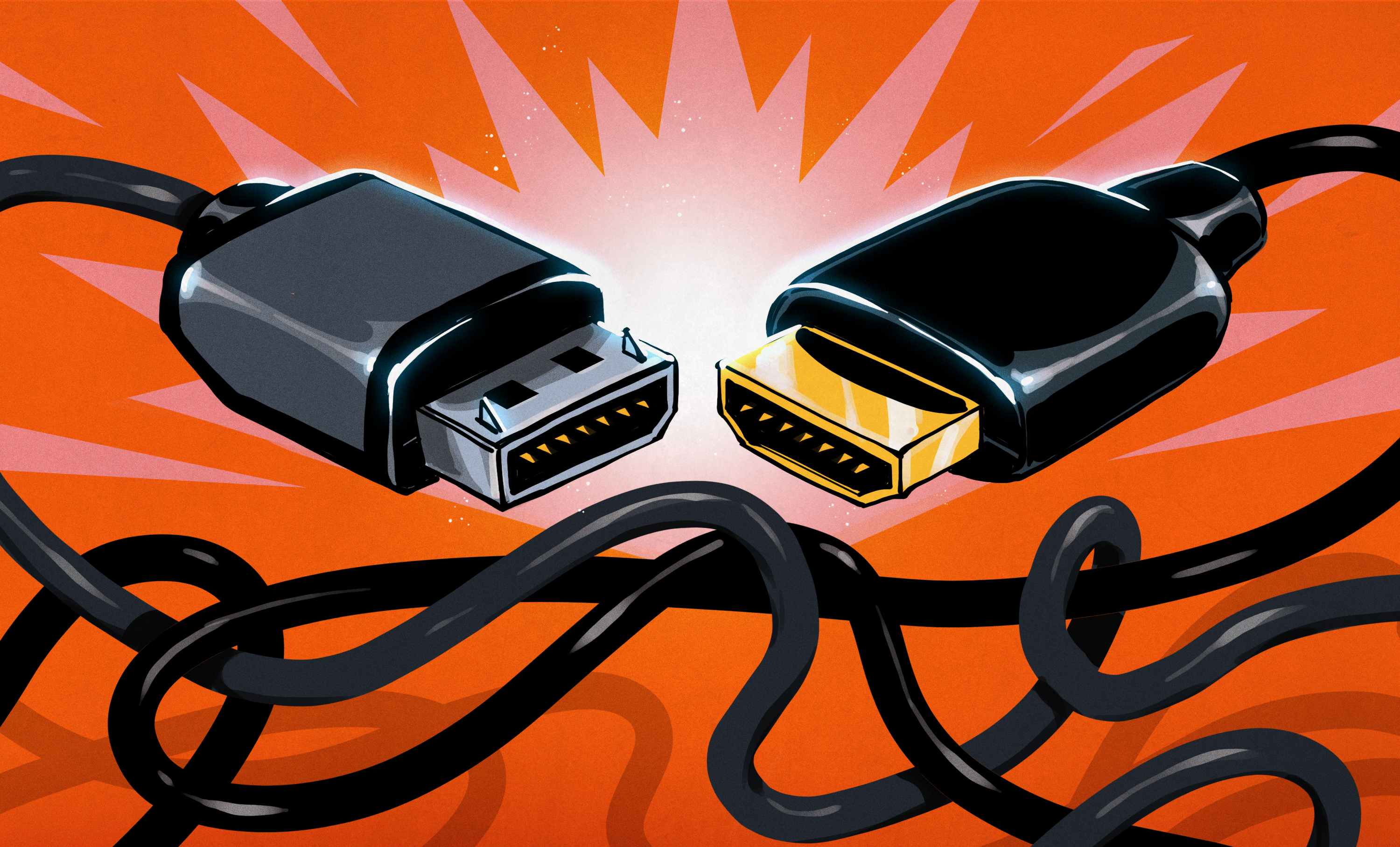
DisplayPort is one of those technologies that quietly does heroic work while everyone else argues about refresh rates, HDR, and whether a cable “looks premium enough” to justify its price. It is the digital display interface behind many gaming monitors, creator workstations, docking stations, USB-C displays, and high-resolution PC setups. When it works, nobody applauds. When it fails, you suddenly become a cable detective at 1:13 a.m., staring at a black screen and questioning your life choices.
Under the hood, DisplayPort is not just “the other monitor cable.” It is a packet-based, high-bandwidth display standard developed by VESA, designed for modern computers, monitors, laptops, graphics cards, docks, and embedded displays. It carries video, audio, control data, and configuration information over a link that can adapt itself to the capabilities of the source, cable, and display. That adaptability is the secret sauceand occasionally the source of confusion.
This guide breaks down how DisplayPort works, why it matters, how versions like DisplayPort 1.4 and DisplayPort 2.1 differ, what features like DSC and MST actually do, and why one tiny cable can decide whether your beautiful 4K 240Hz monitor behaves like a supercar or a shopping cart with one bad wheel.
What Is DisplayPort?
DisplayPort is a digital audio and video interface built mainly for computers and professional display environments. You will commonly find it on desktop graphics cards, workstation monitors, gaming displays, USB-C hubs, Thunderbolt docks, and some laptops through DisplayPort Alternate Mode over USB-C.
Unlike older analog standards such as VGA, DisplayPort sends digital data. Unlike a simple “wire equals picture” mindset, DisplayPort operates more like a communication system. The graphics card and monitor exchange information, negotiate capabilities, train the link, and then stream image data across one, two, or four high-speed lanes.
In plain English: your GPU and monitor have a quick technical handshake before the picture appears. If they agree on bandwidth, resolution, refresh rate, color depth, and signal quality, you get a crisp display. If they disagree, you may get flickering, limited refresh-rate options, random blanking, or the dreaded “No Signal” messagethe monitor equivalent of being ghosted.
Why DisplayPort Became a PC Favorite
DisplayPort became popular because PC displays kept demanding more: higher resolutions, faster refresh rates, multiple monitors, wider color gamuts, HDR, variable refresh rate, and cleaner docking solutions. HDMI is everywhere in TVs and consoles, but DisplayPort has traditionally been a favorite in PC gaming and productivity because it was built with computer displays in mind.
That PC-first personality shows up in features like Multi-Stream Transport, Adaptive-Sync, high refresh-rate support, and USB-C integration. A workstation can drive multiple displays from one output. A gaming PC can sync refresh rates dynamically. A laptop can output video through a slim reversible USB-C connector. DisplayPort is not glamorous, but it is extremely practicaland practicality is underrated until your spreadsheet spans three monitors like a corporate command center.
The Basic Architecture: Source, Sink, and Cable
A DisplayPort connection has three main players:
The Source
The source is the device that sends the signal. This is usually a graphics card, laptop, docking station, motherboard output, or USB-C device. The source generates the video stream and sends it across the DisplayPort link.
The Sink
The sink is the device receiving the signal. Most of the time, it is a monitor. In more complex setups, the sink might be a dock, MST hub, capture device, KVM switch, or another piece of hardware that passes video along.
The Cable
The cable is the bridge, and yes, it matters. A cable that works perfectly for 1080p at 60Hz may not survive the jump to 4K at 240Hz or ultrawide high-refresh gaming. DisplayPort cables are not magical ropes; they are electrical highways. The faster the traffic, the more important signal quality becomes.
DisplayPort Lanes: The Highway Beneath the Picture
DisplayPort uses high-speed lanes to carry data. A standard DisplayPort link can use up to four lanes. Think of them like lanes on a freeway: more lanes and faster lane speeds allow more data to move at once. That data includes video pixels, audio, and control information.
Different DisplayPort versions support different lane speeds. DisplayPort 1.2 introduced HBR2, DisplayPort 1.3 and 1.4 introduced HBR3, and DisplayPort 2.0/2.1 introduced UHBR modes. UHBR stands for Ultra-High Bit Rate, which sounds like something a marketing team named after drinking three espressos, but it genuinely represents a major bandwidth jump.
DisplayPort 2.1 can support UHBR10, UHBR13.5, and UHBR20 modes, with raw bandwidth levels of 40Gbps, 54Gbps, and 80Gbps across four lanes. Effective usable bandwidth is slightly lower because of encoding overhead, but DisplayPort 2.1 still provides enormous headroom for demanding display formats.
Raw Bandwidth vs. Real Bandwidth
One of the easiest ways to misunderstand DisplayPort is to look only at the headline bandwidth number. Raw bandwidth is the maximum signaling rate. Effective bandwidth is what remains after encoding overhead. DisplayPort 1.4, for example, has a raw maximum of 32.4Gbps using HBR3, but its effective data rate is about 25.92Gbps because it uses 8b/10b encoding.
DisplayPort 2.1 improves efficiency with 128b/132b encoding. That means a much larger portion of the raw link speed is available for actual display data. UHBR20 offers 80Gbps raw bandwidth and about 77.37Gbps effective bandwidth, making it far more suitable for extreme resolutions, high refresh rates, HDR, and multi-display configurations.
DisplayPort Versions Explained Without a Migraine
DisplayPort 1.2
DisplayPort 1.2 was a major step forward because it supported HBR2 and brought enough bandwidth for popular high-resolution setups, including 1440p high-refresh displays and 4K at 60Hz. It also helped make Multi-Stream Transport more useful for daisy-chained monitors and MST hubs.
DisplayPort 1.4
DisplayPort 1.4 became especially important for gaming and professional displays. It supports HBR3, HDR metadata transport, and Display Stream Compression. With DSC, DisplayPort 1.4 can handle display modes that would otherwise exceed its uncompressed bandwidth limit, such as 4K at very high refresh rates with HDR.
DisplayPort 2.0 and 2.1
DisplayPort 2.0 introduced the huge UHBR bandwidth leap, and DisplayPort 2.1 refined the ecosystem around USB4, USB-C, cable certification, and interoperability. DisplayPort 2.1 is particularly important for future-facing monitors such as high-refresh 4K, 5K, 8K, ultrawide, and professional HDR displays.
DisplayPort 2.1a
DisplayPort 2.1a builds on DisplayPort 2.1 with updated cable guidance and improved support for longer UHBR cable options. In practical terms, it is part of the ongoing effort to make extremely high-bandwidth DisplayPort setups less mysterious and more reliable for real users.
Display Stream Compression: The Invisible Suitcase
Display Stream Compression, usually shortened to DSC, is a visually lossless compression technology used to fit demanding display modes through available bandwidth. “Visually lossless” means the image is compressed in a way that is intended to look the same to human eyes under normal viewing conditions.
DSC matters because modern displays are greedy. A 4K monitor at 144Hz or 240Hz with 10-bit color and HDR needs a lot of data. Without compression, some modes would not fit through DisplayPort 1.4. With DSC, those modes can become possible while preserving excellent image quality.
The easiest analogy is packing a suitcase. Uncompressed video is like throwing every shirt, shoe, and charger into the bag separately. DSC folds everything neatly so the suitcase closes. The clothes are still there. Your dignity may even survive the trip.
Multi-Stream Transport: One Port, Multiple Displays
Multi-Stream Transport, or MST, allows multiple independent display streams to travel over one DisplayPort connection. This makes features like daisy-chaining possible. In a daisy-chain setup, one monitor connects to the computer, and a second monitor connects to the first monitor’s DisplayPort output.
MST can also be used in hubs and docks that split one DisplayPort signal into multiple monitor outputs. This is useful for productivity setups, trading desks, coding stations, and anyone who believes one monitor is a cry for help.
However, MST depends on support from the computer, GPU, operating system, dock, cable, and displays. It also shares available bandwidth. Two 1080p monitors are easy. Multiple 4K high-refresh HDR displays are a much bigger ask. MST is powerful, but it is not a bandwidth vending machine.
Adaptive-Sync and Variable Refresh Rate
DisplayPort also plays a major role in variable refresh rate technology. VESA Adaptive-Sync allows a display to adjust its refresh rate dynamically to match the frame output of a GPU. This helps reduce tearing, stutter, and input lag during gaming.
Technologies such as AMD FreeSync and many NVIDIA G-SYNC Compatible displays rely on adaptive refresh behavior. The result is smoother gameplay, especially when frame rates fluctuate. Instead of forcing the monitor to refresh at a fixed pace while the GPU hurries or stumbles, the display and GPU coordinate more intelligently.
For gamers, this is one of DisplayPort’s best everyday benefits. It does not make you better at the game, unfortunately. It simply removes one excuse, which is emotionally inconvenient.
The AUX Channel: DisplayPort’s Quiet Control Room
DisplayPort includes an auxiliary channel, often called the AUX channel. This is used for communication between the source and display. Through this channel, the computer can read display capabilities, access configuration data, manage link training, and handle control messages.
The AUX channel is one reason DisplayPort feels more like a smart conversation than a simple video pipe. The display can report what it supports, the source can choose an appropriate mode, and the link can be adjusted for signal quality. This process helps DisplayPort support a wide range of devices and configurations.
Link Training: The Handshake Before the Picture
Before DisplayPort sends the full video stream, it performs link training. During link training, the source and sink test the connection and agree on lane count, link rate, voltage swing, and signal settings. The goal is to establish a stable connection at the best possible performance level.
If the cable is weak, too long, poorly made, or not certified for the required bandwidth, link training may fall back to a lower speedor fail entirely. That is why a setup may show 4K at 60Hz but refuse 4K at 144Hz. The monitor is capable. The GPU is capable. The cable, however, has decided to pursue a quieter life.
DisplayPort Over USB-C: Same Signal, Different Door
DisplayPort does not always use the classic full-size DisplayPort connector. It can also travel through USB-C using DisplayPort Alternate Mode. This allows laptops, tablets, docks, and compact PCs to output DisplayPort video through a slim USB-C port.
USB-C DisplayPort Alt Mode can use high-speed lanes inside the USB-C cable for video. Depending on the device and cable, it may carry video only, or video plus USB data and power delivery. Thunderbolt and USB4 devices can also transport DisplayPort signals as part of their broader connectivity features.
This is convenient, but it creates one of the most common modern tech traps: not every USB-C port supports video. Not every USB-C cable supports high-speed data. Some cables are charge-only. Some ports support charging but not display output. USB-C is wonderfully reversible and occasionally wonderfully confusing.
DisplayPort Cables: Certification Matters
For older DisplayPort setups, almost any decent cable may seem fine. For high-refresh 1440p, 4K, ultrawide, HDR, or DisplayPort 2.1 setups, cable quality becomes much more important.
VESA-certified cables are tested for defined performance levels. DP40 cables are associated with UHBR10 performance, while DP80 cables are designed for UHBR20 operation. Newer DP54 labeling also appears in the DisplayPort 2.1a ecosystem for UHBR13.5 performance. These labels help buyers choose cables that match the bandwidth needs of their hardware.
A cheap mystery cable can work perfectly in simple setups. It can also cause flicker, black screens, limited refresh rates, or random disconnects. If you are running a premium display, the cable is not the best place to save three dollars. That is like buying racing tires from a guy named “Probably Fine” in a parking lot.
DisplayPort vs. HDMI: Which Is Better?
The honest answer is: it depends. HDMI is dominant in TVs, consoles, soundbars, and home theater devices. DisplayPort is common in PCs, gaming monitors, workstation displays, and multi-monitor environments.
DisplayPort often shines when you need high refresh rates, MST, PC monitor features, or USB-C display output. HDMI often makes more sense for televisions, AV receivers, game consoles, and living-room setups. Both standards can deliver excellent image quality when the source, cable, and display support the required mode.
The mistake is assuming that the connector alone tells the whole story. A DisplayPort 1.2 output is not the same as a DisplayPort 2.1 output. An HDMI 2.0 port is not the same as HDMI 2.1. Always check the actual version, bandwidth, monitor specifications, GPU support, and cable certification.
Common DisplayPort Problems and What They Usually Mean
No Signal
This can happen when the monitor is on the wrong input, the cable is not seated correctly, the GPU is not outputting a signal, or link training fails. Power cycling the monitor and reconnecting the cable can sometimes force a fresh handshake.
Refresh Rate Is Missing
If your 165Hz monitor only shows 60Hz, check the GPU output, monitor input version, cable rating, operating system display settings, and whether the monitor requires a specific DisplayPort mode in its on-screen menu.
Random Flicker or Black Screens
This often points to signal integrity problems. Try a shorter certified cable, update GPU drivers, disable unnecessary adapters, and test a direct connection instead of going through a dock or KVM switch.
USB-C Monitor Not Working
Confirm that the USB-C port supports DisplayPort Alt Mode or Thunderbolt video output. Also check that the cable is a full-featured USB-C cable, not a charge-only cable.
How to Choose the Right DisplayPort Setup
Start with your monitor’s requirements. A basic 1080p office monitor does not need extreme bandwidth. A 4K 240Hz HDR gaming monitor does. Match the GPU output, monitor input, and cable to the display mode you actually want to run.
For DisplayPort 1.4 displays, a quality certified cable is usually enough for many high-end modes, especially when DSC is supported. For DisplayPort 2.1 monitors, look carefully at UHBR support. Some devices support UHBR10, others UHBR13.5, and the most demanding setups may require UHBR20 and a DP80-certified cable.
If you are using a dock, remember that docks share bandwidth among video, USB, Ethernet, storage, and sometimes power delivery. A laptop dock may advertise dual 4K support, but refresh rates, color depth, and HDR support depend on the exact dock, host port, and display configuration.
Why DisplayPort Still Matters
DisplayPort matters because displays are evolving quickly. High-refresh 4K, 5K productivity monitors, OLED gaming panels, ultrawide workstations, 8K displays, HDR workflows, and USB-C docking all need serious bandwidth and flexible transport.
It also matters because the display chain is only as strong as its weakest link. A powerful GPU cannot overcome a low-bandwidth port. A premium monitor cannot fix a weak cable. A dock cannot magically create bandwidth that the host connection does not provide.
Understanding DisplayPort under the hood helps you buy smarter, troubleshoot faster, and avoid blaming the wrong component. Sometimes the GPU is fine. Sometimes the monitor is fine. Sometimes the villain is a suspicious cable that came free in a box six years ago.
Conclusion: DisplayPort Is More Than a Plug
DisplayPort is a sophisticated display transport system built for the demands of modern computing. It uses lanes, link training, auxiliary communication, compression, adaptive refresh, and multi-stream capabilities to deliver sharp, smooth, high-bandwidth visuals across a wide range of devices.
For everyday users, the lesson is simple: do not judge DisplayPort only by the shape of the connector. Look at the version, bandwidth, cable certification, GPU support, monitor capabilities, and whether features like DSC, MST, Adaptive-Sync, and USB-C Alt Mode are part of your setup.
For enthusiasts and professionals, DisplayPort remains one of the most important technologies behind high-performance monitors. It is not flashy. It does not ask for applause. But when your 4K display runs at a buttery refresh rate with HDR and variable refresh working properly, DisplayPort is the quiet engineer in the back making the magic happen.
Field Notes: Real-World Experiences With DisplayPort Setups
After dealing with enough DisplayPort setups, one pattern becomes clear: the standard is powerful, but it rewards people who pay attention to details. The first experience many users have is the “why is my expensive monitor stuck at 60Hz?” moment. The monitor advertises 144Hz, 165Hz, or 240Hz. The graphics card supports it. The operating system, however, calmly offers 60Hz as if high refresh rates are a myth told around gaming keyboards. In many cases, the fix is not dramatic. It may be a better cable, a different GPU port, a monitor menu setting, or enabling the correct DisplayPort version in the display’s on-screen controls.
Another common experience happens with USB-C docks. A laptop connects to a dock, the dock connects to two monitors, and everything looks wonderfully cleanuntil one display refuses HDR or the second monitor drops resolution. This is where DisplayPort bandwidth becomes very real. The dock is not being rude. It is dividing limited bandwidth among displays and data devices. Add Ethernet, USB storage, webcam traffic, power delivery, and multiple monitors, and the setup can become a tiny digital traffic jam. The clean desk remains beautiful, but the signal path underneath is doing Olympic gymnastics.
Cable swaps are also surprisingly educational. A short, certified DisplayPort cable can turn a flaky setup into a stable one instantly. Flicker disappears. Random black screens stop. The missing refresh-rate option returns. This is why many experienced PC builders keep a known-good DisplayPort cable nearby. It is the display equivalent of a flashlight during a power outage: not glamorous, but suddenly priceless.
Daisy-chaining monitors through MST is another area where expectations need a seatbelt. When it works, it feels brilliant: one cable from the computer to the first monitor, another from the first monitor to the second, and a cleaner workspace. But MST requires support from the GPU, operating system, monitor, and cable. It also consumes shared bandwidth. Two modest office monitors are usually simple. Multiple high-resolution, high-refresh displays are not. Users who understand that limitation have a much better time than users who expect one port to behave like a bottomless buffet.
Gaming experiences show DisplayPort at its best. Adaptive-Sync over DisplayPort can make variable frame rates feel smoother and more responsive. A game that bounces between 90 and 140 frames per second can look far better when the monitor adjusts dynamically instead of forcing a fixed refresh rhythm. Once you get used to variable refresh rate working correctly, going back to tearing and stutter feels like watching a flipbook during an earthquake.
The biggest practical lesson is this: DisplayPort troubleshooting should be systematic. Check the monitor menu. Check the GPU port. Check the cable. Check the operating system display settings. Update drivers. Remove unnecessary adapters. Test a direct connection before blaming the dock. DisplayPort is not fragile, but it is technical. Treat it like a complete signal chain rather than a single cable, and it becomes much easier to understand.
In the end, DisplayPort is a reminder that modern displays are not passive screens. They are high-speed digital systems. When every part of the chain is matched correctly, the result is wonderfully boring: the monitor turns on, the refresh rate is right, HDR works, games feel smooth, text looks sharp, and nobody has to crawl under the desk with a flashlight. That boring success is exactly what good technology should deliver.
Note: This article is written for web publication and synthesizes current public technical knowledge from reputable display-standard organizations, hardware vendors, operating-system documentation, and PC technology publications. No direct source links are included per the publishing requirement.