Note: This copy-ready article is written in clean body HTML, based on current iPhone screenshot behavior, Apple accessibility features, and widely used iPhone support practices.
Taking a screenshot on an iPhone 12 Pro Max should not feel like solving a tiny glass-covered escape room. Whether you want to save a receipt, capture a funny text, document an error message, keep a travel confirmation, or preserve proof that your friend really did say “I’ll be there in five minutes” forty-three minutes ago, the iPhone gives you several easy ways to capture what is on your screen.
The good news is that the iPhone 12 Pro Max has no Home button, which actually makes the screenshot process very straightforward once you learn the correct button combination. The even better news is that you are not stuck with only one method. You can use the physical buttons, turn on AssistiveTouch for a button-free screenshot, or set up Back Tap so the back of your iPhone acts like a secret shortcut. Yes, your phone has a hidden trick. No cape required.
In this guide, you will learn 3 simple ways to screenshot on iPhone 12 Pro Max, plus how to edit, share, save, find, organize, and troubleshoot screenshots like someone who has their digital life under control. Or at least someone who can pretend convincingly.
Quick Answer: How Do You Screenshot on iPhone 12 Pro Max?
The fastest way to take a screenshot on iPhone 12 Pro Max is to press the Side button and the Volume Up button at the same time, then quickly release both buttons. The screen flashes, and a screenshot preview appears. You can tap the preview to edit or share it, or ignore it and let the screenshot save automatically.
But that is only method one. Here are the three easiest screenshot methods for iPhone 12 Pro Max:
- Method 1: Press Side button + Volume Up button.
- Method 2: Use AssistiveTouch to screenshot from an on-screen menu.
- Method 3: Use Back Tap to screenshot by tapping the back of your iPhone.
Method 1: Use the Side Button and Volume Up Button
This is the classic and most reliable way to take a screenshot on iPhone 12 Pro Max. Since the iPhone 12 Pro Max uses Face ID and does not have a Home button, the screenshot shortcut is different from older iPhones. Instead of pressing Home and Side, you use the Side button and Volume Up.
Step-by-Step Instructions
- Open the screen you want to capture.
- Place one finger on the Side button on the right side of your iPhone.
- Place another finger on the Volume Up button on the left side.
- Press both buttons at the same time.
- Quickly release both buttons.
- Look for the screenshot preview in the corner of the screen.
If you did it correctly, your iPhone screen will flash briefly. Depending on your sound settings, you may also hear a camera shutter sound. A small thumbnail preview will appear. Tap it if you want to crop, draw, mark up, share, or delete the screenshot immediately. Swipe it away or leave it alone if you simply want the screenshot saved.
Best For
This method is best when you need a quick screenshot and both buttons are working properly. It is ideal for everyday use, including saving social media posts, text conversations, maps, payment confirmations, app screens, settings pages, and anything else visible on your display.
Common Mistake: Holding the Buttons Too Long
The trick is to press and release quickly. If you hold the Side button and Volume Up button too long, your iPhone may open the power-off or emergency screen instead of taking a screenshot. That is not exactly the dramatic plot twist you wanted while trying to save a coupon code.
Think of the motion like a quick click, not a long squeeze. Press, release, done. The iPhone is fast; it does not need a heartfelt hug.
Method 2: Use AssistiveTouch to Screenshot Without Buttons
AssistiveTouch is one of the most useful accessibility features on iPhone. It creates a floating on-screen button that you can customize for many actions, including screenshots. This is perfect if your Side button or Volume button is hard to press, your case makes the buttons stiff, or you simply prefer tapping the screen instead of performing the two-button finger dance.
How to Turn On AssistiveTouch
- Open the Settings app.
- Tap Accessibility.
- Tap Touch.
- Tap AssistiveTouch.
- Turn on AssistiveTouch.
Once enabled, a floating button appears on your screen. You can drag it around and place it near the edge of the display so it stays out of your way. It is basically a tiny digital assistant that lives on your screen and patiently waits for instructions.
How to Take a Screenshot With AssistiveTouch
- Tap the floating AssistiveTouch button.
- Tap Device.
- Tap More.
- Tap Screenshot.
Your iPhone will capture the screen without showing the AssistiveTouch menu in the final screenshot. That is a nice touch, because nobody wants a screenshot with a random floating menu photobombing the evidence.
Make AssistiveTouch Even Faster
You can customize AssistiveTouch so a single tap, double tap, or long press takes a screenshot. This turns the floating button into a dedicated screenshot shortcut.
- Go to Settings.
- Tap Accessibility.
- Tap Touch.
- Tap AssistiveTouch.
- Under Custom Actions, choose Single-Tap, Double-Tap, or Long Press.
- Select Screenshot.
For example, if you set Double-Tap to Screenshot, you only need to double-tap the AssistiveTouch button whenever you want to capture your screen. This is especially helpful for people who take a lot of screenshots for work, school, online shopping, tech support, or saving memes that are “too important to lose.”
Best For
AssistiveTouch is best for users who want a button-free screenshot method. It is also helpful if your physical buttons are damaged, your phone case is bulky, or you have limited hand mobility. It may feel slightly slower at first, but once customized, it can become one of the most comfortable ways to screenshot on iPhone 12 Pro Max.
Method 3: Use Back Tap to Screenshot Like a Pro
Back Tap is one of those iPhone features that sounds like a rumor until you try it. It lets you double-tap or triple-tap the back of your iPhone to trigger an action. One of those actions is taking a screenshot. On the iPhone 12 Pro Max, this can feel surprisingly futuristic, like your phone has a secret handshake.
How to Set Up Back Tap for Screenshots
- Open Settings.
- Tap Accessibility.
- Tap Touch.
- Scroll down and tap Back Tap.
- Choose Double Tap or Triple Tap.
- Select Screenshot.
After setup, you can take a screenshot by tapping the back of your iPhone two or three times, depending on which option you selected. If you choose Double Tap, the screenshot is faster. If you choose Triple Tap, you may reduce accidental screenshots. Choose based on your own habits. If your camera roll is already full of accidental lock screen screenshots, Triple Tap may be your new best friend.
Tips for Making Back Tap Work Better
Back Tap works best when you tap firmly near the center or upper back of the iPhone. You do not have to tap directly on the Apple logo, although many people naturally aim there because it feels like pressing a secret button in a spy movie.
If Back Tap does not respond consistently, try these fixes:
- Tap a little more firmly.
- Try tapping closer to the upper back of the phone.
- Remove very thick or rugged cases to test responsiveness.
- Switch from Double Tap to Triple Tap if accidental screenshots happen too often.
- Make sure Back Tap is assigned to Screenshot in Accessibility settings.
Best For
Back Tap is best for users who want a fast, button-free, almost magical screenshot shortcut. It is great when your hands are already holding the phone naturally, and it is especially convenient if you dislike pressing hardware buttons. However, it may take practice, and some thick phone cases can make it less reliable.
What Happens After You Take a Screenshot?
After you take a screenshot on iPhone 12 Pro Max, your iPhone gives you quick options. On many iOS versions, a small thumbnail appears in the lower-left corner. On newer iOS versions, Apple may show quicker editing, sharing, and saving tools immediately after capture. Either way, the basic idea is the same: your screenshot is ready to edit, share, save, or dismiss.
Edit the Screenshot
Tap the screenshot preview to open editing tools. You can crop the image, draw on it, highlight text, add shapes, use the magnifier, add text, or sign a document. This is useful when you want to point at something specific, hide private information, or circle a tiny button so someone does not reply, “Where am I supposed to look?”
Share the Screenshot
Tap the Share button to send the screenshot through Messages, Mail, AirDrop, Notes, or other apps. You can send it to a friend, a coworker, customer support, or yourself because sometimes future you deserves organized evidence.
Save or Delete the Screenshot
If you do nothing, your screenshot is usually saved automatically to Photos. If you open the preview, you can save it, copy and delete it, or delete it right away. Deleting unnecessary screenshots is a small act of digital housekeeping. Your storage will thank you, quietly but sincerely.
How to Take a Full-Page Screenshot on iPhone 12 Pro Max
A normal screenshot captures only what is visible on the screen. But sometimes you need more: a full webpage, a long article, a recipe, a receipt, or a travel confirmation that scrolls longer than a grocery list before Thanksgiving. For supported content, especially webpages in Safari, your iPhone can capture a full-page screenshot.
Steps for a Full-Page Screenshot
- Open a webpage in Safari.
- Take a screenshot using the Side button + Volume Up button.
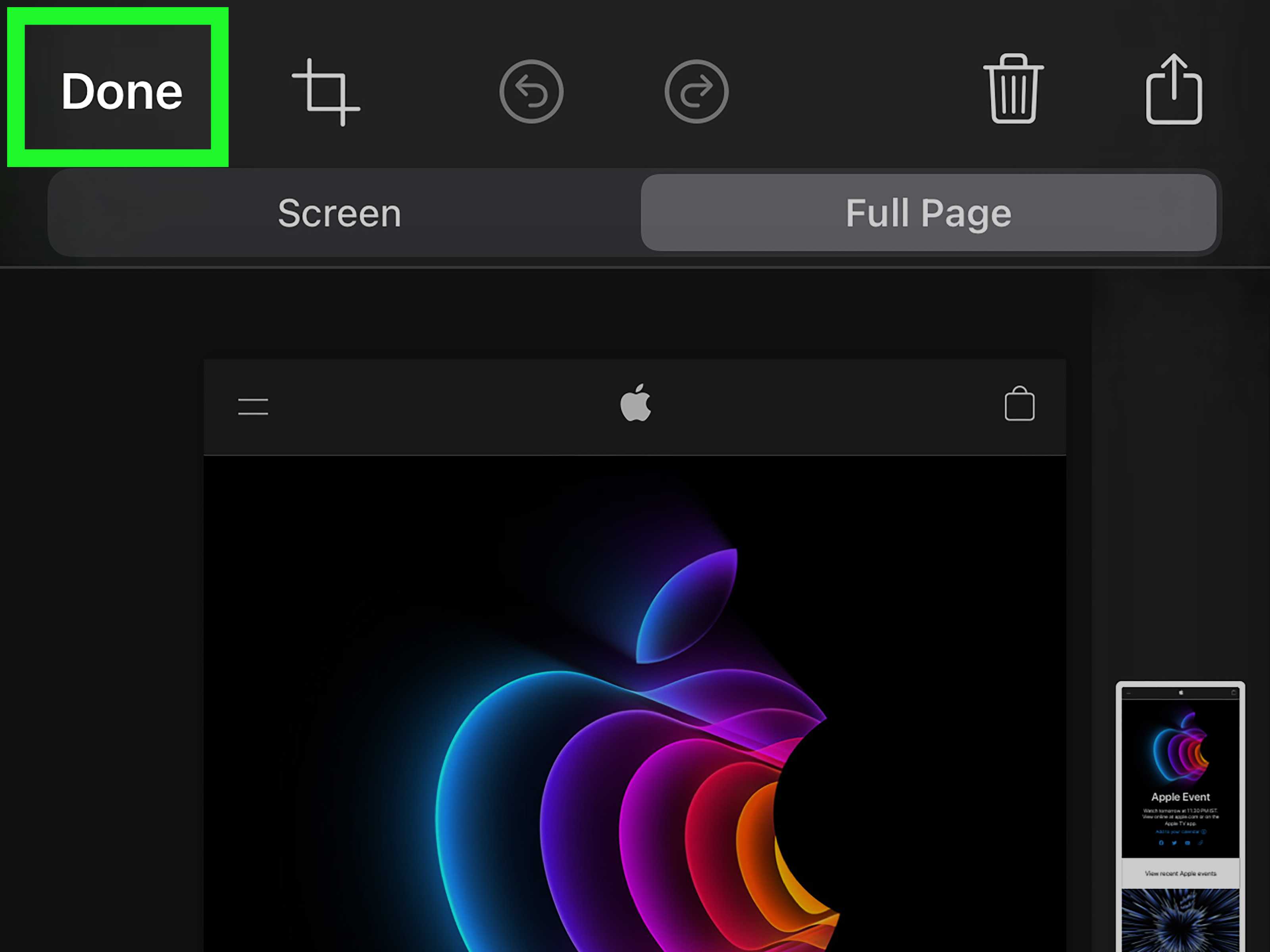
- Tap the screenshot preview.
- Tap Full Page if the option appears.
- Review the full-page preview.
- Save it as needed, often as a PDF in Files.
Full-page screenshots are excellent for saving long web content without taking ten separate screenshots and later playing puzzle detective to figure out their correct order.
Where to Find Screenshots on iPhone 12 Pro Max
Your screenshots are saved in the Photos app. To find them, open Photos and check your recent images. You can also look for the Screenshots collection or album, depending on your iOS version and Photos layout.
If you take a lot of screenshots, it is smart to clean them up regularly. Screenshots often include personal information: addresses, messages, account details, receipts, bank notices, and private reminders. A quick monthly cleanup can protect your privacy and free storage space. Think of it as brushing your phone’s teeth.
Why Your Screenshot Might Not Work
If your iPhone 12 Pro Max is not taking screenshots, do not panic. The problem is usually simple. Try the following:
- Make sure you are pressing the Side button and Volume Up button at the same time.
- Release the buttons quickly instead of holding them.
- Check Photos to see whether the screenshot was saved even if you missed the preview.
- Restart your iPhone.
- Try AssistiveTouch if a physical button is not working.
- Check whether your case is blocking or stiffening the buttons.
- Update iOS if your phone is behaving strangely.
If none of these steps works, the issue may involve hardware or software that needs professional support. But in most cases, the solution is as simple as adjusting your timing.
Which Screenshot Method Should You Use?
The best method depends on how you use your iPhone. If you want the fastest and most familiar option, use the Side button and Volume Up button. If you want a button-free method, AssistiveTouch is reliable and easy to customize. If you want a slick shortcut that feels like a hidden feature, Back Tap is fun and efficient.
Here is a simple comparison:
| Method | Best For | Main Advantage |
|---|---|---|
| Side Button + Volume Up | Everyday screenshots | Fastest built-in method |
| AssistiveTouch | Button-free screenshots | Great for accessibility and broken buttons |
| Back Tap | Shortcut lovers | Quick, customizable, and convenient |
Extra Experience: Real-Life Screenshot Habits That Make the iPhone 12 Pro Max More Useful
After using the iPhone 12 Pro Max for daily tasks, one thing becomes obvious: screenshots are not just pictures. They are tiny memory bookmarks. They help you save things quickly when you do not have time to copy, type, download, or explain. A screenshot is the digital version of saying, “I’ll deal with this later,” except later actually has visual evidence.
One practical habit is to screenshot confirmation pages immediately after online purchases, hotel bookings, flight check-ins, appointment reservations, or event registrations. Even if the confirmation email arrives later, the screenshot gives you instant backup. This is especially useful when an app freezes, a page reloads, or a confirmation number appears only once. The iPhone 12 Pro Max has a large display, so screenshots usually capture enough information to be useful without needing multiple images.
Another helpful habit is using screenshots for tech support. If an app shows an error message, capture it before closing the app. A clear screenshot can help customer service understand the issue faster. Instead of writing, “There was a thing that said something about a server maybe,” you can send the exact message. Support teams love clarity. They may not send flowers, but they appreciate it.
Students and workers can also benefit from screenshot organization. If you capture class schedules, assignment instructions, meeting details, slides, or charts, create a habit of reviewing and deleting old screenshots weekly. The problem with screenshots is that they multiply quietly. One day you have ten. The next day you have 2,417 and a screenshot of a sandwich menu from a restaurant you visited three years ago.
For privacy, always crop or mark up screenshots before sharing them. Your iPhone may capture more than you intended, including battery level, contact names, message previews, tabs, usernames, or private notifications. Before sending a screenshot, zoom in and inspect the corners. Screenshots are honest, sometimes too honest. A quick crop can prevent awkward explanations later.
Back Tap is especially useful for people who capture screenshots often, but it can cause accidental screenshots if you carry your phone loosely or tap the back while adjusting your grip. If that happens, assign Screenshot to Triple Tap instead of Double Tap. Triple Tap usually requires more intention and reduces random captures. On the other hand, if you want the fastest shortcut possible, Double Tap feels smooth once you get used to it.
AssistiveTouch is a lifesaver when using the iPhone one-handed. The iPhone 12 Pro Max is big, beautiful, and occasionally the size of a small cutting board. Reaching both side buttons at once can be awkward for some hands. With AssistiveTouch, you can place the floating button near your thumb and take screenshots without changing your grip. That makes it more comfortable when you are reading, shopping, navigating, or comparing information across apps.
For long articles or web receipts, the full-page screenshot feature is one of the most underrated tools. Instead of capturing several separate screenshots, you can save the entire page as one file. This is cleaner for research, recipes, travel plans, and online records. It also makes sharing easier because one full-page file is far less confusing than sending someone six screenshots with the message, “Read them from bottom to top, but start with image three.”
The best screenshot workflow is simple: capture quickly, edit only what matters, share or save intentionally, and delete what you no longer need. Screenshots are powerful because they are instant, but that same convenience can create clutter. Treat your screenshot album like a useful toolbox, not a junk drawer with Wi-Fi.
Final Thoughts
Learning how to screenshot on iPhone 12 Pro Max takes only a minute, but it can save you time every day. The button shortcut is fast, AssistiveTouch is comfortable and accessible, and Back Tap turns your iPhone into a shortcut machine with a little tap-tap magic. Once you also know how to edit, share, find, organize, and troubleshoot screenshots, you can capture exactly what you need without fumbling around.
Whether you are saving a receipt, reporting an app issue, collecting research, preserving a conversation, or capturing a meme of historic importance, these three simple methods give you full control. The iPhone 12 Pro Max may be powerful enough for photography, gaming, video, and productivity, but sometimes its most useful feature is still the humble screenshot. Small button press, big convenience.