If you have ever stared at your screen wondering, “Why is this thing called an Afterpay Card if I cannot just type it into every checkout box like a regular card?” welcome to the club. That confusion is incredibly common. The name makes it sound like a magical payment card that works everywhere online, but the real-world experience is a bit more nuanced.
The good news? You can use Afterpay for online shopping on iPhone, Android, and PC. The trick is knowing which route works on which device. Sometimes that means choosing Afterpay directly at checkout. Sometimes it means using Apple Pay or Google Pay. And sometimes it means using a single-use payment flow inside the Afterpay app. In other words, this is less “one universal button” and more “choose your adventure, but with sneakers and skin-care products.”
This guide breaks down exactly how to use your Afterpay Card online, what actually works on each device, what usually does not work, and how to avoid the classic mistakes that lead to declined orders, frantic tab switching, and the modern tragedy known as “I had the coupon code ready.”
What the Afterpay Card Actually Is
Before jumping into iPhone, Android, and PC instructions, it helps to clear up one key point. The Afterpay Card is not the same thing as a traditional physical credit or debit card. It is best understood as a digital payment tool connected to your Afterpay account and used through supported checkout methods.
That matters because online use depends on the merchant and the device you are using. In practice, you will usually shop online in one of three ways:
- Choose Afterpay directly on a retailer’s website or app.
- Use Apple Pay or Google Pay at checkout, if your setup and the merchant support it.
- Use an Afterpay Single-Use Payment flow in the Afterpay app for certain retailers.
So yes, the title “How to Use Your Afterpay Card Online” is valid. But the honest version is: you are usually using Afterpay through an online checkout method, not by typing in a permanent card number at random websites.
The Quick Answer: Can You Use Your Afterpay Card Online?
Yes, but not in one identical way across every device.
- On iPhone: easiest through a retailer’s Afterpay checkout, Apple Pay where supported, or a single-use payment in the Afterpay app.
- On Android: easiest through a retailer’s Afterpay checkout, Google Pay where supported, or a single-use payment in the Afterpay app.
- On PC: easiest through direct Afterpay checkout on the retailer’s website; in some cases you can also use Apple Pay on a Mac or scan an Apple Pay code from a PC; Google Pay may work on supported websites.
The main takeaway is simple: the merchant’s checkout options matter just as much as your device. If the store does not support Afterpay, Apple Pay, or Google Pay in a compatible way, your online options get a lot smaller, a lot faster.
How to Use Your Afterpay Card Online on iPhone
If you are shopping on an iPhone, you have the smoothest overall experience. Apple loves a polished payment flow, and Afterpay fits into that world pretty nicely when the merchant supports the right option.
Method 1: Use Afterpay at Checkout
- Open Safari or the retailer’s app.
- Add your items to cart.
- Go to checkout and look for Afterpay as a payment option.
- Sign in to your Afterpay account if prompted.
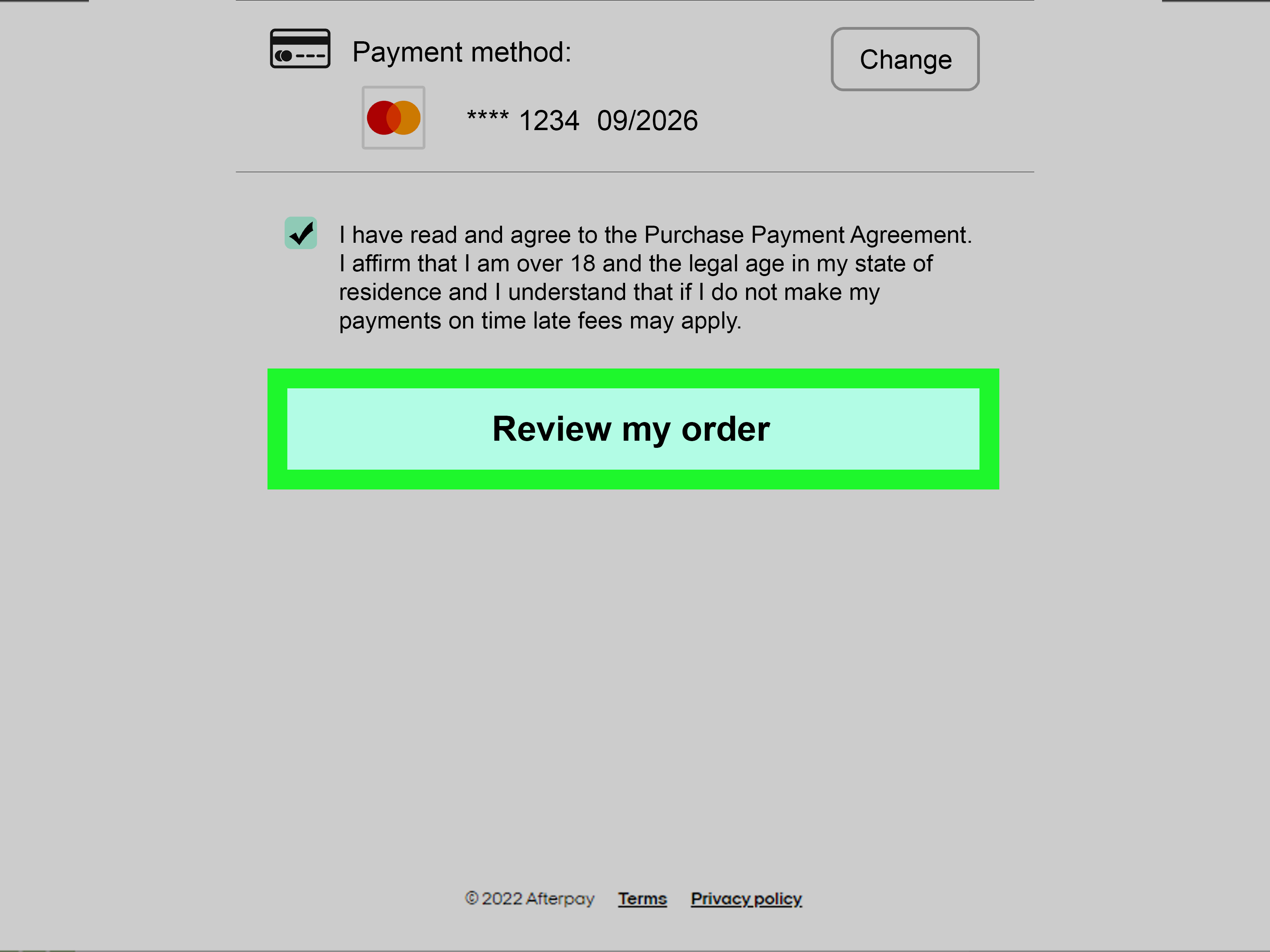
- Review the payment schedule and complete the order.
This is usually the cleanest method because the merchant and Afterpay are working together directly. You do not have to improvise, copy numbers, or play checkout detective.
Method 2: Use Apple Pay If the Merchant Supports It
If the retailer offers Apple Pay online and your Afterpay setup is compatible, this can be a very fast option. On iPhone, Apple Pay works in Safari and in supported apps. That means you can move through checkout with far fewer taps than a normal card entry flow.
- Make sure your wallet setup is complete.
- Shop on a site or app that shows the Apple Pay button.
- Choose Apple Pay at checkout.
- Select the correct payment method if more than one card appears.
- Confirm with Face ID, Touch ID, or your passcode.
If you do not see Apple Pay, do not panic. The store may simply not support it for that checkout, or you may need to use the direct Afterpay option instead.
Method 3: Use Afterpay Single-Use Payment in the App
This is the “secret tunnel” option. At certain retailers, the Afterpay app can help generate a single-use payment flow for your purchase. This can be especially handy when shopping inside the app environment instead of using a normal browser checkout.
- Open the Afterpay app.
- Find a participating retailer that supports a single-use payment flow.
- Shop and go to checkout through the app journey.
- Enter or confirm the purchase amount.
- Review the payment plan and authorize the purchase.
- Complete checkout using the app-guided payment details.
This method can feel slightly more “hands-on” than a standard wallet payment, but it can be a lifesaver when a store supports it and you want an online order to go through without switching financing methods.
Common iPhone Problems
- The site shows no Afterpay button.
- The site shows no Apple Pay option.
- Your order is declined because the purchase is not approved.
- Your account is fine, but the merchant or checkout type is not compatible.
If that happens, try the merchant’s app instead of mobile Safari, or reverse the strategy: use direct Afterpay if Apple Pay is missing, or use Apple Pay if direct Afterpay is unavailable.
How to Use Your Afterpay Card Online on Android
Android users are not left out of the fun. The process is just slightly different because the wallet path usually runs through Google Pay or your saved Google payment setup rather than Apple Wallet.
Method 1: Use Afterpay at Checkout
This works the same basic way it does on iPhone. If the merchant supports Afterpay directly, pick it during checkout, log in, review the installment plan, and confirm.
If the retailer already offers Afterpay, this is often the least annoying option. Fewer moving parts. Fewer mysteries. Fewer moments where you whisper “Why is technology like this?” to your phone.
Method 2: Use Google Pay on Supported Sites or Apps
Google Pay works on participating apps and websites. If the store supports it and your payment setup is ready, Android checkout can be very quick.
- Open the retailer’s app or mobile browser.
- Add products to your cart.
- Look for the Google Pay button.
- Choose the saved payment method you want to use.
- Confirm the payment and shipping details.
Google also lets users manage payment methods through Google Wallet and Chrome settings, which can make checkout smoother on supported websites. That said, the merchant still has to support Google Pay or compatible payment autofill behavior for the experience to be useful.
Method 3: Use Single-Use Payment Through the Afterpay App
Just like on iPhone, certain online retailers in the Afterpay app may let you use a single-use payment flow. If the merchant supports it, this can bridge the gap when a plain checkout page does not clearly show Afterpay in the way you expected.
This option is especially useful when you are shopping from your phone anyway and do not mind staying inside the Afterpay app path.
Common Android Problems
- The website does not offer Google Pay.
- The payment method you expected is not showing in your Google setup.
- You are trying to use Afterpay at a merchant that only supports direct card entry.
- The purchase is above what you are approved to spend.
If Android checkout fails, try the retailer’s official app, the Afterpay app, or a desktop browser. Sometimes the same merchant supports more payment methods in one environment than another.
How to Use Your Afterpay Card Online on PC
Desktop shopping is where people get tripped up most often. On a PC, you usually cannot treat Afterpay like a universal card you type into any checkout form. Instead, desktop use depends on the checkout buttons the merchant offers.
Method 1: Use Afterpay Directly on the Retailer’s Website
This is your best bet on a standard PC or laptop. Many U.S. retailers that partner with Afterpay show it as a payment choice during checkout.
- Go to the retailer’s website on your computer.
- Add items to your cart.
- Go to checkout and choose Afterpay.
- Log in to your Afterpay account.
- Review the installment plan and place the order.
If the merchant supports this, desktop shopping can be wonderfully boring, which is exactly what you want from payments.
Method 2: Use Apple Pay on Mac, or Scan a Code From a PC
If you are on a Mac with Safari, Apple Pay can work directly at supported checkouts. If you are on a PC or third-party browser, some merchants let you click Apple Pay and then scan a code using your iPhone or iPad to finish the purchase.
That means a Windows computer is not automatically disqualified, but it does mean you usually need an Apple device nearby to approve the payment. So yes, your PC can technically help, but your iPhone may still be the hero of the story.
Method 3: Use Google Pay on Supported Desktop Sites
Some websites let you pay with Google Pay on desktop. You may also have payment methods saved in Chrome or linked through your Google payment setup. When the site supports it, desktop checkout can be surprisingly fast.
However, do not assume every site that accepts cards also accepts Google Pay. Desktop support still depends on the merchant’s checkout system.
What Usually Does Not Work on PC
- Typing a permanent “Afterpay Card number” into any card field on any site.
- Expecting every merchant to support Afterpay just because they sell online.
- Assuming mobile wallet features behave exactly the same on desktop.
Desktop shopping with Afterpay is very doable. It just rewards realism more than wishful thinking.
Best Practices Before You Check Out
- Make sure your Afterpay account details are current.
- Check whether the merchant supports Afterpay, Apple Pay, or Google Pay.
- Know your available spending room before building a dream cart worthy of a small renovation show.
- Double-check taxes and shipping if you are using a guided payment amount.
- Use the retailer’s official app if the mobile website behaves badly.
Also remember that Afterpay does not approve every purchase automatically. Approval can depend on order size, account history, repayment behavior, and other eligibility factors. Translation: even if the checkout button is there, the final “yes” still has to happen.
Fees, Credit, and Other Grown-Up Things Nobody Wants to Read But Absolutely Should
Here is the not-as-fun-but-very-important part. Buy now, pay later can be convenient, but it is still a form of installment borrowing. If you pay on time, many pay-in-four purchases can feel simple and low-friction. If you pay late, however, the party hat falls off quickly.
Depending on the plan or feature you use, you may run into late fees, finance fees, or interest-bearing monthly options. Some BNPL activity may also matter for credit reporting or future scoring models. That does not mean you should avoid Afterpay entirely. It just means you should use it like a budgeting tool, not like a glitter cannon aimed at your future self.
Mistakes to Avoid
- Using Afterpay for impulse buys you would not purchase otherwise.
- Running multiple installment plans at once and losing track of due dates.
- Assuming one device failure means the merchant never supports Afterpay.
- Forgetting that shipping and taxes affect the final amount.
- Treating BNPL like free money instead of scheduled debt.
Real-World Experiences Using Afterpay Online on iPhone, Android, and PC
In real life, using Afterpay online usually feels less dramatic than people expect. On iPhone, the smoothest experiences happen when a retailer offers either direct Afterpay or Apple Pay right on the checkout page. You add your items, tap the payment option, confirm your details, and you are done in under a minute. It feels almost suspiciously easy, like you forgot a step. Then your confirmation email arrives and reassures you that, no, the internet has simply decided to be nice for once.
The more awkward iPhone moments usually happen when shoppers assume every store with a cart icon will also offer the same payment methods. One site has Afterpay but no Apple Pay. Another has Apple Pay but no visible Afterpay option. A third makes you bounce between the merchant app and the browser like you are in a low-budget obstacle course. Once users realize that the checkout button matters more than the device itself, the process gets much less frustrating.
On Android, the experience is often excellent when Google Pay is supported properly. Tapping a stored payment method and finishing a purchase without manually typing billing details feels wonderfully efficient. But Android can also be a little more “depends on the setup.” Some merchants handle Google Pay beautifully. Others make it feel like an optional side quest. Experienced users usually keep two backup plans ready: direct Afterpay checkout if available, and the Afterpay app if the retailer supports a single-use payment path.
Desktop or PC shopping is where expectations need the biggest adjustment. Many people sit down at a laptop expecting the Afterpay Card to behave like a normal card number they can plug in anywhere. Then reality taps them on the shoulder and says, “Actually, no.” The better desktop experiences come from stores that offer Afterpay directly on their website. In those cases, using a PC is easy and familiar. You pick Afterpay at checkout, sign in, review your installment plan, and complete the order without much fuss.
Things get more interesting when Apple Pay enters the mix. On a Mac, using Apple Pay in Safari can be slick and fast. On a Windows PC or another browser, scanning a code with an iPhone or iPad feels a little futuristic, a little weird, and strangely satisfying. The first time people do it, they often react like they just opened a secret door in a video game. The second time, it already feels normal.
The biggest lesson from real-world use is this: successful Afterpay shopping online is mostly about matching the right checkout method to the right device. People who stay flexible tend to have the best experience. If direct Afterpay is available, use it. If Apple Pay or Google Pay appears, that may be even faster. If neither shows up but the retailer is supported in the Afterpay app, the single-use route may save the day. In other words, the smartest shoppers are not the ones who memorize one method. They are the ones who keep a Plan B, a Plan C, and just enough patience to survive modern checkout design.
Final Thoughts
If you want the simplest answer, here it is: you can use Afterpay online on iPhone, Android, and PC, but the exact method depends on the merchant and the checkout buttons you see. On iPhone, Apple Pay and direct Afterpay often make things easy. On Android, Google Pay and direct Afterpay are the main routes. On PC, direct Afterpay on the retailer’s website is usually the cleanest option, with Apple Pay or Google Pay working in some supported desktop situations.
The smartest way to approach it is not to ask, “Can I use my Afterpay Card online anywhere?” Instead ask, “Which supported checkout method does this merchant offer on this device?” That tiny shift in mindset saves a lot of confusion and at least three unnecessary refreshes.
SEO Tags
Note: This article is for general informational purposes and is based on publicly available guidance current as of March 2026. Afterpay features, eligibility, approval decisions, supported merchants, and checkout options can vary by account, retailer, device, and region.