Getting tagged on Facebook can be helpful, flattering, or wildly unfortunate. Sometimes it is a sweet birthday post. Sometimes it is a blurry photo where you look like you lost an argument with a ceiling fan. Either way, if you do not want your name attached to a post or photo, you can remove that tag on both desktop and mobile.
This guide walks you through exactly how to untag yourself on Facebook on desktop and mobile, what happens after you remove a tag, and which privacy settings you should turn on so you do not have to keep playing digital whack-a-mole. If you have been searching for how to remove a tag on Facebook, how to untag a Facebook post, or how to clean up tagged photos, you are in the right place.
What untagging yourself on Facebook actually does
Before you start tapping menus, it helps to know what untagging actually means. When you remove a tag, Facebook disconnects your profile from that photo or post. That means the content should no longer appear as tagged content on your profile in the same way, and your name is no longer linked there as a tag.
But here is the important catch: removing a tag does not delete the original post or photo. The post may still be visible to the audience chosen by the person who shared it. In plain English, Facebook lets you remove your connection to the content, not vaporize the content from the internet with a dramatic snap of your fingers.
What untagging does
- Removes the link between your account and the post or photo.
- Helps keep the item from being featured on your profile as tagged content.
- Reduces how easily people connect that specific post to your Facebook identity.
What untagging does not do
- It does not delete the original post or photo.
- It does not remove the content from the original poster’s account.
- It does not stop people in the original audience from potentially seeing it.
- It does not guarantee nobody can ever upload or tag you again in the future.
How to untag yourself on Facebook on desktop
If you are using Facebook on a desktop browser, the fastest method is usually to open the post or photo and use the three-dot menu. If that route is not working, you can use your Activity Log as a backup plan.
Method 1: Remove the tag directly from the post or photo
- Log in to Facebook on your desktop browser.
- Open the post or photo where you were tagged.
- Click the three-dot menu in the upper-right area of the post or photo.
- Select Remove tag.
- Confirm your choice if Facebook asks.
That is the quickest route when you can already see the item. It works well for the classic situations: a post you were tagged in, a photo from someone else’s album, or a shared memory you would prefer not to carry into the future like emotional baggage.
Method 2: Use Activity Log on desktop
If you cannot find the post in your feed, the Activity Log is your cleanup closet. It helps you locate old tags without endless scrolling.
- Go to your Facebook profile.
- Open Activity Log from your profile options.
- Look for sections related to Your Tags, Activity you’re tagged in, or Manage your tags.
- Filter the content if needed.
- Open the item you want to manage.
- Select Remove tag.
Depending on your current Facebook layout, the menu labels may look slightly different. Facebook enjoys rearranging furniture when nobody asked. But the path is usually still centered around your profile, Activity Log, and a tag-management section.
How to untag yourself on Facebook on mobile
If you are using the Facebook app on iPhone or Android, you can remove a tag either from the post itself or through your profile tools. The process is similar to desktop, though the menu names may be slightly different depending on app version.
Method 1: Remove the tag from the post or photo in the app
- Open the Facebook app.
- Find the post or photo where you were tagged.
- Tap the three-dot menu.
- Tap Remove tag.
- Confirm when prompted.
This is the easiest way to untag yourself on Facebook mobile if the content is already in front of you. It is quick, simple, and deeply satisfying when the offending tag disappears.
Method 2: Use Activity Log on mobile
- Open the Facebook app and go to your profile.
- Tap Options or the profile menu.
- Open Activity Log.
- Use Filters or Manage your tags.
- Choose the category for tagged activity or tagged posts.
- Open the item and tap Remove tag.
This method is especially helpful if you want to clean up several tagged posts at once or dig up an old photo from five vacations ago and three hairstyles back.
What to do if you cannot find the “Remove tag” option
Sometimes Facebook’s menus seem to hide the exact button you need like it is playing a game. If you do not see Remove tag, try these options:
Check the content type
A post tag, photo tag, mention, and location tag may behave a little differently. In many cases, the direct menu still works, but sometimes your best option is to go through Activity Log instead of the post itself.
Open the full post instead of the preview
If you are looking at a condensed version in your feed, tap or click into the full post or photo. Facebook sometimes shows fewer controls on previews.
Use Activity Log
If the menu option is missing from the content itself, Activity Log is usually the most reliable way to find older tags and manage them.
Ask the original poster to remove the post or edit the audience
If the content is especially sensitive, untagging may not be enough. You can ask the person who posted it to delete the post, remove the photo, or change the audience. That is the only way to fully address the content at the source.
Report or block when necessary
If the post is abusive, harassing, or clearly crosses a line, use Facebook’s reporting tools. If a person keeps tagging you in content you do not want, blocking them may also be worth considering.
How to control tagged posts before they show up on your profile
Here is the smarter long-term move: do not just remove tags after the fact. Set up Facebook so tagged content does not casually stroll onto your profile uninvited.
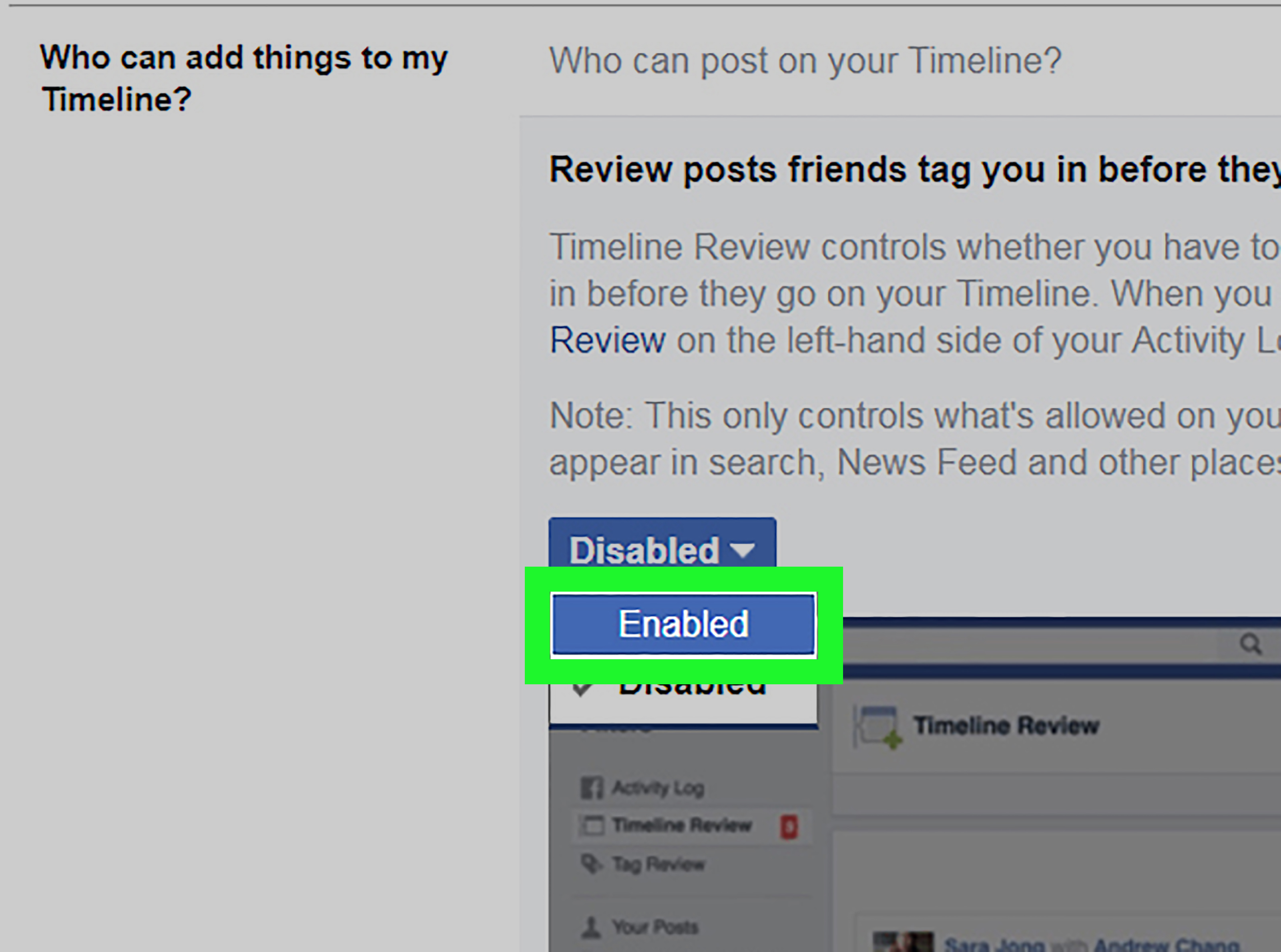
Turn on “Review posts you’re tagged in”
Go to Settings & Privacy, then Settings, then Profile and Tagging. Look for the setting that says something like:
Review posts you’re tagged in before the post appears on your profile
Turn that on. This does not stop people from tagging you entirely, but it does give you approval power over whether the tagged post appears on your profile.
Turn on “Review tags people add to your posts”
This is a separate but useful setting. If someone adds tags to content you posted, you can require review before those tags appear. Think of it as crowd control for your own content.
Change who can see posts you’re tagged in on your profile
In the same Profile and Tagging area, you can change the audience for tagged posts on your profile. If privacy is the goal, setting this to Only Me is one of the strongest options.
That way, even when a tag exists, it is not automatically handing your profile visitors front-row seats.
Untagging vs. hiding vs. reporting vs. blocking
These tools are not the same, and choosing the right one matters.
Untagging
Best for content you do not want linked to your name. It removes the tag, but not the post itself.
Hiding from your profile
Best when you do not want something featured on your profile, but you are not necessarily removing the tag. This is more about visibility on your timeline or profile page.
Reporting
Best when content is abusive, impersonating, explicit, harassing, or otherwise against Facebook rules. This is the serious-option button, not the “my hair looked weird that day” button.
Blocking
Best when the problem is the person, not just one post. If someone repeatedly tags you in junk, spam, or harassment, blocking can cut off future interaction.
Common reasons people untag themselves on Facebook
Let us be honest: most people do not search for how to untag yourself on Facebook because life is going perfectly. Usually, it is one of these:
- An unflattering photo from a party, wedding, reunion, or office event.
- A post that feels too personal or too public.
- Spammy tags or suspicious content.
- Old posts that no longer reflect your life, job, or relationships.
- Professional reputation concerns.
- General privacy cleanup.
And all of those are valid. Social media has a long memory and a short attention span, which is somehow the worst possible combination.
Best practices after you remove a tag
Removing the tag is step one. Cleaning up your Facebook privacy settings is step two.
Review your Profile and Tagging settings
Spend five minutes there. It is one of the most useful privacy areas in Facebook.
Check old tagged photos in Activity Log
If one recent tag bothered you, there may be a dozen older ones lurking in the background. Activity Log helps you audit them.
Adjust who can see your past posts
If your profile still feels too public, review privacy settings for your own old posts as well. Untagging helps, but broader privacy settings create a stronger overall cleanup.
Turn off notification overload
If tag alerts are making you twitch, review your notification settings so you can still monitor tags without getting bombarded.
Quick troubleshooting tips
- Problem: I removed the tag, but the post still exists.
Fix: That is normal. Ask the poster to remove it if you want it gone entirely. - Problem: I cannot find the tagged item.
Fix: Use Activity Log and filter tagged activity. - Problem: I do not want tagged posts appearing on my profile again.
Fix: Turn on post review in Profile and Tagging. - Problem: Friends of tagged people can still see things.
Fix: Review audience settings for tagged posts on your profile. - Problem: Someone keeps tagging me in unwanted content.
Fix: Remove the tag, then consider blocking or reporting if needed.
Real-life experiences with untagging on Facebook
One of the most common experiences people have with Facebook tags is discovering that a tag feels very different depending on context. A funny photo among close friends might feel harmless on Saturday night, then suddenly very less-funny on Monday morning when you remember coworkers, professional contacts, and that one aunt who comments on everything exist. That is usually when people learn the value of the “Remove tag” option.
Another common experience is the slow realization that old tags pile up. A single awkward photo is one thing. Ten years of tagged party pictures, old relationship posts, reunion albums, random check-ins, and mysterious group photos where you do not even remember being present? That is a whole museum exhibit. Many users do not start cleaning this up until they are job hunting, changing careers, or just wanting a more polished online presence.
Mobile users often run into a practical issue: the Facebook app makes it easy to react fast when a new tag pops up, but it can feel harder to do deeper cleanup. You remove one tag from a current post and think the mission is complete, only to realize later that the real treasure chest of old tags is sitting in Activity Log. Desktop tends to be better for bigger cleanup sessions because you can move faster, open more items, and review your profile settings with less squinting and fewer accidental taps.
There is also the emotional side of untagging, which social media guides do not always talk about. Sometimes the issue is not privacy at all. Sometimes it is simply control. A tag can make you feel like someone else is telling a story about you that you did not approve. Maybe it is a photo you dislike. Maybe it is a post tied to an old friendship, past relationship, or uncomfortable memory. Untagging can be a small but useful way to reclaim a little space online.
For some people, the funniest part is how often untagging starts with one tiny annoyance and ends in a full digital spring cleaning. You remove one bad photo, then notice an old meme you posted in 2014, then an album from a friend’s birthday, then a status update written in the emotional tone of a sleep-deprived raccoon. Suddenly you are not just untagging yourself on Facebook. You are auditing your entire internet autobiography.
People who use Facebook for work or business networking often have the strongest opinions on tags. They tend to turn on review settings quickly because they understand that one random tagged post can reshape how a profile looks to clients, colleagues, or potential employers. Meanwhile, casual users often do not think much about tag review until something awkward appears on their profile. That is why the best lesson from real-world experience is simple: setting up review tools early saves you from cleanup later.
And perhaps the most universal experience of all: the moment you remove a tag and feel an oddly disproportionate sense of peace. Not because your life changed dramatically, but because one chaotic little corner of the internet is no longer pointing at you. Sometimes digital self-care really is just tapping three dots and saying, “Nope, not today.”
Final thoughts
If you need to untag yourself on Facebook on desktop and mobile, the good news is that it is usually fast: open the post or photo, use the three-dot menu, and choose Remove tag. If the content is older or harder to find, head to Activity Log. And if you are tired of cleaning up surprise tags after the fact, turn on the review tools in Profile and Tagging so you stay in control.
In other words, Facebook may not hand you a giant red “Stop tagging me forever” button, but it does give you enough tools to protect your profile, your privacy, and your dignity. Which, on social media, is basically a deluxe package.