Maybe you blocked someone during an argument, tapped the wrong button, or simply decided that the digital drawbridge no longer needs to stay raised. Whatever happened, learning how to unblock someone on Snapchat takes only a few taps.
The process is nearly identical on iPhone, iPad, and Android because the blocked-users list is managed inside the Snapchat app rather than through your device settings. However, unblocking a person does not necessarily restore everything exactly as it was. You may need to add the person as a friend again, review your privacy settings, and accept that a vanished Snapstreak may remain part of Snapchat history.
This guide walks through the complete process, explains what happens afterward, and offers troubleshooting steps when the person you want to unblock appears to have disappeared into the social-media wilderness.
Quick Answer: How to Unblock Someone on Snapchat
- Open the Snapchat app.
- Tap your profile icon or Bitmoji near the top-left corner.
- Tap the gear icon in the top-right corner to open Settings.
- Scroll down and tap Blocked.
- Find the person you want to unblock.
- Tap the X beside the person’s name.
- Confirm that you want to unblock the account.
The person should immediately disappear from your blocked list. Depending on your previous friendship status and current Snapchat version, you may then need to search for the account and send a new friend request.
How to Unblock Someone on Snapchat on an iPhone
Snapchat keeps its blocking controls inside the app, so you will not find the relevant option in the iPhone’s main Settings app. Opening Apple’s settings and staring sternly at the Snapchat permissions will accomplish many things, but unblocking your former friend is not one of them.
Step 1: Open Snapchat
Launch Snapchat and sign in to the account from which you originally blocked the person. If you use multiple Snapchat accounts, double-check that you are logged into the correct one.
Step 2: Open Your Profile
From the Camera screen, tap your Bitmoji, Story icon, or profile image near the top-left corner. This opens your Snapchat profile and account controls.
Step 3: Go to Settings
Tap the gear icon near the top-right corner. Snapchat periodically reorganizes its menus, but the gear remains the main entrance to account settings.
Step 4: Find the Blocked List
Scroll through Settings until you see Blocked. It may appear within an account, privacy, or account-actions section, depending on the version of the app installed on your iPhone.
Step 5: Unblock the Account
Locate the correct username and tap the X beside it. Snapchat may ask you to confirm the decision. Tap Yes, Unblock, or the equivalent confirmation option.
Step 6: Search for the Person Again
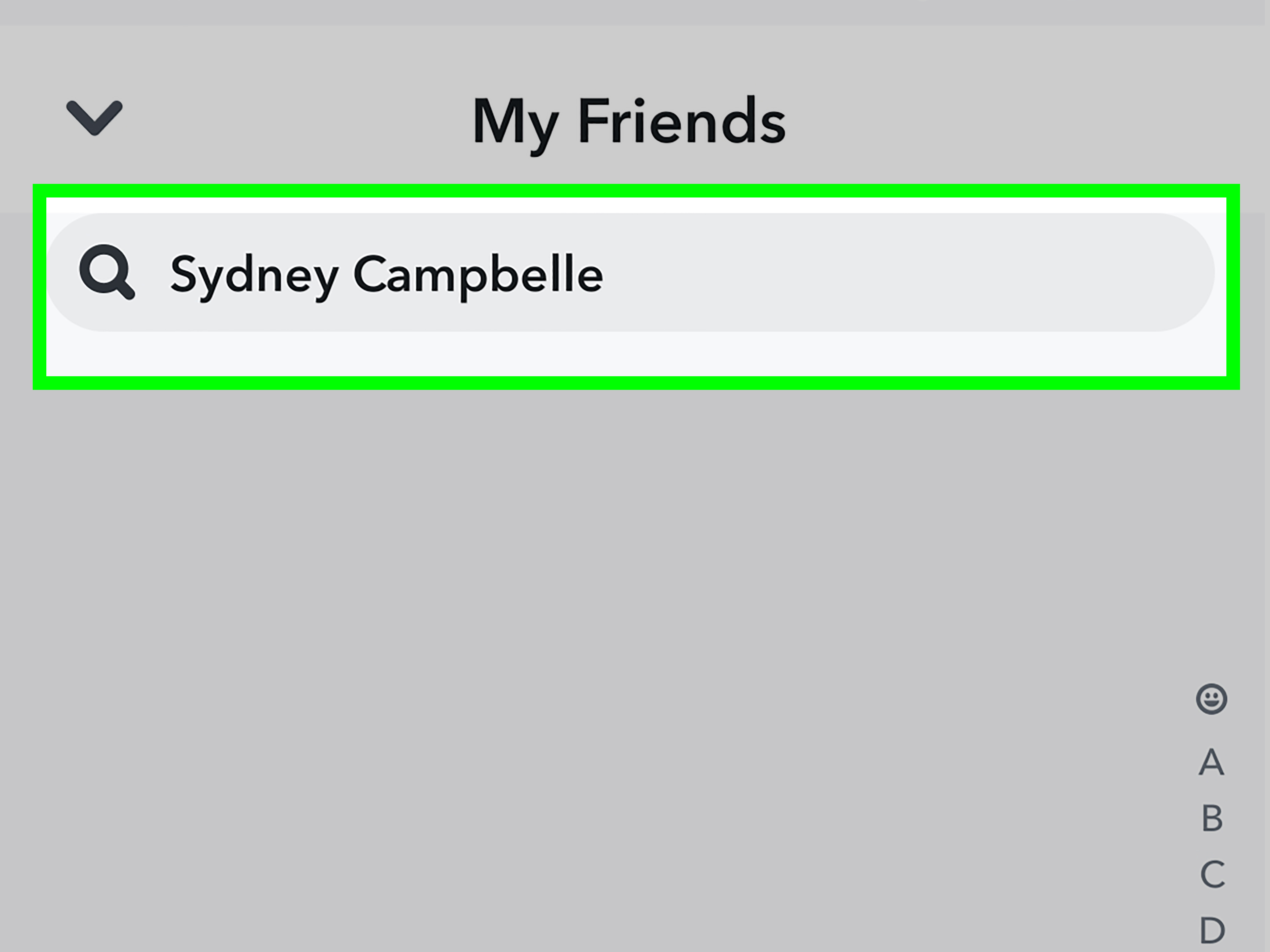
Return to the main Snapchat screen and use Search to enter the person’s exact username. If an Add button appears, tap it to send a new friend request. Unblocking removes the communication restriction, but it commonly does not restore the friendship automatically.
How to Unblock Someone on Snapchat on an iPad
The process on an iPad is effectively the same as it is on an iPhone. The interface may look wider or place certain elements farther apart, but the destination remains the blocked-users list inside Snapchat.
- Open Snapchat on your iPad.
- Tap your profile icon or Bitmoji.
- Tap the gear icon to open Settings.
- Scroll down and select Blocked.
- Tap the X beside the username.
- Confirm that you want to unblock the account.
If the iPad interface does not match screenshots from an iPhone tutorial, do not panic. App layouts can vary according to screen size, orientation, and software version. Look for the same labels rather than expecting every button to occupy the exact same square inch of screen.
When the person has been removed from the blocked list, search for the username and add the account again if Snapchat does not show the person in your friends list.
How to Unblock Someone on Snapchat on Android
Whether you use a Samsung Galaxy, Google Pixel, Motorola phone, or another Android device, Snapchat’s in-app unblocking process is generally the same.
Open Your Snapchat Profile
Launch Snapchat and tap your profile icon or Bitmoji near the top-left corner of the Camera screen.
Enter Snapchat Settings
Tap the gear icon near the top-right corner. Do not open the Android system’s app-information screen unless you are troubleshooting a technical problem.
Open the Blocked List
Scroll down and tap Blocked. You will see a list of accounts that you have blocked from the Snapchat account currently signed in.
Remove the Block
Tap the X beside the appropriate username and approve the confirmation message. Be careful when several accounts have similar display names. The username is more reliable because display names can be changed and duplicated.
Re-add the User When Necessary
Use Snapchat Search to find the person after unblocking. Tap Add if the account is no longer listed as a friend. The other person may also need to accept the request before full friend-only communication and private Story access return.
What Happens After You Unblock Someone on Snapchat?
Unblocking someone removes the restriction that prevented direct interaction. It does not act like a magical “undo everything” button. Snapchat may restore some visible information, while other parts of the former friendship require a fresh start.
You May Not Automatically Become Friends Again
Blocking typically removes the friendship connection. After unblocking, search for the person’s username and check whether an Add button appears. If it does, you must send a new request. Depending on the other user’s settings, they may need to add you back before you can exchange Snaps and Chats normally.
Old Chat History May Reappear
Previously saved Chats may become visible again after the block is removed and the connection is restored. However, expired Snaps, deleted messages, and content that was never saved generally cannot be recovered merely by unblocking someone.
Snapstreaks May Not Return
A Snapstreak depends on continued qualifying exchanges. Blocking interrupts that communication, so unblocking later does not guarantee that the old streak will reappear. Consider it the digital equivalent of forgetting to water a very demanding houseplant.
Privacy Settings Still Matter
Unblocking allows the account to interact with you according to your current privacy settings. It does not necessarily give the person unrestricted access to private Stories, your location, or friend-only content.
Public Content Can Work Differently
Public Stories, Spotlight posts, and other publicly shared material can have different visibility rules from private friend content. Review the audience settings for anything you publish publicly instead of assuming that blocking or unblocking controls every possible viewing route.
They May Notice That You Added Them Again
Snapchat does not need to announce that you visited the blocked list. However, sending a new friend request creates visible activity, so the person may realize that you previously removed or blocked them. Subtlety has limits when the app delivers an “added you” notification.
Why Can’t I Find Someone After Unblocking Them?
If the account has disappeared from your blocked list but remains missing from Search, several explanations are possible.
The Other Person Blocked You
You can remove your own block, but you cannot remove a block placed by another user. If they blocked your account, their profile may not appear in your search results.
The Username Was Changed
The person may have changed a display name or username since you last interacted. Search using the most recent username, scan your phone contacts if contact syncing is enabled, or ask the person to share a Snapcode through another communication channel.
The Account Was Deleted or Deactivated
An account that has been deleted, deactivated, suspended, or otherwise made unavailable may not appear in Snapchat Search. In that situation, repeatedly refreshing the app will not summon it back from the digital afterlife.
You Are Using the Wrong Snapchat Account
People who manage multiple profiles sometimes unblock a person from one account and search from another. Check the username shown on your own profile before assuming that Snapchat is malfunctioning.
Snapchat Has Not Refreshed Properly
Temporary app or connection problems can delay changes. Completely close Snapchat, reopen it, and check the blocked list again. You can also switch between Wi-Fi and mobile data to rule out a network issue.
How to Fix Snapchat When the Blocked List Is Missing
Update Snapchat
Outdated app versions may use older menu layouts or contain bugs. On an iPhone or iPad, open the App Store, tap your profile picture, and install any available Snapchat update. On Android, open Google Play, find Snapchat, and tap Update when available.
Restart the App and Device
Close Snapchat completely rather than leaving it suspended in the background. Reopen it and check Settings again. If the option is still missing or unresponsive, restart the phone or tablet.
Check Your Internet Connection
Snapchat needs a stable connection to synchronize account changes. Switch from Wi-Fi to mobile data or from mobile data to Wi-Fi. On an iPad without cellular service, test another reliable Wi-Fi network.
Clear Snapchat’s Cache
Snapchat includes an in-app cache-clearing option in many versions. Open your profile, enter Settings, find the cache or data-clearing controls, and follow the prompts. Clearing temporary cache files should not delete your account, friends, or backed-up Memories, although menu wording can vary.
Sign Out and Sign Back In
Before signing out, make sure you know your username, password, and any required two-factor authentication information. After logging back in, return to Settings and check the blocked list.
Report a Bug
If the feature remains unavailable, use Snapchat’s in-app support controls. In Settings, look for Support & Safety, Bugs and Suggestions, or a similar help option. Include your device model, operating-system version, Snapchat version, and a clear description of what happens.
Unblocking vs. Removing vs. Muting Someone
Unblocking is not always the best choice simply because you no longer want a complete communication wall. Snapchat provides several levels of social distance.
Unblock
Use this when you previously blocked an account and now want to permit possible contact again. You may still need to add the account as a friend.
Remove Friend
Removing someone takes the account off your friends list without creating the same broad restriction as blocking. Depending on your privacy settings, the person may still find your profile, see public posts, or send a message request.
Mute
Muting is useful when the person is not dangerous or unwelcome, but their notifications arrive with the enthusiasm of a smoke alarm. You can reduce Chat, call, or Story notifications without removing the friendship.
Block
Keep someone blocked when direct separation is necessary. If the person has harassed, threatened, impersonated, stalked, or repeatedly contacted you against your wishes, protecting your safety matters more than avoiding an awkward social moment.
Report
Blocking controls access to your account, while reporting alerts Snapchat to possible rule violations. For serious misconduct, preserve relevant evidence before blocking when it is safe to do so.
Frequently Asked Questions
Can I unblock someone without adding them?
Yes. Removing an account from the blocked list does not force you to send a friend request. You can unblock the person and leave the relationship at the non-friend level.
Can I unblock someone from Snapchat for Web?
The most reliable method is to use the Snapchat mobile app, where the complete blocked-users list is available through account settings. Web features and menus may not include every mobile account-control option.
Why is the person not in my blocked list?
You may have removed the person as a friend rather than blocked them, signed into a different account, or already unblocked them. Search for the exact username to see whether the profile appears.
Will unblocking restore our Best Friend status?
Not automatically. Best Friend rankings and Friend Emojis are influenced by recent interactions. You may need to resume regular communication before those indicators appear again.
Can I block the person again?
Yes. Open the person’s profile or press and hold the account in Chat, choose Manage Friendship, and select Block. Menu names may vary slightly by app version.
Will unblocking recover deleted Snaps?
No. Unblocking changes account access; it is not a recovery tool for expired or deleted content. Only content that was saved and remains available may reappear.
Can the person see my location after I unblock them?
That depends on your Snap Map sharing settings and whether you become friends again. Review your location audience before reconnecting, especially if you previously blocked the person for privacy or safety reasons.
Real-World Experiences With Unblocking Someone on Snapchat
In everyday use, the actual act of unblocking someone is usually the least complicated part. The Settings menu takes longer to scroll through than the decision takes to execute. The confusing moment often comes afterward, when the person does not immediately reappear in Chat. A user may assume the unblock failed, tap the X several more times in spirit, and begin questioning whether the app has developed a personal grudge.
A common scenario involves an accidental block. Someone intends to mute notifications or remove a friend, taps Block instead, and confirms the choice before fully reading the message. After unblocking, the account may no longer appear in the friends list. Searching the exact username and tapping Add usually completes the practical reconnection. This is why remembering a person’s username is helpful; display names such as “Alex,” “Alex!!,” and “Definitely Not Alex’s Second Account” are not especially efficient search tools.
Another familiar experience happens after a temporary argument. The block may have served a legitimate purpose by creating space, but unblocking does not erase the disagreement. The technology can reopen the communication channel in seconds; human communication stubbornly refuses to include an instant-reset button. Before sending a friend request, it helps to decide what kind of interaction is actually welcome. Reconnecting with clear boundaries is usually better than unblocking first and improvising emotionally at 1:37 a.m.
Users also sometimes unblock someone only to discover that the other person has blocked them in return. In that case, the account may remain absent from Search. This can look like an app bug, but neither user can override the other person’s privacy choice. Searching repeatedly, reinstalling Snapchat, and turning the phone sideways will not change a block controlled by another account.
Saved conversations can produce another surprise. After the friendship is restored, portions of an old Chat may become visible again. This does not mean every Snap or message has returned. Saved text can behave differently from expired Snaps, deleted content, or unsaved conversations. Anyone reconnecting for a completely clean start should review the Chat rather than assuming the old thread has been erased.
Snapstreak expectations are another source of disappointment. People often imagine that a long streak is waiting patiently behind the block, wearing a tiny digital raincoat until both users reconcile. In reality, a communication interruption can end the streak. Unblocking may restore access, but it does not guarantee restoration of the old number or associated Friend Emoji.
Technical differences among devices are usually smaller than expected. An iPhone, iPad, Samsung phone, and Google Pixel may display slightly different spacing, but the essential route remains Profile, Settings, Blocked, and X. Most failed attempts happen because the user enters the phone’s system settings instead of Snapchat’s settings, uses an outdated app version, or searches from the wrong Snapchat account.
The most important practical lesson is that unblocking should remain a deliberate choice. It is perfectly reasonable to unblock someone after resolving a misunderstanding. It is equally reasonable to leave an account blocked when contact was threatening, manipulative, or persistently unwanted. Snapchat supplies the button, but you decide whether reopening that door makes your online experience better.
Conclusion
To unblock someone on Snapchat from an iPhone, iPad, or Android device, open your profile, tap the Settings gear, select Blocked, and tap the X beside the appropriate username. The restriction is removed immediately, but the person may not automatically return to your friends list.
Search for the username and send a new friend request when you genuinely want to reconnect. Then review your Story, contact, and Snap Map settings so the restored connection receives only the access you intend to provide.
Note: Snapchat updates its interface regularly, so section names and button positions may change slightly. The blocked-users list should remain accessible through your profile’s account settings.