Opening an MP4 file on an Android phone or tablet should be as simple as tapping the video and enjoying the show. Most of the time, it is. Then there are those special occasions when Android stares at your file, produces an unhelpful error message, and acts as though MP4 is an ancient language recently discovered on a cave wall.
The good news is that Android devices generally support MP4 video. The confusing part is that MP4 is only a container. The video and audio inside it may use codecs that your device, gallery app, or video player cannot decode. That is why one MP4 file may play perfectly while another MP4 file on the same phone refuses to cooperate.
This guide explains how to open MP4 files on an Android phone or tablet in 13 practical steps. It also covers downloaded videos, cloud files, SD cards, alternative media players, codec problems, corrupted downloads, and the most reliable fixes when an MP4 video will not play.
Can Android Phones and Tablets Open MP4 Files?
Yes. Modern Android phones and tablets can usually open MP4 files without additional software. Videos recorded by the device camera are commonly stored in an MP4 container, and built-in apps such as Google Photos, Gallery, Files by Google, or a manufacturer’s video player can often play them immediately.
However, the .mp4 extension does not tell the whole story. An MP4 file may contain H.264, H.265 or HEVC, AV1, MPEG-4 Visual, or another video format. Its audio track may use AAC, MP3, AC-3, or something less common. Playback depends on whether the device and selected app support the codecs used inside the container.
For maximum compatibility, an MP4 containing H.264 video and AAC audio is usually the safest choice. Newer Android devices may also support HEVC and AV1, but availability can vary by model, Android version, processor, app, resolution, and encoding profile.
How to Open MP4 Files on Android in 13 Steps
Step 1: Confirm That the File Is Really an MP4
Start by checking the file name. It should end with .mp4, such as family-vacation.mp4 or presentation-video.mp4.
Be careful with misleading names. A file called movie.mp4.zip is a compressed ZIP archive, not a playable MP4 video. Likewise, manually changing movie.avi to movie.mp4 does not convert the video. It merely gives the file a new name, much like putting a “sports car” sticker on a lawn mower.
In Files by Google or another file manager, press and hold the file, open its information or details panel, and review its type, size, and location.
Step 2: Locate the MP4 File on Your Device
Open the file-management app installed on your phone or tablet. On many devices, this is Files by Google. Samsung devices commonly include an app called My Files, while other manufacturers may use names such as File Manager or Files.
Look in one of these common locations:
- Downloads: Videos saved from Chrome, email, messaging apps, or websites.
- Videos: Video files detected and categorized by the file manager.
- Movies: Manually transferred movies and longer recordings.
- DCIM/Camera: Videos recorded with the device camera.
- Internal storage: Files copied directly to the phone or tablet.
- SD card: Videos stored on removable memory.
If the file was recently downloaded, check the Recents area first. That is often faster than exploring every folder as though you are searching for buried treasure.
Step 3: Tap the MP4 File
Once you find the video, tap it once. Android should either open the MP4 in the default video player or display an “Open with” menu containing compatible apps.
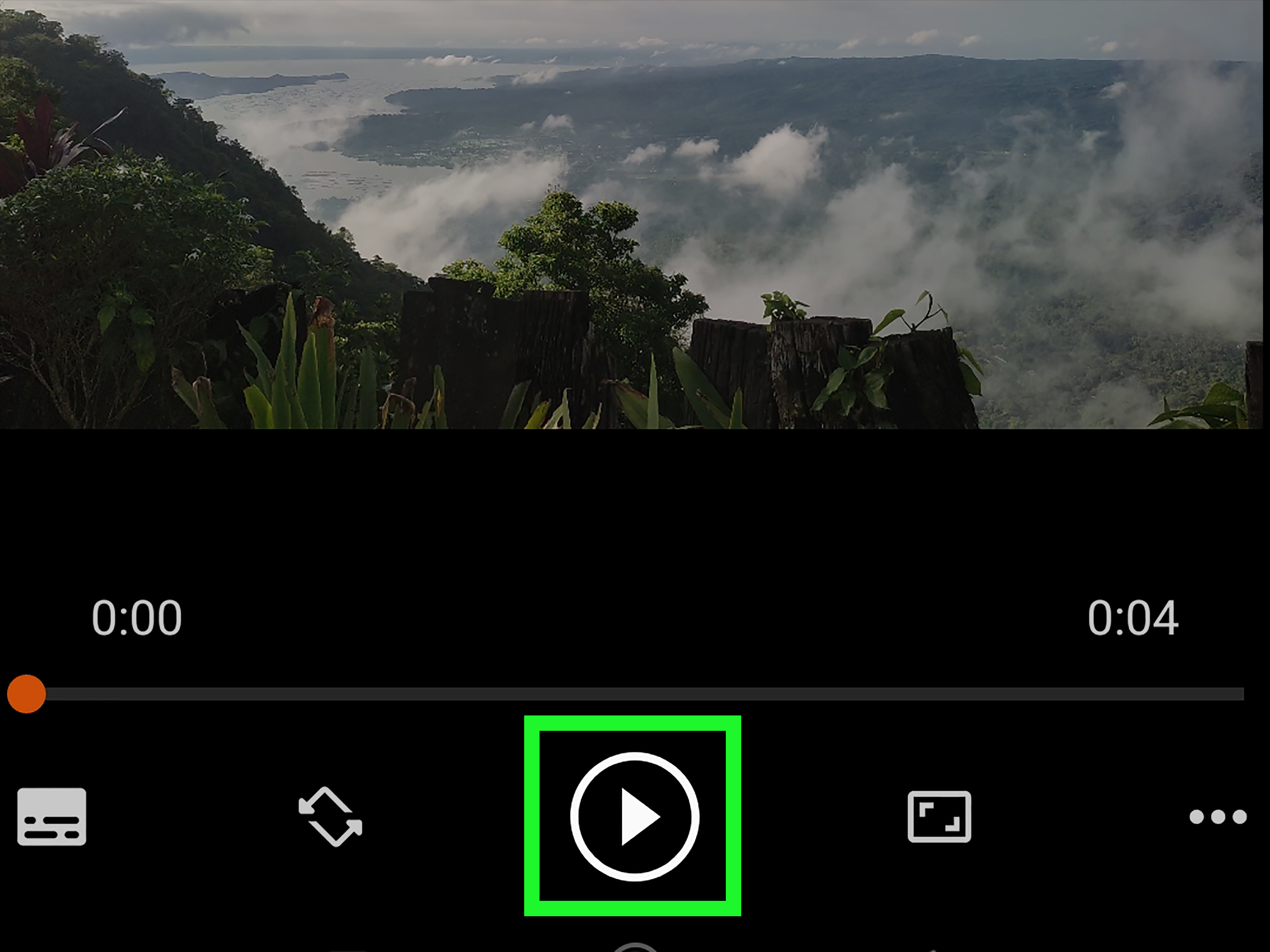
If the video begins playing, the mission is complete. Use the on-screen controls to pause, seek, adjust volume, rotate the screen, enable subtitles, or enter full-screen mode.
If Android displays more than one player, select the app you want. Choose Just once when you are testing different players. Choose Always only when you are confident that you want that app to handle future videos automatically.
Step 4: Try Google Photos or Your Gallery App
If tapping the file does not work from the file manager, open Google Photos or your device’s Gallery app. Browse to the video and tap its thumbnail.
Gallery applications often provide smooth playback for videos recorded by the phone because those files were created using formats the device already understands. They may also offer useful features such as trimming, rotation, frame capture, sharing, and basic editing.
Remember that a cloud-backed thumbnail is not always a full local file. If Google Photos shows the video but cannot play it offline, tap the menu and download the video to the device first.
Step 5: Open the Video From Files by Google
Files by Google can organize videos into categories and display recently downloaded or modified files. Open the app, tap Videos, and select your MP4.
If the built-in preview cannot play it, press and hold the video or open its menu. Look for Open with and choose another installed video player.
This distinction matters: the file manager helps you locate the file, but it may rely on a separate media component or app to decode and display the video.
Step 6: Install a More Capable Video Player
When the built-in player rejects an MP4, install a reputable third-party media player from Google Play. VLC for Android is a common choice because it supports MP4 and many other video and audio formats.
- Open the Google Play Store.
- Search for VLC for Android.
- Confirm that the publisher is VideoLAN.
- Tap Install.
- Open VLC after installation.
A broader-format player may include software decoders that can handle a video unsupported by the device’s default app. Avoid downloading mysterious “codec packs” from random websites. A trusted media player is generally safer and simpler.
Step 7: Give the Player Permission to Access Videos
Android may ask whether the new player can access videos, music, photos, or files on the device. Grant the level of access needed to open the MP4.
On newer Android versions, you may be able to allow access to all videos or only selected files. Limited access can be useful for privacy, but the app will not display a video that you did not permit it to see.
If you previously denied access, open:
Settings > Apps > VLC or your video player > Permissions
Then enable the appropriate video or media permission. Menu wording varies slightly among Samsung, Google Pixel, Motorola, OnePlus, and other Android devices.
Step 8: Browse to the MP4 Inside the New Player
Open VLC or your preferred media player and allow it to scan the folders you selected. Tap the Video section to see detected video files.
If the MP4 is missing, use the player’s Browse feature and navigate manually to Internal storage, Downloads, Movies, DCIM, or the SD card.
You can also return to your file manager, tap the MP4, select Open with, and choose the newly installed player. This method is useful when the player’s media scan has not yet indexed the file.
Step 9: Download Cloud-Based MP4 Files Before Playing Them
An MP4 stored in Google Drive, Dropbox, OneDrive, email, or another cloud service may be streamed or downloaded. Streaming depends on your connection, the service’s preview system, and whether the cloud app supports the codecs in the video.
If streaming fails, download the complete file:
- Open the cloud-storage app.
- Find the MP4 video.
- Tap the three-dot menu beside it.
- Select Download, Save, or Make available offline.
- Open the saved copy with a local video player.
Wait until the download finishes. Trying to open a half-downloaded movie usually produces half a result, which in this case is no movie at all.
Step 10: Check the Download and Available Storage
If the MP4 will not open, inspect its file size. A video showing 0 bytes or an unusually tiny size may be incomplete or corrupted.
For example, a five-minute 1080p video is unlikely to be only 12 KB. If the size looks suspicious, delete the broken copy and download it again using a stable Wi-Fi connection.
Also check your available storage under Settings > Storage. Android apps need free space for temporary files, buffering, thumbnails, and normal operation. When storage is nearly full, playback apps may freeze, crash, or fail to load larger videos.
Step 11: Update Android and Your Video Apps
Outdated apps can contain playback bugs or lack improvements for newer media formats. Open Google Play, tap your profile icon, choose Manage apps & device, and install available updates for Google Photos, Files by Google, VLC, Gallery, or the player you use.
You should also check for Android system updates:
Settings > System > Software update
On some phones, the option appears under Settings > Software update. Restart the device after major updates so that media services and apps can reload cleanly.
Step 12: Clear the Video Player’s Cache
If the player previously worked but suddenly refuses to open MP4 files, its temporary cache may be damaged.
- Open Settings.
- Tap Apps.
- Select the video player.
- Tap Storage & cache.
- Choose Clear cache.
- Reopen the app and test the video.
Clearing the cache removes temporary data, not your actual MP4 files. Avoid selecting Clear storage or Clear data unless necessary, because doing so can reset app settings, permissions, playlists, and preferences.
Step 13: Convert the MP4 to a More Compatible Format
If the file still refuses to play, convert it to an MP4 containing H.264 video and AAC audio. This combination is broadly compatible with Android phones, tablets, web browsers, televisions, and many older devices.
Conversion is especially useful when the original MP4 contains an unusual codec, high bit depth, unsupported profile, very high resolution, uncommon frame rate, or incompatible audio track.
A desktop video converter usually provides better control than a mobile converter. Select an Android-compatible preset or configure these general settings:
- Container: MP4
- Video codec: H.264 or AVC
- Audio codec: AAC
- Pixel format: Standard 8-bit 4:2:0 when available
- Resolution: 1080p or lower for older devices
- Frame rate: Same as source or a common rate such as 30 fps
Do not simply rename the extension. Real conversion requires decoding the original streams and encoding them into supported formats.
Why an MP4 File May Not Play on Android
The Container Is Supported, but the Codec Is Not
This is the most common source of confusion. Two files can both end in .mp4 while containing completely different video or audio codecs. The first plays normally; the second shows a black screen, produces sound without video, or displays an unsupported-format warning.
The File Is Damaged or Incomplete
Interrupted downloads, failed file transfers, defective storage cards, and incomplete cloud synchronization can damage a video. Test the MP4 on another device or computer. If it fails everywhere, the file itself is probably the problem.
The Resolution or Bitrate Is Too Demanding
An older tablet may technically recognize a video but struggle to decode 4K or 8K footage smoothly. Symptoms include stuttering, overheating, delayed audio, dropped frames, or app crashes. Creating a 1080p or 720p copy can improve playback.
The Audio Codec Is Unsupported
Sometimes the picture appears but there is no sound. That often means the video codec works while the audio track does not. A third-party player may solve the issue, or you can convert only the audio track to AAC while preserving the video.
The File Is on a Problematic SD Card
If videos on internal storage play but files on the SD card do not, copy one affected MP4 to internal storage and test it again. Success after copying may indicate an SD card, file-system, permission, or connection problem.
The Video Is Protected
Movies downloaded from subscription services may use digital rights management. These files are usually designed to play only inside the service’s official app. Moving or renaming them will not turn them into ordinary MP4 videos.
How to Choose the Best Android MP4 Player
A suitable video player should support the formats you regularly use without making the interface feel like the control panel of a submarine.
Consider the following features:
- Support for MP4, MKV, MOV, AVI, WebM, and common audio formats
- Hardware and software decoding options
- Subtitle support for SRT and embedded subtitle tracks
- Playback-speed controls
- Gesture-based brightness and volume adjustment
- Picture-in-picture or background playback
- Network and cloud-stream support
- A clear privacy policy and reputable developer
The default Gallery or Photos app is usually sufficient for camera recordings and ordinary downloaded clips. A player such as VLC is more useful for mixed video libraries, unusual codecs, network streams, subtitle files, and videos copied from older computers.
Experience-Based Lessons From Opening MP4 Files on Android
In everyday use, most MP4 playback problems can be solved without resetting the phone, installing five different applications, or performing an elaborate ritual beneath a full moon. The most effective approach is to identify whether the problem follows the file, the app, or the storage location.
One common situation involves videos downloaded from email or a web browser. The user taps the notification immediately, but the player reports that the file cannot be opened. After checking the Downloads folder, the file turns out to be incomplete because the connection dropped. Downloading it again on stable Wi-Fi solves the problem. This is why checking the file size early is such a useful habit. It prevents twenty minutes of troubleshooting a video that is effectively an empty envelope.
Another frequent experience occurs when a video plays on a laptop but not on an Android tablet. The file name ends in MP4, so it appears compatible. A closer inspection reveals that the video uses an older or unusual codec inside the MP4 container. Installing a broader-format player often opens it immediately. When even that fails, converting the file to H.264 video with AAC audio usually produces a reliable copy.
Cloud storage creates a different kind of confusion. A video may appear in Google Photos, Drive, Dropbox, or OneDrive, but what appears on the screen may initially be a preview rather than the complete local file. Playback can fail because of a weak connection, unfinished processing, preview limitations, or an unsupported cloud-player codec. Downloading the file and opening it locally separates cloud problems from video problems. If the local copy plays, the file is healthy and the streaming environment was the obstacle.
SD cards also deserve suspicion. Imagine that ten videos play normally from internal storage, while every MP4 on the memory card freezes. Instead of changing codecs or replacing the video player, copy one file from the card to the phone. If it suddenly works, investigate the SD card, its file system, available space, or physical condition. A storage problem can disguise itself as a format problem remarkably well.
Permissions are another modern Android wrinkle. A newly installed player may show an empty library even though the device contains dozens of videos. The app is not necessarily broken; it may have permission to access only selected media. Reviewing the app’s permissions or manually choosing the MP4 through the Android file picker often makes the missing video appear.
Finally, the simplest test is often the best: try two different MP4 files in the same player, and try the problematic file in two different players. If every file fails in one app, update or reset that app. If one file fails everywhere, replace or convert the file. If files fail only from one folder or SD card, investigate storage and permissions. This small comparison turns vague frustration into a clear diagnosis.
Frequently Asked Questions
What app opens MP4 files on Android?
Google Photos, Gallery, Files by Google, and manufacturer video apps can open many MP4 files. VLC for Android is a useful alternative when the built-in player does not support the codecs inside the file.
Why does my MP4 play sound but show no picture?
The audio codec may be supported while the video codec, profile, resolution, or bit depth is not. Try another player or convert the video to H.264 with AAC audio.
Why does my MP4 show video but have no sound?
The video stream is probably compatible, but the audio track may use an unsupported codec. A different player may decode it, or you can convert the audio to AAC.
Can I open MP4 files without an internet connection?
Yes, provided the complete MP4 is saved locally on the device or SD card. Videos stored only in cloud services must be downloaded or marked for offline access before you disconnect.
Can changing the file extension fix an unsupported video?
No. Renaming a file does not change its actual video or audio encoding. Use a legitimate conversion tool to create a compatible MP4.
Is it safe to install a third-party MP4 player?
Install players from Google Play and verify the developer, permissions, reviews, update history, and privacy information. Avoid unofficial APK files and websites offering questionable codec downloads.
Conclusion
To open an MP4 file on an Android phone or tablet, locate it in Files, Downloads, Gallery, or Photos and tap it. When the default player fails, use the Open with option and try a reputable media player such as VLC. If the video still will not play, check permissions, storage space, download completion, app updates, cloud availability, and the condition of the SD card.
The most important detail is that MP4 is a container rather than a guarantee of compatibility. A troublesome file may contain a video or audio codec that your current player cannot decode. In that case, converting the video to an MP4 with H.264 video and AAC audio is one of the most dependable solutions.
With the 13 steps above, you can move from “Why is this video refusing to open?” to actual playback without randomly changing settings or downloading every media app in the Play Store.