Mirroring your Android screen to a Samsung TV used to sound like something only the “tech person” in the family could do while everyone else pretended to understand router settings. Thankfully, Samsung Smart View makes the process much easier. With a few taps, your phone’s screen can appear on your TV, turning vacation photos, mobile games, video calls, presentations, recipes, fitness apps, and even awkwardly tiny PDFs into big-screen content.
The main keyword here is simple: how to mirror your Android screen with Samsung Smart View. But the real goal is even simpler: getting your Android phone or tablet onto your Samsung Smart TV without yelling at the remote, restarting the router twelve times, or accusing the television of having “an attitude.”
This guide explains what Samsung Smart View is, how it differs from casting, how to use it from Quick Settings, how to mirror through SmartThings, what to do when your TV does not show up, and how to improve picture size, connection stability, and everyday usability. Whether you have a Galaxy phone, a newer Samsung TV, or an Android device that uses a different screen-mirroring label, the steps below will help you understand what is happening and how to make it work smoothly.
What Is Samsung Smart View?
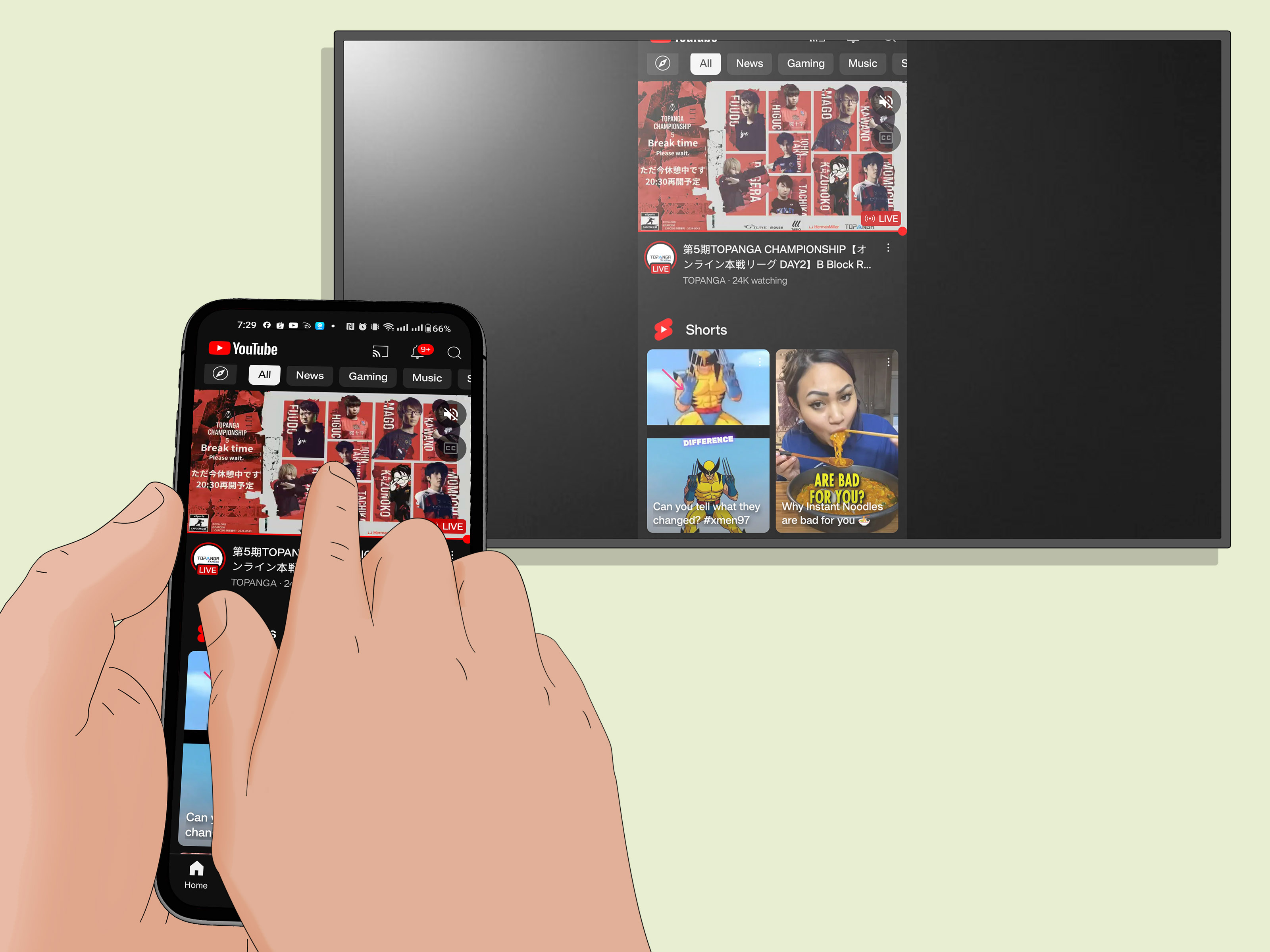
Samsung Smart View is Samsung’s built-in screen mirroring feature that lets you display your phone or tablet screen on a compatible TV. On many Galaxy devices, Smart View appears in the Quick Settings panel. Once connected, whatever appears on your Android screen is shown on the TV as well.
Think of it as handing your phone a giant stage. Your photos become a slideshow. Your mobile game becomes a living-room event. Your spreadsheet becomes big enough for everyone to see, which is either very helpful or deeply dangerous depending on what is in column F.
Smart View is especially useful for:
- Sharing photos and videos with family or friends
- Showing presentations from your phone
- Viewing documents, charts, recipes, or notes on a bigger screen
- Playing casual mobile games on the TV
- Joining video calls with a larger view
- Watching personal videos stored on your device
Smart View is different from simply opening an app on the TV. With mirroring, the TV displays your entire Android screen. That means notifications, menus, app switching, keyboard typing, and screen orientation can all appear on the big screen. Convenient? Absolutely. Private? Only if you remember to mute those incoming notifications before your group sees “Mom: Did you eat yet?” in cinematic 4K.
Smart View vs. Casting: What Is the Difference?
Before mirroring your Android screen, it helps to understand the difference between screen mirroring and casting. These terms are often used as if they mean the same thing, but they do not behave the same way.
Screen Mirroring
Screen mirroring shows your entire Android screen on the TV. If you open Instagram, the TV shows Instagram. If you open a PDF, the TV shows the PDF. If you rotate your phone, the TV may rotate the view. If a notification appears, the TV may show it too.
This is the best option when you want to share exactly what is on your phone, such as a slideshow, a school project, a live app demonstration, a browser page, or a video saved locally on your device.
Casting
Casting sends specific content from a supported app to the TV. For example, when you tap the Cast icon in an app like YouTube, the video plays on the TV while your phone becomes a remote. In many cases, you can lock your phone, browse other apps, or use it for something else while the video keeps playing.
Casting is usually better for streaming movies, shows, and music. Mirroring is better when you need the TV to display your actual phone screen.
What You Need Before You Start
To mirror your Android screen with Samsung Smart View, prepare these basics first:
- A Samsung Galaxy phone or tablet with Smart View, or an Android device with a similar screen mirroring feature
- A compatible Samsung Smart TV or display that supports screen mirroring
- Both devices connected to the same Wi-Fi network
- Your TV turned on and ready to accept a connection
- Updated phone and TV software for best performance
The same Wi-Fi network matters more than people expect. If your phone is on a 5 GHz network called “Home-WiFi-5G” and your TV is on “Home-WiFi-Guest,” the devices may act like strangers at a family reunion. They are technically in the same house, but they are not talking.
How to Mirror Your Android Screen with Samsung Smart View
Here is the easiest way to mirror a Samsung Galaxy phone or tablet to a Samsung Smart TV using Smart View.
Step 1: Connect Your Phone and TV to the Same Wi-Fi
Open the Wi-Fi settings on your Android phone and confirm the network name. Then check your Samsung TV’s network settings and make sure it is connected to the same Wi-Fi network. If you use a mesh router, extender, or guest network, double-check the exact network name.
Step 2: Open Quick Settings on Your Android Phone
Swipe down from the top of your Android screen. On Samsung Galaxy devices, swipe down again to expand the full Quick Settings panel. Look for the Smart View icon.
If you do not see Smart View immediately, swipe left through the Quick Settings tiles. You may need to tap the edit button and add Smart View to your visible shortcuts.
Step 3: Tap Smart View
Tap the Smart View button. Your phone will search for available TVs and compatible displays nearby. After a few seconds, your Samsung TV should appear in the list.
Step 4: Select Your Samsung TV
Tap your TV’s name. If you have multiple Samsung TVs at home, choose carefully. Accidentally sending your phone screen to the living room TV while you are in the bedroom is a modern form of jump scare.
Step 5: Allow the Connection on the TV
Your Samsung TV may show a permission prompt. Use the TV remote to select Allow. Some TVs may show a PIN code that you need to enter on your phone. Follow the on-screen instructions.
Step 6: Tap Start Now
Your phone may ask for confirmation before it begins sharing your screen. Tap Start now. After a moment, your Android screen should appear on your Samsung TV.
Step 7: Rotate Your Phone for a Better View
For videos, photos, presentations, and games, rotating your phone into landscape mode often gives a better TV view. If the mirrored screen looks too small, you can adjust the aspect ratio inside Smart View settings.
How to Mirror with the SmartThings App
Samsung also supports screen mirroring through the SmartThings app. This method is helpful if you already use SmartThings to control your TV, lights, appliances, or other connected devices.
Follow these steps:
- Install or open the SmartThings app on your Android phone.
- Sign in with your Samsung account if required.
- Add your Samsung TV to SmartThings if it is not already listed.
- Select your TV inside the app.
- Tap the menu or more-options button.
- Choose Mirror Screen or Smart View.
- Tap Start now when prompted.
- Allow the connection on the TV if a permission message appears.
The SmartThings method is especially useful when the TV is already registered in your smart home setup. It also gives you remote-control features, so your phone can become a TV controller when the physical remote has mysteriously vanished into the couch dimension.
How to Use Tap View on Supported Samsung TVs
Some Samsung TVs and Galaxy devices support Tap View, a feature that starts mirroring when you gently tap the back of your phone against the TV frame. It feels futuristic, although you should absolutely not whack your TV like you are testing a watermelon.
To set up Tap View:
- Open the SmartThings app on your phone.
- Go to the app menu and open Settings.
- Find Tap View or Tap View, Tap Sound.
- Turn the feature on.
- Gently tap the back of your phone against the top or side bezel of the TV.
- Confirm the screen-sharing prompt on your phone and TV.
Tap View can be convenient for quick photo sharing or casual mirroring. For important presentations or longer sessions, however, manually starting Smart View from Quick Settings may feel more controlled and predictable.
How to Fix Smart View When It Is Not Working
If Smart View does not connect, do not panic. Most Smart View problems come from network mismatch, permission settings, outdated software, VPN interference, or content restrictions. Start with the simplest fixes before assuming your TV has joined a rebellion.
Check the Wi-Fi Network
Make sure your phone and TV are on the same Wi-Fi network. Watch for guest networks, extender networks, and separate 2.4 GHz or 5 GHz names. If your router creates multiple network names, try connecting both devices to the same one.
Restart Both Devices
Restart your Android phone and your Samsung TV. A restart clears temporary connection issues and often fixes device discovery problems. For the TV, you can also unplug it for about a minute, plug it back in, and try again.
Allow Access on the TV
If you previously denied the connection request, your TV may block the phone. Go to your Samsung TV’s connection or external device settings and check the device list or access notification settings. Remove blocked devices if needed and try again.
Turn Off VPN or Private Network Tools
VPNs, private DNS tools, firewalls, and ad-blocking network apps can sometimes prevent your phone from finding the TV. Turn them off temporarily and test Smart View again.
Update Your Phone and TV
Software updates can improve device discovery, connection stability, app compatibility, and SmartThings behavior. Check for updates on both your Android phone and Samsung TV.
Check App Restrictions
Some streaming apps block mirroring because of digital rights management, often called DRM. If your home screen mirrors fine but a streaming video shows a black screen, the problem may not be your TV or phone. The app may simply restrict mirrored playback.
How to Make the Mirrored Screen Fit Your TV
Sometimes Smart View works, but the picture looks too small, boxed in, or awkwardly shaped. This is usually an aspect ratio issue.
On many Samsung phones, you can adjust this while mirroring:
- Tap the floating Smart View icon or open Smart View controls.
- Tap the three-dot menu.
- Choose Settings.
- Select Phone aspect ratio.
- Choose Full screen on connected device for a larger TV display.
For best results, rotate your phone sideways when watching landscape videos or showing slides. If an app restarts after changing aspect ratio, that is normal for some apps. They are simply adjusting to the new display format, not having an existential crisis.
Best Uses for Samsung Smart View
Sharing Photos and Videos
Smart View is excellent for showing family photos, travel clips, birthday videos, and camera-roll memories. Instead of passing your phone around the room, you can let everyone see the content at once.
Presentations and School Projects
If your slides, notes, or PDF files are on your phone, Smart View can turn your Samsung TV into a quick presentation screen. This is helpful for classrooms, small meetings, study groups, and home offices.
Mobile Gaming
Casual games can look great on a big screen, especially puzzle games, racing games, and party games. Keep in mind that wireless mirroring may have slight delay, so competitive games that require instant reaction may not feel perfect.
Fitness and Cooking Apps
Mirroring a workout app to the TV is much easier than squinting at your phone from the floor while trying to do planks. The same goes for recipes. A big-screen recipe is less likely to be mistaken for a tiny glowing postage stamp covered in flour.
Privacy Tips Before You Mirror
Because Smart View mirrors your entire Android screen, privacy matters. Before you start, consider turning on Do Not Disturb, closing private apps, hiding sensitive notifications, and opening the content you want to share before connecting.
If you are presenting to coworkers or classmates, prepare your screen in advance. Nobody needs to watch you search for the file, open five wrong folders, and reveal that your download folder contains “final_FINAL_real_final_v7.pdf.”
Smart View Alternatives
If Samsung Smart View does not work for your setup, you still have options.
Use Google Cast
If your TV or streaming device supports Google Cast, you can cast from compatible apps. This is ideal for supported video and music apps because the content plays directly on the TV while your phone acts like a remote.
Use a Streaming Device
Devices such as Chromecast-style streamers, Fire TV devices, Roku devices, and Android TV or Google TV boxes can help when your TV does not support direct mirroring from your phone.
Use a USB-C to HDMI Cable
For the most stable connection, especially during presentations, a USB-C to HDMI adapter may be the best solution. Wired mirroring removes Wi-Fi issues and usually reduces lag. Make sure your Android device supports video output through USB-C before buying an adapter.
Common Mistakes to Avoid
- Trying to mirror while the TV is connected to a different Wi-Fi network
- Ignoring the permission prompt on the TV
- Leaving a VPN on during setup
- Expecting every streaming app to allow mirrored playback
- Forgetting to rotate the phone for landscape content
- Assuming “casting” and “mirroring” always mean the same thing
- Trying to mirror sensitive content without turning off notifications
Real-World Experience: What It Feels Like to Use Samsung Smart View
In everyday use, Samsung Smart View feels most impressive when you stop treating it like a fancy technical feature and start using it as a normal part of your phone. The first time you mirror your Android screen to a Samsung TV, the experience may feel slightly magical. You tap one button, approve one prompt, and suddenly your phone is no longer a pocket-sized rectangle. It is a full-room display.
The most practical experience is photo sharing. Imagine coming home after a weekend trip and wanting to show family members your best pictures. Without Smart View, the usual routine is passing the phone from person to person while everyone pinches, zooms, swipes too far, or accidentally opens a blurry screenshot of a parking receipt. With Smart View, you open the gallery, mirror the phone, and swipe through the photos on the TV. Everyone sees the same image at the same time, and nobody has to pretend they can see the screen from six feet away.
Smart View is also surprisingly useful for work and school. If you have a presentation stored in Google Slides, Microsoft PowerPoint, Canva, or a PDF viewer, you can mirror the screen and use your phone as the controller. This is handy for small meetings, tutoring sessions, class projects, or quick brainstorming. The best trick is to test the connection before the serious moment begins. Wireless mirroring is convenient, but it is still wireless. It likes calm conditions, updated devices, and a stable network. In other words, do not wait until thirty seconds before your presentation to discover that your TV is on the guest Wi-Fi.
For entertainment, Smart View works well with personal videos, short clips, and apps that do not block mirrored playback. It is great for showing a video you recorded, previewing a social media clip, or watching a downloaded file. However, streaming apps can be unpredictable because some protect their video content from screen mirroring. When that happens, the TV may show a black screen while the phone still plays the video. This is not necessarily a Smart View failure. It is often a content restriction. In that case, using the TV’s native app or a Cast button is usually better.
Gaming is fun, but expectations matter. Puzzle games, casual games, card games, and turn-based games can feel fantastic on a big display. Fast action games may show a slight delay because the phone has to send the screen wirelessly to the TV. If you are playing something competitive, that tiny delay can be the difference between victory and shouting “the lag made me lose” with great dramatic conviction. For casual play, though, Smart View is more than good enough.
The feature also shines in small household moments. You can mirror a workout app while exercising, display a recipe while cooking, show a shopping list while planning a room makeover, or enlarge a map before a trip. These are not glamorous uses, but they are the ones that make Smart View feel genuinely helpful. A phone is personal; a TV is shared. Smart View bridges that gap.
The biggest lesson from real use is preparation. Put both devices on the same Wi-Fi. Turn off VPN if connection fails. Allow the TV prompt. Adjust the aspect ratio. Enable Do Not Disturb. Keep the phone charged. Once those basics become habit, mirroring your Android screen with Samsung Smart View becomes quick, reliable, and pleasantly boringwhich, in technology, is often the highest compliment.
Conclusion
Learning how to mirror your Android screen with Samsung Smart View is one of the easiest ways to make your phone more useful at home, school, or work. Instead of crowding around a small display, you can share your Android screen on a Samsung Smart TV in just a few taps. Smart View works best when your phone and TV are on the same Wi-Fi network, your devices are updated, and you understand the difference between mirroring and casting.
For full-screen sharing, presentations, photos, personal videos, casual gaming, recipes, and fitness apps, Smart View is a simple and powerful tool. For streaming services that block mirroring, use the TV app or a Cast option instead. And when wireless connection problems appear, start with the basics: same Wi-Fi, restart devices, approve permissions, turn off VPN, and check software updates.
In short, Samsung Smart View turns your Android phone into a big-screen experience without cables, complicated setup, or the need to become a part-time network engineer. The TV gets bigger, the sharing gets easier, and your phone finally gets the dramatic entrance it always believed it deserved.