Note: This guide is written for readers who want a practical, current, and easy-to-follow way to export Firefox bookmarks on Mac and Windows. The steps are based on real browser behavior and official browser documentation, but the article avoids source links so it can be published cleanly on the web.
Introduction: Your Bookmarks Deserve a Passport
Bookmarks are tiny things with surprisingly big emotional value. They hold your favorite recipes, work dashboards, research rabbit holes, shopping wish lists, school resources, travel plans, and that one oddly specific forum thread from 2017 that somehow solved your printer problem. So when you switch computers, reinstall your browser, move from Firefox to another browser, or simply want a safety copy, knowing how to export bookmarks from Firefox is not just useful. It is digital self-care.
The good news is that Firefox makes bookmark export fairly simple on both Mac and Windows. You do not need to be a system administrator, a professional developer, or the family member everyone calls when the Wi-Fi blinks. Firefox can save your bookmarks as an HTML file, commonly named bookmarks.html. That file can then be stored as a backup or imported into another browser such as Chrome, Safari, Microsoft Edge, Brave, or another Firefox installation.
In this guide, you will learn exactly how to export Firefox bookmarks on Mac and Windows, where to save the file, how to import it later, what to do if your bookmarks toolbar does not appear, and how bookmark export differs from Firefox Sync and JSON backup. We will also cover practical troubleshooting tips, examples, and real-world experience notes so you can avoid the classic “Where did my bookmarks go?” panic spiral. Spoiler: they are usually fine. They are just hiding like cats in a laundry basket.
What Does “Export Firefox Bookmarks” Mean?
To export Firefox bookmarks means to create a separate file that contains your saved bookmark folders and links. Firefox exports bookmarks in HTML format, which is widely supported by major desktop browsers. This makes the file useful for moving bookmarks from Firefox to Chrome, Edge, Safari, Brave, or a fresh Firefox profile.
Think of the exported HTML file as a moving box. It does not remove bookmarks from Firefox. It simply copies them into a portable file. Your existing bookmarks stay where they are unless you delete them yourself. That is one reason exporting bookmarks is a safe first step before major browser changes.
Export vs. Backup vs. Sync
Firefox offers more than one way to protect or move bookmarks, and the terms can get confusing. Here is the plain-English version:
- Export to HTML: Best for transferring bookmarks to another browser or another computer.
- Backup to JSON: Best for restoring bookmarks inside Firefox. This can replace current bookmarks, so use it carefully.
- Firefox Sync: Best for keeping bookmarks updated across your own signed-in devices.
If your goal is “I want a file I can import somewhere else,” choose Export Bookmarks to HTML. If your goal is “I want Firefox to restore my exact bookmark library later,” a Firefox bookmark backup may be better. If your goal is “I want my laptop, desktop, and phone to share bookmarks automatically,” use Firefox Sync. Different tools, different jobs. Like forks, spoons, and that one giant serving spoon nobody knows where to store.
Before You Export: A Quick Preparation Checklist
Before exporting bookmarks from Firefox, spend two minutes preparing. This prevents messy imports, duplicate folders, and files saved somewhere mysterious like “Desktop, but not that Desktop.”
1. Update Firefox
Open Firefox and check whether an update is available. On Mac, select Firefox > About Firefox from the menu bar. On Windows, open the menu button, choose Help, then select About Firefox. If Firefox asks to restart for an update, let it do so before exporting. Updated browsers tend to behave better, which is also true of people after coffee.
2. Clean Up Obvious Bookmark Clutter
You do not need a perfect bookmark library, but it helps to remove bookmarks you know you no longer need. Delete broken links, old temporary folders, and duplicate pages if you spot them. Exporting a clean library makes importing easier later.
3. Choose a Safe Save Location
Save the exported file somewhere easy to find, such as your Desktop, Documents folder, iCloud Drive, OneDrive, Google Drive, Dropbox, or an external drive. For extra safety, rename the file with a date, such as firefox-bookmarks-2026-07-01.html. Your future self will thank you, probably with snacks.
How to Export Bookmarks from Firefox on Mac
The Mac process uses Firefox’s Library window. This is where Firefox lets you manage, organize, import, back up, and export bookmarks.
Step-by-Step: Export Firefox Bookmarks on Mac
- Open Firefox on your Mac.
- Click the menu button in the upper-right corner of Firefox.
- Select Bookmarks.
- Click Manage bookmarks at the bottom of the bookmarks panel.
- The Library window will open.
- In the Library toolbar, click Import and Backup.
- Select Export Bookmarks to HTML.
- Choose where you want to save the file.
- Keep the default name bookmarks.html or rename it with a date.
- Click Save.
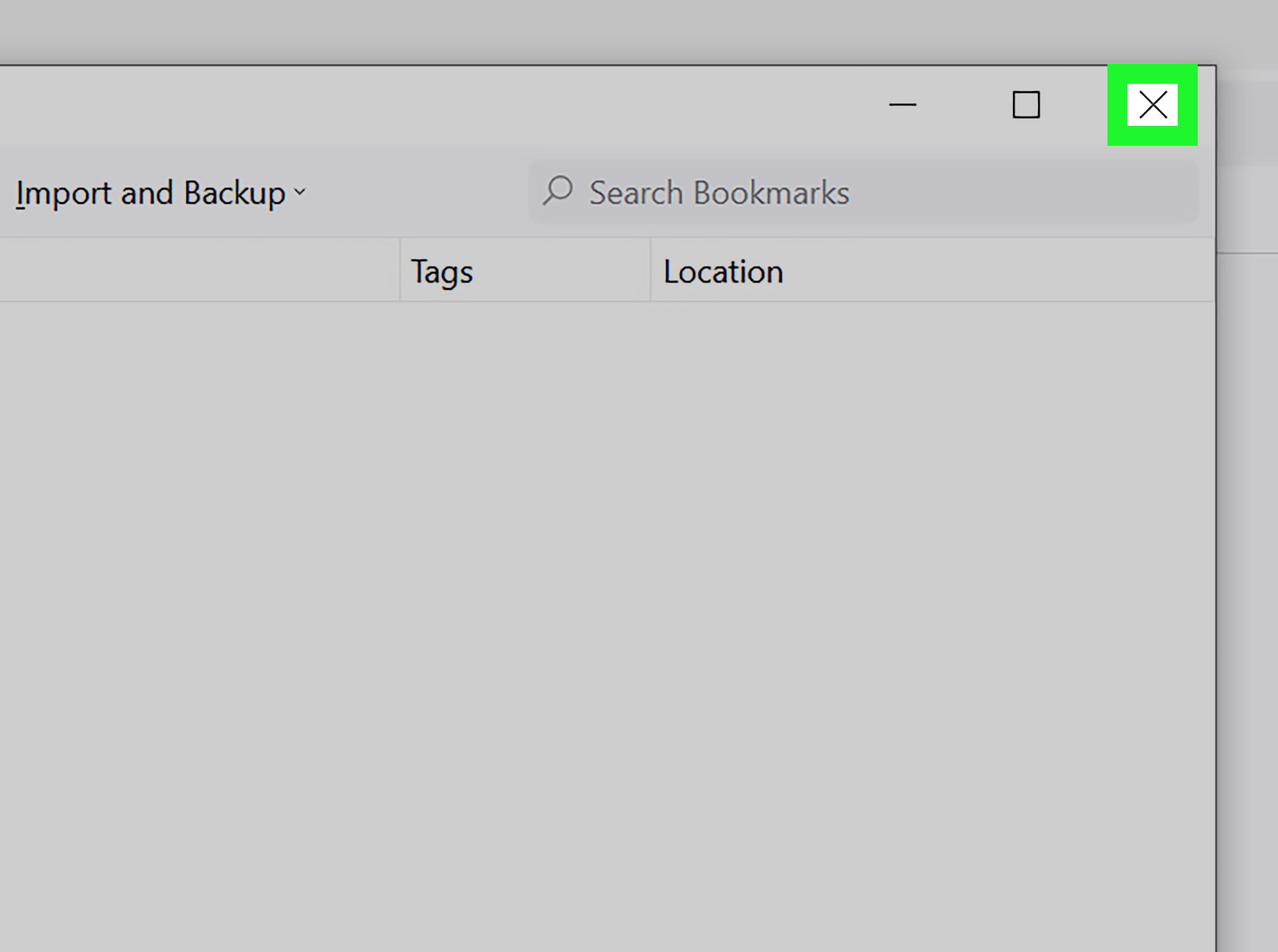
- Close the Library window.
That is it. Your Firefox bookmarks are now exported as an HTML file. You can attach the file to cloud storage, move it to a USB drive, import it into another browser, or keep it as a simple backup.
Mac Keyboard Shortcut
If you prefer shortcuts, press Command + Shift + O to open the Firefox Library window directly. From there, choose Import and Backup > Export Bookmarks to HTML. This is faster than clicking through menus and makes you look mildly wizard-like to anyone watching.
How to Export Bookmarks from Firefox on Windows
The Windows process is almost identical to the Mac process. The main difference is the keyboard shortcut and where you may choose to save the file.
Step-by-Step: Export Firefox Bookmarks on Windows
- Open Firefox on your Windows computer.
- Click the menu button in the top-right corner.
- Select Bookmarks.
- Click Manage bookmarks.
- In the Library window, click Import and Backup.
- Choose Export Bookmarks to HTML.
- Pick a save location, such as Desktop, Documents, OneDrive, or an external drive.
- Name the file clearly, for example firefox-bookmarks-windows-backup.html.
- Click Save.
- Close the Library window.
Once saved, the exported bookmark file is ready to use. You can import it into another browser, copy it to a new PC, email it to yourself, or store it in a backup folder. If your bookmark collection is huge, the file may take a moment to save, but usually the process is quick.
Windows Keyboard Shortcut
On Windows, press Ctrl + Shift + O to open the Library window. Then click Import and Backup and choose Export Bookmarks to HTML. This shortcut is especially useful if you manage bookmarks often or simply enjoy avoiding menus like they owe you money.
Where Is the Firefox Bookmarks File Saved?
Firefox asks you to choose the save location when exporting bookmarks. By default, the file may be called bookmarks.html. If you saved it to your Desktop, you should see it there immediately. If you saved it to Downloads, Documents, or a cloud folder, check that folder after exporting.
A smart naming system helps. Instead of leaving five files named bookmarks.html scattered across your computer like digital breadcrumbs, use a date and device name. For example:
- firefox-bookmarks-macbook-2026-07.html
- firefox-bookmarks-office-pc-2026-07.html
- firefox-bookmarks-before-reset.html
Clear file names make restoration easier when you are tired, rushed, or helping someone else migrate browsers over a family dinner.
How to Import Firefox Bookmarks into Another Browser
After exporting bookmarks from Firefox, you can import the HTML file into most major desktop browsers. The exact menus vary, but the core idea is the same: open the browser’s bookmark or favorites manager, choose an import option, select the HTML file, and confirm.
Import into Google Chrome
In Chrome, open the menu and go to Bookmarks and lists. From there, choose the import option or open the Bookmark Manager and select Import Bookmarks from HTML file. Choose the Firefox HTML file and open it. Chrome may place imported bookmarks in a folder such as Imported or Other bookmarks, depending on your existing setup.
Import into Microsoft Edge
In Edge, go to Settings, then Profiles, then Import browser data. Choose the option to import from a Favorites or bookmarks HTML file, select your exported Firefox file, and import it. Edge uses the word “favorites,” but in this context, favorites and bookmarks are basically cousins wearing different browser uniforms.
Import into Safari on Mac
Safari can import browsing data from Firefox directly when Firefox is installed on the same Mac. You can also use Safari’s import options to bring in supported browser data files. If you are moving from Firefox to Safari, first check Safari’s File menu for import choices. Imported bookmarks may appear in a new imported folder, so look there before assuming they vanished.
Import into Brave
Brave supports importing bookmarks and exporting bookmarks as HTML. Open Brave’s import settings or bookmark manager, choose the bookmark import option, and select the Firefox HTML file. Once imported, check the bookmark bar and bookmark manager to confirm the folder structure came through correctly.
What If the Bookmarks Toolbar Does Not Show Up?
Sometimes bookmarks import successfully, but the toolbar is hidden. This creates the illusion that nothing worked. Before blaming the computer, the browser, or Mercury retrograde, turn on the bookmarks toolbar.
In Firefox, open the menu, choose More tools, select Customize toolbar, then find the toolbar options and enable the Bookmarks Toolbar. You can usually choose to show it always, never, or only on new tabs.
In other browsers, the toolbar may have a similar setting. Chrome, Edge, Safari, and Brave all have bookmark or favorites bar controls. If imported bookmarks are not visible immediately, open the bookmark manager and look for folders named Imported, Bookmarks Menu, Other Bookmarks, or Favorites Bar.
Common Problems and Easy Fixes
Problem: I Cannot Find the Exported File
Use your computer’s search feature and look for bookmarks.html or .html. On Mac, use Spotlight or Finder search. On Windows, use File Explorer search. If you renamed the file, search for “firefox” or the date you used.
Problem: Imported Bookmarks Are Duplicated
HTML imports usually add bookmarks to your existing collection rather than replacing everything. That is safer, but it can create duplicates. To fix this, open the bookmark manager and delete duplicate folders manually. For big libraries, organize by folder first, then remove repeated sets.
Problem: The HTML File Opens Like a Web Page
That is normal. An exported bookmark HTML file can open in a browser because it is technically a web page containing links. Do not panic. You can still import it through another browser’s bookmark import tool.
Problem: My Bookmarks Are Missing Before Export
If bookmarks appear to be missing in Firefox, check whether you are using the right Firefox profile. Firefox stores bookmarks, passwords, extensions, and settings in a profile folder. If Firefox created a new profile after a reset or update, your old data may still exist in another profile. Open Firefox troubleshooting information or profile settings to investigate before exporting an empty library.
Problem: I Need Firefox Mobile Bookmarks
Firefox’s desktop export tool is designed for desktop Firefox. If you want bookmarks from Firefox on a phone or tablet, use Firefox Sync to sync them to desktop Firefox first. Then export from the desktop version. Mobile browsers are great, but they are not always generous with export buttons.
Best Practices for Exporting Firefox Bookmarks
Exporting bookmarks takes less than a minute, but a few best practices can save hours later.
Export Before Major Changes
Export your bookmarks before reinstalling Firefox, resetting your browser, replacing your computer, changing operating systems, or testing a new browser. It is easier to create a backup before the adventure begins than to recover data afterward while muttering at your screen.
Keep More Than One Copy
Save one copy locally and another in cloud storage or on an external drive. If your computer fails, a bookmark file saved only on that computer may not help much. A backup should live somewhere other than the thing it is backing up.
Use Dates in File Names
Dates make backups easier to understand. A file named bookmarks.html tells you almost nothing. A file named firefox-bookmarks-2026-07-01.html tells you exactly when it was created.
Test the File
After exporting, double-click the file. It should open as a page of bookmark links. This quick test confirms that the file exists and contains data. You do not need to inspect every link, but if the page is blank, export again.
Should You Export Bookmarks or Use Firefox Sync?
Firefox Sync is excellent for keeping bookmarks available across devices. Once signed in, your bookmarks can follow you between desktop and mobile installations. However, Sync is not the same as a manual export. Sync keeps data updated, which is convenient, but it can also sync unwanted changes. If you accidentally delete a folder and that deletion syncs, you may still need a backup.
For the safest setup, use both. Use Firefox Sync for everyday convenience and export bookmarks to HTML before big changes. That gives you flexibility: automatic syncing for daily life and a portable file for emergencies, migrations, or browser switching.
Experience Notes: What Real Bookmark Exports Teach You
After helping people move browsers, reset computers, and rescue years of saved links, one lesson becomes clear: bookmarks are rarely “just bookmarks.” They are a map of someone’s work, hobbies, routines, and unfinished ideas. A designer may have hundreds of inspiration links. A student may have research sources for three semesters. A small business owner may have supplier portals, invoices, shipping dashboards, tax pages, and marketing tools. When those disappear, it feels less like losing browser data and more like someone shook the filing cabinet upside down.
The smoothest Firefox bookmark exports usually happen when people slow down for two minutes before clicking Save. The best habit is to name the exported file clearly. A dated file name is not glamorous, but it is incredibly useful. When someone has several old files named bookmarks.html, nobody knows which one is current. When the file is called firefox-bookmarks-before-new-laptop-2026.html, the mystery is solved before it starts.
Another practical lesson: always check the imported folder before assuming the import failed. Many browsers do not throw imported bookmarks directly onto the bookmarks bar. Instead, they tuck them into folders like Imported, Bookmarks Menu, Other Bookmarks, or Favorites. People often import the same file three times because they cannot see the bookmarks immediately. Then they discover three duplicate folders and wonder why the browser looks like it ate a filing cabinet. The import worked the first time; the bookmarks were just politely waiting in a folder.
It also helps to understand that HTML export is best for moving bookmarks, not for preserving every tiny piece of Firefox profile data. If you want passwords, extensions, history, cookies, open tabs, and site settings, exporting bookmarks alone is not enough. For a full Firefox migration, you may need Firefox Sync or a profile backup. But for the specific job of saving and transferring bookmark links, the HTML export is simple, readable, and widely accepted.
One more experience-based tip: export bookmarks before browser cleanup projects. People often delete “old junk” folders too quickly, then realize an old folder contained one important link. Before cleaning, export. Before resetting, export. Before switching browsers, export. Before lending your computer to someone who says, “I just need to fix one thing,” definitely export. A bookmark file is small, quick to make, and wonderfully boring. In the backup world, boring is beautiful.
Finally, do not wait for a crisis. Make exporting Firefox bookmarks part of your occasional digital housekeeping routine. You do not need to do it every day. Once a month, once a quarter, or before major changes is enough for most people. Your bookmarks may not seem important today, but the moment you need that saved login page, rare tutorial, or perfect vacation guide, the humble HTML file becomes a tiny hero wearing a cape made of hyperlinks.
Conclusion: Export Once, Relax Later
Exporting bookmarks from Firefox on Mac and Windows is simple once you know where to look. Open the bookmarks Library, choose Import and Backup, select Export Bookmarks to HTML, save the file, and keep it somewhere safe. On Mac, Command + Shift + O opens the Library window. On Windows, Ctrl + Shift + O does the same job.
The exported HTML file gives you a portable copy of your Firefox bookmarks. You can import it into another browser, transfer it to a new computer, or store it as a backup. For extra protection, combine manual exports with Firefox Sync and occasional profile backups. That way, your favorite links are not trapped on one device, one browser, or one nervous afternoon.
In short: export your Firefox bookmarks before you need them. It is fast, free, and far less dramatic than trying to reconstruct five years of saved links from memory. Your browser may forget. You do not have to.