Google Assistant can be helpful when you want to set a timer, send a text, check the weather, or ask why your houseplant looks emotionally exhausted. But not everyone wants a voice assistant living one long press away from every accidental button squeeze. Maybe it keeps popping up when you are trying to unlock your phone. Maybe you are cleaning up your digital privacy settings. Or maybe you simply prefer your phone to stop acting like an eager intern with a microphone.
The first thing to know is this: on many Android phones, you cannot completely “delete” Google Assistant the way you would delete a normal app. Google Assistant is often tied to the Google app, Android system settings, Voice Match, and device assistant shortcuts. On iPhone, however, deleting the Google Assistant app is usually simple because it is a standalone app. On Android, the practical goal is usually to turn off Google Assistant, remove it as the default digital assistant, disable “Hey Google,” delete your Assistant activity, and revoke permissions so it stays politely out of your way.
This guide explains how to delete Google Assistant or disable it as fully as possible in 9 steps. The steps cover Android phones, Samsung Galaxy devices, Pixel-style settings, iPhone, Google Home/Nest devices, and privacy cleanup. Menus can vary slightly by phone brand, Android version, region, and whether your device has already moved from Google Assistant to Gemini. Still, the process below gives you the cleanest route for most users.
Can You Really Delete Google Assistant?
Before we grab the digital broom, let’s clear up the wording. “Delete Google Assistant” can mean several different things:
- Uninstalling the Google Assistant app from an iPhone or Android device where it exists as a separate app.
- Turning off Google Assistant inside the Google app.
- Removing Google as the default digital assistant on Android.
- Turning off “Hey Google” voice activation and Voice Match.
- Deleting saved Google Assistant activity from your Google Account.
- Removing Assistant access from Google Nest speakers, displays, or smart home devices.
On Android, the Google app is often preinstalled and may not be removable without unsupported methods. You may see options such as “Disable,” “Uninstall updates,” or “Force stop,” but removing the Google app can affect Search, Discover, widgets, voice typing, and other Google services. For most people, the safest approach is to disable Assistant features rather than trying to rip out the whole Google app like a loose cable behind a TV.
How to Delete Google Assistant: 9 Steps
Step 1: Open the Google App
Start with the Google app, because this is where many Assistant settings live. On your Android phone, open the app labeled Google. It usually has the multicolor “G” icon. Tap your profile picture or initial in the top-right corner, then choose Settings.
From there, look for Google Assistant. Depending on your device, this menu may also appear as Assistant settings. If your phone has already upgraded to Gemini, you may see Gemini-related settings instead of the older Google Assistant layout. That does not mean you are stuck. It simply means your phone is part of Google’s ongoing shift from Assistant to Gemini, and you may need to adjust both Assistant and default assistant settings.
Step 2: Turn Off Google Assistant in General Settings
Inside Google Assistant settings, scroll until you find General. Tap it, then look for a switch labeled Google Assistant. Turn it off. Your phone may warn you that Assistant will no longer respond to voice commands, shortcuts, or related features. Confirm the choice.
This is the closest Android usually gets to “delete Google Assistant” without removing system apps. It stops Assistant from actively helping, listening for commands through its normal routes, and launching when you ask for it. Think of it as telling Assistant, “Thank you for your service, but HR has your final paperwork.”
If you do not see the General option, search inside Assistant settings for General, Digital assistant, or Gemini. Android menus move around over time, and phone makers sometimes rearrange settings like they are hiding snacks from toddlers.
Step 3: Turn Off “Hey Google” and Voice Match
Even after disabling Assistant, you should turn off voice activation. In the Google app, go to Settings > Google Assistant > Hey Google & Voice Match. Turn off Hey Google.
This prevents your phone from waking Assistant when it hears the trigger phrase. It is especially useful if Assistant activates during videos, podcasts, family conversations, or that one friend who says “Hey Google” just to watch your phone panic.
If you previously trained Voice Match, review the Voice Match settings and remove your voice model where available. Voice Match is designed to personalize Assistant responses, but if your goal is to delete Google Assistant from your daily life, turning it off is a smart privacy and convenience step.
Step 4: Remove Google as the Default Digital Assistant
On Android, Assistant can still appear when you long-press the power button, hold the home button, or swipe from a screen corner. To stop that, remove Google as your default assistant.
Open your phone’s Settings, then go to Apps > Default apps > Digital assistant app. On some phones, the path may be Settings > Apps > Choose default apps > Digital assistant app. Choose None if available, or select another assistant app you prefer.
Samsung Galaxy phones may use slightly different labels. A common path is Settings > Apps > Choose default apps > Digital assistant app. Tap Digital assistant app again, then choose your preferred option or disable Google as the default.
This step is important because turning off Assistant in the Google app does not always stop Android’s assistant gesture from launching a prompt. Removing the default assistant closes that back door.
Step 5: Disable Power Button, Home Button, or Gesture Shortcuts
Many phones open Assistant when you press and hold the power button or use a navigation gesture. If Google Assistant keeps popping up even after you turned it off, this shortcut is often the culprit.
Open Settings and look for System, Gestures, Buttons, Side key, or Advanced features. On some Android phones, you can turn off Press and hold power button for Assistant. On Samsung phones, check Settings > Advanced features > Side button, then change the press-and-hold action to the power menu or another option.
If your phone uses gesture navigation, also check whether corner swipes launch the assistant. Disabling the assistant shortcut makes the phone feel less haunted, especially if you often trigger it by accident while reaching for the screen.
Step 6: Uninstall or Disable the Google Assistant App
If you installed a separate Google Assistant app, you may be able to uninstall it. On Android, open Settings > Apps, find Assistant or Google Assistant, and tap Uninstall if the option appears. You can also long-press the app icon and choose Uninstall.
If the app cannot be removed, you may see Disable. Tap Disable only if you understand that some Google features may stop working as expected. If Android only lets you uninstall updates, that means the app or service is bundled with the phone’s system software.
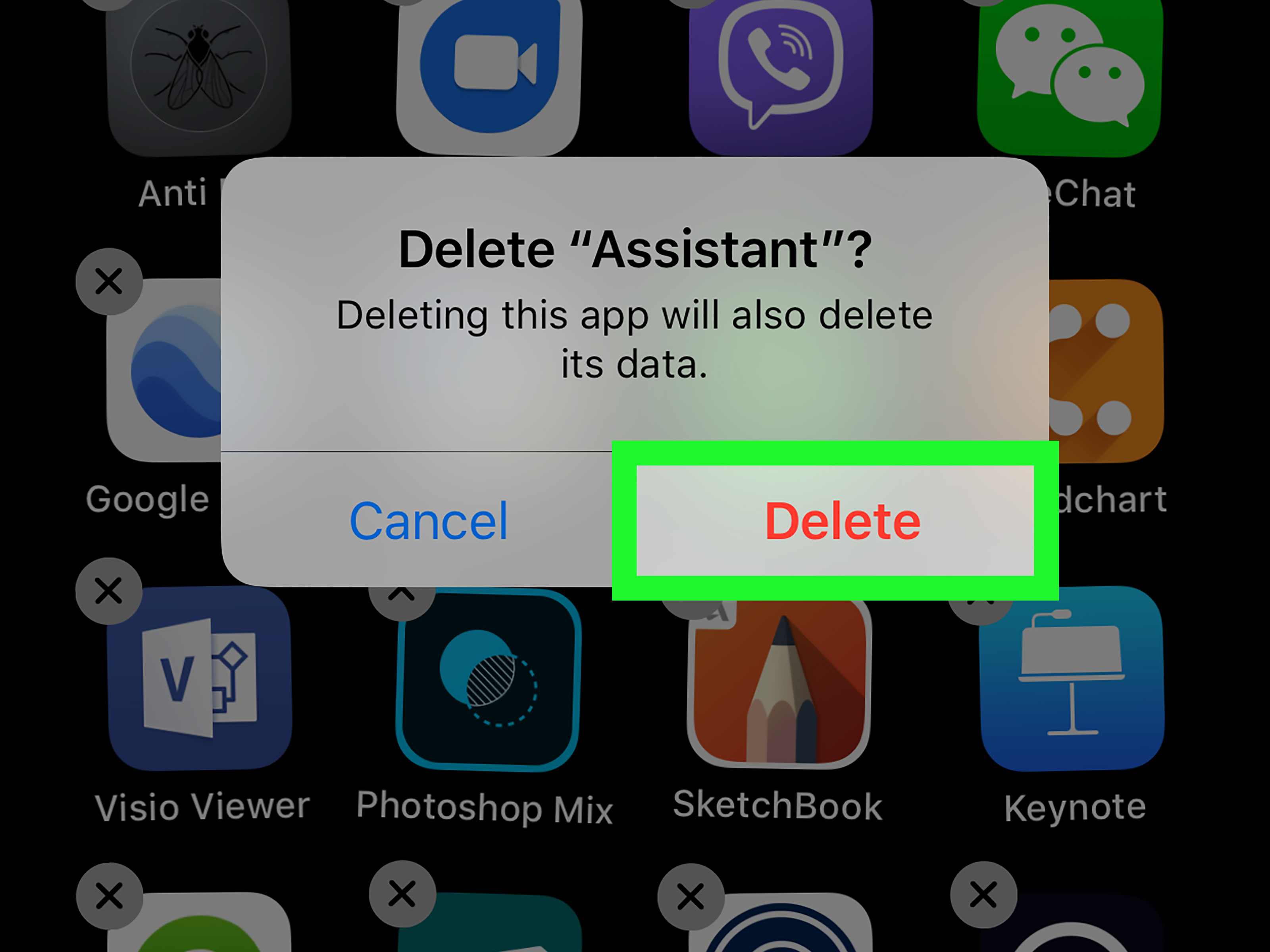
On iPhone, deleting Google Assistant is much easier. Press and hold the Google Assistant app icon, tap Remove App, then choose Delete App. You can also go to Settings > Google Assistant and turn off permissions like Microphone before deleting it. If the app is gone, Assistant cannot respond from that app anymore. Clean, simple, no Android menu treasure hunt required.
Step 7: Delete Your Google Assistant Activity
Turning off Assistant stops future use, but it does not automatically erase past activity. To delete Google Assistant history, visit your Google Account activity controls or go to myactivity.google.com. Search for Assistant activity or open the Google Assistant activity section.
Choose Delete activity by, select All time if you want a full cleanup, then confirm deletion. You can also delete activity from a custom date range if you only want to remove recent commands.
This step matters for privacy. Assistant activity may include voice commands, searches, device actions, reminders, smart home requests, and other interactions. Deleting activity is like clearing the conversation log with the world’s most helpful robot receptionist.
Step 8: Manage Voice and Audio Activity
Google Account settings also include controls for Web & App Activity and optional voice/audio recordings. Go to your Google Account, open Data & privacy, then look under History settings. Choose Web & App Activity.
If voice and audio activity is enabled, you can turn it off or delete saved recordings. Google also offers auto-delete options, which can remove activity after a chosen period. If you are serious about deleting Google Assistant from your digital footprint, review these controls carefully.
Keep in mind that turning off some activity settings may reduce personalization across Google services. That can be a good thing if you want more privacy, but it may also make search results, recommendations, and assistant-like features feel less tailored.
Step 9: Remove Assistant from Google Home, Nest, and Smart Devices
If you use Google Nest speakers, displays, Chromecast devices, or smart home products, Google Assistant may still live there even after you disable it on your phone. Open the Google Home app, tap your profile picture or initial, then go to Home settings. Look for Google Assistant, Gemini for Home voice assistant, or Voice Match.
From there, you can turn off Voice Match for specific speakers or displays, remove your voice model, or manage personal results. If you want to stop a device from responding altogether, you may need to mute its microphone using the physical switch on the device. For smart speakers, the physical mic switch is often the fastest privacy button in the room. It is not fancy, but neither is a locked door, and locked doors work.
What Happens After You Delete or Disable Google Assistant?
After you delete or disable Google Assistant, your phone should stop responding to “Hey Google,” assistant gestures, long-press shortcuts, and voice prompts. You may lose quick access to hands-free texting, timers, reminders, smart home controls, routines, and voice search. If you use Android Auto, Wear OS, Google Home, or Nest devices, some assistant features may continue through those platforms depending on your settings and Google’s Gemini rollout.
You may also notice that Google encourages you to use Gemini instead. Google has been upgrading many Assistant experiences to Gemini, so some phones now show Gemini as the primary assistant from Google. If your goal is to avoid all Google voice assistant features, check both Assistant and Gemini settings. Remove Google or Gemini as the default digital assistant if your Android version allows it.
How to Stop Google Assistant from Popping Up Randomly
If Assistant keeps appearing like an overcaffeinated jack-in-the-box, focus on three areas: default assistant settings, gesture shortcuts, and voice activation. First, set the default digital assistant app to None. Second, turn off power button or home button assistant shortcuts. Third, disable Hey Google and Voice Match.
Also check headphones, earbuds, and Bluetooth devices. Some accessories can trigger Assistant with a button press or touch gesture. Open the companion app for your earbuds or headset and review voice assistant controls. If your headphones keep launching Assistant during workouts, they may be the real troublemaker. Do not blame the phone until the earbuds have been questioned.
Should You Disable the Google App Too?
Some users consider disabling the entire Google app to remove Assistant more aggressively. This can work on certain Android devices, but it may also affect Google Search, Discover, widgets, voice typing, snapshots, reminders, and other built-in features. On Pixel phones and many Android devices, the Google app is deeply integrated into the system.
If you still want to try it, go to Settings > Apps > Google. If Disable is available, Android will warn you about possible issues. Read that warning instead of treating it like software confetti. If you rely on Google Search or the Google widget, disabling the app may be more annoying than Assistant itself.
For most people, the best balance is to turn off Assistant, remove it as the default assistant, disable voice activation, delete activity, and revoke unnecessary permissions. That gives you the privacy and peace you want without breaking useful phone features.
Privacy Tips After Removing Google Assistant
Deleting Google Assistant is a good start, but privacy cleanup works best when you also review related settings. Open your Google Account and check Data & privacy. Review Web & App Activity, Location History, YouTube History, ad personalization, and third-party app access.
You can also use Google’s auto-delete controls so old activity is removed automatically after a set period. If you use shared devices, turn off personal results on speakers and displays. If you have Nest devices in bedrooms, offices, or private spaces, use the microphone mute switch when you do not want voice input available.
On Android, check app permissions under Settings > Privacy > Permission manager. Review which apps can access your microphone, location, camera, contacts, and SMS. Removing Google Assistant but leaving every other app with microphone access is a bit like locking the front door while leaving the garage open with a neon sign.
Troubleshooting: Why Can’t I Delete Google Assistant?
Your Phone Treats It as a System Feature
Many Android phones bundle Assistant through the Google app or system services. If there is no uninstall button, that is normal. Use the disable steps above instead.
Your Device Has Switched to Gemini
If Assistant settings are missing, your phone may use Gemini as the main assistant. Open Gemini settings, then review digital assistant options in Android settings. You may need to remove Gemini as the default assistant rather than looking for the old Assistant toggle.
Your Phone Brand Moved the Menu
Samsung, Pixel, Motorola, OnePlus, and other Android brands use different settings layouts. Use the search bar inside Android Settings and type digital assistant, assistant, voice match, or side button.
Your Accessories Are Triggering It
Earbuds, headphones, car systems, and smartwatches may launch Assistant separately. Check each device’s app or Bluetooth settings.
of Real-World Experience: What It’s Like to Delete Google Assistant
Deleting or disabling Google Assistant sounds like a small technical chore, but in real life it often feels more like reclaiming control over your phone. Many users do not set out to remove Assistant because they hate it. They do it because Assistant starts appearing at the wrong times. A long press opens it while they are trying to turn off the screen. A corner swipe summons it while they are playing a game. A TV commercial says “Hey Google,” and suddenly the phone lights up like it has been personally invited to the conversation.
The most common experience is surprise: turning off only one setting usually is not enough. People often disable “Hey Google” and assume the job is done. Then Assistant still appears from the power button. They remove it from the power button, and it still launches from earbuds. They delete activity, but the Google app still has microphone permission. This is why a complete cleanup requires several layers. Google Assistant is not just one app icon; it is a set of features connected across voice activation, account history, default assistant settings, device gestures, and smart home controls.
Another real-world lesson is that disabling Assistant can make your phone feel calmer. Without the wake phrase, accidental pop-ups, and button shortcuts, the device becomes less interruptive. You may notice fewer moments where the phone tries to “help” when you did not ask for help. For users who value privacy, this can feel refreshing. Even if Assistant is not secretly recording everything, reducing voice triggers and deleting old activity creates a cleaner boundary between you and your device.
There are trade-offs. If you used Assistant for timers while cooking, hands-free calls while driving, reminders, translations, or smart lights, you may miss the convenience. The first week after disabling it can reveal which features were actually useful. A good workaround is to replace only the parts you need. For example, you can use manual timers in the Clock app, create reminders in Google Calendar, control smart home devices from the Google Home app, or use another digital assistant as the default. You do not have to choose between “full Google Assistant everywhere” and “living like it is 2007.”
For Samsung users, the experience can be slightly different because Bixby and Google may both appear in assistant-related settings. Some users disable Google Assistant only to find that the side button opens Bixby instead. That is not a failure; it just means the phone has multiple assistant layers. Review both Digital assistant app and Side button settings. Once both are adjusted, the accidental launches usually stop.
For iPhone users, the process is refreshingly direct. Delete the Google Assistant app, remove microphone permissions if desired, and clean up Google Account activity. Since iOS does not integrate Google Assistant as deeply as Android, it is less likely to keep popping up after removal. The main thing iPhone users should remember is that deleting the app does not automatically delete past Assistant activity from the Google Account. That cleanup must be done separately.
The best practical advice is to treat the process like a checklist. Turn off Assistant. Turn off “Hey Google.” Remove Google as the default assistant. Disable button shortcuts. Delete activity. Review microphone permissions. Check smart speakers. After that, use your phone normally for a day or two. If Assistant returns, note exactly what triggered it: voice, button, gesture, earbuds, car, or smart home device. The trigger tells you which setting still needs attention.
In the end, deleting Google Assistant is less about being anti-technology and more about choosing how much assistance you actually want. A smart assistant should be useful, not clingy. When your phone stops interrupting and starts behaving like a tool again, the cleanup feels worth it.
Conclusion
Learning how to delete Google Assistant is really about understanding where Assistant lives on your device. On iPhone, you can usually remove the app in seconds. On Android, you will often need to disable Assistant, turn off Voice Match, remove Google as the default digital assistant, stop button shortcuts, delete Assistant activity, and review privacy permissions. If you use Google Home or Nest devices, you should also manage Voice Match and personal results there.
The good news is that you do not need to be a tech wizard with a basement full of cables to do it. Follow the 9 steps above, and Google Assistant should stop responding, popping up, or storing new interactions through the features you disabled. Your phone may not become a silent monk, but it will be much less likely to interrupt your day with “Hi, how can I help?” when the answer is clearly, “By not appearing right now.”