Note: Internet Explorer is retired and no longer recommended for everyday browsing. This guide is written for people who still need Internet Explorer for an old computer, a legacy business system, a school archive, or a website that refuses to behave unless it smells like 2011. For safer daily browsing, use Microsoft Edge and its InPrivate window.
What “Incognito” Means in Internet Explorer
In Google Chrome, private browsing is called Incognito Mode. In Internet Explorer, the same general feature is called InPrivate Browsing. The name is different, but the basic idea is similar: Internet Explorer opens a special browsing window that avoids saving certain local traces of your session after you close it.
That means Internet Explorer should not keep your browsing history, temporary internet files, cookies, form data, or saved search details from that InPrivate session once the window is closed. In plain English, it is helpful when you share a computer and do not want the next person to see what you were browsing by simply opening the browser history. It is the digital version of wiping crumbs off the counteruseful, polite, and not the same as making the kitchen invisible.
However, InPrivate Browsing does not make you anonymous online. Your internet service provider, school, workplace, network administrator, websites you visit, and some security tools may still be able to see or record activity. Private browsing protects mostly against local browser history on the device. It does not hide your IP address, encrypt all traffic by itself, or magically turn your old Windows laptop into a spy movie gadget.
Before You Start: Internet Explorer Is Retired
Microsoft ended support for the Internet Explorer 11 desktop application on many versions of Windows. On modern Windows systems, Internet Explorer may be disabled or automatically redirect you to Microsoft Edge. If that happens, you are not doing anything wrong. Your computer is simply living in the present.
If you need a private window today, Microsoft Edge has InPrivate Browsing, which is the modern replacement. If you need to access an older website designed specifically for Internet Explorer, Edge also includes Internet Explorer mode for some legacy compatibility needs. Still, if you are working on an old machine where Internet Explorer opens normally, the steps below will show you how to browse privately in Internet Explorer.
How to Browse Incognito in Internet Explorer: 8 Steps
Step 1: Open Internet Explorer
Start by opening Internet Explorer from your desktop, taskbar, Start menu, or search box. The icon usually looks like a blue lowercase “e” with a gold ring around it. If Microsoft Edge opens instead, your system may have Internet Explorer disabled or redirected.
On older Windows versions, such as Windows 7, Windows 8.1, or older Windows 10 builds, Internet Explorer may still open normally. On newer systems, you may need to use Microsoft Edge instead. Do not download random “Internet Explorer installer” files from unknown websites. That is how computers get mysterious toolbars, pop-ups, and regrets.
Step 2: Find the Tools Menu
Once Internet Explorer is open, look at the top-right corner of the window. You should see a small gear icon. This is the Tools button. Click it to open a menu of browser settings and options.
If you do not see the gear icon, press the Alt key on your keyboard. This can reveal the classic menu bar at the top of Internet Explorer. From there, you can use the Tools menu. Internet Explorer has always enjoyed hiding useful things in places that feel like tiny treasure hunts.
Step 3: Hover Over “Safety”
In the Tools menu, move your mouse over Safety. A side menu should appear. This section includes privacy and security-related browser options, including deleting browsing history, turning on tracking protection, and starting InPrivate Browsing.
The Safety menu is important because InPrivate Browsing is not usually displayed as a giant button on the main screen. Internet Explorer expects you to know where it lives, like a secret drawer in an old desk.
Step 4: Click “InPrivate Browsing”
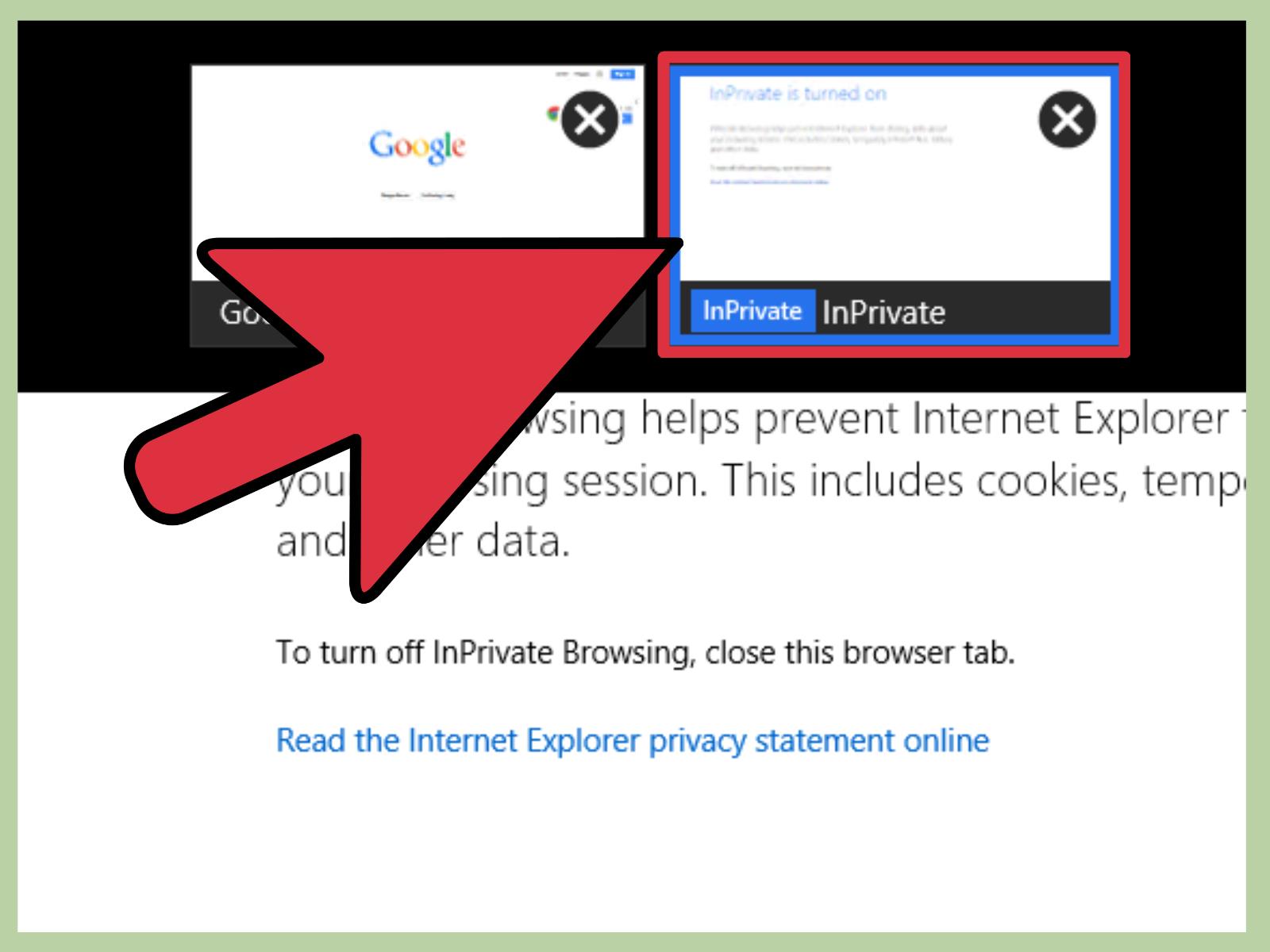
From the Safety submenu, click InPrivate Browsing. Internet Explorer should open a new private browsing window. This window is separate from your normal browsing window.
You can also use the keyboard shortcut Ctrl + Shift + P to open an InPrivate window faster. This is the easiest method once you remember it. Think of it as “P” for private. Or “P” for please do not save this in my browser history.
Step 5: Check That InPrivate Mode Is Active
After the new window opens, look for an InPrivate label near the address bar or browser interface. This confirms that you are using the private browsing window, not a normal Internet Explorer window.
This step matters because it is easy to accidentally keep browsing in a regular window. If you opened a private window but then clicked back into your old normal window, your browsing may be saved normally. Always check the label before typing addresses, signing in, or searching.
Step 6: Browse Normally Inside the InPrivate Window
Now you can browse the web inside the InPrivate window. You can visit websites, search the web, log in to accounts, compare prices, check a surprise gift idea, or open a page without adding it to Internet Explorer’s normal browsing history.
During the session, websites may still use temporary cookies to keep you signed in or remember what is in your shopping cart. The key difference is that Internet Explorer is supposed to discard those session cookies when you close all InPrivate windows. So while the private window is open, sites may behave normally. After it closes, the local session data should be removed.
Step 7: Avoid Saving Files, Favorites, or Passwords by Accident
InPrivate Browsing helps reduce local browser traces, but it does not erase every action you take. If you download a file, that file may remain on the computer. If you add a page to Favorites, that Favorite may stay saved. If you print something, the paper does not vanish just because the browser wore a privacy hat.
Be careful with saved documents, screenshots, bookmarks, and account activity. For example, if you use InPrivate Browsing to sign in to email on a shared computer and download an attachment, the browser may not keep the history, but the downloaded file may still sit in the Downloads folder. That is a privacy leak with a file name and a timestamp.
Step 8: Close All InPrivate Windows When Finished
When you are done, close every InPrivate window. Closing only one tab may not end the entire private session if other InPrivate tabs or windows remain open. To finish properly, close all InPrivate browser windows.
After closing the session, Internet Explorer should remove private browsing history, cookies, temporary files, and form data connected with that session. For extra caution on a shared or public computer, you can also manually clear browsing history from Tools > Safety > Delete browsing history. This is especially wise if you accidentally used a normal window before opening InPrivate mode.
What InPrivate Browsing Does Save You From
InPrivate Browsing is most useful for local privacy. That means it helps keep activity from being easily visible to the next person who uses the same browser profile. It can be helpful in several everyday situations:
- Using a shared family computer without mixing browsing history
- Checking a gift idea without spoiling the surprise
- Signing in to a temporary account on someone else’s computer
- Testing how a website looks without existing cookies
- Comparing search results without some saved browser data affecting the session
For example, suppose you are shopping for a birthday present on a shared computer. If you use a normal browser window, the site may appear later in history, autocomplete suggestions, or ads. InPrivate Browsing reduces that chance on the local browser. It will not stop every form of ad tracking, but it does help prevent the browser itself from keeping an obvious trail.
What InPrivate Browsing Does Not Do
The biggest misunderstanding about private browsing is the word “private.” It sounds powerful, but it has limits. InPrivate Browsing does not make your online activity invisible to everyone. Websites can still know that someone visited them. Your internet service provider can still handle your traffic. A school or workplace network may still log activity. If parental controls, monitoring software, or endpoint security tools are installed, those tools may still record information.
InPrivate Browsing also does not protect you from malware, phishing websites, scams, unsafe downloads, or fake login pages. If a website tricks you into entering your password, private mode will not rescue the password, put it on a tiny horse, and ride into the sunset. You still need careful browsing habits.
InPrivate Browsing vs. Clearing Browser History
InPrivate Browsing and clearing browser history are related, but they are not the same. InPrivate Browsing prevents certain data from being stored after the private session ends. Clearing history removes data that has already been saved from normal browsing.
If you forgot to open InPrivate Browsing, you can manually delete history later. In Internet Explorer, click the gear icon, choose Safety, then select Delete browsing history. You can choose items such as temporary internet files, cookies, history, download history, form data, and passwords. Be careful before deleting saved passwords on a shared device, because someone may still need them. Of course, saving passwords on a shared computer is usually a bad idea anyway.
When You Should Use Microsoft Edge Instead
For most people, Microsoft Edge is the better choice today. It receives modern security updates, supports current websites better, and includes InPrivate Browsing. You can open an InPrivate window in Edge by clicking the three-dot menu and choosing New InPrivate window, or by pressing Ctrl + Shift + N.
If your only reason for using Internet Explorer is habit, it is time to switch. Internet Explorer was once everywhere, but the web has changed. Modern websites rely on newer browser standards, stronger security features, and faster rendering engines. Using Internet Explorer for regular browsing can create compatibility problems and security concerns. It is a little like insisting on using a flip phone to edit a 4K video: charming, but not ideal.
Privacy Tips for Shared or Public Computers
If you are using a public computer at a library, hotel, school, airport lounge, or office, InPrivate Browsing is only one part of staying safer. Always sign out of accounts before leaving. Do not save passwords. Avoid entering sensitive information if you do not trust the computer. Close the browser completely when finished. If possible, restart the computer or use your own device instead.
Also pay attention to downloads. A private browser window will not necessarily remove files you saved. Check the Downloads folder and desktop before leaving. If you printed anything, collect it immediately. If you copied text to the clipboard, copy something harmless afterward to replace it. These small habits can prevent awkward surprises.
Troubleshooting: Why InPrivate Browsing May Not Open
Internet Explorer Redirects to Microsoft Edge
If Internet Explorer redirects to Edge, your Windows version may have disabled the Internet Explorer desktop app. Use Edge InPrivate instead. If you need a legacy website, ask your organization whether Internet Explorer mode in Edge is available.
The InPrivate Option Is Missing
Some school or workplace computers may disable InPrivate Browsing through administrator settings. If the option is grayed out or missing, you may not have permission to use it on that device.
The Shortcut Does Not Work
If Ctrl + Shift + P does not open InPrivate Browsing, try the Tools menu method. Also make sure Internet Explorer is the active window when you press the shortcut.
History Still Appears Later
If history appears later, you may have browsed in a normal window by accident, left an InPrivate window open, or saved items manually. Delete browsing history and check downloads, favorites, and saved account sessions.
Experience Section: Real-World Lessons From Using InPrivate Browsing in Internet Explorer
Using InPrivate Browsing in Internet Explorer feels simple once you know where the feature is, but the experience teaches an important lesson: private browsing is practical, not magical. Many users first discover it when they share a computer with family members or need to log in to an account without leaving a trail in the browser. The feature is especially useful on older machines where multiple people use the same Windows profile. In that situation, opening an InPrivate window can prevent your activity from appearing in the browser history dropdown later.
One common real-world example is gift shopping. Imagine someone wants to buy headphones, a watch, or a very specific coffee mug that says something ridiculous but emotionally accurate. If they search in a normal browser window, the search may appear later in history or suggestions. Worse, related ads may start popping up like overly enthusiastic salespeople. InPrivate Browsing reduces local traces and helps keep the surprise intact. It is not perfect, but it is much better than leaving “best surprise anniversary gift” in the address bar for everyone to see.
Another useful experience involves testing websites. People who manage older websites sometimes use Internet Explorer to see how a legacy page behaves without stored cookies or previous login sessions. InPrivate Browsing can create a cleaner temporary session. This is helpful when a site keeps remembering the wrong account, loading old preferences, or refusing to show a fresh login screen. Instead of clearing all browser data, opening an InPrivate window gives you a quick temporary reset.
Public computers are where the limits become obvious. InPrivate Browsing can stop Internet Explorer from saving local browser history, but it cannot guarantee that the computer itself is safe. A library or school computer may have network monitoring. A workplace computer may have management software. A hotel business-center computer may be poorly maintained. The safest habit is to avoid sensitive activity on public machines whenever possible. If you must sign in, use InPrivate Browsing, refuse password saving, sign out completely, close the window, and check that no files were downloaded.
The biggest mistake people make is assuming that closing one tab ends everything. InPrivate sessions can include multiple tabs or windows. If one InPrivate window remains open, some session data may continue to exist until all private windows are closed. The second mistake is forgetting downloads. A downloaded bank statement, school form, image, or PDF may remain on the device even if the browser history disappears. InPrivate Browsing cleans browser traces; it does not clean your entire computer.
The final lesson is that Internet Explorer belongs to a different era of the web. Its InPrivate feature was useful and still works on systems where the browser remains available, but modern browsing is better handled through Microsoft Edge, Chrome, Firefox, or another updated browser. For everyday privacy, security updates matter. For legacy access, use the minimum required time, keep expectations realistic, and remember: InPrivate Browsing is a privacy tool for the local browser, not an invisibility cloak.
Conclusion
Browsing incognito in Internet Explorer means using InPrivate Browsing. The fastest way to open it is with Ctrl + Shift + P. You can also open it from the gear icon by choosing Safety > InPrivate Browsing. Once the InPrivate window opens, confirm the label, browse inside that private window, avoid saving files or passwords, and close all InPrivate windows when finished.
For local privacy on a shared computer, InPrivate Browsing is still useful. It helps prevent Internet Explorer from saving your browsing history, cookies, temporary files, and form data after the session ends. But it does not make you anonymous, protect you from unsafe websites, or hide activity from every network observer. Since Internet Explorer is retired, use Microsoft Edge InPrivate for modern browsing whenever possible.