Hyperlinks are the tiny doorways that make the web feel like the web. Without them, every website would be a lonely digital island, waving sadly at the rest of the internet from across the water. The good news? Learning how to add a hyperlink with HTML is one of the easiest, most useful skills in web development.
Whether you are building a blog, editing a landing page, adding a call-to-action button, linking to a downloadable PDF, or sending readers to your contact page, HTML links are your best friend. They are simple, flexible, search-engine friendly, and surprisingly powerful when used correctly.
In this step-by-step guide, you will learn how to create a basic HTML hyperlink, link to another website, link to a page on your own site, open links in a new tab, create email and phone links, jump to a section on the same page, add images as links, improve accessibility, avoid common mistakes, and write links that both users and search engines can understand.
What Is a Hyperlink in HTML?
A hyperlink is clickable content that takes users from one location to another. That destination can be a web page, a file, an email address, a phone number, a specific section on the same page, or another resource a browser can reach through a URL.
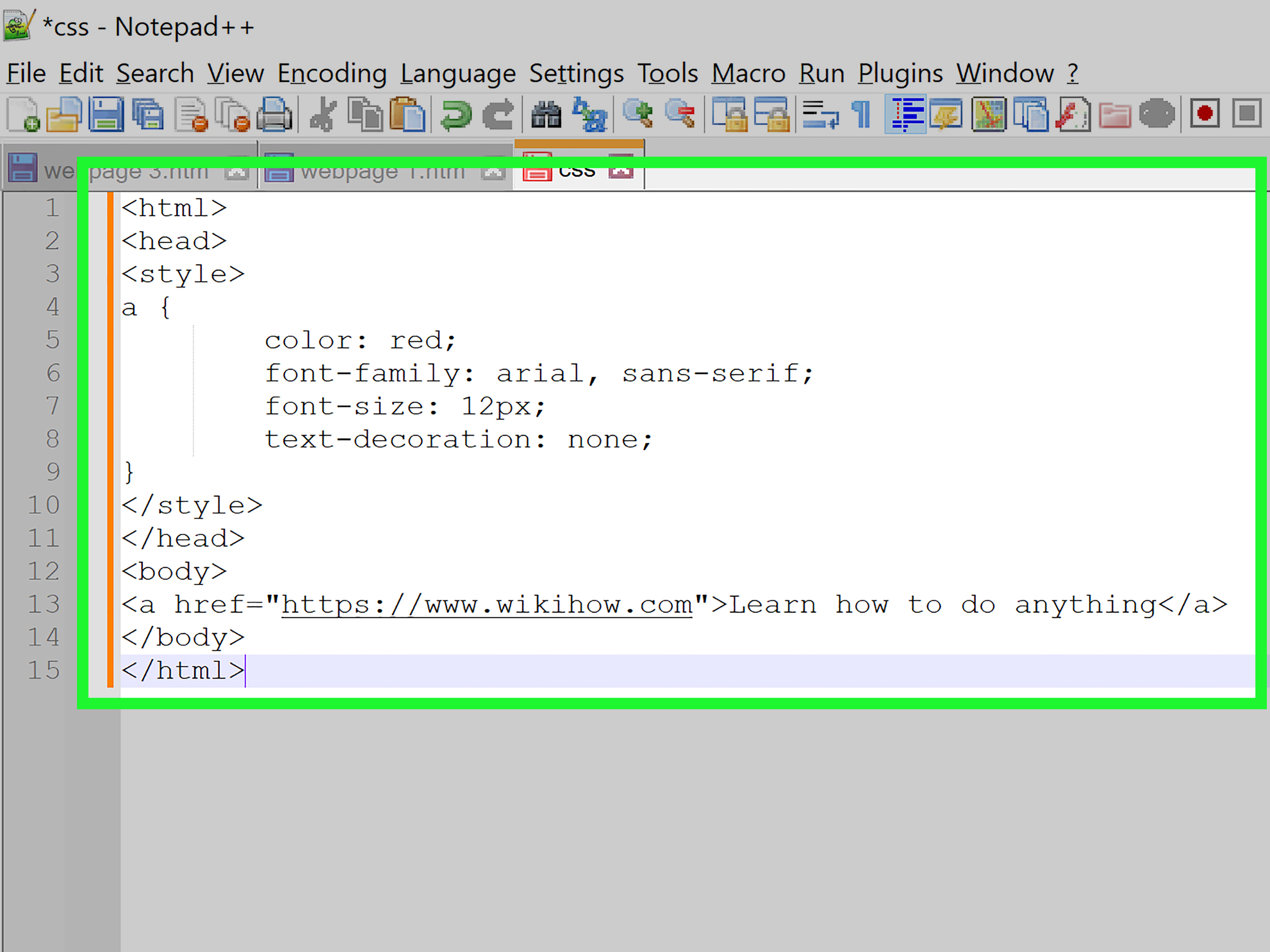
In HTML, hyperlinks are usually created with the <a> element, also called the anchor element. The anchor element uses the href attribute to tell the browser where the link should go. Think of <a> as the door and href as the address written on the envelope.
The Basic HTML Hyperlink Syntax
The simplest HTML hyperlink looks like this:
Here is what each part means:
<a>starts the anchor element.href="https://example.com"tells the browser the link destination.Visit Exampleis the visible anchor text users click.</a>closes the anchor element.
That is the heart of every HTML hyperlink. Once you understand this pattern, you can create almost any kind of link. The browser does the heavy lifting. You just provide a destination and useful text. No secret handshake required.
Step-by-Step: How to Add a Hyperlink with HTML
Step 1: Choose the Text You Want Users to Click
Before writing code, decide what words should become clickable. This clickable text is called anchor text. Good anchor text should describe where the link goes. For example, read our HTML beginner guide
is much better than click here
.
Clear anchor text improves user experience, accessibility, and SEO. People scanning your page should understand the link before they click it. Search engines also use links to discover pages and understand relationships between content.
Step 2: Add the Anchor Tag
Wrap your chosen text in the anchor element:
At this point, the text is inside an anchor tag, but it does not go anywhere yet. It is basically a car without wheels. Stylish, but not useful.
Step 3: Add the href Attribute
Now add the destination with the href attribute:
Now the link works. When someone clicks the text, the browser will navigate to the URL inside href.
Step 4: Test the Link
After adding a hyperlink, always test it. Click the link in your browser and make sure it goes to the correct page. A broken link is like a restaurant menu that says pizza
but leads to a parking lot. Technically an adventure, but not the one anyone wanted.
How to Link to Another Website
To link to another website, use the full URL, including https://:
This is called an absolute URL because it includes the full address. Use absolute URLs when linking to external websites, partner pages, references, tools, resources, or any content outside your own domain.
How to Link to Another Page on Your Own Website
For internal links, you can use either an absolute URL or a relative URL. A relative URL points to another page based on your current website structure.
This link sends users to the /about page on the same website. Internal links are important because they help visitors move through your content naturally. They also help search engines discover important pages on your site.
Examples of useful internal links include:
- Linking from a blog post to a related tutorial.
- Linking from a product page to a sizing guide.
- Linking from a service page to a contact form.
- Linking from an FAQ answer to a detailed explanation.
How to Open a Link in a New Tab
To open a hyperlink in a new browser tab, use target="_blank":
The target="_blank" attribute tells the browser to open the destination in a new tab or window. The rel="noopener noreferrer" attribute improves security and privacy when linking to external sites. This is especially useful when you do not control the destination page.
Should every link open in a new tab? No. Use new tabs carefully. For most internal links, opening in the same tab is usually better because it keeps navigation predictable. New tabs are more appropriate for external references, downloadable resources, or situations where users may need to keep the original page open.
How to Create an Email Link with HTML
You can use mailto: inside the href attribute to open the user’s default email app:
You can also add a subject line:
Email links are handy for small websites, portfolios, and simple contact pages. However, for business websites, a contact form is often more reliable because not every visitor has an email client configured on their device.
How to Create a Phone Link with HTML
To let mobile users call a number by tapping a link, use tel::
Phone links are especially useful for local businesses, service providers, restaurants, clinics, salons, repair companies, and anyone who wants customers to call quickly from a smartphone.
How to Link to a Section on the Same Page
Sometimes you want a link to jump to a specific section on the same page. This is called an anchor link or jump link. First, add an id to the target section:
Then link to that ID using a hash symbol:
This technique is perfect for long guides, FAQ pages, documentation, product comparison pages, and table-of-contents navigation.
How to Link to a Section on Another Page
You can also link directly to a section on another page by combining the page URL and the section ID:
When users click the link, the browser opens the services page and jumps to the section with id="web-design".
How to Make an Image a Hyperlink
To turn an image into a clickable link, place the <img> element inside the anchor tag:
The alt text matters. If the image is the only content inside the link, the alt text should explain the purpose of the link. For example, alt="Company homepage" is more useful than alt="logo" because it tells users what happens when they activate the link.
How to Link to a Downloadable File
You can link directly to files such as PDFs, images, spreadsheets, or documents:
If you want to suggest that the browser download the file instead of opening it, use the download attribute:
For user experience, tell people what type of file they are getting. A link like Download the HTML checklist PDF
is clearer than Download now
.
Best Practices for HTML Hyperlinks
Use Descriptive Anchor Text
Descriptive link text helps everyone. Users know what to expect, screen reader users can understand links out of context, and search engines get a clearer signal about the destination page.
Weak example:
Better example:
Keep Links Relevant
Only add links that genuinely help the reader. A page stuffed with random links feels messy and distracts from the main content. Links should act like helpful signs in a museum, not like a swarm of pop-up salespeople wearing tiny hats.
Make Links Crawlable
For SEO, use real HTML anchor elements with real href attributes. Search engines can understand standard links more reliably than clickable elements built only with JavaScript events.
Recommended:
Not ideal for important navigation:
Avoid Broken Links
Broken links frustrate users and make a site feel neglected. Review links regularly, especially in older blog posts, resource pages, and product documentation. If you update a page URL, update the internal links that point to it.
Be Careful with New Tabs
Opening links in new tabs can be useful, but it should not be automatic for every link. Users expect normal links to open in the same tab. If you open a link in a new tab, consider making that behavior clear in the link text or nearby content.
Use rel Attributes When Needed
The rel attribute describes the relationship between the current page and the linked page. Common values include noopener, noreferrer, nofollow, sponsored, and ugc. For everyday external links that open in a new tab, rel="noopener noreferrer" is a smart security habit.
Common HTML Hyperlink Mistakes
Forgetting the href Attribute
An anchor tag without href does not work like a normal hyperlink:
Fix it by adding the destination:
Using Vague Link Text
Words like here
, more
, and this
are usually too vague. They force users to read surrounding text to understand the link. Better anchor text gives the destination directly.
Using the Wrong URL Path
If your relative link is not working, check the path. A missing slash, misspelled folder, or incorrect file name can break the link.
Nesting Links Inside Links
Do not place one anchor tag inside another anchor tag. It creates invalid HTML and unpredictable behavior. If multiple elements should lead to the same place, wrap the full card in one link or structure the clickable areas carefully.
HTML Hyperlink Examples You Can Copy
Basic Website Link
Internal Page Link
New Tab External Link
Email Link
Phone Link
Same-Page Jump Link
Image Link
HTML Hyperlinks and SEO
Hyperlinks are not just technical decoration. They are part of how users and search engines understand a website. Internal links can guide visitors to related pages, spread attention across important content, and help search engines discover URLs that might otherwise sit quietly in the corner like shy houseplants.
For better SEO, use links naturally. Link to pages when they add value. Use anchor text that describes the destination. Avoid forcing exact-match keywords into every link. A page full of robotic anchor text looks awkward to readers and can make your content feel less trustworthy.
Good SEO link text sounds human. For example, compare our web design packages
is useful and natural. Repeating best affordable web design service USA
every time you link to a service page is not natural. It sounds like a billboard swallowed a keyboard.
HTML Hyperlinks and Accessibility
Accessible links are easy to understand, easy to find, and easy to use with a keyboard or assistive technology. The most important rule is simple: make the link purpose clear.
Many screen reader users can bring up a list of links on a page. If every link says click here
, that list becomes almost useless. Descriptive text such as download the pricing guide
or read the shipping policy
gives users the information they need without extra guessing.
Also avoid relying only on color to show that something is a link. Underlines, contrast, hover states, and focus styles help users recognize clickable text. Keyboard users should be able to tab to links and clearly see which link is focused.
Quick Troubleshooting Checklist
- Does the link include a valid
hrefattribute? - Is the URL spelled correctly?
- Does the link use descriptive anchor text?
- Do external new-tab links include
rel="noopener noreferrer"? - Does the link work on mobile and desktop?
- Can keyboard users tab to the link?
- Does the link destination match what the text promises?
Conclusion
Adding a hyperlink with HTML is simple: use the <a> tag, add an href attribute, and write clear clickable text. That tiny structure can connect pages, improve navigation, support SEO, help accessibility, encourage conversions, and make your website feel complete.
The best HTML hyperlinks are not just technically correct. They are useful. They tell readers where they are going, work reliably, behave predictably, and support the larger purpose of the page. Once you master the basic anchor tag, you can create internal links, external links, email links, phone links, jump links, image links, and download links with confidence.
Real-World Experience: What I Learned from Adding HTML Hyperlinks
When you first learn how to add a hyperlink with HTML, it feels almost too easy. You type an anchor tag, paste a URL into href, add some clickable text, and suddenly your page can travel across the internet. It is a small piece of code, but in real projects, links become one of the most important parts of the user experience.
One of the biggest lessons from working with HTML hyperlinks is that link text matters more than beginners expect. In early drafts, many people write click here
because it feels quick and harmless. But after building longer pages, menus, resource lists, and blog posts, vague links become a problem. When ten different links all say read more
, users have to slow down and decode everything around them. Clear anchor text saves time. It also makes a page feel more professional.
Another practical lesson is to test every link, even the obvious ones. The most embarrassing broken links are usually the simple ones: a missing slash, a page renamed from /service to /services, or a copied URL with an extra character at the end. On a live website, one broken call-to-action can quietly cost leads, sales, sign-ups, or trust. A two-second click test is cheaper than discovering the mistake after a customer does.
Internal linking also becomes easier with experience. At first, it is tempting to add links only when you remember them. Later, you start thinking strategically. A beginner HTML tutorial can link to CSS basics. A product page can link to shipping details. A blog post can link to a related checklist. These small connections help visitors continue their journey instead of reaching a dead end. Good internal links feel like helpful suggestions, not interruptions.
External links teach another lesson: user trust matters. When linking to outside resources, the destination should be relevant, reliable, and worth the reader’s time. Opening external links in a new tab can be useful, but it should be done thoughtfully. Adding rel="noopener noreferrer" to new-tab external links is a simple habit that keeps the code safer and cleaner.
Accessibility is where many developers have their aha
moment. A hyperlink is not just visual blue text. It is an interactive element that people may navigate by keyboard, screen reader, voice control, or touch. Descriptive link text, visible focus states, and logical placement make links easier for everyone. The funny thing is that accessible links usually improve the page for all users, not just users with assistive technology.
The final experience-based takeaway is this: HTML hyperlinks are small, but they shape how people move through your site. A good link is like a polite guide saying, This way, I know where the good stuff is.
A bad link is like a mystery door in a haunted house. Technically clickable, yes. Comforting? Not especially. When you write links with clarity, accuracy, and purpose, your website becomes easier to use, easier to crawl, and much more enjoyable to explore.