Editorial note: This guide is based on current public YouTube Help and online safety resources. Menu labels can change because apps enjoy rearranging buttons the way cats rearrange cups on a table, but the reporting process remains simple: find the video, choose the report option, select the best reason, and submit.
Why Reporting a YouTube Video Matters
YouTube is a gigantic video city. Most of it is useful, funny, educational, or at least entertaining enough to help you avoid folding laundry for ten more minutes. But like any giant online platform, YouTube also contains videos that may violate community rules, mislead viewers, harass people, expose private information, promote scams, or show content that does not belong in front of younger audiences.
That is where reporting comes in. When you report a video on YouTube, you are not “canceling” someone because you dislike their haircut, microphone quality, or extremely confident hot take about pineapple pizza. You are alerting YouTube’s review system that a video may break its Community Guidelines or other policies. YouTube then reviews the report and decides whether the content should stay up, be age-restricted, have features limited, or be removed.
The key phrase is may violate. Reporting is not the same as pressing a magic delete button. YouTube does not automatically remove a video just because someone reports it. A review must determine whether the video actually breaks the rules. That protects viewers from harmful content while also protecting creators from mass-reporting campaigns based on dislike rather than policy.
Before You Report: Know What Counts as a Real Issue
Before tapping the report button like it owes you lunch money, take a moment to identify the actual problem. YouTube reports work best when the reason you choose matches the content. A video can be annoying, wrong, boring, or filmed with lighting that looks like it came from a haunted basement, but that does not automatically make it reportable.
Common reasons to report a YouTube video
You may need to report a video if it appears to involve harassment, hate speech, scams, misleading practices, impersonation, dangerous behavior, privacy violations, harmful misinformation, child safety concerns, graphic or inappropriate material, spam, or copyright-related issues. Some cases are handled through the standard report menu, while others may require special forms, such as privacy complaints, legal complaints, or copyright removal requests.
When not to report
Do not report a video just because you disagree with it, dislike the creator, think the thumbnail is dramatic, or believe the video should have gotten to the recipe faster. For that, YouTube gives you other tools: dislike, “Not interested,” “Don’t recommend channel,” unsubscribe, block, or simply close the tab and reclaim your peace.
How to Report a Video on YouTube Mobile
Reporting from the YouTube mobile app is usually the fastest method because your phone is probably already in your hand, judging your screen time in silence. The steps are straightforward on Android, iPhone, and iPad, though button placement may vary slightly depending on app updates.
Step-by-step: Report a regular YouTube video in the app
- Open the YouTube app. Make sure you are signed in if YouTube asks for it.
- Go to the video you want to report. Open the video page, not just a preview from the home feed.
- Look below the video for the report option. You may see a Report button directly, or you may need to tap the three-dot More menu.
- Select the reason that best matches the issue. Choose carefully. For example, do not choose “spam” if the main issue is harassment.
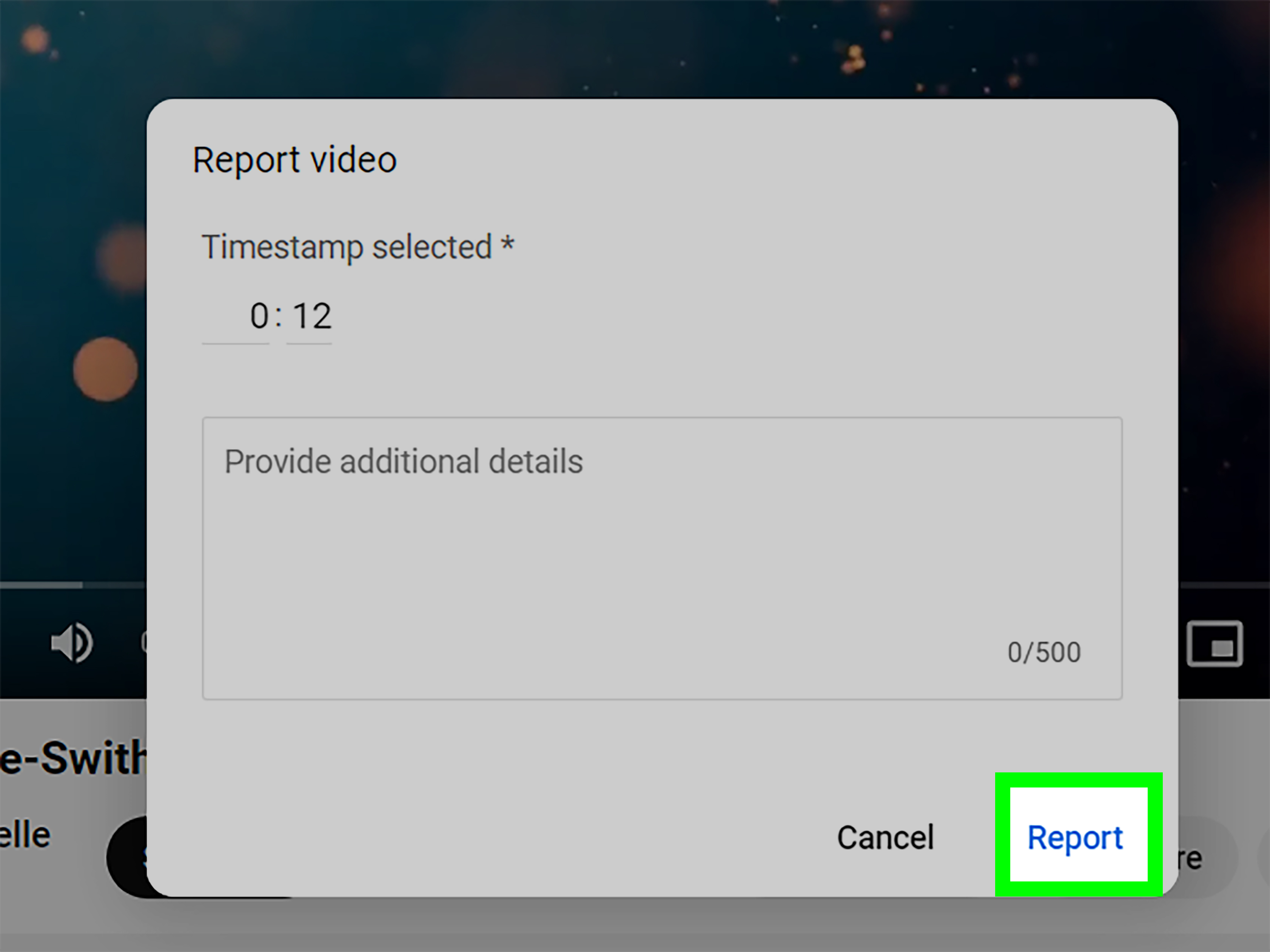
- Add extra details if YouTube asks. If there is a timestamp field, include the point in the video where the issue appears.
- Tap Report. YouTube will confirm that your report was submitted.
How to report a YouTube Short on mobile
YouTube Shorts have a slightly different layout. Open the Short, tap the three-dot menu, choose Report, select the reason, and submit. Since Shorts move quickly, it helps to pause the video or watch it once more before reporting so you choose the right category. The algorithm may be fast, but your report should not be a blindfolded dart throw.
Mobile reporting tip: Use timestamps when possible
If the problem happens at a specific moment, write down the timestamp before submitting. For example, if the first two minutes are normal and the issue appears at 2:41, that timestamp gives reviewers a useful shortcut. Think of it as handing them a map instead of saying, “Somewhere in this 47-minute video, chaos lives.”
How to Report a Video on YouTube Desktop
Reporting on desktop is just as easy, and sometimes better if you want to review the video carefully, check the description, capture timestamps, or use YouTube’s report history later. A larger screen also makes it easier to avoid accidentally clicking three unrelated buttons and wondering why your printer is now involved.
Step-by-step: Report a YouTube video on computer
- Go to YouTube.com and sign in. Reporting works best when you are logged into your account.
- Open the video you want to report. Make sure you are on the video watch page.
- Click the three-dot More menu. It usually appears near the like, share, save, or description area.
- Select Report. A reporting window will open.
- Choose the most accurate reason. YouTube may show several categories and subcategories.
- Add details, if requested. Include timestamps, a short explanation, or context when the form allows it.
- Submit the report. YouTube will send the report to its review process.
Desktop reporting tip: Check your report history
On a computer, YouTube allows users to view report history. This can help you check whether a reported video was removed. However, do not expect a long personal letter from YouTube explaining every decision like a courtroom drama. In many cases, you may only see basic status information.
What Happens After You Report a Video?
After you submit a report, YouTube reviews the content against its rules. If reviewers determine that the video violates Community Guidelines, it may be removed. If the video does not break the rules but is not suitable for all audiences, it may be age-restricted. If YouTube finds no violation, the video may remain available.
This is why multiple reports do not automatically guarantee removal. If a video is reported 10 times, 1,000 times, or by an angry group chat called “Operation Report Button,” the decision still depends on whether the content violates YouTube’s policies. That matters because reporting should be about safety and policy, not popularity contests.
Is reporting anonymous?
Yes, YouTube states that reporting is anonymous, meaning other users cannot see who submitted the report. The creator does not receive your name just because you flagged their video. That said, if you submit a legal, copyright, or privacy complaint through a special form, different information rules may apply depending on the type of complaint.
Will the creator know I reported them?
For standard video reports, the creator should not see your identity. They may be notified if YouTube takes action against their content, but that does not reveal who reported it. So no, you do not need to wear sunglasses and whisper “mission accomplished” after clicking submit.
Choosing the Right Reporting Category
The best report is specific. If you select the wrong category, the review may take longer or miss the main issue. You do not need to write a legal brief, but you should choose the option that most closely matches the violation.
Harassment or cyberbullying
Use this when a video targets someone with repeated insults, threats, humiliation, or exposure of private information. If the video targets a minor, take it especially seriously. If there is a direct threat or immediate safety concern, reporting on YouTube is not enough; contact appropriate local authorities or a trusted adult right away.
Hate speech
Use this when content promotes hatred or violence toward people based on protected characteristics such as race, religion, nationality, disability, gender, sexual orientation, or similar identity-based categories. Context matters: educational or documentary content may be treated differently from content that promotes hate.
Spam, scams, or deceptive practices
Use this when the video appears designed to trick people, push fake giveaways, impersonate someone, promote suspicious offers, or drive viewers to deceptive links. If the content appears to involve fraud, you may also consider reporting the scam to consumer protection agencies such as the Federal Trade Commission.
Privacy complaints
If a video reveals your personal information, shows you in a sensitive context, uses your likeness in a misleading way, or includes altered or synthetic content that affects your privacy, the standard report button may not be enough. YouTube has a privacy complaint process for these situations.
Copyright issues
If someone uploaded your original video, music, artwork, or other copyrighted material without permission, use YouTube’s copyright removal process rather than the basic report menu. Copyright is a legal issue, not simply a “this video is bad” issue, so YouTube handles it through a more formal process.
How to Report Other YouTube Content
Sometimes the problem is not the main video. It might be a comment, live chat message, channel, Short, ad, playlist, community post, or link in the description. YouTube offers reporting tools for many content types.
Report a comment
Find the comment, tap or click the three-dot menu, choose Report, select the reason, and submit. If you are a creator reporting a comment on your own channel, you may also have options to hide that user from your channel.
Report a channel
If the issue appears across many videos, comments, or repeated behavior from the same creator, reporting a channel may be more effective than reporting one video at a time. Go to the channel page, open the report option, and choose the relevant issue.
Report an ad
If a YouTube ad appears inappropriate, misleading, or policy-violating, use the ad’s menu or information icon to report it. Reporting an ad is different from reporting a video because ads are reviewed under Google advertising policies.
Report urgent child safety concerns
If content appears to involve the exploitation or endangerment of a child, report it to YouTube and also use official child safety reporting channels such as NCMEC’s CyberTipline in the United States. If someone is in immediate danger, contact emergency services or a trusted adult immediately.
Tips for Making a Better YouTube Report
A strong report is calm, accurate, and specific. YouTube reviewers are not mind readers, and “this video is terrible” does not explain whether the issue is harassment, spam, privacy, or something else.
Include timestamps
If the issue appears at a certain point in the video, include that time. This is especially useful for long videos, livestream replays, podcasts, and reaction content where the problematic part may appear only briefly.
Do not exaggerate
Choose the closest real reason. Exaggerating can weaken your report. If a video is misleading, call it misleading. If it is harassment, call it harassment. If it is just painfully unfunny, that is between the creator and the algorithm.
Use the right tool for the right problem
Use standard reporting for Community Guidelines issues, privacy complaints for personal information or likeness concerns, copyright tools for ownership claims, and fraud reporting channels for scams that go beyond YouTube.
Take care of yourself
If a video targets you, do not keep replaying it for hours. Save the link, capture the timestamp if needed, report it, block or mute the source, and ask for support from someone you trust. Reporting should help you create distance from harmful content, not trap you in it.
Common Mistakes People Make When Reporting Videos
The report button is simple, but people still make mistakes. The first mistake is reporting because of disagreement rather than violation. YouTube allows a wide range of opinions, including opinions that are unpopular, poorly argued, or delivered with the confidence of a raccoon guarding a trash can.
The second mistake is choosing the wrong category. If a video is impersonating a public figure to promote a fake investment offer, “spam or scam” may fit better than “harassment.” If a video exposes someone’s private address, a privacy complaint may be more appropriate than a general report.
The third mistake is expecting instant results. YouTube reviews a massive amount of content. Some reports may be handled quickly, while others take longer. Submitting the same report repeatedly usually does not improve the outcome if the original report was clear.
The fourth mistake is engaging with the creator after reporting. If content is harmful, threatening, or targeted, avoid comment fights. Internet arguments can turn a small problem into a full-time hobby with no paycheck. Report, block, document if necessary, and move on.
Mobile vs. Desktop: Which Is Better for Reporting?
Both work. Mobile is faster, especially if you encounter the video while scrolling. Desktop is better when you need precision, such as checking timestamps, reading descriptions, reviewing links, or accessing report history. If the situation is serious, desktop may help you organize details more clearly before submitting.
For quick reports, use mobile. For careful reports, use desktop. For complicated privacy, copyright, scam, or safety concerns, use the appropriate special reporting form and keep records of the video URL, channel name, screenshots, and timestamps.
Personal Experience: What Reporting a YouTube Video Feels Like in Real Life
Here is a realistic experience many viewers can relate to. You are watching YouTube for something harmless, like a tutorial on fixing a squeaky door. Five minutes later, the recommendation feed has somehow guided you to a video with a suspicious title, a dramatic thumbnail, and a comment section that looks like a digital food fight. At first, you wonder, “Is this just bad content, or is it actually reportable?” That pause matters.
The best approach is to slow down. I have found that the smartest reports usually come after asking three simple questions: What exactly is wrong? Where does it happen? Which YouTube rule does it seem to violate? This keeps the report focused. Instead of reacting emotionally, you are giving YouTube useful information. That is the difference between saying “I hate this” and saying “At 3:18, the video shares private information about someone.” One is frustration; the other is evidence.
On mobile, the process feels quick but sometimes too quick. The report option can be tucked under a menu, and if you are moving fast, it is easy to choose a vague category. I recommend pausing the video, checking the title, noting the timestamp, and then reporting. It takes a few extra seconds, but it makes the report stronger. Think of it like labeling leftovers before putting them in the fridge. Future you, or in this case a reviewer, will appreciate the context.
On desktop, reporting feels more controlled. The larger screen makes it easier to inspect the description, pinned comments, and external links. This is especially useful for scam videos. Sometimes the video itself is only part of the problem; the description may push viewers to a suspicious website, fake giveaway, or impersonation page. Desktop lets you look at the whole picture before choosing a reason.
Another experience worth mentioning: not every reported video disappears. That can be frustrating, but it does not always mean your report was ignored. It may mean the content did not cross YouTube’s policy line, or it was considered allowed because of context, commentary, news value, or educational purpose. Reporting is not a personal verdict; it is a policy review request. Once you understand that, the process feels less like shouting into the void and more like handing a file to the correct desk.
The healthiest habit is to report once, report accurately, and then step away. If the video is upsetting or targeted, do not keep returning to see whether it is gone. Use blocking, “Not interested,” and privacy tools. If the content involves a real-world threat, a child safety issue, or fraud, use the proper outside reporting channels too. YouTube reporting is useful, but it is not the only safety tool in the toolbox.
In short, reporting a YouTube video is not about being dramatic. It is about being precise. A good report is calm, specific, and honest. It tells YouTube, “Please review this because it may violate the rules,” not “Please remove this because it annoyed me before breakfast.” The first one helps keep the platform safer. The second one is just the internet being the internet.
Conclusion
Learning how to report a video on YouTube is a small skill with a big impact. Whether you are on mobile or desktop, the process is simple: open the video, choose the report option, select the most accurate reason, add details when possible, and submit. The more precise your report is, the more useful it becomes.
Remember, reporting is not for content you merely dislike. It is for videos that may violate YouTube’s rules or create genuine safety, privacy, legal, or trust concerns. When in doubt, review the issue calmly, choose the best category, and use special reporting tools for privacy, copyright, scams, or urgent safety matters. The internet may never be perfect, but with careful reporting, you can help make your corner of YouTube a little less chaotic.