Note: This guide is written from current PayPal account-security guidance and widely accepted cybersecurity best practices from reputable U.S. consumer-security sources.
Changing your PayPal password is one of those tiny digital chores that feels boring right up until it becomes urgent. Maybe you forgot your password. Maybe your browser has been “helpfully” remembering a password from the Jurassic era. Maybe you got a suspicious email claiming your account will be frozen unless you click a button that looks like it was designed by a raccoon with a keyboard. Whatever brought you here, the good news is simple: you can change or reset your PayPal password without needing a computer science degree, a magnifying glass, or emotional support snacks.
This guide explains two practical methods: changing your PayPal password when you can still log in, and resetting it when you cannot. You will also find troubleshooting tips for verification codes, old phone numbers, account locks, browser issues, app confusion, and security concerns. The goal is not just to help you create a new password, but to help you secure your PayPal account like it actually holds moneybecause, surprise, it probably does.
Before You Change Your PayPal Password
Before typing anything into any login page, make sure you are starting from the real PayPal website or the official PayPal app. Do not click password-reset links from random emails, text messages, pop-ups, social media messages, or “support agents” who appear out of nowhere like digital mushrooms after rain. Open a browser yourself and type PayPal.com, or use the PayPal app you installed from the official app store.
This matters because PayPal is a common target for phishing scams. Scammers often create fake messages that look urgent: “Your account is limited,” “Unusual payment detected,” or “Confirm your identity immediately.” The panic is the bait. A legitimate password change should begin with you going directly to PayPal, not with you obeying a dramatic email that sounds like it was written by a villain in a customer-service cape.
Method 1: Change Your PayPal Password When You Can Log In
This is the best method if you know your current password and can access your account. It is also the cleanest option when you simply want a stronger password, suspect your old password was reused somewhere else, or want to tidy up your security settings.
Step 1: Log In Through a Web Browser
Go to PayPal.com and log in with your email address or mobile number and your current password. For changing your password, PayPal’s own guidance points users to the website rather than relying on the mobile app for this specific account-security update. The app is useful for many things, but for password changes, the browser is your dependable adult in the room.
Step 2: Open Account Settings
After logging in, look for the gear-shaped Settings icon, usually near the top-right area of the page. Click it to open your account settings. If PayPal changes the layout slightly, do not panic. Websites rearrange furniture more often than some people clean their garages. Look for terms such as “Settings,” “Account Settings,” or “Security.”
Step 3: Go to the Security Tab
Inside Settings, choose the Security tab. This is where PayPal groups important login and identity-protection features, including password updates, security questions, two-step verification, passkeys, and related controls.
Step 4: Click Update Next to Password
Find the password section and choose Update. PayPal will ask you to confirm your current password. This is normal. It prevents someone from changing your password just because you left your laptop open while you went to make coffee.
Step 5: Enter Your New Password Twice
Type your new password, then type it again to confirm it. The second box is not there to annoy you. It catches typos before they become tomorrow’s “why can’t I log in?” problem.
Step 6: Save the Change
Click the button to change or save the new password. After that, use the new password the next time you log in. If you use a password manager, update the saved PayPal password immediately so your browser does not keep auto-filling the old one like a loyal but confused intern.
Method 2: Reset Your PayPal Password When You Forgot It
If you cannot remember your PayPal password, use the password-reset flow. This method works through PayPal’s login page and can be done from a web browser or the official PayPal app.
Step 1: Go to the PayPal Login Page
Open PayPal.com or the PayPal app and go to the login screen. Choose Forgot password? or a similar recovery option. Avoid using links from emails unless you requested the reset yourself and are completely sure the message is legitimate.
Step 2: Enter the Email Address Used for PayPal
Type the email address connected to your PayPal account. If you have used multiple email addresses over the years, try the one most likely associated with online shopping, invoices, business payments, or your old eBay days. If you forgot which email you used, PayPal provides an option to help identify it by entering possible email addresses.
Step 3: Complete the Security Check
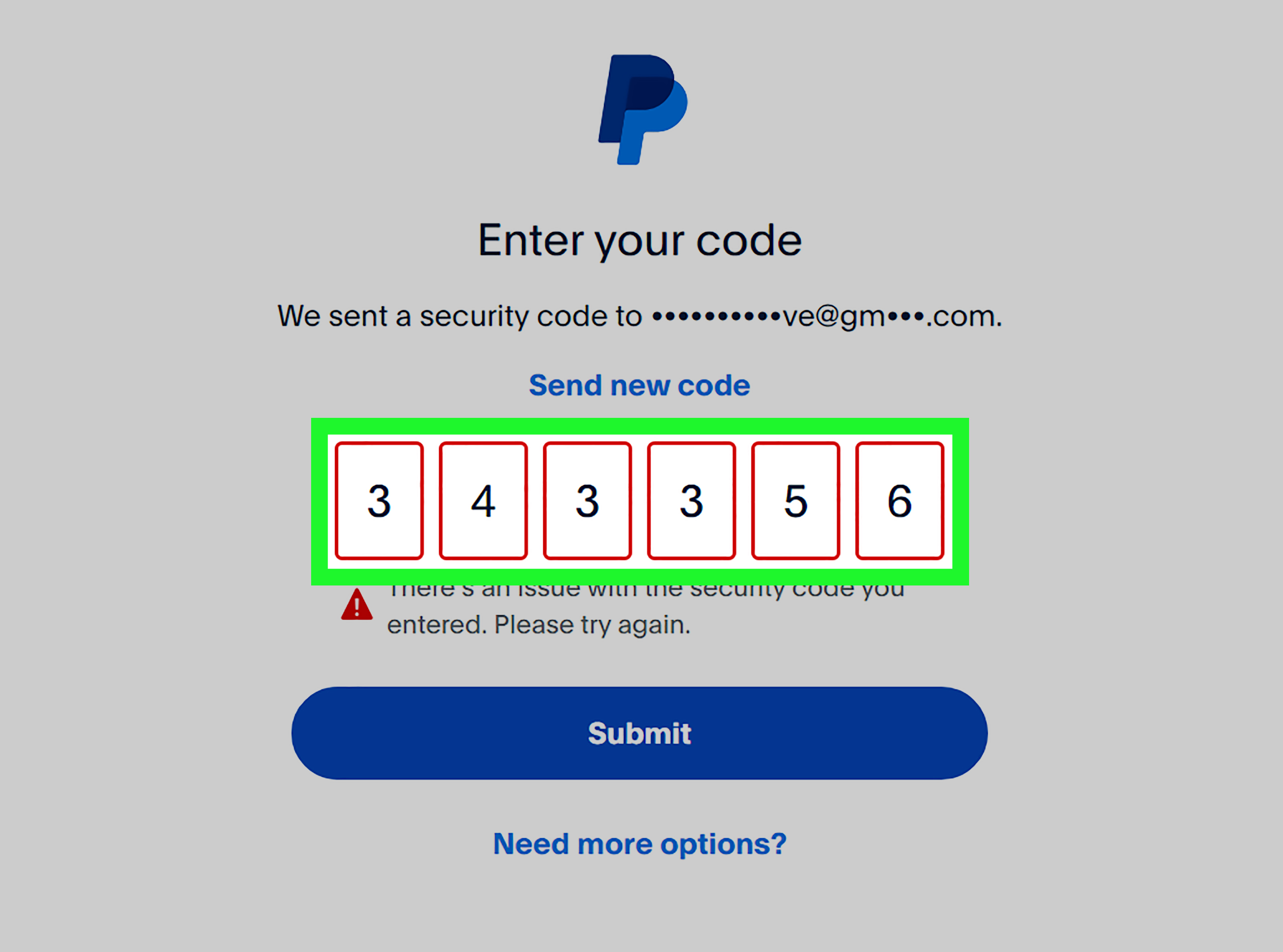
PayPal may ask you to complete a security check. Depending on your account, this may involve receiving a text message, getting an email, answering security questions, confirming card information, receiving a call, or using the PayPal app to verify your identity. The exact options vary because PayPal adjusts security checks based on the account and login situation.
Step 4: Create a New Password
After you pass the security check, PayPal will ask you to create a new password. Choose something strong, unique, and not used anywhere else. “PayPal123” is not a password; it is a welcome mat for trouble. Use a long password or passphrase, ideally generated and stored by a password manager.
Step 5: Log In Again
Once your password is reset, log in with the new password. If you were locked out because of too many failed attempts, you may need to wait or contact PayPal support depending on the message you receive.
How to Create a Strong PayPal Password
A good PayPal password should be long, unique, and hard to guess. It should not include your name, birthday, pet name, phone number, favorite sports team, or anything that can be found by someone who spent five minutes on your social media profile.
A strong password can be a random string generated by a password manager, such as k9!Vt#pQ72xL@zM4, or a long passphrase made from unrelated words, such as cactus-violin-river-lantern-72. The second style is easier to type and remember, while the first is excellent when a password manager does the heavy lifting.
Good PayPal Password Rules
- Use at least 12 characters, and longer is better.
- Make it unique to PayPal only.
- Avoid common words, repeated patterns, and personal details.
- Use a password manager if possible.
- Do not store it in plain text in notes, email drafts, or screenshots.
Turn On Two-Step Verification After Changing Your Password
Changing your password is important, but two-step verification adds another layer of protection. With two-step verification, logging in requires more than just your password. PayPal may ask for a code from an authenticator app, a text message code, or another approved verification method.
To turn it on, log in to PayPal through a web browser, open Settings, go to Security, and look for 2-step verification. Choose the setup option and follow the prompts. An authenticator app is usually stronger than SMS because text messages can be affected by phone-number changes, carrier problems, SIM-swap risks, or blocked short codes. Still, SMS verification is better than having no second layer at all.
Consider Using a PayPal Passkey
PayPal also supports passkeys in many situations. A passkey lets you log in using your device’s built-in security, such as Face ID, Touch ID, fingerprint unlock, screen lock, or device PIN. Passkeys are designed to be resistant to phishing because they are tied to the real website or app and do not require typing a reusable password into a page.
A passkey does not mean you should ignore your password entirely. You may still need your password for certain account actions, recovery situations, or devices. Think of a passkey as a very convenient security upgrade, not a license to set your password to “sandwich.”
Troubleshooting PayPal Password Problems
Password changes are usually straightforward, but real life enjoys throwing banana peels on the floor. Here are the most common PayPal password problems and what to do about them.
Problem 1: You Cannot Find the Password Change Option in the App
If you are trying to change your password inside the PayPal app and cannot find the right menu, switch to a web browser. PayPal’s guidance states that password and security-question changes should be done through PayPal.com. Log in from a browser, open Settings, choose Security, and update your password there.
Problem 2: You Forgot the Email Address for PayPal
On the login page, choose the password-recovery option, then look for Forgot your email? PayPal may let you enter up to several email addresses you may have used. If PayPal recognizes one, you can continue with login or password reset. Check old inboxes for PayPal receipts, payment confirmations, subscription notices, or account emails.
Problem 3: You Are Not Receiving the Verification Code
If PayPal sends a code by text and it does not arrive, first check that your phone has signal and can receive regular SMS messages. Restart your phone, make sure you are not blocking unknown senders, and confirm your carrier allows short-code messages. PayPal verification codes may arrive from short-code numbers, so carrier blocking can be the invisible gremlin causing trouble.
If the code is going to an old phone number, you may need to recover account access first, then update your mobile number immediately. If you still cannot receive codes, use another available verification method or contact PayPal through its official Help Center.
Problem 4: Your Old Phone Number Is Still on the Account
This is a classic digital headache. If two-step verification is tied to a number you no longer have, PayPal may continue sending codes to that number. Once you regain access, update your phone number in Settings and review your two-step verification methods. Remove outdated numbers so your account is not protected by a phone that now belongs to someone named Chad who just wants to order tacos.
Problem 5: PayPal Says It Cannot Confirm It Is You
This message usually appears when PayPal needs more confidence about your identity. Try logging in from a device, browser, location, or network you have used before. Avoid VPNs during recovery because a sudden login from another region can look suspicious. If you recently cleared cookies, changed phones, moved countries, or made several failed attempts, PayPal may require additional checks.
Problem 6: You Are Locked Out
If your account is locked, use PayPal’s official Contact Us page and follow the instructions for account access. PayPal may ask for information about your account or recent payments to confirm ownership. Have your email address, phone number, and details from linked cards, bank accounts, or recent transactions ready. Do not share passwords or verification codes with anyone claiming to be support.
Problem 7: The Password Reset Link or Code Expired
Password reset links and codes are time-sensitive. If yours expired, request a new one. Use the most recent email or code only. Entering an old code is like trying to use yesterday’s concert ticket to get into today’s show: emotionally understandable, technically useless.
Problem 8: Your Browser Keeps Filling the Old Password
If your browser or password manager keeps entering the old password, update the saved PayPal entry. You may need to delete the old saved login and save the new one manually. Also check whether you have multiple PayPal entries saved under slightly different URLs or email addresses.
Problem 9: PayPal Works on One Device but Not Another
Clear the browser cache and cookies on the problem device, update the browser, disable suspicious extensions, or try a private browsing window. If the app is causing trouble, update it from the official app store. You can also try logging in from a browser to separate app issues from account issues.
Problem 10: You Suspect Someone Else Accessed Your Account
Change your PayPal password immediately, then review recent activity, linked cards, bank accounts, automatic payments, addresses, phone numbers, email addresses, and security settings. Turn on two-step verification if it is not already enabled. Then change the password for your email account too, because control of your email can allow attackers to reset other accounts.
What to Do After Changing Your PayPal Password
After you change your password, do a quick security sweep. Review your PayPal activity for unfamiliar payments, transfers, subscriptions, invoices, or login prompts. Check automatic payments and billing agreements, especially for services you forgot existed. Cancel anything suspicious or unnecessary.
Next, secure your email account. Your PayPal password is important, but your email inbox is the master key for password resets. Use a strong, unique email password and turn on two-factor authentication there too. If your PayPal and email passwords were ever the same, change both immediately and never reuse that pair again. Password reuse is convenient in the same way leaving your house key under a doormat is convenient: yes, it works, but so does trouble.
Common Mistakes to Avoid
Using the Same Password Everywhere
If one website suffers a breach and you reused that password for PayPal, attackers may try the same login on PayPal. This is called credential stuffing, and it is one reason unique passwords matter.
Clicking “Urgent” Email Links
If an email claims your PayPal account is in danger, do not click the link. Open PayPal yourself in a browser or app. Real security does not require panic-clicking.
Sharing Verification Codes
Never share PayPal verification codes. Not with callers, not with “support,” not with buyers, not with sellers, not with anyone who says they need the code to “confirm your payment.” Verification codes are for you only.
Ignoring Old Devices and Saved Logins
If you used PayPal on a shared computer, public device, or old phone, review your account security. Sign out when finished, avoid saving passwords on shared devices, and keep your devices updated.
Real-World Experience: Lessons From Changing a PayPal Password
The most common experience people have with changing a PayPal password is not glamorous. It usually begins with a tiny moment of suspicion. Maybe a payment notification looks odd. Maybe the browser autofill stops working. Maybe PayPal asks for extra verification and suddenly your stomach says, “Hello, I have joined the meeting.” That feeling is exactly why a calm process matters.
In practice, the easiest password change happens when you are already logged in on a trusted device. A desktop or laptop browser often feels smoother than a phone because the Settings and Security menus are easier to see. Before changing the password, it helps to open your password manager and generate a fresh password first. That way you are not standing in the password field trying to invent something secure while your brain offers brilliant suggestions like “BlueDog2026!”
One useful habit is to treat password changes as a mini security audit. After updating the password, check your PayPal activity page. Look for payments you do not recognize, subscriptions you forgot about, or automatic payments that are still connected to old services. Many people discover that the password was not the only thing needing attention. Sometimes the real villain is a subscription from 2019 quietly sipping five dollars a month like it owns the place.
Another practical lesson: your phone number matters. If you changed numbers and forgot to update PayPal, recovery can become much harder. Two-step verification is excellent, but it depends on accurate recovery details. After you regain access, update your mobile number, confirm your email address, and add backup verification options if available. Security is strongest when it does not rely on one fragile doorbell.
People also underestimate the importance of securing their email account. If someone can access your email, they may be able to request password resets for PayPal and other services. After changing your PayPal password, change your email password if there is any chance it was reused, weak, or exposed. Turn on two-factor authentication for your email too. Think of email as the control room. If the control room has a screen door, the castle walls are mostly decorative.
Browser autofill can also create confusion. After a password change, some users think the new password failed when the browser is actually submitting the old saved one. If login fails right after a change, manually type the new password once, then update the saved login. In a password manager, make sure there is only one PayPal entry and that it is connected to the correct email address.
Finally, patience helps. Security checks can feel annoying, but they exist because PayPal accounts are valuable targets. If PayPal asks for extra confirmation, use the official recovery flow. Do not search the web and call random “PayPal support” numbers from ads or suspicious pages. Go through PayPal’s Help Center directly. The safest route may be slower, but it will not hand your account to someone whose business plan is stealing login codes in a basement.
Conclusion
Changing your PayPal password is simple when you know where to go: use PayPal.com, open Settings, choose Security, and update your password if you can log in. If you cannot log in, use the Forgot password option and complete PayPal’s security check. The bigger lesson is that a password change should be part of a broader security routine. Use a unique password, store it safely in a password manager, enable two-step verification, keep your phone number and email current, and never click suspicious reset links.
Your PayPal account connects to money, cards, banks, subscriptions, and purchase history. That makes it worth protecting properly. A strong password may not make you feel like a cybersecurity superhero, but it does make you much harder to mess withand that is a pretty good superpower.