Reading at night should feel cozy, not like staring into a tiny rectangular moon. That is exactly why Kindle Dark Mode has become one of the most loved features for late-night readers, travel readers, and anyone who has ever whispered, “Just one more chapter,” at 1:17 a.m.
Dark Mode on an Amazon Kindle changes the reading experience by switching the display to a darker background with lighter text. On supported Kindle e-readers, this can reduce screen glare in dim rooms, make nighttime reading more comfortable, and help you avoid lighting up the entire bedroom like a dramatic interrogation scene.
The good news? Turning it on is simple. The slightly less glamorous news? The exact menu name can vary depending on your Kindle model and software version. Some Kindles show a direct Dark Mode shortcut. Others place the option under Appearance, Color Style, or Accessibility. In this guide, you will learn the two easiest ways to turn on Dark Mode on your Amazon Kindle, plus what to do if the option seems to be missing.
What Is Dark Mode on Kindle?
Kindle Dark Mode is a display setting that changes the usual black-text-on-light-background look into a darker reading layout. Depending on your device, it may invert the colors across the interface or apply a darker appearance mainly to reading pages and menus.
On most black-and-white Kindle e-readers, Dark Mode works by inverting the page color and text color. That means the background becomes dark and the words become light. On newer color Kindle models, the setting may appear under names such as Appearance or Color Style, because the device has more display options than a traditional monochrome Kindle.
Dark Mode is especially useful when reading in low light. It can make the display feel less bright, even when the front light is turned down. It is also helpful for people who prefer high-contrast reading. However, it is not magic eye medicine, and it will not automatically make every book look perfect. Some PDFs, comics, textbooks, images, and fixed-layout books may respond differently because they are formatted differently from standard Kindle ebooks.
Before You Start: Check These Quick Things
Before tapping through menus like a determined raccoon opening a snack container, check three simple things.
1. Make Sure Your Kindle Supports Dark Mode
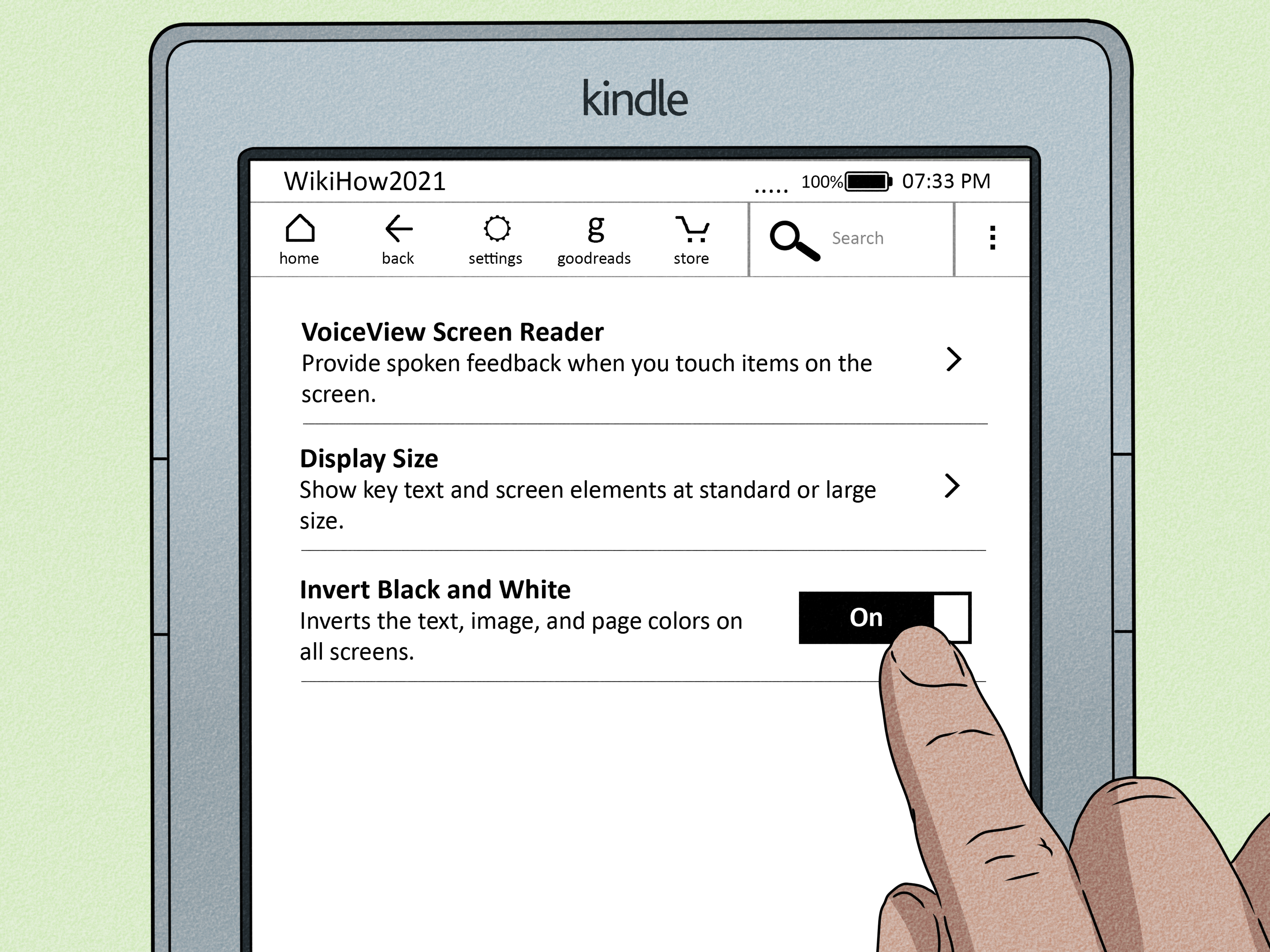
Most modern Kindle models support some version of Dark Mode, but older Kindles may not show the same shortcut or may not support the feature at all. If your Kindle is many years old, you may see an accessibility option called Invert Black and White instead of a shiny, obvious Dark Mode button.
2. Update Your Kindle Software
If Dark Mode is missing, your Kindle may need a software update. Kindle e-readers usually download updates automatically when connected to Wi-Fi and charging, but automatic updates do not always arrive the moment you expect them. To check manually, open Settings, go to Device Options, and look for update-related options. If the update button is grayed out, your Kindle may already be up to date.
3. Know That Kindle Menus Can Look Different
Amazon has refreshed Kindle menus over the years. On one device, you may see Dark Mode in Quick Settings. On another, the setting may be tucked into Screen and brightness. If your menu names do not match this guide word-for-word, do not panic. Your Kindle is not plotting against you. It is probably just running a different software version.
Easy Way #1: Turn on Dark Mode from Quick Settings
The fastest way to enable Dark Mode on many Kindle e-readers is through the Quick Settings menu. This is the method most readers should try first because it takes only a few taps.
Step-by-Step Instructions
- Wake up your Kindle and go to the Home screen or open a book.
- Swipe down from the top of the screen to open the Quick Settings panel.
- Look for a button labeled Dark Mode, Appearance, or a similar display option.
- Tap the option to switch the display to a dark background with light text.
- Adjust brightness or warmth if your Kindle model supports those controls.
That is it. You have now entered the elite society of people who can read fantasy novels at midnight without turning the room into a lighthouse.
When This Method Works Best
This method works best on newer Kindle e-readers that include a direct display shortcut. It is especially convenient if you switch between daytime and nighttime reading often. For example, you might use the regular light background during the day and Dark Mode before bed.
If you read in bed, try pairing Dark Mode with a low brightness setting. On Kindle Paperwhite and other models with adjustable warm light, you can also make the screen tone warmer. The combination of Dark Mode, low brightness, and warm light can create a softer reading setup that feels less harsh in a dark room.
What If You Do Not See the Dark Mode Button?
If you swipe down and do not see Dark Mode, do not immediately blame the Kindle goblins. Try tapping deeper into display settings. Depending on your model, you may need to open Settings, then choose Screen and brightness, followed by Appearance or Color Style. From there, select the darker display mode.
If that still does not work, move to the second method below.
Easy Way #2: Turn on Dark Mode Through Settings or Accessibility
If Quick Settings does not show a Dark Mode shortcut, your Kindle may still have the feature under Settings. On some devices, the option appears as Invert Black and White. This is the classic Kindle way of creating a dark reading look.
Step-by-Step Instructions for Newer Kindle Menus
- Open your Kindle and tap the top of the screen if you are inside a book.
- Tap the Settings gear icon.
- Select All Settings if available.
- Choose Screen and brightness.
- Tap Appearance or Color Style.
- Select the dark option.
Step-by-Step Instructions for Older Kindle Menus
- Swipe down from the top of the Kindle screen.
- Tap the Settings gear.
- Select All Settings.
- Open Accessibility.
- Find Invert Black and White.
- Turn the toggle on.
Once enabled, your Kindle should switch to a darker background with lighter text. If the change looks too intense at first, adjust the front light brightness. Many readers make the mistake of turning on Dark Mode but leaving brightness higher than necessary. That is like wearing sunglasses indoors but also pointing a lamp at your face. Technically possible, spiritually confusing.
Dark Mode vs. Invert Black and White: Are They the Same?
They are similar, but not always identical. Dark Mode is the modern, friendlier label many devices use for a darker display theme. Invert Black and White is more of an accessibility-style feature that flips display colors.
On many Kindle e-readers, the result is basically what readers want: dark background, light text. But because inversion affects colors and images differently, covers, illustrations, maps, charts, and PDFs may not look as natural as standard ebook text. If you mostly read novels, memoirs, business books, or nonfiction with simple formatting, Dark Mode usually works beautifully. If you read graphic novels, children’s books, cookbooks, or heavily designed PDFs, you may prefer regular mode.
How to Turn Off Dark Mode on Kindle
Turning Dark Mode off is just as easy as turning it on. Open Quick Settings again and tap Dark Mode to disable it. If you used the Settings method, return to Screen and brightness, Appearance, or Accessibility and switch back to the light option.
You may want to turn Dark Mode off during the day, especially if you read outdoors. Kindle screens are designed to look excellent in bright light, and the classic black-text-on-light-background layout often feels more natural in sunlight. Dark Mode shines brightest, ironically, when the room is darkest.
Does Dark Mode Save Battery on Kindle?
Dark Mode may help your Kindle feel less bright in a dark room, but it is not the same battery-saving trick you might know from OLED phones. Kindle e-readers use E Ink displays, which behave differently from phone screens. E Ink uses power mainly when the page changes, while the front light uses additional power when it is turned on.
So, if your goal is better battery life, focus on lowering brightness, turning off Wi-Fi when you do not need it, and letting your Kindle sleep when you are done reading. Dark Mode is mostly about comfort and contrast, not dramatic battery wizardry.
Can You Use Dark Mode in the Kindle App?
Yes, but the Kindle app works differently from a Kindle e-reader. On iPhone, iPad, and Android devices, the Kindle app may follow your phone or tablet’s system-wide Dark Mode setting. You can also adjust the reading page appearance inside a book.
To change the reading background in the Kindle app, open a book, tap the middle or top area of the screen to show reading controls, tap the Aa menu, then look for layout or background color options. Choose a black or dark background if available. This changes the book page style, while your phone’s system Dark Mode may change parts of the app interface.
One important note: a Kindle e-reader and the Kindle app are not the same thing. A Kindle Paperwhite, Kindle Oasis, Kindle Scribe, or basic Kindle uses E Ink. The Kindle app runs on a phone or tablet with an LCD or OLED screen. That means brightness, color, battery use, and eye comfort can feel very different.
Best Settings for Night Reading on Kindle
Dark Mode is only one piece of a comfortable nighttime reading setup. For the best experience, try these simple adjustments.
Lower the Brightness
After turning on Dark Mode, reduce the front light until the page is readable but not glowing aggressively. A good rule: if your Kindle could guide ships safely into harbor, it is probably too bright.
Use Warm Light If Available
Kindle Paperwhite and some premium models include adjustable warm light. This lets you shift the screen tone from cooler white to warmer amber. Many readers prefer a warmer tone at night because it feels softer and less clinical.
Increase Font Size Slightly
Dark backgrounds can make small text feel a little different. If reading feels less smooth, increase the font size by one step. This tiny change can make long sessions much more comfortable.
Choose a Clean Font
Bookerly, Amazon Ember, and other Kindle fonts can look different in Dark Mode. If the text feels fuzzy or too thin, try a slightly heavier font. The best font is not the fanciest one. It is the one your eyes can read without sending a complaint letter.
Troubleshooting: Why Is Dark Mode Missing on My Kindle?
If you cannot find Dark Mode, here are the most common reasons.
Your Kindle Is Too Old
Some older Kindle models do not support the modern Dark Mode feature. They may not have a built-in front light, updated display settings, or the newer software interface. In that case, you may not be able to enable Dark Mode the same way newer Kindle owners can.
Your Software Needs Updating
If your Kindle supports Dark Mode but the option is missing, connect to Wi-Fi and check for software updates. Amazon periodically updates Kindle software, and display settings may move or improve over time.
You Are Reading a PDF or Fixed-Layout Book
Some files do not behave like normal Kindle books. PDFs, textbooks, comics, and image-heavy books may not fully respond to Dark Mode. You may see inverted images, strange contrast, or pages that remain mostly unchanged.
You Are Looking in the Wrong Menu
Kindle menus are not identical across every model. Try both routes: first the Quick Settings panel, then the deeper Settings or Accessibility menu.
Is Kindle Dark Mode Better for Your Eyes?
Dark Mode can feel more comfortable in a dark room because it reduces the bright white appearance of the page. However, comfort depends on the reader, the room, the book formatting, and your brightness setting. Some people love Dark Mode. Others find light text on a dark background harder to read for long periods.
The best approach is practical: test it. Read for 15 minutes in regular mode, then 15 minutes in Dark Mode. If your eyes feel more relaxed, keep it. If the words seem to shimmer or your focus gets worse, switch back. Your Kindle should serve your reading habits, not win an argument with your eyeballs.
Specific Example: A Good Bedtime Kindle Setup
Here is a simple setup that works well for many nighttime readers:
- Turn on Dark Mode.
- Set brightness low, usually between 3 and 8 depending on your room.
- Use warm light if your Kindle supports it.
- Increase font size by one level.
- Use a readable font such as Bookerly or Amazon Ember.
- Turn off Wi-Fi if you do not need syncing.
This setup is especially helpful if you read next to someone who is trying to sleep. It keeps the Kindle display calmer and less distracting, which may prevent the classic bedtime question: “Are you still reading?” Yes. Obviously. The dragon has not saved the kingdom yet.
Real-World Experience: What It Feels Like to Use Kindle Dark Mode
The first thing many readers notice after switching to Kindle Dark Mode is that the screen feels less demanding in a dark room. A regular Kindle page is already much gentler than a phone screen, but at night, even a soft white page can feel surprisingly bright. Dark Mode tones everything down. Instead of feeling like the page is shining at you, it feels more like the words are quietly sitting there, waiting politely to be read.
In daily use, Dark Mode is most helpful during three situations: reading in bed, reading while traveling, and reading in shared spaces. In bed, it keeps the room darker and makes the Kindle less distracting. On a plane, bus, or train, it can make reading feel more private and less visually loud. In a shared room, it lets you continue reading without becoming the person whose screen lights up everyone’s peripheral vision.
One practical experience worth mentioning is that Dark Mode works best when paired with the right brightness. Many new users turn it on and stop there. Then they wonder why it still feels a little uncomfortable. The trick is to adjust brightness after enabling Dark Mode. A low front-light setting usually feels better than a bright one. If your Kindle has warm light, adding a warmer tone can make the page feel even more relaxed.
Another real-world detail: not every book looks equally good in Dark Mode. Standard novels usually look excellent. The clean text flips nicely, and the reading experience feels smooth. But books with charts, diagrams, photos, or custom formatting can be hit or miss. A map in a fantasy novel may look dramatic. A scanned PDF may look like it has entered witness protection. If something looks strange, switch back to regular mode for that book.
Dark Mode can also change your reading rhythm. Some readers find they read longer at night because the page feels less harsh. Others discover that light text on a dark background is not ideal for them after 30 or 40 minutes. That is normal. Eye comfort is personal. The best Kindle setting is not the one everyone online praises. It is the one that lets you read comfortably without thinking about the screen.
For people who read both indoors and outdoors, the most convenient habit is to treat Dark Mode as a nighttime switch, not a permanent setting. Use regular mode during the day, especially in bright rooms or sunlight. Use Dark Mode at night or in dim spaces. Once you get used to the Quick Settings shortcut, switching back and forth takes only a few seconds.
The biggest benefit of Kindle Dark Mode is not that it makes reading “high-tech.” It is that it gets out of the way. A good Kindle setup disappears. You stop noticing the device and start noticing the story, the argument, the mystery, or the one character who is clearly about to make a terrible decision. Dark Mode helps create that quieter reading environment, especially when the rest of the world is asleep and your book is absolutely not done with you yet.
Conclusion
Turning on Dark Mode on your Amazon Kindle is easy once you know where to look. The fastest method is to swipe down and use the Quick Settings shortcut. If that option is not available, go through Settings, Screen and brightness, Appearance, Color Style, or Accessibility, depending on your Kindle model.
Dark Mode is ideal for nighttime reading, low-light rooms, and anyone who wants a softer display experience. It may not work perfectly with every PDF or image-heavy book, and it may not appear on very old Kindle models, but for most modern Kindle readers, it is one of the simplest ways to make reading more comfortable.
So go ahead: turn on Dark Mode, lower the brightness, pick a comfortable font, and return to your book. Your eyes may thank you. Your sleep schedule may not, but that is between you and chapter thirty-two.