An Xbox controller on PC is one of life’s little joysuntil the game is over, the pizza is cold, and the controller is still glowing like it has unfinished business. Whether you use an Xbox Wireless Controller, Xbox Series X|S controller, Xbox One controller, or an Elite pad, knowing how to turn it off properly can save battery life, prevent random inputs, and stop your PC from thinking you are still ready for one more match.
The good news: turning off an Xbox controller on PC is usually simple. The slightly annoying news: the best method depends on how the controller is connected. A Bluetooth controller behaves differently from a wired USB controller. A controller connected through the Xbox Wireless Adapter may act differently from one connected with a cable. And yes, sometimes Windows decides to be Windows, which means the “easy” button occasionally wears a fake mustache.
This guide breaks down the four easiest ways to turn off an Xbox controller on PC, with clear steps, practical troubleshooting tips, and real-world experience from the kind of situations PC gamers actually run into.
Quick Answer: The 4 Easiest Ways
| Method | Best For | Difficulty |
|---|---|---|
| Hold the Xbox button | Wireless, Bluetooth, Xbox Wireless Adapter | Very easy |
| Unplug the USB cable | Wired PC gaming | Very easy |
| Disconnect it in Windows Bluetooth settings | Bluetooth-connected controllers | Easy |
| Remove the batteries or battery pack | Frozen or stubborn controllers | Easy, but manual |
1. Hold the Xbox Button for About 6 Seconds
The fastest and cleanest way to turn off an Xbox controller on PC is to press and hold the Xbox button in the center of the controller. Hold it for about 6 seconds, or until the light turns off. This works for many Xbox Wireless Controllers, including Xbox One and Xbox Series X|S controllers.
How to do it
- Stop your game or pause what you are doing.
- Press and hold the Xbox button in the center of the controller.
- Keep holding it for about 6 seconds.
- Release the button when the Xbox light turns off.
Do not just tap the Xbox button. A quick tap may open the Xbox Game Bar, Steam overlay, or another controller menu depending on your PC setup. You want a long press, not a polite little poke. Think of it as telling the controller, “Good job, buddy. Go take a nap.”
When this method works best
This is usually the best method if your controller is connected wirelessly through Bluetooth or the Xbox Wireless Adapter for Windows. It is also the most battery-friendly method because it powers down the controller instead of simply ignoring it.
What if it does not work?
If holding the Xbox button does not turn the controller off, try holding it a little longer, up to 10 seconds. Also make sure the controller firmware is updated through the Xbox Accessories app on Windows. Outdated firmware can cause odd behavior, including connection glitches, delayed input, or strange power behavior.
2. Unplug the USB Cable
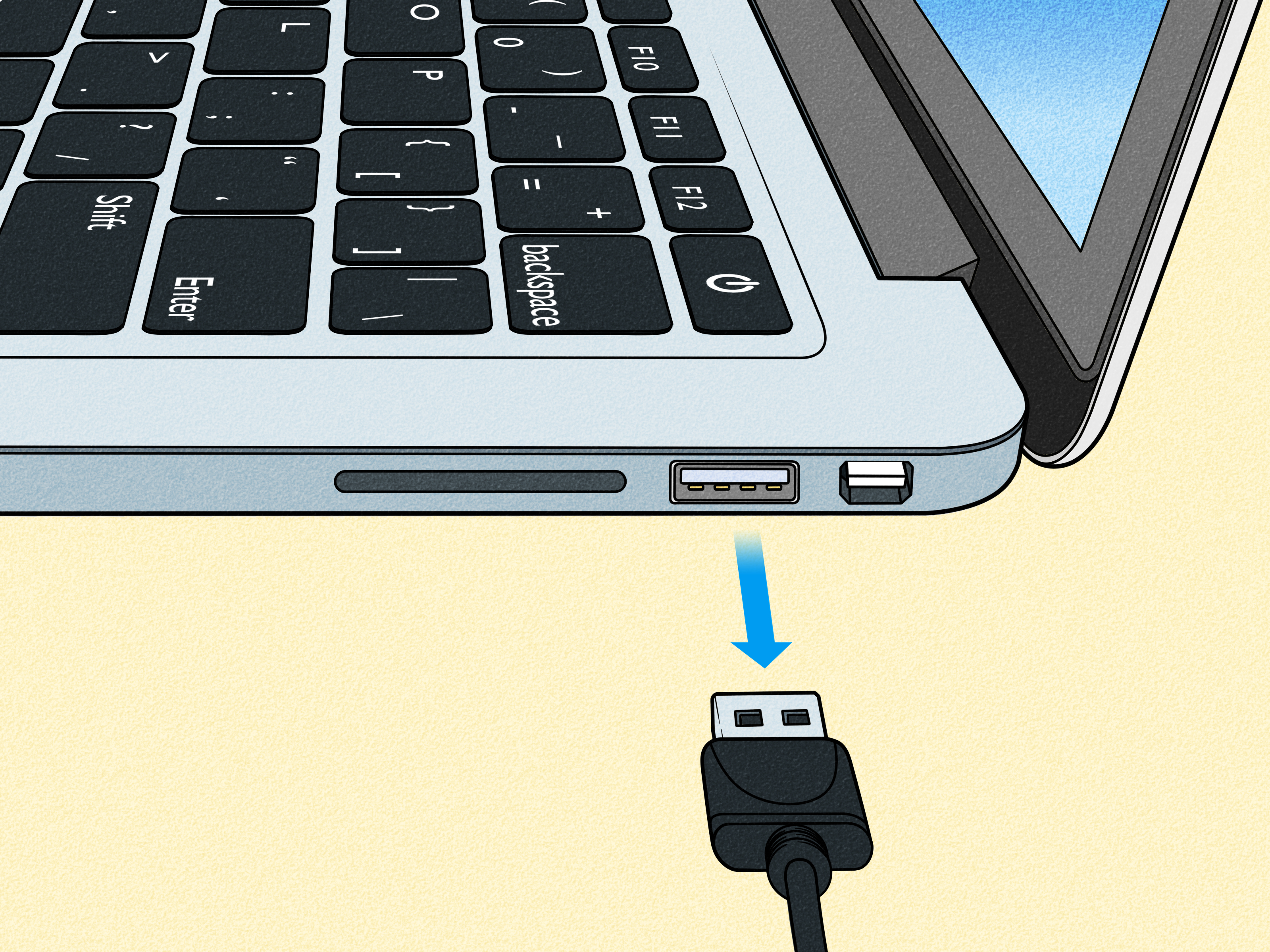
If your Xbox controller is connected to your PC with a USB cable, the easiest way to turn it off is almost laughably simple: unplug the cable. A wired controller gets power and sends input through the cable, so disconnecting it stops the connection immediately.
How to do it
- Close or pause your game.
- Hold the controller firmly.
- Unplug the USB-C or micro-USB cable from the controller or PC.
- Check that the controller light turns off.
Xbox Series X|S controllers and newer Xbox Wireless Controllers commonly use USB-C. Older Xbox One controllers usually use micro-USB. Either way, the idea is the same: no cable, no power, no surprise menu navigation while you are trying to watch a video.
Best example
Suppose you are playing a racing game on PC with your Xbox controller plugged in. When you finish, you can exit the game and unplug the cable. The controller shuts off, Windows stops receiving controller input, and your desk returns to its natural state of controlled chaos.
A small warning about cables
Do not yank the cable from across the room like you are starting a lawn mower. Pull it gently from the connector. USB ports and controller ports are durable, but they are not emotionally prepared for violence.
3. Disconnect the Controller in Windows Bluetooth Settings
If your Xbox controller is connected to your PC through Bluetooth, you can disconnect it directly from Windows. This method is useful when the controller is still awake, still paired, and still acting like it owns the place.
How to disconnect on Windows 11
- Open Settings.
- Go to Bluetooth & devices.
- Select Devices.
- Find Xbox Wireless Controller.
- Click the three-dot menu next to it.
- Select Disconnect if available, or choose Remove device if you want to unpair it.
How to disconnect on Windows 10
- Open Settings.
- Go to Devices.
- Select Bluetooth & other devices.
- Click Xbox Wireless Controller.
- Choose Disconnect or Remove device.
Disconnecting is usually better if you plan to use the controller again soon. Removing the device is more like saying, “We need space.” If you remove it, you may need to pair it again later by holding the controller’s pairing button and adding it back through Windows Bluetooth settings.
Should you turn Bluetooth off completely?
You can turn Bluetooth off in Windows, and that will disconnect the controller. However, this also disconnects other Bluetooth devices such as headphones, keyboards, mice, speakers, and anything else living in your wireless ecosystem. Use this option only if you are okay with everything Bluetooth taking a quick coffee break.
4. Remove the Batteries or Rechargeable Battery Pack
When everything else fails, remove the batteries. It is not fancy. It is not elegant. It is the controller version of unplugging the router. But it works.
How to do it safely
- Turn the controller over.
- Slide off the battery cover.
- Remove the AA batteries or rechargeable battery pack.
- Wait a few seconds.
- Reinsert the batteries only when you are ready to use the controller again.
This method is especially helpful if your controller freezes, refuses to disconnect, keeps blinking, or does not respond to the Xbox button. It immediately cuts power, which forces the controller to shut down.
When to use this method
Use battery removal as a backup method, not your daily routine. Repeatedly opening the battery compartment can wear the cover over time, and nobody wants a battery door that rattles like a tiny plastic maraca.
Which Method Should You Use?
For most PC gamers, the best method is holding the Xbox button for about 6 seconds. It is fast, clean, and does not require opening Windows settings. If you play wired, unplugging the USB cable is the obvious winner. If your controller is paired over Bluetooth and the button method does not behave, Windows Bluetooth settings are your next best option. If the controller is frozen or acting weird, remove the batteries or battery pack.
Why Turning Off Your Xbox Controller on PC Matters
Turning off your Xbox controller is not just about saving a few drops of battery juice. It also prevents accidental inputs. A controller left on can scroll menus, trigger buttons, interrupt video playback, or interfere with games and launchers. If Steam, the Xbox app, Game Pass, or another launcher detects the controller, it may continue treating it as an active input device.
Battery life is another big reason. Wireless Xbox controllers use AA batteries or rechargeable battery packs, and leaving the controller on after a gaming session can drain them faster than expected. Turning it off properly means fewer surprise dead-battery moments when you finally sit down to play.
Common Problems and Simple Fixes
The Xbox button opens Game Bar instead of turning off the controller
A short press of the Xbox button can open Xbox Game Bar or another overlay. Hold the button longer. The key is patience. If you release too early, Windows may think you are asking for a menu instead of a shutdown.
The controller keeps reconnecting
If the controller keeps reconnecting through Bluetooth, disconnect it from Windows Bluetooth settings or remove the device and pair it again later. Also check whether Steam or another app is waking the controller input.
The controller will not turn off after holding the Xbox button
Try holding the Xbox button for 10 seconds. If that fails, remove the batteries or battery pack. After that, update the controller firmware using the Xbox Accessories app on your PC.
The controller stays on when plugged into USB
That is normal. A wired controller receives power through the cable. Unplug the cable when you are finished, or shut down the PC if you are done using it entirely.
Extra Tips to Save Battery Life
- Turn the controller off immediately after gaming.
- Use a good rechargeable battery pack if you play wirelessly often.
- Keep controller firmware updated through the Xbox Accessories app.
- Use USB for long sessions if you do not want to worry about batteries.
- Disconnect unused Bluetooth devices to reduce connection confusion.
Real-World Experience: What Actually Works Best
In everyday PC gaming, the long-press method is the one most people should learn first. It feels natural after a few tries, and it avoids digging through Windows settings every time you finish a game. The trick is to hold the Xbox button long enough. Many people release it too soon because they see something pop up on the screen and assume the controller did not understand the assignment. Keep holding. Wait for the controller light to turn off. That little glow is the final boss.
The wired method is even simpler, but only if you are actually playing with a cable. For desk setups, wired play is underrated. There is no battery anxiety, no Bluetooth pairing drama, and no “why did my controller disconnect during the final lap?” tragedy. When the session ends, unplugging the cable turns the controller off instantly. It is not glamorous, but neither is losing because your batteries gave up mid-match.
Bluetooth is convenient, but it can be the most unpredictable connection type. Sometimes the controller shuts off perfectly. Sometimes Windows keeps showing it as connected. Sometimes the controller light blinks like it is trying to send Morse code to another planet. In those moments, Windows Bluetooth settings are useful. Disconnecting the controller from the device list can stop unwanted input without removing batteries. If the controller repeatedly causes problems, removing it and pairing it again can clean up the connection.
Battery removal is the emergency method. It is not the most polished solution, but it is reliable. If the controller freezes, refuses to shut off, or stays connected after every normal attempt, popping out the batteries ends the argument immediately. This is especially helpful with older controllers or controllers that have not had firmware updates in a long time. Still, it is better to treat this as a backup move. Battery covers are small, plastic, and surprisingly easy to annoy.
One useful habit is to decide on a shutdown routine based on your setup. If you use Bluetooth, long-press the Xbox button first. If that fails, disconnect from Windows. If you use USB, unplug the cable. If nothing responds, remove the battery pack. This simple order saves time and keeps you from clicking through random menus like you are defusing a bomb in a movie.
Another real-world tip: keep the Xbox Accessories app installed if you use an Xbox controller regularly on PC. It is not something you need to open every day, but it helps with firmware updates and controller maintenance. A controller with updated firmware is less likely to behave strangely with Windows, Bluetooth, or the Xbox Wireless Adapter.
The best method overall is still the long press. It is quick, official, and easy to remember. But the smartest PC gamers know all four methods, because controllers, like cats, sometimes follow instructions only when they feel like it.
Conclusion
Turning off an Xbox controller on PC should not require a technical support séance. In most cases, holding the Xbox button for about 6 seconds is all you need. For wired play, unplug the USB cable. For Bluetooth connections, use Windows Bluetooth settings when the controller refuses to cooperate. And if the controller is completely stuck, removing the batteries or battery pack will shut it down immediately.
The main idea is simple: match the shutdown method to the connection type. Wireless controller? Long-press the Xbox button. Wired controller? Unplug it. Bluetooth acting weird? Disconnect it in Windows. Controller frozen? Remove the batteries. Congratulationsyou have now defeated one of PC gaming’s smallest but most persistent mysteries.
Note: This article is written for Windows PC users and focuses on Xbox Wireless Controller, Xbox Series X|S Controller, Xbox One Controller, Xbox Elite controllers, Bluetooth connections, USB connections, and the Xbox Wireless Adapter for Windows.