LED screens are excellent at displaying tiny detailsespecially fingerprints, dust, mysterious streaks, and the occasional snack-related crime scene. Whether you are cleaning a television, desktop monitor, laptop, or LED gaming display, the goal is simple: remove the grime without scratching the surface, damaging its protective coating, or introducing moisture where electronics strongly prefer moisture not to be.
The safest method depends on what is actually on the screen. Loose dust usually needs nothing more than a dry microfiber cloth. Fingerprints may require a barely damp cloth. Stubborn oily marks might call for a manufacturer-approved screen cleaner. The important part is to begin with the gentlest method and increase your cleaning power only when necessary.
This guide explains three reliable ways to clean an LED screen, the supplies you need, common mistakes to avoid, and practical experiences that can save you from turning a five-minute chore into an expensive electronics-shopping trip.
The Quick Answer: How to Clean an LED Screen Safely
For most LED televisions and monitors, follow this basic process:
- Turn off and unplug the device.
- Allow the screen to cool.
- Remove dust with a clean, dry microfiber cloth.
- For fingerprints, lightly dampen the cloth with distilled water.
- For stubborn residue, use only a cleaner approved for your screen model.
- Never spray liquid directly onto the display.
- Let the screen dry completely before reconnecting power.
Official guidance from major television and monitor manufacturers consistently emphasizes gentle wiping, soft lint-free materials, minimal moisture, and keeping cleaning liquid away from openings and panel edges.
Before Cleaning: Know What You Are Touching
An LED Screen Is More Than a Piece of Glass
Most products described as LED screens are LCD panels illuminated by LED backlighting. The outer surface may include an anti-glare, anti-reflective, fingerprint-resistant, or polarizing layer. These coatings help improve picture quality, but they can be more chemically sensitive than an ordinary window.
That is why grabbing the household glass cleaner is a bad idea. A product that makes the bathroom mirror sparkle may leave a monitor cloudy, streaked, or permanently discolored. Screen coatings are not impressed by your enthusiasm.
Check the Manufacturer’s Instructions
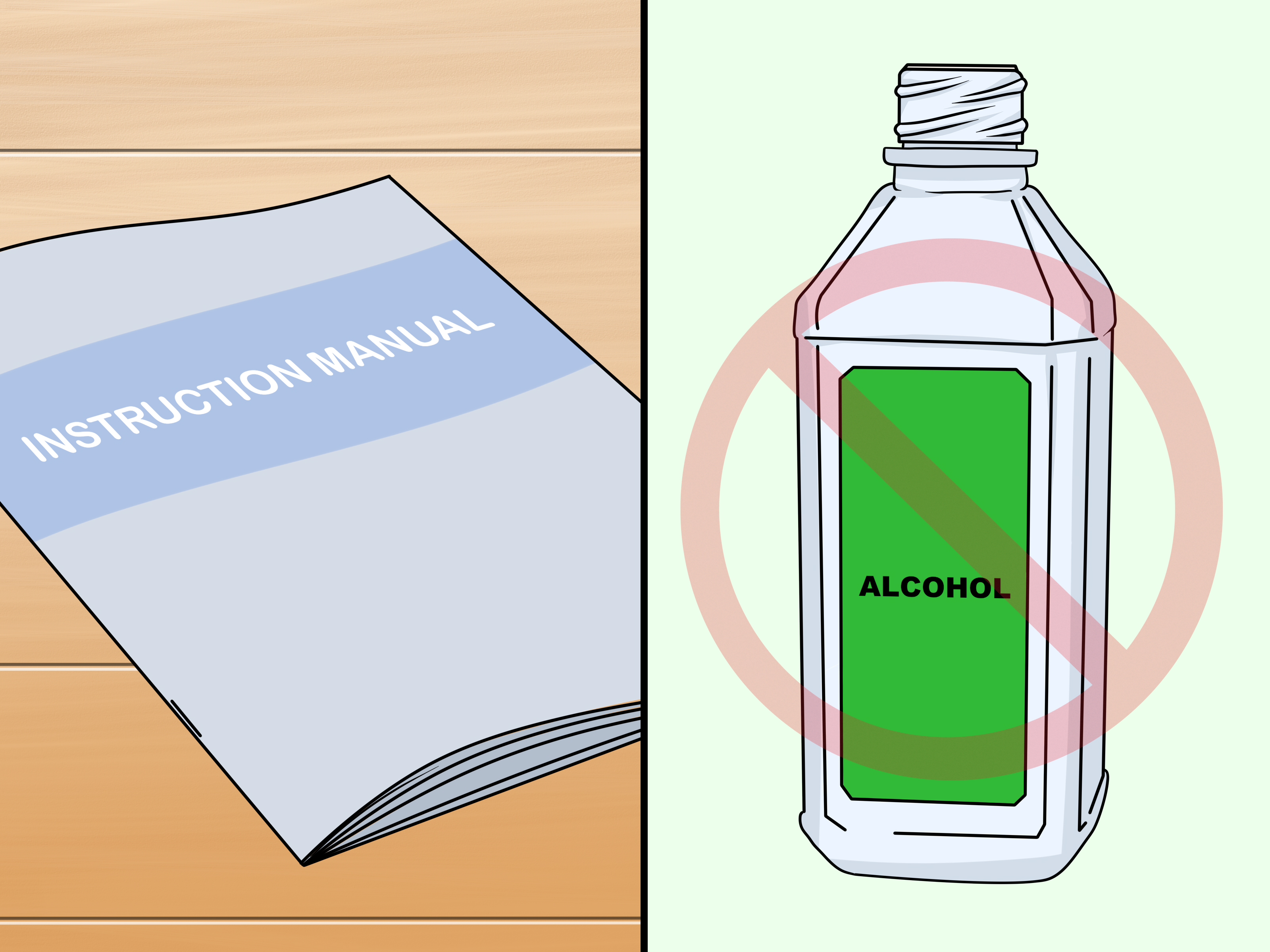
Before using any liquid, look at the cleaning section of the device manual or the manufacturer’s support page. Cleaning rules can vary significantly among models. Some manufacturers permit a specific concentration of isopropyl alcohol for certain laptop displays, while others recommend water only or a specialized polishing cloth.
Special surfaces require special caution. Nano-texture, reflection-free, matte, and advanced anti-glare panels may have cleaning instructions that differ from those for a standard glossy screen. ASUS, Apple, Acer, and BenQ all publish model-specific guidance for specialized display coatings and accessories.
Gather the Right Supplies
You may need:
- One or two clean microfiber cloths
- Distilled or purified water
- A manufacturer-approved screen-cleaning solution
- A soft brush or hand-operated air blower for the bezel
- A flashlight to inspect the screen after cleaning
Avoid using a microfiber cloth that previously polished furniture, cleaned a countertop, or lived in the bottom of a kitchen drawer beside three batteries and a soy sauce packet. Residual oils and cleaning chemicals can transfer to the display.
Way 1: Clean the LED Screen With a Dry Microfiber Cloth
Dry cleaning is the safest starting point and often the only method you need. It works well for ordinary dust, lint, pet hair, and light surface marks.
Step 1: Turn Off and Unplug the Screen
Powering off the screen provides several advantages. A dark display makes dust and fingerprints easier to see, reduces the risk of electrical trouble, and prevents accidental commands on touch-sensitive controls. If the screen has been operating for several hours, let it cool before cleaning.
Step 2: Inspect the Microfiber Cloth
Make sure the cloth is clean, soft, and free from grit. Even a tiny hard particle trapped in the fibers can drag across the display and create a scratch. Shake the cloth away from the device before using it.
Step 3: Wipe With Light Pressure
Support the monitor or television with one hand if necessary. Move the cloth gently across the surface using broad horizontal or vertical passes. Avoid pressing repeatedly on one point.
The cloth should glide over the panel rather than push into it. Excessive pressure can temporarily distort liquid crystals, stress panel layers, or create uneven marks. A screen is not a cast-iron skillet; aggressive scrubbing does not unlock a bonus level of cleanliness.
Step 4: Fold the Cloth as It Collects Dust
Fold the microfiber cloth into quarters and rotate to a clean section as you work. This prevents collected particles from being redistributed across the display.
When Dry Cleaning Works Best
- Weekly dust removal
- Computer monitors in a home office
- Televisions in bedrooms or low-traffic areas
- Removing pet hair and lint
- Cleaning screens with sensitive surface coatings
Consumer Reports, Samsung, Sony, LG, and Dell recommend beginning with a soft or microfiber cloth rather than paper products or harsh cleaners.
Way 2: Use a Microfiber Cloth Lightly Dampened With Water
Dry microfiber may remove dust while leaving greasy fingerprints behind. When that happens, move to the second method: a cloth barely dampened with distilled or purified water.
Why Distilled Water Is Preferable
Tap water can contain minerals that leave spots or faint streaks when the moisture evaporates. Distilled water contains fewer dissolved minerals, making it a better choice for delicate display surfaces.
You do not need to soak the cloth. In fact, you should not. The goal is to loosen fingerprints, not reenact a weather emergency on your television.
Step 1: Apply Water to the Cloth
Put a small amount of distilled water on a clean microfiber cloth. Never spray water directly onto the screen. Direct spraying can allow droplets to run into the bezel, ventilation openings, control buttons, speakers, or internal electronics.
Step 2: Wring Out Excess Moisture
The cloth should feel slightly damp but should not release water when squeezed. If it is wet enough to leave visible droplets, it is too wet.
Step 3: Wipe the Stained Area Gently
Use slow, overlapping passes. Begin around the stain and work across it without concentrating pressure in the center. For fingerprints, a few gentle passes are safer than one forceful scrub.
Step 4: Dry the Screen
Use a second dry microfiber cloth to remove remaining moisture and prevent streaks. Then allow the screen to air-dry completely before plugging it back in.
Dealing With a Dried Spot
If a stain does not lift immediately, hold the lightly damp cloth against it for several seconds without pressing hard. This gives the moisture time to soften the residue. Wipe gently afterward.
Do not scrape the spot with a fingernail, plastic card, razor blade, or other tool. What looks like dried food may be sitting on top of an extremely thin coating that costs considerably more than the food did.
When the Damp-Cloth Method Works Best
- Fingerprints and handprints
- Minor food or beverage spots
- Light oily residue
- Streaks left by an earlier cleaning attempt
- Touchscreen marks, when permitted by the manufacturer
Apple, Dell, ASUS, LG, and other manufacturers instruct users to apply permitted liquid to the cloth rather than directly to the display. Recommendations vary by product, so the manual for the exact model remains the final authority.
Way 3: Use an Approved LED Screen Cleaner for Stubborn Grime
If distilled water cannot remove an oily film, smoke residue, makeup, adhesive marks, or stubborn splatter, a screen-specific cleaner may be appropriate. This method requires more caution because cleaning formulas vary.
Choose a Product Designed for Electronic Displays
Read the label carefully. The cleaner should explicitly state that it is suitable for the type of display you own. A generic claim such as “great for glass” is not enough.
Whenever possible, use a cleaner named or approved by the manufacturer. VIZIO advises using an electronic cleaner intended for LCD screens, while HP recommends lightly dampening a lint-free cloth with a monitor-specific product for applicable displays.
Test the Cleaner Conservatively
After checking the manual, test the cleaner on a small, less noticeable corner. Apply it to the clothnot the screenand inspect the test area after it dries. Stop immediately if you notice cloudiness, discoloration, increased glare, or a change in texture.
Use as Little Product as Possible
More cleaner does not produce a cleaner screen. It usually produces more streaks, more residue, and more opportunities for liquid to enter the device.
- Turn off and unplug the display.
- Apply a small amount of cleaner to a microfiber cloth.
- Wipe gently without saturating the panel.
- Use a clean, dry cloth to remove residue.
- Wait until the display is completely dry before reconnecting it.
Be Careful With Alcohol-Based Solutions
Some manufacturers allow 70% to 75% isopropyl alcohol on certain products, particularly for disinfection. Others restrict alcohol because it can affect anti-reflective or other surface treatments. Do not assume that advice for one laptop, television, phone, or monitor automatically applies to another.
When instructions conflict, follow the guidance for your exact model. The safest universal approach is to begin dry, try distilled water only if allowed, and use stronger products solely when the manufacturer specifically approves them. Acer and ASUS, for example, permit alcohol-based cleaning on some models while publishing different restrictions for specialized displays.
What Not to Use on an LED Screen
Paper Towels, Facial Tissues, and Napkins
Disposable paper products may feel soft, but their fibers can be abrasive. They can leave lint behind and may gradually create fine scratches or wear a screen coating.
Household Glass Cleaner
Many glass cleaners contain ammonia, alcohol, fragrances, dyes, or other ingredients that may damage display coatings. Save them for ordinary windows and mirrors.
Undiluted Vinegar
Vinegar is useful for many household jobs, but straight vinegar is acidic and may harm electronic screen surfaces. Do not use a homemade vinegar mixture unless the device manufacturer explicitly permits it.
Bleach, Degreasers, and All-Purpose Cleaners
These products are generally too aggressive for delicate screen coatings. They may cause cloudiness, discoloration, or permanent surface changes.
Compressed Air at Close Range
High-pressure air can force debris into the bezel or spray cold propellant onto the screen. For dust around edges, use a soft brush or gentle hand-operated blower instead.
Hard Scrubbing
Pressure is not a cleaning ingredient. If a mark refuses to move, stop and reconsider the method rather than pressing harder.
Independent testing organizations and cleaning laboratories also caution against paper towels, ammonia-based products, harsh household chemicals, and unapproved vinegar solutions on electronic screens.
How to Prevent Streaks After Cleaning
- Clean the screen when it is cool.
- Use less liquid than you think you need.
- Work with a freshly washed microfiber cloth.
- Do not use fabric softener when washing screen cloths.
- Wipe in consistent, overlapping passes.
- Finish with a separate dry cloth.
- Inspect the display from different angles before turning it on.
Fabric softener and dryer sheets can leave oily or waxy residue on microfiber. Wash screen-cleaning cloths separately with a small amount of mild detergent, rinse them thoroughly, and allow them to air-dry.
Cleaning Different Types of LED Screens
LED Televisions
Large televisions flex more easily than small monitors, so use minimal pressure. Stabilize the frame if necessary and pay special attention to the lower edge, where cleaning liquid could collect.
Desktop Monitors
Hold the monitor stand while wiping so the display does not rotate or slide backward. Dust the top ventilation slots separately, making sure debris does not fall onto the freshly cleaned panel.
Laptop Screens
Support the back of the lid with one hand while cleaning. Pressing against an unsupported laptop display can strain the hinges and panel assembly.
Touchscreen Displays
Touchscreens accumulate more skin oil and may need cleaning more frequently. However, their oleophobic or anti-fingerprint coatings can still be sensitive to chemicals. Follow the device-specific disinfection instructions.
Matte and Anti-Glare Screens
Matte displays can hold residue within their textured surface. Use very little moisture and avoid polishing aggressively, which may create shiny spots that become especially visible on dark backgrounds.
How Often Should You Clean an LED Screen?
A lightly used television may need dusting every two to four weeks. A workstation monitor might benefit from weekly dust removal, while a touchscreen used by several people may require more frequent attention.
Clean based on visible need rather than following an aggressive daily routine. Every cleaning creates some physical contact with the surface, so there is no prize for wiping a spotless screen seven times before breakfast.
You can reduce cleaning frequency by keeping food away from the display, washing your hands before using touchscreens, avoiding smoking near electronics, and positioning the screen away from cooking grease or open windows.
Frequently Asked Questions
Can I Use Water to Clean an LED TV?
Many manufacturers permit a clean microfiber cloth lightly dampened with water, but not every specialized panel has the same instructions. Check the manual first, use distilled water when possible, and never spray it directly onto the television.
Can I Use Eyeglass Cleaner?
Only when the product is explicitly approved for your display. Eyeglass cleaners vary and may contain alcohol, detergents, or additives that are unsuitable for screen coatings.
Can I Use Baby Wipes?
Ordinary baby wipes are not recommended. They can contain moisturizers, fragrances, surfactants, and other ingredients that leave residue or affect the surface.
Why Does My Screen Look Worse After Cleaning?
Cloudiness or streaking usually comes from too much liquid, a dirty cloth, mineral deposits, or residue from an unsuitable cleaner. Turn off the display and try a clean microfiber cloth. When permitted, use a second cloth barely dampened with distilled water, followed by a dry one.
Should I Clean the Remote Control Too?
Yes. Remote controls often collect more oils and grime than the screen. Remove the batteries before cleaning, keep moisture away from the buttons, and follow the manufacturer’s disinfection guidance.
Conclusion
The best way to clean an LED screen is to treat cleaning as a three-level process. Start with a dry microfiber cloth for loose dust. Move to a cloth lightly dampened with distilled water for fingerprints and mild stains. Use an approved electronic screen cleaner only when gentler methods fail and the manufacturer allows it.
Most screen damage does not happen because someone ignored the dust. It happens because someone attacked a delicate display with window cleaner, a paper towel, and the determination of a person removing baked cheese from a casserole dish. Use the least aggressive method, keep liquids away from the panel edges, and let patience do more of the work than pressure.
Practical Experiences From Cleaning LED Screens
The following field notes are composite examples based on common home and office cleaning situations rather than claims of personal ownership or repair work.
Experience 1: The Dusty Living Room Television
A common mistake with a dusty television is adding liquid too early. One typical living room setup included a 65-inch LED TV positioned near an open window. Fine dust accumulated across the panel, especially along the top and lower bezel. The owner initially planned to use a screen-cleaning spray, but a dry microfiber cloth removed nearly everything.
The useful lesson was to work from the top downward and rotate the cloth frequently. The first pass collected loose dust, while a second pass with a clean section removed faint lines left by the moving particles. No water or cleaner was necessary. Using liquid at the beginning would probably have transformed dry dust into gray streaks and doubled the work.
Experience 2: The Gaming Monitor Covered in Fingerprints
Gaming monitors often collect fingerprints when users adjust the viewing angle by grabbing the display instead of the frame. In one representative case, a matte gaming monitor had several oily marks near both corners. A dry cloth spread the oil around, producing a larger but artistically consistent smear.
A second microfiber cloth, barely dampened with distilled water, solved the problem. The key was supporting the rear of the monitor and wiping with almost no pressure. A final pass with a dry cloth removed the remaining moisture before it could settle into streaks.
The experience highlighted an important rule: dry microfiber is excellent for particles but less effective on skin oil. Adding a tiny amount of permitted moisture can be helpful, but adding too much turns a small fingerprint into a panoramic landscape.
Experience 3: The Kitchen Television With Greasy Film
A television mounted near a kitchen can develop a thin oily coating that ordinary dusting will not remove. In a common scenario, the screen looked slightly hazy even after several dry passes. The problem was not a picture setting; it was airborne cooking residue that had slowly settled on the surface.
After checking the television’s cleaning instructions, the screen was treated in small sections with an approved display cleaner applied to a microfiber cloth. Working in sections was more effective than wiping the full screen at once because it prevented the cleaner from drying unevenly.
Two cloths were essential. The first loosened the film, while the second removed residue and polished the surface gently. Reusing one saturated cloth would have continued moving grease from one side of the display to the other. The final result was noticeably clearer, although relocating the television farther from the cooking area was the better long-term solution.
Experience 4: Children, Pets, and the Mystery Spot
Homes with children and pets produce screen marks that do not always arrive with documentation. One television had a dried spot near the bottom corner, possibly from a beverage, fruit, a pet nose, or an undisclosed household experiment.
The temptation was to scratch the mark away with a fingernail. Instead, a lightly dampened microfiber cloth was held against the area briefly to soften the residue. It then lifted with several gentle passes. This approach required more patience but avoided pressure and scraping.
The larger lesson was to stop investigating the stain’s origin and focus on the safest removal method. Screens rarely benefit from detective work, but they benefit greatly from soft cloths and restraint.
Experience 5: When the “Cleaning Problem” Was Not Dirt
Sometimes a suspicious dot remains after the panel has been cleaned correctly. In practical troubleshooting, cleaning can help determine whether a mark is surface debris or a display defect. If the spot remains fixed while viewing different backgrounds and cannot be seen on the powered-off surface, it may be a stuck pixel, dead pixel, pressure mark, or internal panel issue.
At that point, additional rubbing is unlikely to help and may make matters worse. The sensible next step is to run the device’s picture test, review its pixel policy, or contact the manufacturer. Sony, Dell, and other manufacturers recommend basic cleaning and display diagnostics when users are determining whether a visible spot is dirt or a panel problem.
The Most Useful Lesson
Across these situations, the most reliable pattern is restraint. Start dry. Add minimal moisture only when required. Change to a clean section of cloth before it becomes loaded with dust or oil. Never assume that a stronger chemical or heavier hand will provide a better result.
The cleanest LED screens are usually not maintained with elaborate kits or aggressive formulas. They are maintained by people who use the right cloth, check the instructions, and know when to stop wiping.
Note: Cleaning requirements vary among LED televisions, monitors, laptops, touchscreens, and specially coated displays. Always follow the care instructions supplied for your exact model, especially before using alcohol, disinfectants, vinegar mixtures, or commercial cleaning products.