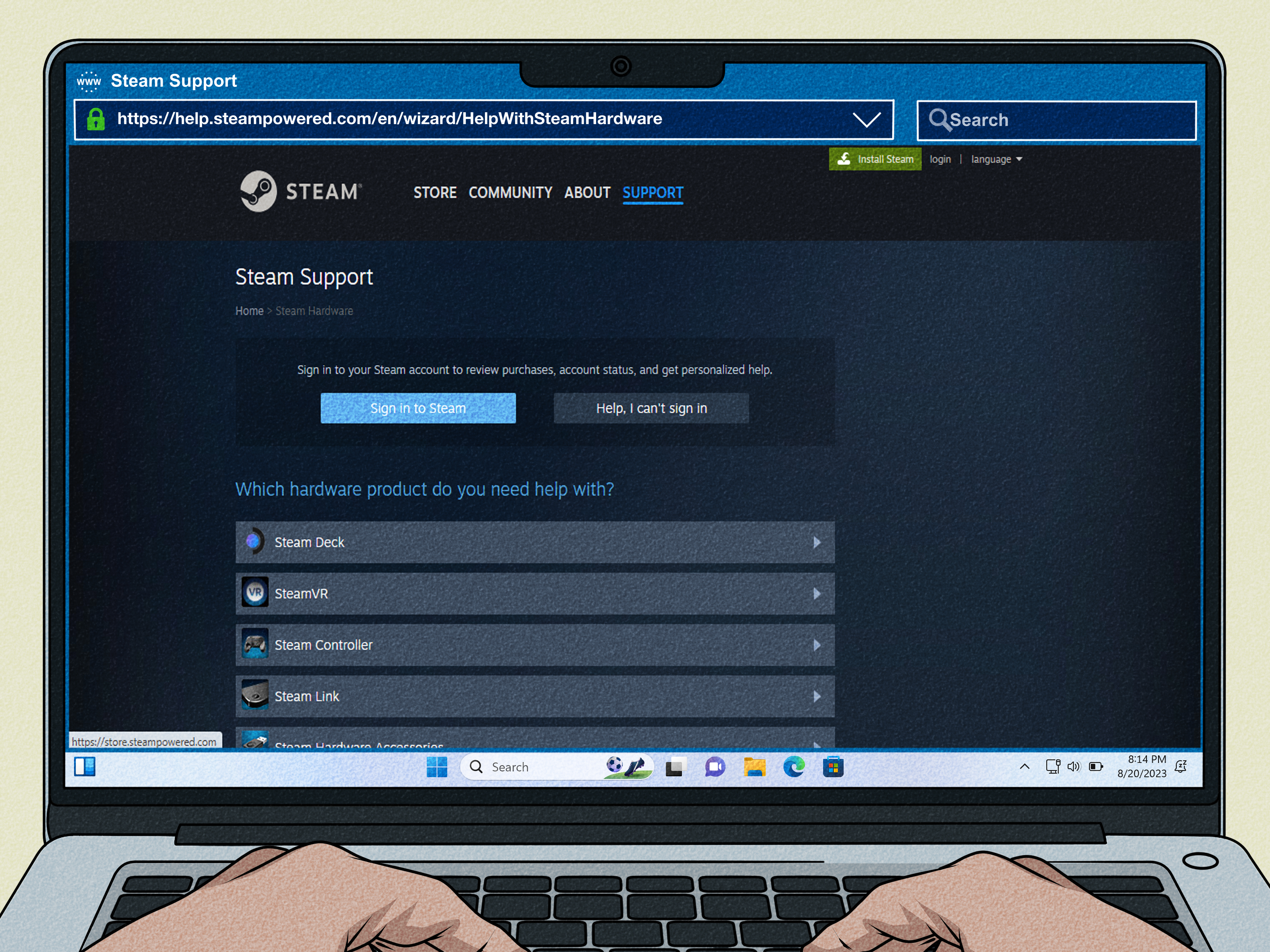
Your Steam Deck was supposed to launch a game, not audition for a statue. If it is stuck on the Steam logo, frozen on the boot screen, or looping endlessly like it just discovered time travel, do not panic yet. A Steam Deck stuck on the logo is usually caused by a temporary software crash, a bad update, low power behavior, a boot conflict, corrupted system files, or trouble after tinkering with dual booting, SSD upgrades, or recovery media.
The good news: most cases do not mean your handheld gaming PC is dead. In many situations, you can fix the issue with a force restart, a proper charge, battery storage mode, a SteamOS rollback, or Valve’s official recovery tools. The important part is to move in the right order: start with the safest fixes first, then only use heavier options like reinstalling SteamOS or re-imaging the device when the simple steps fail.
This guide explains six practical solutions for a Steam Deck stuck on the logo, what each fix does, when to use it, and what to avoid so you do not accidentally wipe your games, screenshots, emulator setup, or that carefully named folder you definitely promised yourself you would organize later.
Why Is My Steam Deck Stuck on the Logo?
A stuck Steam Deck logo usually means the device powers on, but SteamOS cannot finish loading. That can happen for several reasons. Sometimes SteamOS is simply hung after a crash. Sometimes an update did not apply cleanly. Sometimes the Deck is low on power, confused by a dock or microSD card, or trying to boot from a broken external device. In more complex cases, the boot partition may be damaged, especially after dual-boot experiments, Windows installation, SSD replacement, or interrupted system updates.
Before doing anything dramatic, ask yourself what happened right before the problem started. Did you install a SteamOS update? Did you change storage? Did you add a new microSD card? Did you try Windows, rEFInd, Clover, or another boot manager? Did the battery run down during an update? That clue can help you choose the fastest fix.
Before You Start: Quick Safety Checklist
- Remove any microSD card, USB drive, dock, keyboard, external SSD, or hub.
- Use the original Steam Deck charger or a trusted USB-C PD charger.
- Let the device charge for at least 20 to 30 minutes before deeper troubleshooting.
- Do not choose “Re-image Steam Deck” unless you are ready to erase local data.
- If you can access recovery, try “Reinstall SteamOS” before a full factory reset.
Think of this checklist as removing the mystery guests from the room. A bad dock, flaky USB drive, corrupted SD card, or weak charger can make troubleshooting look more complicated than it really is.
1. Force Restart the Steam Deck
The first solution is also the least exciting, which is exactly why it should come first. A force restart can clear a temporary freeze without touching your games or settings. If the Steam Deck is stuck on the logo because SteamOS crashed during startup, this may be all you need.
How to Force Restart
- Hold the Power button for about 10 seconds.
- Wait until the screen goes completely dark.
- Leave the Steam Deck off for a few moments.
- Press the Power button once to turn it back on.
If the logo appears for a little while, give it a minute. After updates or a hard shutdown, the Steam Deck may take longer than usual to verify files and continue booting. However, if it sits on the same logo screen for 10 minutes with no progress, it is time to move to the next solution.
When This Works Best
A force restart is most useful after a one-time freeze, a game crash, a failed sleep/wake cycle, or a normal restart that got stuck. It is less likely to solve deeper problems caused by corrupted system files, a broken boot entry, or a failed SteamOS update, but it is still worth trying because it is quick and safe.
2. Charge It Properly and Disconnect Accessories
A Steam Deck can sometimes show enough life to display the logo but not enough stability to complete startup. Low battery, weak charging, or power negotiation problems through a dock can create odd boot behavior. That is why the second step is simple: charge the Deck directly and remove everything else.
What to Do
- Unplug all accessories, including the dock, USB hub, keyboard, mouse, external drive, and microSD card.
- Connect the Steam Deck directly to a known working USB-C charger.
- Use the official charger if available.
- Let it charge for at least 20 to 30 minutes.
- Try turning it on again.
If the LED does not light up near the charging port, test the wall outlet and charger with another device. If another charger works, the issue may be your cable, adapter, or dock rather than the Steam Deck itself. Tiny troubleshooting victory? Absolutely. Not glamorous, but neither is blaming SteamOS when the wall outlet was the villain all along.
Why Removing the microSD Card Matters
A corrupted microSD card or external boot device may slow startup or confuse the boot process. Removing the card does not delete your internal files. It simply lets the Steam Deck start with fewer variables. If the Deck boots normally after removing the card, check the card later for errors, back up important files, and consider reformatting it inside SteamOS.
3. Use Battery Storage Mode
Battery storage mode is one of the most useful fixes when a Steam Deck acts strangely at startup. It temporarily places the device into a low-level power state and can clear certain power or firmware-related glitches. Many owners use it when the Deck refuses to boot correctly, freezes during startup, or behaves like it had one too many energy drinks.
How to Enter Battery Storage Mode
- Make sure the Steam Deck is powered off.
- Disconnect the charger.
- Hold Volume Up and press the Power button once.
- Release the buttons when you hear the startup chime.
- In the BIOS menu, choose Setup Utility.
- Go to the Power menu.
- Select Battery storage mode and confirm.
- The Steam Deck should power down.
- Wait a few minutes, then plug in the charger and turn it on again.
On some Steam Deck models, the LED may blink to confirm that battery storage mode has been activated. Once you connect the charger again, the Deck exits that mode and can be started normally.
When to Try This Fix
Use battery storage mode if a normal force restart does not work, especially if the device freezes on the logo repeatedly. It is also useful after long storage, battery drain, dock-related weirdness, or charging problems. This fix does not erase your games or personal files, so it is a good middle step before recovery tools.
4. Roll Back to a Previous SteamOS Version
SteamOS updates usually improve the Deck, but software updates are still software updates. Occasionally, a new system version or client update can trigger boot loops, startup freezes, or “Verifying installation” problems. If your Steam Deck got stuck on the logo right after an update, rolling back to a previous SteamOS version may solve the problem without deleting your local data.
How to Try a SteamOS Rollback
- Power off the Steam Deck completely.
- Hold the Quick Access button, the button with three dots, and press Power.
- Wait for the boot menu to appear.
- Choose the previous SteamOS entry if available.
- Let the system boot and check whether it passes the logo screen.
Some guides may refer to accessing boot options through BIOS or boot manager combinations. The exact menu can vary depending on SteamOS version and device behavior, but the goal is the same: select an older working SteamOS image rather than the current one that may be failing.
Best Situation for This Solution
This solution is best when the problem appeared immediately after an update, especially if the Deck shows messages such as “Verifying installation,” “Checking for updates,” or freezes after applying a patch. If the previous system image boots successfully, update again later only after your Deck has a stable Wi-Fi connection, enough battery, and no unnecessary accessories attached.
5. Repair or Reinstall SteamOS with the Official Recovery Image
If the Steam Deck is still stuck on the logo after restarting, charging, battery storage mode, and rollback attempts, it may be time to use Valve’s official SteamOS recovery image. This is the grown-up toolbox. It can repair, reinstall, or completely reset SteamOS, depending on the option you choose.
You will need a USB drive or microSD card, a computer to create the recovery media, and a USB-C adapter or hub if your drive is USB-A. A keyboard and mouse can also make the recovery environment easier to use, although the trackpads and triggers may work for navigation.
Create SteamOS Recovery Media
- Download the official SteamOS recovery image from Valve.
- Use a tool such as Rufus on Windows or Balena Etcher on macOS/Linux to write the image to a USB drive or microSD card.
- Safely eject the drive after the writing process finishes.
- Turn off the Steam Deck.
- Connect the recovery drive to the Deck.
- Hold Volume Down and press Power.
- When you hear the chime, release the buttons.
- Select the EFI USB Device or recovery media from the boot manager.
The recovery environment can take several minutes to load. The screen may go dark for a while, which can feel alarming, but do not interrupt it too quickly. If it stays frozen for a very long time, try another USB drive, another adapter, or a direct USB-C flash drive.
Choose the Right Recovery Option
Once the recovery desktop loads, you may see several options. These options are not equal, so read carefully before clicking like you are trying to skip a game tutorial.
- Reinstall SteamOS: Reinstalls SteamOS while attempting to preserve games and personal content. Try this before wiping everything.
- Clear local user data: Removes downloaded games, personal files, and local configuration while keeping the operating system structure.
- Re-image Steam Deck: Performs a full factory reset and wipes user data, installed games, applications, and operating systems.
- Recovery tools: Opens advanced repair tools for experienced users who know what they are changing.
For most people with a Steam Deck stuck on the logo, Reinstall SteamOS is the best first recovery option. It is less destructive than re-imaging and can fix broken system files. Use Re-image Steam Deck only when reinstalling fails, the internal drive was replaced, or you are comfortable starting over from scratch.
6. Fix Boot Conflicts After Windows, Dual Booting, or SSD Upgrades
The Steam Deck is basically a handheld PC wearing a very comfortable gaming hoodie. That flexibility is wonderful, but it also means boot issues can happen after installing Windows, using third-party boot managers, resizing partitions, replacing the SSD, or experimenting with Linux tools. If your Deck got stuck on the logo after a dual-boot attempt or SSD upgrade, the problem may not be the logo screen itself. It may be a broken boot entry, missing SteamOS loader, partition issue, or damaged recovery media.
What to Check First
- Can you enter the BIOS with Volume Up + Power?
- Can you enter the boot manager with Volume Down + Power?
- Does SteamOS appear as a boot option?
- Does the Deck boot from official recovery media?
- Did Windows recently update and change boot priority?
If Windows was installed, remember that Windows updates can sometimes change boot behavior. If the Steam Deck boots into Windows but not SteamOS, the issue may be boot priority rather than a failed SteamOS install. If neither system boots, use SteamOS recovery media and try Reinstall SteamOS first. If that fails, back up what you can from recovery tools, then consider a full re-image.
After an SSD Upgrade
If the logo freeze happened after replacing the internal SSD, make sure the new drive is seated correctly and compatible. A loose drive, damaged ribbon area, or incomplete SteamOS image can prevent normal startup. In this case, re-imaging the Steam Deck from Valve’s recovery image is often expected because the new drive does not contain your previous SteamOS installation.
When to Contact Steam Support
Contact Steam Support if the Deck cannot enter BIOS, cannot boot recovery media from multiple known-good drives, shows no charging light with working chargers, freezes even during recovery, or started failing after physical damage or liquid exposure. At that point, the issue may be hardware-related rather than a normal SteamOS boot problem.
Common Mistakes to Avoid
Do Not Re-image Too Early
Re-imaging is powerful, but it is the nuclear sandwich button. It wipes everything local. Try force restart, charging, battery storage mode, rollback, and reinstalling SteamOS first.
Do Not Interrupt Recovery Boot Too Quickly
When booting from a recovery USB or microSD card, the Steam Deck may sit on a logo or dark screen for several minutes. Interrupting the process can corrupt the recovery media and make you think the Deck is worse than it is.
Do Not Troubleshoot With Every Accessory Plugged In
A dock, USB hub, microSD card, external SSD, or charger can complicate boot behavior. Start with the Deck alone, then add accessories back one at a time after it boots.
Do Not Ignore Power
Low battery and weak charging can create misleading symptoms. Always test with a reliable charger before assuming SteamOS is broken.
Extra Experience: What It Feels Like to Fix a Steam Deck Stuck on the Logo
The first time a Steam Deck gets stuck on the logo, it feels personal. One minute you are ready to play, and the next minute the device is staring at you with the calm confidence of a cat sitting on your keyboard. The key is not to panic-click your way into a factory reset. Most successful fixes come from patience and a clean sequence.
In real-world troubleshooting, the most common “small fix” is still the boring one: force restart, unplug everything, charge directly, and try again. Many users skip that because it feels too simple. But handheld PCs are still computers, and computers occasionally need the digital equivalent of being told to take a deep breath and start over. If the Deck recently crashed, woke strangely from sleep, or froze after switching games, a full power hold can clear the hang.
The next practical lesson is that accessories lie. A dock may work perfectly for weeks and then cause a weird boot issue after a firmware change. A microSD card may load games fine until its file system becomes messy. A USB drive used for recovery may be too slow, badly written, or incompatible with the adapter. When a Steam Deck is stuck at startup, stripping it down to just the handheld and charger often reveals whether the problem is internal or caused by something attached.
Battery storage mode is another fix that feels odd until it works. It does not look dramatic. You enter BIOS, choose a power option, the Deck shuts down, and then you plug it back in. But for startup problems related to power state confusion, it can be surprisingly effective. It is especially worth trying when the Deck still shows signs of life but refuses to move past the logo.
Recovery media requires more patience. The first boot into the recovery environment can be slow, and many people assume it failed because the screen stays dark or the logo lingers. Give it time. If it still fails, remake the recovery drive with a different USB stick or try a different adapter. A bad recovery drive can mimic a bad Steam Deck, which is a very rude trick for a storage device to play.
Finally, the most important experience-based advice is to know your risk level. If your Steam Deck contains only Steam games synced to the cloud, a factory reset is annoying but manageable. If it contains non-Steam games, emulator saves, screenshots, mods, desktop files, or local-only game progress, be much more careful. Try SteamOS reinstall before re-image. Check whether your saves are backed up. Do not let frustration turn a boot problem into a data-loss problem.
Once the Deck is working again, update SteamOS on stable Wi-Fi, keep some free internal storage, avoid letting the battery die during updates, and keep a recovery USB or microSD card ready. You may never need it again, but having recovery media prepared is like owning a tiny fire extinguisher: boring right up until it becomes the best thing in the room.
Final Thoughts
A Steam Deck stuck on the logo looks scary, but it is often fixable. Start with a force restart, charge the device properly, remove accessories, try battery storage mode, roll back SteamOS if the issue followed an update, and use official recovery tools only when simpler steps fail. If the problem started after dual booting, Windows installation, or an SSD upgrade, focus on boot entries, recovery media, and reinstalling SteamOS before assuming the hardware is dead.
The Steam Deck is a powerful little machine, but like any PC, it occasionally trips over its own shoelaces. With a calm step-by-step approach, you can usually get past the logo screen and back to the important business of reducing your backlog by pretending you are only buying “one more game.”