YouTube Music is a fantastic app when you want your favorite songs, remixes, live performances, covers, and “how did this random acoustic version become my entire personality?” playlists in one place. But if you are using it around kids, in the car, at work, during family dinner, or anywhere people might raise an eyebrow at surprise lyrics, filtering explicit content on YouTube Music on Android becomes more than a nice extra. It becomes digital peacekeeping.
The good news: Android users do have several practical ways to reduce explicit songs, mature music videos, and inappropriate recommendations. The less-good-but-still-manageable news: YouTube Music does not always behave like a simple radio with one giant “make everything clean forever” button. Its main built-in tool is Restricted Mode, and for families, the strongest setup usually combines YouTube Music settings, supervised accounts, Family Link, smart playlists, and a few good listening habits.
This guide explains how to filter explicit content on YouTube Music on Android in clear, simple steps. No tech degree required. No sacrificing your entire music library to nursery rhymes. Just practical controls, smart settings, and a little common sense with headphones.
What “Explicit Content” Means on YouTube Music
On YouTube Music, explicit content usually refers to songs, albums, or videos that may include strong language, sexual references, graphic themes, drug references, violence, or other mature material. Many tracks are marked with an “Explicit” label because artists, labels, or content providers identify them that way. That label is useful, but it is not magic. Occasionally, a clean version may still carry a label, an explicit version may be uploaded as a video, or a live performance may contain lyrics that were not obvious from the title.
That is why filtering explicit music on Android works best as a layered system. Think of it like sunscreen: one quick swipe is better than nothing, but full coverage is what prevents the unpleasant surprise later.
Start with Restricted Mode in YouTube Music
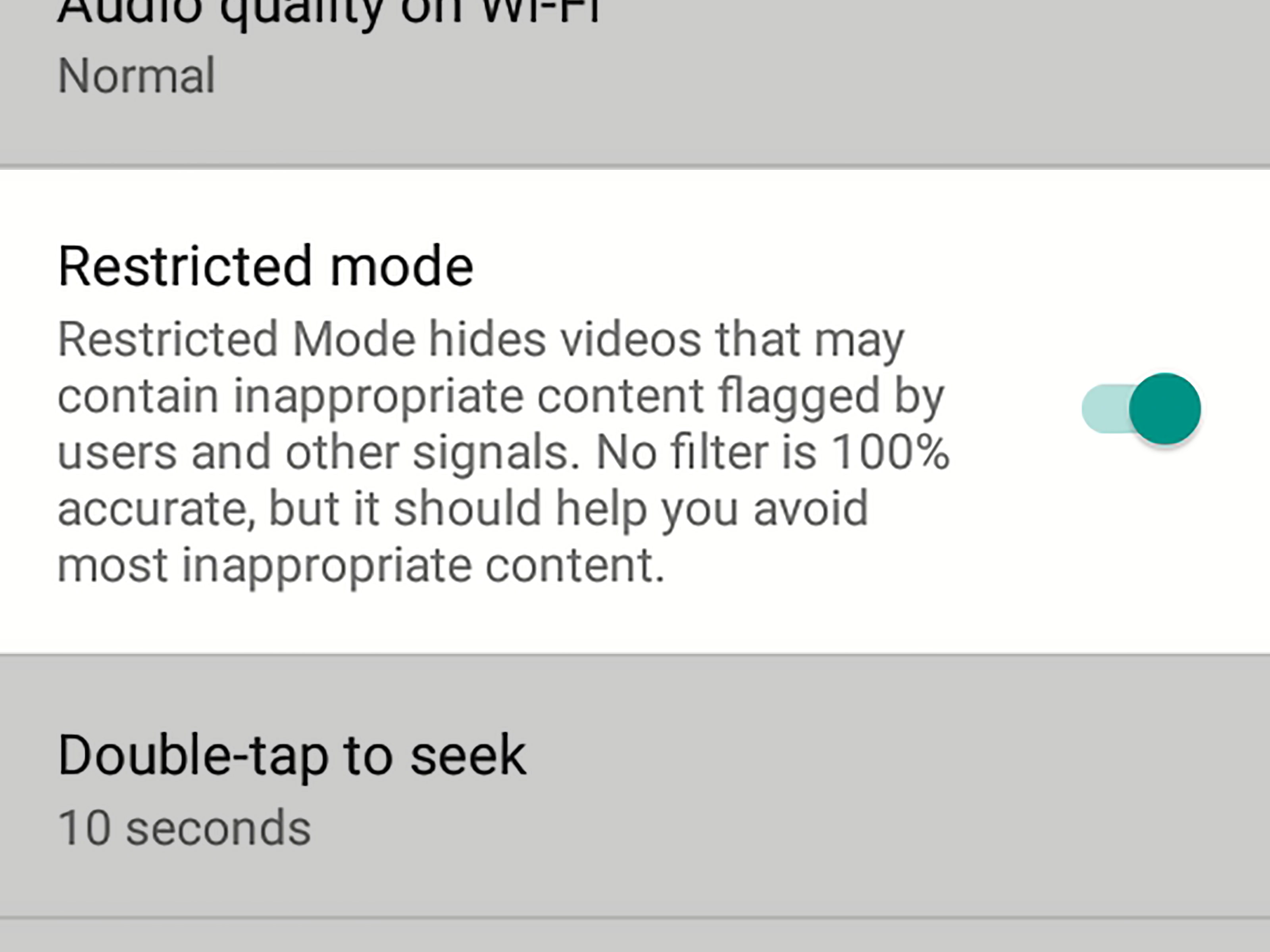
The first and most important setting to check is Restricted Mode. YouTube says Restricted Mode helps filter potentially mature content, and it also affects music and videos in YouTube Music. When it is active, you may still see tracks marked “Explicit,” but the app may skip them when you try to play them.
How to turn on Restricted Mode in YouTube Music on Android
- Open the YouTube Music app on your Android phone or tablet.
- Tap your profile picture in the top-right corner.
- Tap Settings.
- Look for General or Playback & restrictions. The wording can vary slightly by app version.
- Find Restricted Mode.
- Turn the toggle on.
After you enable it, test it. Search for a track you know is labeled explicit and try playing it. If Restricted Mode is working, YouTube Music may skip the explicit track or prevent playback. If nothing changes, update the app, restart your phone, and check whether another account is signed in. Yes, the “wrong Google account” problem is boring, but it is also one of the most common tech villains.
Important limits of Restricted Mode
Restricted Mode is helpful, but it is not perfect. It uses signals such as titles, descriptions, metadata, age restrictions, and content reviews to help identify mature content. That means some songs may slip through, especially user-uploaded music videos, unofficial remixes, lyric videos, or live clips. It also means some clean content may be filtered more aggressively than expected.
Another key detail: Restricted Mode works at the device or browser level. If you turn it on in YouTube Music on one Android phone, that does not automatically mean it is active on every tablet, TV, browser, speaker, or Android Auto setup connected to your life. Each device may need its own checkup. Consider it the digital version of checking every door before bedtime.
Use Supervised Accounts for Children
If the Android device belongs to a child, do not rely only on your personal YouTube Music settings. A supervised Google Account gives parents more structured control over YouTube and YouTube Music. With supervised accounts, parents can choose content settings that determine what a child can access when signed in.
This is especially useful if your child has their own Android phone or tablet. Instead of handing over your account, you can set up a child account through Google Family Link and apply YouTube supervision. The content setting you choose for YouTube can also apply to YouTube Music when the child signs in to the app or website.
How to manage YouTube Music through Family Link
- Open the Family Link app on the parent’s Android device.
- Select your child’s profile.
- Tap Controls.
- Choose Content restrictions.
- Tap YouTube.
- Adjust the supervised YouTube experience and content level.
This approach is better for families than simply toggling Restricted Mode on your own phone. A supervised setup travels with the child’s account, which makes it harder for settings to vanish the moment your child switches devices or opens the app somewhere else.
Block or Limit the YouTube Music App with Family Link
Sometimes the best explicit-content filter is not a filter at all. It is limiting when and how the app can be used. Family Link can help parents manage apps on a child’s Android device. You can allow, block, or set limits for apps depending on the child’s age, household rules, and how much trust has been earned this week. Trust is a beautiful thing. So is a bedtime.
For example, if YouTube Music is fine during homework with a clean playlist but not fine at midnight under a blanket, app limits can help. You can use Family Link to set daily limits, block YouTube Music during downtime, or require approval for app downloads. This does not clean every lyric, but it reduces unsupervised listening windows where questionable recommendations can wander in wearing sunglasses.
Check Connected Devices and Casting Settings
Many people use YouTube Music on Android as a remote control for other devices. You might cast music to a TV, smart display, speaker, or streaming device. That is convenient until an explicit song jumps from your phone to the living room speaker while Grandma is holding a casserole. Drama, but make it surround sound.
YouTube Music lets users manage Restricted Mode for connected devices. In the app, open your profile picture, go to Settings, then General, and look for Restricted Mode and Connected devices. From there, choose a connected device and toggle Restricted Mode on or off.
This is worth checking if explicit songs are blocked on your phone but still behave differently on a speaker or TV. Smart speakers and displays may also have their own digital wellbeing or content filter settings in the Google Home app, so review those settings too if your family uses shared devices.
Use Clean Playlists Instead of Trusting Autoplay
Autoplay is wonderful when it finds the perfect next song. It is less wonderful when it takes a calm family drive and turns it into a lyrical obstacle course. One simple way to filter explicit content on YouTube Music is to build or save playlists that are intentionally clean.
Search for terms like:
- clean pop playlist
- clean hip-hop playlist
- family road trip music
- clean workout music
- kid-friendly party songs
- radio edit playlist
Before you trust a playlist, skim it. Look for “Explicit” labels, suspicious album covers, or user-uploaded videos that may not match the clean theme. Save your best playlists to your library so you are not frantically searching at the exact moment the car is backing out of the driveway.
Create your own clean playlist
For maximum control, create your own playlist. Add clean versions of favorite songs, official radio edits, instrumental tracks, movie soundtracks, worship music, classical music, lo-fi beats, or whatever fits your household. You can make different playlists for different situations: “School Morning,” “Family Road Trip,” “Dinner Music,” “Workout Without Awkward Lyrics,” and the always useful “Guests Are Here, Behave.”
This manual approach takes a little time up front, but it pays off quickly. You are no longer relying entirely on algorithms to guess your standards. Algorithms are smart, but they do not know your aunt is visiting.
Watch for Music Videos, Not Just Songs
YouTube Music is not only an audio streaming app. It also connects deeply with music videos, live performances, remixes, covers, and user-uploaded content. That means explicit filtering is not only about lyrics. A song may sound clean, while the video includes mature visuals. Or a video title may look harmless, while the content is not appropriate for younger listeners.
If you are setting up YouTube Music for children, pay attention to video playback. Use supervised accounts, keep Restricted Mode on, and favor official audio tracks or curated playlists over random video results. If the goal is background music, consider keeping the screen off, using audio-only playback when available, or choosing playlists from trusted official channels.
Train Recommendations with Care
YouTube Music recommendations are shaped by listening history, search activity, likes, playlists, skips, and other signals. If someone uses your account to play explicit songs, the app may recommend more of the same. That is not the app being rude; it is the app taking notes like an overenthusiastic intern.
To clean up recommendations, start using positive and negative signals:
- Like clean songs and playlists you actually want repeated.
- Skip songs that do not fit your listening environment.
- Remove explicit tracks from playlists used around children.
- Clear or pause watch and search history when needed.
- Use “Not interested” when available on unwanted recommendations.
This will not instantly purify the recommendation engine, but it helps over time. The more consistent your listening habits are, the easier it is for YouTube Music to understand what belongs in your daily mix.
Review Search History and Watch History
If YouTube Music keeps recommending inappropriate content, your history may be feeding the problem. This can happen when multiple people share one Google account. A parent listens to explicit music at the gym, a child uses the same account later, and suddenly the recommendation shelf looks like it skipped a family meeting.
To fix this, review and clear YouTube history from your Google account activity settings. You can also pause YouTube watch history and search history in some situations, especially on a shared device. For supervised accounts, parents can review and manage a child’s history through the available YouTube and Family Link controls.
The cleaner the account signals, the cleaner the recommendations are likely to become. Separate accounts are even better. Shared accounts are convenient, but they can turn music recommendations into a household group project nobody asked for.
Use Google Play Parental Controls as an Extra Layer
Google Play parental controls can help restrict downloads or purchases based on content type and maturity settings. On Android, open the Google Play Store, tap the profile icon, go to Settings, choose Family, and turn on Parental controls. You will create a PIN and choose restrictions for different content categories.
This is useful for controlling what a child can download or purchase from Google Play. However, it is important to understand the difference: Google Play parental controls do not automatically filter every song streamed inside YouTube Music. They are an extra layer for the Android ecosystem, not a replacement for YouTube Music Restricted Mode or supervised YouTube settings.
Use Android App Limits for Listening Boundaries
Android gives families several ways to manage screen time and app use. Depending on the device, you may use Digital Wellbeing, Family Link, or built-in parental controls to create app timers, downtime, or bedtime schedules. These tools do not inspect every lyric, but they help prevent unlimited wandering through recommendations.
For example, you could allow YouTube Music during after-school chores but block it during bedtime. You could allow music on weekends but use a clean playlist during school mornings. App limits are especially helpful when a child is old enough to explore music but not old enough to have the entire internet as a DJ.
Report Clearly Inappropriate Content
If you find content on YouTube or YouTube Music that appears to violate platform guidelines, use the reporting tools. Reporting is not the same as blocking explicit lyrics for your personal account, but it helps flag content that may be mislabeled, harmful, deceptive, or inappropriate.
On YouTube, reporting usually involves opening the content, tapping the menu, choosing Report, selecting the reason, and submitting it. For YouTube Music, availability of reporting options can vary depending on whether you are viewing a song, video, playlist, or channel. When a report option is visible, use it for content that truly seems to violate rules, not just songs you personally dislike. Otherwise, every teenager’s favorite artist would be in danger.
Troubleshooting: Why Explicit Songs Still Appear
If explicit songs still appear after you turn on Restricted Mode, do not panic. Visibility and playback are different. YouTube Music may still show songs marked Explicit in search results or albums, but skip them when you try to play them. That can feel confusing, but it is part of how the filtering system works.
Try these fixes
- Update YouTube Music: Open Google Play and install the latest version.
- Restart the app: Close it completely and reopen it.
- Check the signed-in account: Settings may differ between Google accounts.
- Check each device: Restricted Mode may need to be enabled separately.
- Review Family Link: A supervised account may override some user settings.
- Check network restrictions: School, work, or public Wi-Fi may enforce restrictions.
- Review casting devices: TVs and speakers may have separate settings.
If Restricted Mode will not turn off or behaves unexpectedly, the account may be supervised, controlled by an organization, or affected by network-level restrictions. For a family device, that may be exactly what you want. For your own phone, it may explain why the setting seems locked.
Best Setup for Parents: A Simple Checklist
If you want a practical setup for a child’s Android device, use this checklist:
- Create or use the child’s own Google Account.
- Manage the account with Family Link.
- Set up a supervised YouTube experience.
- Choose the appropriate YouTube content level.
- Turn on Restricted Mode where available.
- Set app limits or downtime for YouTube Music.
- Create clean playlists for common situations.
- Review search and watch history regularly.
- Check connected speakers, TVs, and Android Auto.
- Talk with your child about what to do when inappropriate content appears.
The last step matters more than most people think. Filters reduce risk, but conversations build judgment. A child who knows how to skip, report, and ask questions is safer than a child who only has settings doing silent bodyguard work in the background.
Best Setup for Adults Who Just Want Cleaner Listening
Not every person filtering explicit content is a parent. Maybe you listen at work. Maybe you drive rideshare. Maybe you want workout music without surprise lyrics that make the treadmill blush. For adults, the easiest setup is simpler:
- Turn on Restricted Mode in YouTube Music.
- Save clean playlists for public or shared spaces.
- Use radio edits and official clean versions.
- Avoid autoplay in sensitive environments.
- Keep separate playlists for personal and family listening.
This gives you flexibility. You can enjoy your full music taste privately while keeping public listening clean. In other words, your headphones can have one personality and your car speakers can have another. Healthy boundaries.
Real-Life Experience: What Actually Works Day to Day
In real life, filtering explicit content on YouTube Music on Android is less about finding one perfect setting and more about building a routine that fits how people actually listen. The biggest lesson is this: do not wait until the music is already playing in front of children, coworkers, or guests to start managing content. Set things up before the moment matters.
For family car rides, the most reliable approach is to prepare clean playlists in advance. A road trip is not the ideal time to test whether an algorithm understands your parenting philosophy. Before leaving, open YouTube Music, choose a playlist you trust, and avoid starting a random radio station from a song that has explicit versions. Even when Restricted Mode is on, autoplay can sometimes move in surprising directions. A saved playlist gives you more control and fewer “quick, skip it!” moments while merging onto the highway.
For shared Android tablets, separate accounts make a huge difference. When adults and children use the same account, recommendations become messy fast. One person’s late-night playlist can become another person’s morning suggestion. A supervised child account keeps settings, history, and recommendations more age-appropriate. It also gives parents a clearer place to manage controls without turning their own music library into a cartoon soundtrack.
For smart speakers and casting, checking connected devices is essential. Many people turn on Restricted Mode inside the phone app and assume the living room speaker follows along. Sometimes it does not. If YouTube Music is used through a TV, smart display, or speaker, review the connected device settings and the Google Home filters. The phone may be clean, while the speaker is still operating like it has a backstage pass.
For work or public listening, clean playlists are better than search. Searching for an artist may show albums, live performances, remixes, and user uploads with different labels and standards. A clean playlist reduces surprises. Instrumental playlists, lo-fi music, acoustic covers, jazz, classical, and official radio edits are especially useful when you need background music that will not interrupt the room’s dignity.
The most practical habit is a weekly two-minute review. Open YouTube Music, look at recent recommendations, remove anything that does not fit, like the clean content you want more of, and update your playlists. This tiny routine trains the app and keeps your listening environment more predictable. It is not glamorous, but neither is explaining awkward lyrics to a seven-year-old in a grocery store parking lot.
Finally, remember that filters are helpers, not babysitters. Restricted Mode, Family Link, and playlists can reduce explicit content, but no system is flawless. The best experience comes from combining settings with attention: choose the right account, control the device, curate playlists, and teach kids how to skip or speak up when something feels wrong. That balanced approach is simple, realistic, and much less stressful than trying to make the internet behave perfectly.
Conclusion
Filtering explicit content on YouTube Music on Android is absolutely possible, but it works best when you combine several tools. Start with Restricted Mode, then strengthen your setup with supervised accounts, Family Link, clean playlists, app limits, and connected-device checks. If you are a parent, do not rely on one toggle to do everything. If you are an adult who simply wants cleaner listening, use Restricted Mode and create playlists for work, family, driving, and shared spaces.
The goal is not to make music boring. The goal is to make it appropriate for the moment. You can still enjoy great songs, discover new artists, and keep the family car from turning into an accidental late-night club. With a few smart settings and habits, YouTube Music on Android can become much easier to control.