Blocking someone on Xbox can be a lifesaver when a party chat gets too spicy, a random player turns into a notification goblin, or a friend “accidentally” sends the same invite seventeen times during dinner. But what happens when the dust settles and you decide it is time to let that person back into your Xbox world? Good news: learning how to unblock someone on Xbox is much easier than explaining why you rage-quit in the final round.
Whether you are using an Xbox Series X, Xbox Series S, Xbox One, the Xbox app on mobile, or the Xbox app on Windows PC, the basic idea is simple: find the player’s profile, open the profile options, and choose Unblock. The tricky part is knowing where Xbox hides the buttons this week, because menus can vary slightly depending on updates, region, and device.
This guide walks you through two easy step-by-step methods: unblocking someone directly on your Xbox console and unblocking someone through the Xbox app. You will also learn what happens after unblocking, why you still may not be able to message or add the person right away, and how to avoid accidentally reopening the digital door to someone who made your gaming experience worse.
What Does Blocking Someone on Xbox Actually Do?
Before unblocking someone, it helps to understand what blocking does in the first place. When you block a player on Xbox, you limit their ability to interact with you through Xbox social features. That usually means they cannot send you messages, party invites, game invites, or communicate with you normally through Xbox services.
Blocking is different from muting. If you mute someone, you mainly stop hearing their voice or receiving certain communication from them, but they are not necessarily blocked from interacting with your profile. Blocking is stronger. Think of muting as turning down the volume and blocking as putting up a “Do Not Disturb, I Am Busy Saving the Galaxy” sign.
Unblocking reverses that restriction. Once unblocked, the person may be able to message, invite, follow, or interact with you again depending on your privacy settings, their privacy settings, game-specific rules, and whether either of you has other communication restrictions in place.
Method 1: How to Unblock Someone on Xbox Console
This method works best if you are using an Xbox Series X, Xbox Series S, or Xbox One. The fastest route is usually through the player’s profile. If you remember their gamertag, the process should only take a minute or two.
Step 1: Turn On Your Xbox and Sign In
Start by turning on your Xbox console and signing in to the account that originally blocked the player. This detail matters. If another profile on the same console blocked someone, your account will not show the same blocked-player status. Xbox settings are tied to the individual Xbox profile, not just the physical console.
For example, if your sibling blocked a player while signed in under their gamertag, you cannot unblock that player from your profile. You would need to sign in as the account that did the blocking.
Step 2: Press the Xbox Button
Press the glowing Xbox button on your controller to open the guide. This is the main navigation panel where you can access friends, parties, messages, captures, settings, and your profile. If the Xbox guide were a kitchen drawer, it would be the one with batteries, tape, old keys, and somehow exactly what you need.
Step 3: Go to People or Find Someone
Navigate to the social area of the guide. Depending on your console version and interface updates, you may see options such as People, Friends, Find someone, or similar wording. Choose the option that lets you search for another player by gamertag.
If the person is still visible in a recent message, party, game history, or friends-related list, you may be able to open their profile from there instead. If not, use the search feature and type their gamertag as accurately as possible.
Step 4: Open the Player’s Profile
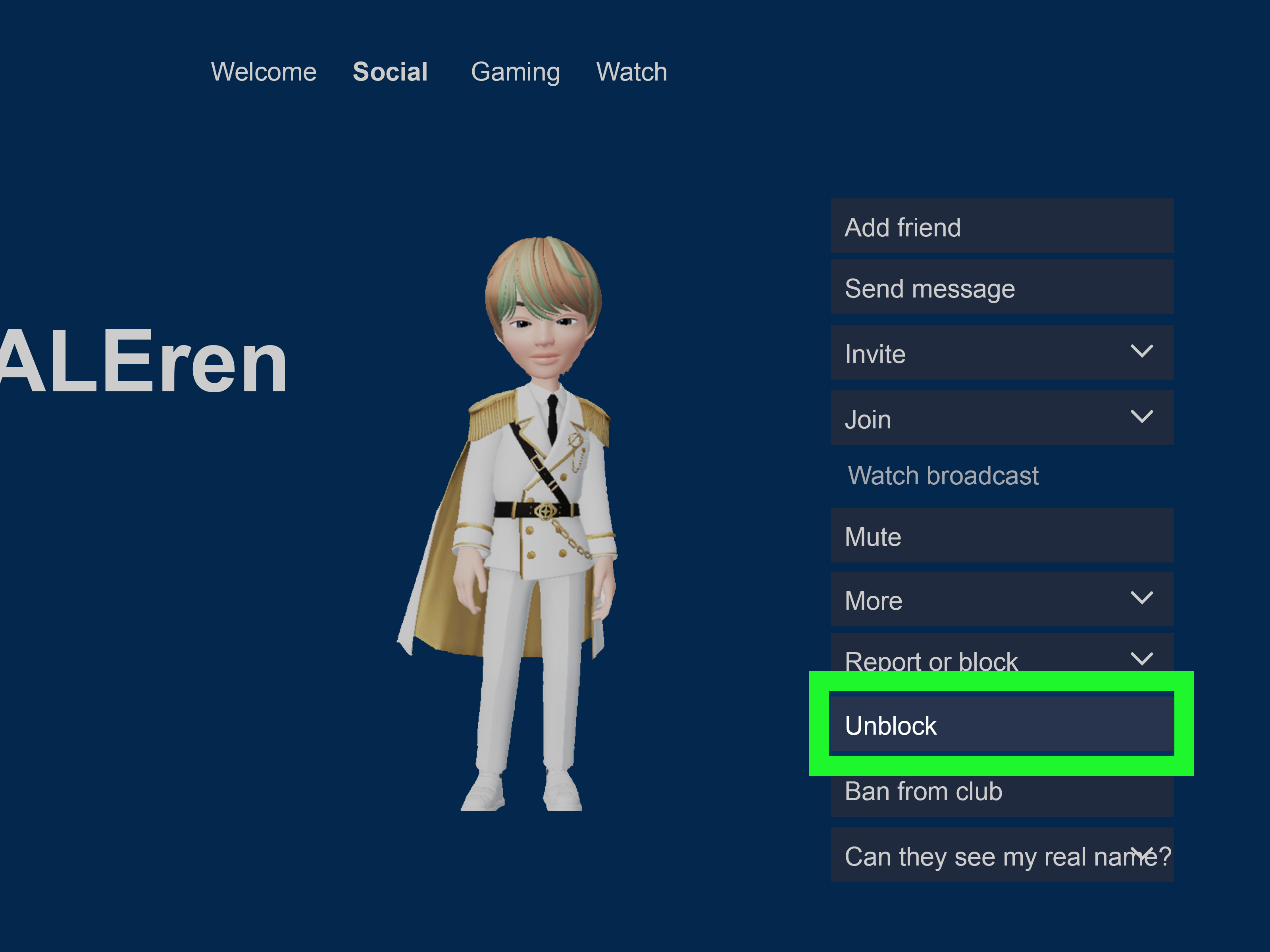
After you find the gamertag, select it to open the player’s Xbox profile. This page usually displays their gamerpic, gamertag, gamerscore, activity, achievements, and profile options. You are looking for a menu option such as More, Report or block, or another profile action menu.
Do not worry if the button name is not exactly the same on your screen. Xbox interface wording can shift slightly, but the unblock control is normally located inside the same area where blocking and reporting options appear.
Step 5: Select Unblock
From the player’s profile menu, choose Unblock. Xbox may immediately update the player’s status, or it may take a few seconds to refresh. In some cases, you may need to back out of the profile and open it again to confirm the person is no longer blocked.
Once the player is unblocked, you can choose whether to add them as a friend, follow them, send a message, or invite them to a party. Unblocking someone does not always automatically restore a previous friendship connection. If you removed them as a friend or unfollowed them, you may need to add or follow them again manually.
Step 6: Test Communication Carefully
After unblocking the person, try sending a short message or invite if you want to reconnect. Keep it simple. Something like “Hey, I unblocked youwant to play later?” works better than a dramatic speech worthy of a fantasy RPG cutscene.
If the message does not go through, do not panic. Privacy settings, family settings, enforcement restrictions, or the other person’s own block list may still prevent communication.
Method 2: How to Unblock Someone on the Xbox App
The second method is useful if you are away from your console or prefer using your phone or computer. You can use the Xbox app on iPhone, Android, or Windows PC to search for the person’s gamertag and access profile actions.
Step 1: Open the Xbox App
Open the Xbox app on your mobile device or Windows PC. Make sure you are signed in with the same Microsoft account connected to your Xbox profile. This is important because the block list follows your Xbox account, not the device you happen to be holding.
If you have multiple Microsoft accounts, double-check your gamerpic and gamertag before making changes. Nothing says “modern gaming problem” like spending ten minutes trying to unblock someone while logged into the wrong account.
Step 2: Search for the Player’s Gamertag
Use the app’s search feature to look for the person’s gamertag. The search icon is usually found in the social, friends, or main navigation area of the app. Type the gamertag carefully, including numbers, spaces, or special formatting if the player uses them.
If you cannot find the person, try searching for only part of the gamertag or checking old messages, party history, captures, or mutual friends. Some players change gamertags, so the name you remember may not be the name they use now.
Step 3: Open the Player’s Profile
Tap or click the player’s profile from the search results. On their profile page, look for a menu button, often shown as three dots, a “More” option, or a profile action menu. This is where Xbox typically keeps options like mute, block, report, add friend, or unblock.
On mobile, menus may be compact. If you do not immediately see Unblock, look for additional profile options. On PC, the layout may be wider, but the idea is the same.
Step 4: Choose Unblock
Select Unblock. The app should update the player’s profile after the action is complete. If the button still appears unchanged, close and reopen the app, refresh the profile, or sign out and sign back in.
Once unblocked, you may be able to send messages, invite the person to games, or add them again depending on both accounts’ privacy and safety settings.
Why Can’t I Unblock Someone on Xbox?
Sometimes the unblock button seems missing, frozen, or about as cooperative as a teammate who grabs the best loot and runs away. Here are the most common reasons it happens.
You Are Signed Into the Wrong Account
This is the big one. If you blocked the person using one Xbox profile but are now signed in with another, you will not see the correct block status. Sign out and confirm you are using the account that originally blocked the player.
The App or Console Needs a Refresh
Xbox social settings sometimes take a moment to sync. Restart the Xbox app, reboot the console, or wait a few minutes before trying again. A simple refresh can fix many social-menu glitches.
The Person Changed Their Gamertag
If you cannot find the player, they may have changed their gamertag. Try searching through old chats, game clips, mutual friends, or recent players. If you only remember part of the name, search with that part first.
Privacy or Family Settings Are Still Limiting Contact
Unblocking someone does not automatically override Xbox privacy settings. If your account has communication limits, child account restrictions, family safety controls, or message filters, you may still be unable to chat with certain players.
The Other Player May Have Blocked You
Unblocking someone on your side does not force them to unblock you. If they blocked your profile, you may still be unable to message or add them. Xbox gives each player control over their own social boundaries, which is honestly a pretty good thing.
What Happens After You Unblock Someone on Xbox?
After you unblock someone, Xbox allows normal interaction again where permitted by your account settings. The person may be able to message you, invite you to parties, invite you to games, follow you, or appear in social areas again.
However, unblocking does not always restore everything exactly as it was before. If you removed the person as a friend, you may need to send another friend request or follow them again. If you left a club, group chat, or party connection, those will not magically rebuild themselves. Xbox is powerful, but it is not a relationship therapist with a controller.
You should also remember that some games have their own block, mute, or report systems. Unblocking someone on Xbox may not unblock them inside a specific game. For example, a multiplayer title may maintain its own blocked-player list, communication settings, or matchmaking preferences. If you still cannot talk to someone in a particular game, check that game’s social menu as well.
Unblock vs. Mute vs. Report: Know the Difference
Xbox gives players several tools for managing interactions. Knowing which one to use can save you from overreactingor underreacting.
Unblock
Use unblock when you previously blocked someone and now want to allow communication again. This is best for accidental blocks, resolved disagreements, or friends you are ready to play with again.
Mute
Use mute when you do not want to hear someone but do not necessarily need to block them completely. This is useful for loud microphones, background noise, or someone eating chips directly into the headset like they are recording a snack podcast.
Report
Use report when someone violates Xbox community standards, harasses players, uses hateful language, threatens others, scams, cheats, or behaves in a way that makes the platform unsafe. Reporting is not for “they beat me in overtime.” It is for serious behavior that should be reviewed.
Should You Unblock Someone on Xbox?
Just because you can unblock someone does not mean you should. If the person was blocked after a small misunderstanding, an accidental click, or a temporary argument, unblocking may be perfectly fine. But if they were harassing you, pressuring you, threatening you, or ruining your gaming experience, keeping them blocked may be the healthier choice.
Gaming should be fun. Competitive? Sure. Chaotic? Often. Full of suspiciously talented twelve-year-olds? Absolutely. But it should not make you feel unsafe or constantly stressed. If someone repeatedly crosses boundaries, leave the block in place and use privacy settings, mute tools, and reporting options when needed.
Helpful Tips Before You Reconnect
If you decide to unblock someone, reconnect slowly. You do not have to jump straight into a three-hour co-op campaign. Start with a message, a short party chat, or one casual match. If things feel normal, great. If the same old drama returns, you can block them again.
You can also adjust your privacy settings before unblocking. For example, you may choose who can message you, who can invite you, who can see when you are online, and who can view your activity. These settings are useful if you want more control without fully blocking everyone except your most trusted friends.
For younger players or family-managed accounts, a parent or organizer may control communication settings. If the account is part of an Xbox family group, some options may be limited or require approval from the family organizer.
Common Questions About Unblocking Someone on Xbox
Will someone know I unblocked them?
Xbox does not usually send a special notification saying you unblocked someone. They may figure it out if they can message you again, see your profile activity, or send invites successfully.
Can I block the same person again later?
Yes. If you unblock someone and regret it, you can return to their profile and block them again. Xbox does not require a dramatic courtroom hearing. You are allowed to change your mind.
Why can I see the player but still cannot message them?
Your privacy settings, their privacy settings, family safety controls, enforcement actions, or game-specific restrictions may still prevent communication. Check Xbox privacy settings and make sure both accounts allow the type of communication you are trying to use.
Does unblocking someone add them back as a friend?
Not always. If the person was removed from your friends or following list, you may need to add or follow them again after unblocking.
Can I unblock someone without knowing their gamertag?
It is much harder. Try checking old messages, recent players, mutual friends, game history, or screenshots where their gamertag may appear. The gamertag is the easiest way to find the correct profile.
Experience Notes: What It Is Really Like to Unblock Someone on Xbox
In real gaming life, unblocking someone on Xbox is usually less dramatic than it sounds. Most of the time, it happens because of a simple mistake. Maybe you were cleaning up your messages and tapped the wrong option. Maybe a friend was being annoying during a late-night session, you blocked them in the heat of the moment, and now everyone has cooled down. Or maybe you blocked someone months ago and now cannot remember whether they were truly terrible or just had a microphone that sounded like it was trapped inside a washing machine.
One common experience is searching for a player and not finding them right away. This can make people think the unblock feature is broken, but often the issue is the gamertag. Xbox gamertags can include numbers, suffixes, spacing, or updated names, so even one small difference can lead you to the wrong profile or no profile at all. The practical fix is to look through old chats, recent players, game clips, or mutual friends before assuming something is wrong.
Another real-world situation is expecting everything to return instantly after unblocking. In practice, Xbox may need a moment to refresh. The app might still show old information. A console menu might lag. A message might fail once and then work later. When that happens, the best move is boring but effective: restart the app, reopen the profile, or reboot the console. It is not glamorous, but neither is unplugging a router, and somehow that still solves half the technology problems on Earth.
Players also discover that unblocking is not the same as rebuilding trust. If you blocked someone because of a small joke gone wrong, reconnecting may be easy. If you blocked them because they repeatedly made games stressful, unblocking may bring back the same problem. A good rule is to unblock only when you actually want contact againnot because someone pressures you, not because a group wants you to “just get over it,” and not because you feel guilty for using a safety feature that exists for a reason.
For parents and younger gamers, the experience can be a little different. Family settings may limit who can communicate, add friends, or join multiplayer interactions. That means a player might be unblocked but still unable to chat because the account’s safety settings are doing their job. In those cases, the issue is not the unblock button; it is the broader privacy setup.
The smoothest approach is to treat unblocking like opening a door, not removing the door forever. Send one message. Play one match. See how it feels. If the person is respectful, greatwelcome back to the squad. If not, Xbox gives you the same tools again: mute, block, report, and privacy controls. Your gaming time is supposed to be fun, not a customer service shift with explosions in the background.
Conclusion
Learning how to unblock someone on Xbox is simple once you know where to look. On console, open the guide, search for the player, visit their profile, and select Unblock. On the Xbox app, search for the gamertag, open the profile menu, and choose the same unblock option. If something does not work immediately, check the account you are signed into, refresh the app or console, confirm the gamertag, and review privacy or family settings.
Most importantly, unblock people thoughtfully. Xbox gives you control over your social space for a reason. Use that control to build better parties, calmer matches, and fewer “why did I accept this invite?” moments.