Note: This guide is written from current Microsoft Teams, Windows, and macOS startup behavior, with practical steps for everyday users, students, remote workers, and anyone whose laptop sounds like it is preparing for takeoff every morning.
Why Microsoft Teams Opens When Your Computer Starts
Microsoft Teams is useful when you actually need it. It keeps chats, meetings, calls, files, and work updates in one place. But when Teams launches every time your computer starts, it can feel like an overexcited coworker who walks into your kitchen before you have made coffee.
The main reason Teams opens on startup is simple: it is designed to stay ready. Microsoft Teams can be configured to start automatically, run in the background, or stay closed until you open it manually. For people who rely on Teams for calls and messages, automatic startup can be convenient. For everyone else, it can slow down startup, clutter the screen, and make a computer feel busy before any real work begins.
The good news is that you do not need to uninstall Teams just to stop it from popping up. In most cases, you can turn off auto-start in the Teams app, Windows Settings, Task Manager, or macOS Login Items. If one method does not work, another usually does. Below are six easy ways to stop Teams from opening on startup without breaking your ability to use it later.
Quick Answer: The Fastest Way to Stop Teams from Opening on Startup
If you are using Windows 11 or Windows 10, the fastest method is usually this:
- Press Ctrl + Shift + Esc to open Task Manager.
- Select Startup apps.
- Find Microsoft Teams.
- Select it and click Disable.
- Restart your computer to confirm the change.
If Teams still opens, disable auto-start inside Teams itself and check Windows Settings. Some versions of Teams may have more than one startup-related setting, especially if you use both personal and work or school accounts.
How to Stop Teams from Opening on Startup: 6 Easy Ways
1. Turn Off Auto-Start Inside Microsoft Teams
The most direct place to begin is inside the Teams app. Microsoft Teams includes startup options that control whether the app opens automatically, runs in the background, or stays closed until you launch it yourself.
Here is how to do it:
- Open Microsoft Teams.
- Select your profile picture or the three-dot menu.
- Choose Settings.
- Go to General.
- Turn off options such as Auto-start Teams, Open application in background, or similar startup settings.
- Close Teams completely, then restart your computer.
In newer Teams versions, startup settings may be slightly different depending on whether you are using a personal account, work account, or school account. If you have more than one account signed in, check the startup preferences for each one. Otherwise, you may disable Teams for your personal account but still have your work account waving hello at startup like nothing happened.
This method is best if Teams opens in a full window every time you sign in. It tells Teams directly, “Please stop inviting yourself to breakfast.”
2. Disable Teams in Windows Startup Settings
Windows has a built-in Startup apps menu that lets you control which apps run automatically when you sign in. This is one of the cleanest ways to stop Microsoft Teams from opening on startup because it does not require uninstalling anything.
Follow these steps on Windows 11 or Windows 10:
- Click Start.
- Open Settings.
- Select Apps.
- Choose Startup.
- Find Microsoft Teams.
- Switch the toggle to Off.
Windows may also show startup impact, such as low, medium, or high. This helps you understand whether an app is slowing down your startup process. If Teams has a high startup impact, disabling it may make your computer feel faster after signing in.
This option is especially useful for people who want a simple switch. No registry editing, no scary system folders, no “am I about to delete Windows?” energy. Just toggle Teams off and move on with your life.
3. Stop Teams from Startup Using Task Manager
Task Manager is another reliable way to manage startup apps. It shows apps that launch when Windows starts and lets you disable them quickly. This method is popular because it works even when you cannot easily find the right menu inside Teams.
Here is how to stop Teams using Task Manager:
- Press Ctrl + Shift + Esc.
- Select Startup apps. On older Windows versions, this may simply be called Startup.
- Find Microsoft Teams.
- Click Teams once to select it.
- Select Disable.
- Restart your PC.
Task Manager is also helpful because it shows whether Teams is enabled or disabled at startup. If you disabled Teams in Windows Settings but still suspect it is sneaking back in, Task Manager gives you another place to confirm the setting.
One important tip: closing the Teams window is not always the same as quitting Teams. In many cases, Teams keeps running in the background after you click the X button. If you want to fully close it, look for the Teams icon in the system tray near the clock, right-click it, and choose Quit Teams if that option is available.
4. Remove Teams from the Windows Startup Folder
Most modern apps use Windows Settings or Task Manager for startup control. However, some apps or older installations may use the Startup folder. If Teams keeps launching and you cannot find the reason, checking the Startup folder is worth a minute.
Here is the easy version:
- Press Windows + R to open the Run box.
- Type shell:startup.
- Press Enter.
- Look for a Microsoft Teams shortcut.
- If you find one, delete the shortcut.
This removes the shortcut from your personal startup folder. It does not uninstall Teams. It only stops Windows from using that shortcut to launch Teams automatically.
If you share a computer or manage a family PC, there is also a startup folder for all users. You can open it by pressing Windows + R, typing shell:common startup, and pressing Enter. Be careful here. If you remove items from the common startup folder, it may affect every user on the device.
This method is not always necessary, but it is excellent troubleshooting. Think of it as checking under the couch cushions. Most of the time, nothing dramatic is there. Occasionally, you find the missing remote and feel like a genius.
5. Stop Teams from Opening on Startup on Mac
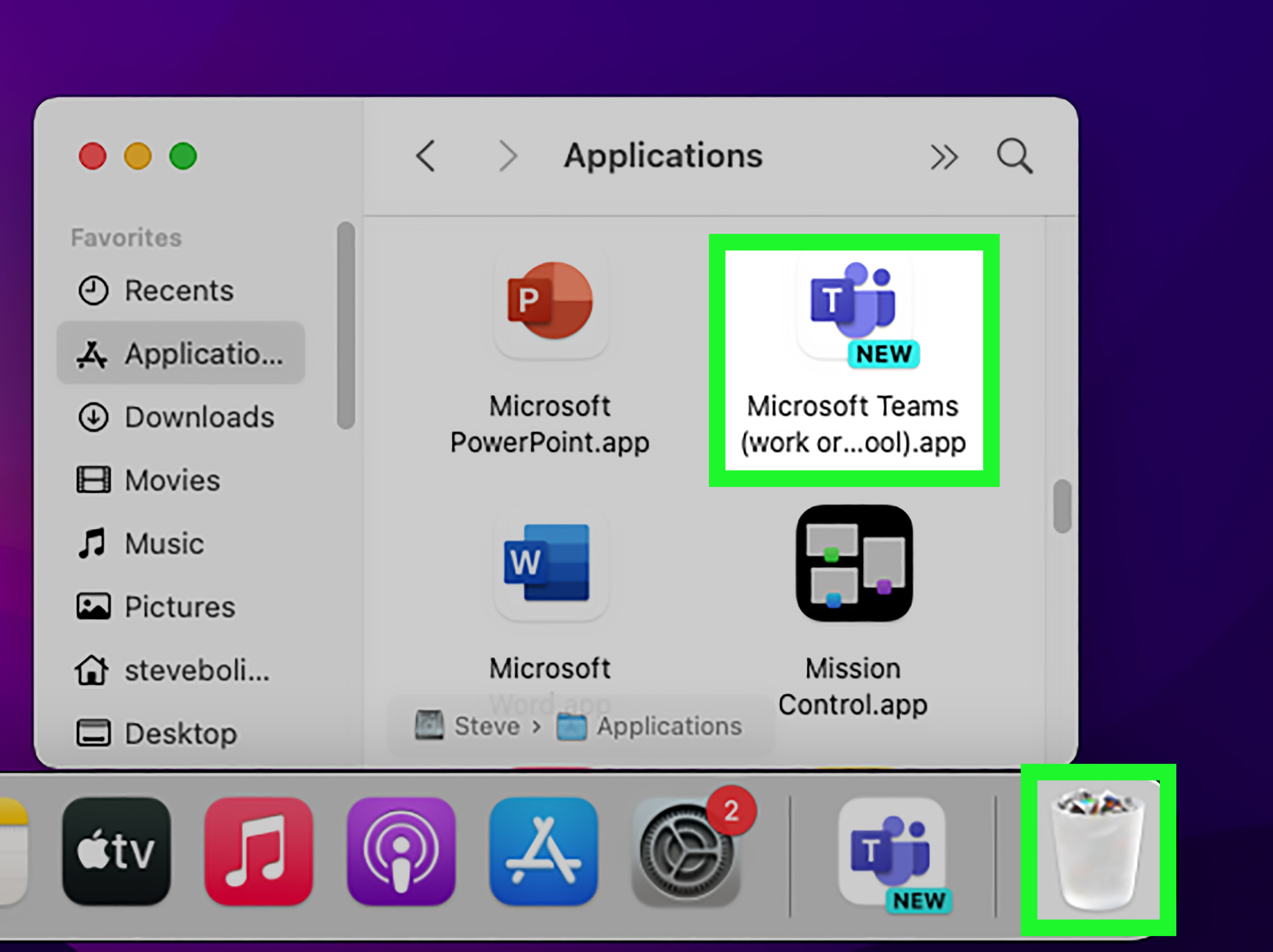
Microsoft Teams is not just a Windows app. If Teams opens every time you start your Mac, you can remove it from macOS Login Items.
On newer macOS versions, follow these steps:
- Click the Apple menu.
- Open System Settings.
- Choose General.
- Select Login Items & Extensions.
- Find Microsoft Teams.
- Select it and remove it from the list of items that open at login.
You should also check whether Teams is allowed to run in the background. Some apps do not open a visible window but still run background tasks. If you do not want Teams doing anything until you open it manually, disable its background permission where available.
There is one more Mac detail that catches people: when restarting or shutting down, macOS may offer a checkbox that says something like Reopen windows when logging back in. If that box is checked while Teams is open, your Mac may reopen Teams after restart even if it is not technically listed as a login item. Before restarting, uncheck that option if you want a clean start.
6. Uninstall Teams If You Do Not Use It
If you never use Microsoft Teams, disabling startup may not be enough. You can uninstall the app completely. This is the strongest option, but it is also the least necessary for most users. Do it only if you are sure you do not need Teams for work, school, interviews, online classes, or surprise meetings that could have been emails.
On Windows 11:
- Open Settings.
- Go to Apps.
- Select Installed apps.
- Search for Microsoft Teams.
- Select the three-dot menu next to it.
- Choose Uninstall.
On Windows 10:
- Open Settings.
- Select Apps.
- Choose Apps & features.
- Find Microsoft Teams.
- Select Uninstall.
Some older installations may also include a component called Teams Machine-Wide Installer. If Teams keeps coming back after uninstalling, check whether that installer is present and remove it too. On work or school computers, your organization may reinstall Teams automatically through Microsoft 365, Intune, Group Policy, or another management tool. In that case, you may need to ask your IT department before declaring war on the app.
What If Teams Still Opens After You Disable It?
If Microsoft Teams still opens on startup after you turn it off, do not panic. This happens for a few common reasons.
You Have More Than One Teams Account
Teams can behave differently for personal, work, and school accounts. Check startup settings for each account. One account may still be configured to start automatically.
Teams Is Running in the Background
Teams may not open a full window but may still run in the background for notifications and calls. If you want zero Teams activity at startup, turn off both auto-start and background startup options.
Windows Has Teams Enabled Somewhere Else
Check both Settings > Apps > Startup and Task Manager > Startup apps. These tools usually show the same startup list, but checking both is a smart troubleshooting move.
Your Organization Controls Teams
On company or school computers, administrators may manage Teams startup behavior. If Teams keeps re-enabling itself, an IT policy may be applying the setting again after you change it.
Teams Needs an Update
Outdated apps sometimes behave oddly. Update Teams, restart your computer, and then adjust the startup settings again. The boring solution is often the correct one. Computers love being dramatic until you update them.
Should You Disable Teams at Startup?
For many people, yes. Disabling Teams at startup can make your computer feel cleaner and more responsive. It can reduce login clutter, lower background activity, and prevent Teams from opening when you are not ready to deal with messages, meetings, or that one group chat that never sleeps.
However, there are situations where leaving Teams running is useful. If you receive important calls, time-sensitive work messages, class updates, or client notifications through Teams, turning it off completely may cause you to miss something. In that case, a better compromise is to let Teams run in the background without opening a large window on startup.
Here is a simple rule: if Teams is essential to your day, let it run quietly. If Teams is only something you open occasionally, disable startup and launch it manually when needed.
Best Settings for Different Users
For Students
Students who use Teams only for classes or school announcements may prefer to disable auto-start and open Teams before class. This keeps startup clean while still making Teams available when needed.
For Remote Workers
Remote workers may want Teams to run in the background but not open in the foreground. That way, notifications and calls still come through, but the app does not steal the screen at login.
For Personal Computers
If Teams came preinstalled or appeared after a Microsoft 365 setup, and you rarely use it, disabling startup is usually safe. You can always open it manually from the Start menu later.
For Work or School Devices
If your device is managed by an organization, avoid uninstalling Teams unless you know it is allowed. Disable startup if permitted, but contact IT if settings keep changing back.
Common Mistakes to Avoid
Mistake 1: Only Closing the Window
Clicking the X button may only close the Teams window. The app can still run in the background. Use Quit Teams from the system tray when you want to fully exit.
Mistake 2: Disabling the Wrong App
Windows may show more than one Teams-related entry, especially on systems that had older Teams versions. Disable the one clearly labeled Microsoft Teams. If you are unsure, disable one entry, restart, and test.
Mistake 3: Forgetting About macOS Reopen Windows
On Mac, Teams may reopen because macOS restores previously open apps. Remove Teams from Login Items and uncheck the reopen windows option when restarting.
Mistake 4: Uninstalling Too Quickly
Uninstalling is not the first step. Try disabling auto-start first. It is safer, faster, and easier to reverse.
Personal Experience: What Usually Works Best in Real Life
In everyday use, the most reliable fix is usually a two-step combo: turn off auto-start inside Teams, then disable Microsoft Teams in Windows Startup apps. Doing only one of these often works, but doing both gives you a better chance of stopping the app completely. This is especially true on newer Windows 11 PCs, where Teams may be installed, updated, or managed in slightly different ways depending on whether it came from Microsoft 365, the Microsoft Store, or an organization.
For example, imagine you start your laptop in the morning to write a report. Before you even open your browser, Teams appears, then Outlook appears, then OneDrive starts syncing, then your computer fan begins auditioning for a small airport. In that situation, disabling Teams startup can make the first few minutes of your day feel much calmer. You are not removing Teams forever; you are simply telling it to wait outside until invited in.
Another common situation happens with shared home computers. Maybe one person uses Teams for work, but another person uses the same PC for gaming, homework, or browsing. If Teams opens for everyone, it becomes annoying fast. The Startup folder and Windows Startup Settings are helpful here because they let you control whether Teams starts for the current user or for everyone on the device.
On work computers, the experience can be different. You may disable Teams today and find it enabled again next week. That does not always mean you did something wrong. It may mean your company has a device policy that restores Teams settings. Many organizations want Teams available because it supports calls, meetings, compliance, and internal communication. In that case, the practical move is not to fight the machine like a movie hacker. Ask IT whether you are allowed to stop Teams from opening in the foreground or whether it must keep running in the background.
For Mac users, the biggest “aha” moment is usually discovering the difference between Login Items and reopened windows. Someone removes Teams from Login Items, restarts the Mac, and Teams still returns. The reason may be that macOS was asked to reopen previous windows after login. Once that box is unchecked during restart, Teams usually behaves.
The best long-term setup depends on how you use Teams. If Teams is part of your workday, set it to run in the background instead of opening a big window. If you use it once a month, disable startup entirely. If you never use it, uninstall it. A clean startup is not just about speed; it is about control. Your computer should begin the day with your priorities, not with a parade of apps shouting, “Look at me!”
Conclusion
Stopping Microsoft Teams from opening on startup is usually simple. Start with the Teams app settings, then check Windows Startup apps or Task Manager. If you are on a Mac, remove Teams from Login Items and watch for the “reopen windows” option during restart. If Teams keeps returning, check for multiple accounts, background settings, startup folder shortcuts, updates, or organization policies.
You do not have to uninstall Teams unless you truly do not use it. For most people, the best solution is to disable automatic startup and open Teams manually when needed. That way, Teams remains available without barging into your screen every morning like it pays rent.