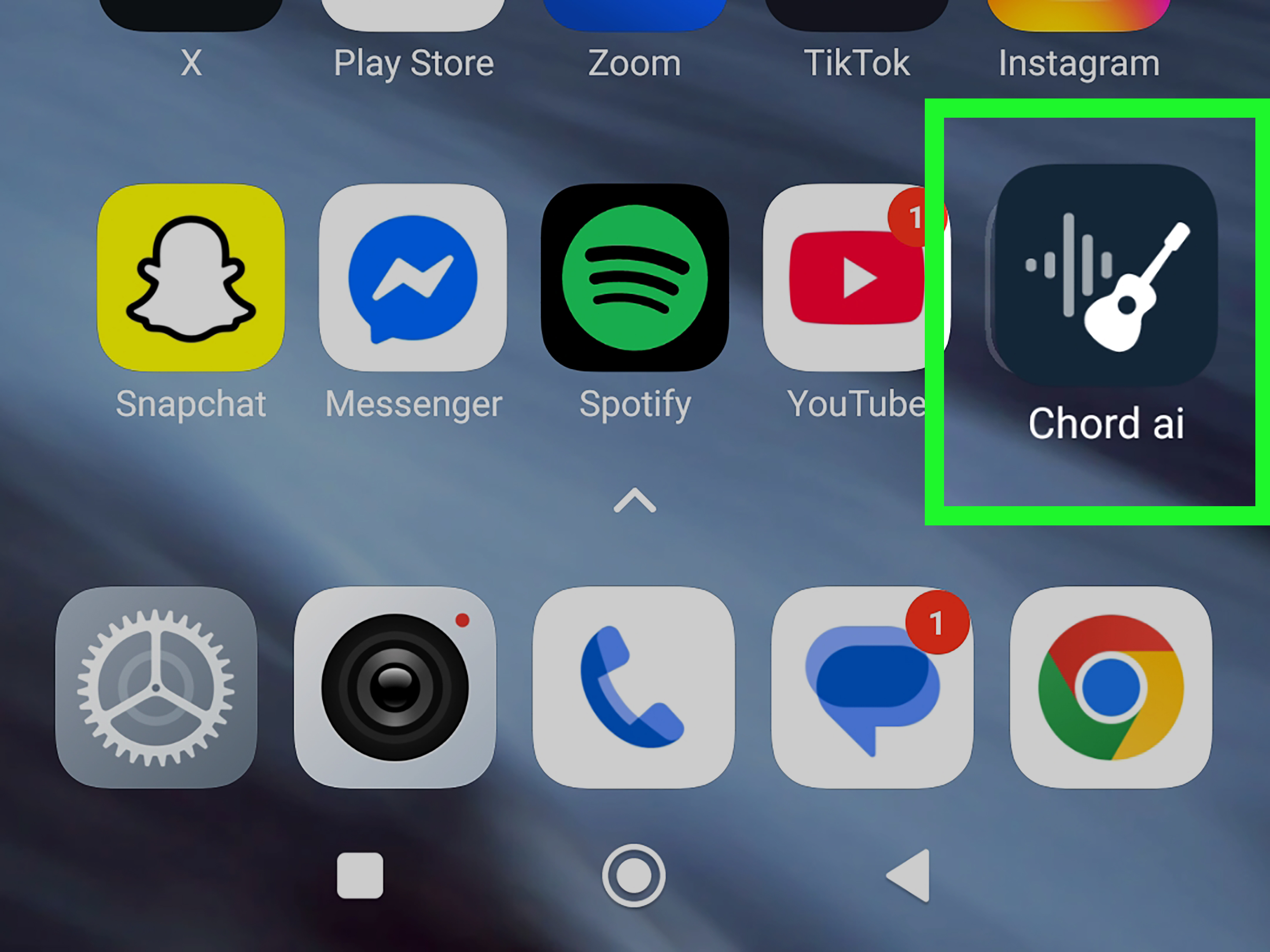
Your app didn’t “vanish.” It’s just doing what all good apps do: hiding the moment you need it mostlike a cat
when you open the carrier. The good news? Restoring apps on Android is usually fast, boring (in a good way),
and doesn’t require sacrificing your thumbs to the Settings gods.
This guide walks through the most common “missing app” scenariosuninstalled apps, disabled apps, hidden apps,
missing icons, new phone restores, and factory-reset recoverieswith practical steps and a few real-world
examples. Let’s get your apps back where they belong: one tap away.
Quick Steps: The 60-Second Checklist
If you just want the fastest path to “app restored,” do these in order. Stop when your app shows up.
- Search for the app (swipe up for the app drawer → search box).
- Check if it’s installed: Settings → Apps → See all apps → search the app name.
- Check Google Play: Play Store → profile icon → Manage apps & device → Manage → switch to Not installed → Install.
- If it’s installed but missing from the home screen: long-press app icon in app drawer → “Add to Home.”
- If it’s disabled: Settings → Apps → the app → Enable.
- Restart the phone (yes, it’s cliché; yes, it works more than it should).
Before You Panic: Is the App Actually Gone?
Scenario A: The icon disappeared, but the app is still installed
This is the most common case. You removed the shortcut, changed launchers, or your home screen reorganized itself
while you slept (your phone swears it was “helping”).
- Find it in the app drawer: Swipe up from the bottom (or tap “Apps”) and search.
- Add it back to the home screen: Long-press the app → “Add to Home” (wording varies by phone/launcher).
- Check “Add new apps to Home screen” setting: Some launchers can stop auto-adding icons for new installs.
Example: You installed a banking app yesterday, but today it’s not on your home screen. It may still be installed
it just didn’t auto-pin an icon. Search in the app drawer; if it opens, you’re done.
Scenario B: The app is disabled (not deleted)
Android lets you disable apps (especially system apps and preloads). Disabled apps can look “gone,” but they’re just
benchedlike a player who swears they’re injured right when it’s their turn to do dishes.
- Open Settings.
- Tap Apps (or “Apps & notifications”).
- Tap See all apps (if you have the option).
- Search for the app name.
- If you see Enable, tap it.
If you don’t see the app at all, look for a filter like Disabled, All apps, or “Show system.”
Different Android skins hide the list behind different menus.
Scenario C: The app is hidden
Many launchers (especially on Samsung phones and some third-party launchers) let you hide apps. That’s handy for
decluttering… until you forget you hid the app and start blaming ghosts.
- Check for “Hidden apps”: App drawer → menu (often three dots) → “Hide apps” / “Hidden apps.”
- Samsung-style path (common): Long-press empty space on the home screen → Settings → Hide apps.
Scenario D: It’s in a different profile (work profile, guest user, Secure Folder)
If your phone has a work profile (common on company-managed devices), the same app can exist in “Work” and
“Personal” versions, with different icons and data. Some devices also have Secure Folder or a second user/guest mode.
- In the app drawer, look for tabs like Personal and Work.
- Open Settings → Passwords & accounts or Accounts and look for work management indicators.
- If you use Secure Folder, open it and check if the app lives there.
Restore Apps You Uninstalled: The Google Play “Not Installed” Method
If you actually uninstalled the app, the cleanest way to restore it is through the Google Play Store’s built-in list
of previously downloaded apps. This is the closest thing Android has to an “Oops, put it back” button.
Reinstall from Google Play (works on most Android phones)
- Open the Google Play Store.
- Tap your profile icon (top right).
- Tap Manage apps & device.
- Tap Manage.
- At the top, switch the filter to Not installed (or choose “This device” → “Not installed”).
- Find your app and tap Install.
Why this works: Google tracks apps installed under your Google account. So even if you can’t remember the
name (“It was blue. Or green. Like… the ocean? Or money?”), you can scroll your history and spot it.
What if you have multiple Google accounts?
If the app still doesn’t show up, you might have installed it using a different Google account.
- In the Play Store, tap your profile icon → switch accounts.
- Repeat the “Not installed” steps under the other account.
Example: You used your work Gmail to install a productivity app, but you’re browsing Play Store under your personal Gmail.
The app history won’t match until you switch accounts.
Restoring apps from manufacturer stores (Samsung Galaxy Store, etc.)
Some phones use additional app stores (for example, Samsung’s Galaxy Store). If you originally installed an app from
a manufacturer store, check that store’s “My apps” or library section tooespecially for Samsung-exclusive apps.
Restore Apps After a Factory Reset or on a New Phone
When you set up a new Android phoneor factory reset your current oneAndroid can restore apps from your Google backup.
The key detail most people miss is this:
You usually restore from backup during the initial setup flow. If you skip it, “restoring later” is limited and
often means reinstalling apps manually (and hoping your data lives in the cloud).
During setup: restore from Google backup
- Start phone setup (new phone or after factory reset).
- When prompted, choose Copy apps & data (wording varies).
- Sign in to the same Google account used for the backup.
- Select the backup and follow prompts to restore apps and settings.
Some restores happen in the background. Your apps may appear “gray” or show download progress while the phone is finishing setup.
Check that backup is enabled (before you need it)
For future-you (who will absolutely forget this until disaster strikes): enable Google backup now.
- Settings → Google → Backup (the exact menu may be “Backup and restore”).
- Confirm backup is turned on and connected to the correct Google account.
Important: Not every app restores everything. Many apps restore from their own cloud accounts (think: messaging apps,
note apps, game progress), while others restore little-to-nothing if they don’t support backup well.
If the App Is Back… But Still Won’t Open
Sometimes you “restore” the app successfully, but it crashes, freezes, or refuses to install. Don’t rage-uninstall
your entire phone just yet. Try these practical fixes first.
Basic fixes that solve an embarrassing number of problems
- Restart the phone (yes, again).
- Update the app in the Play Store.
- Check storage: low storage can break installs and updates.
- Try a different network (Wi-Fi vs. mobile data).
Clear cache for Play Store (when installs are failing)
If the Play Store is stuckspinning forever, failing to download, or throwing vague errorsclearing cache is a safe next step.
You can also clear cache/data for Google Play services if needed.
- Settings → Apps → Google Play Store.
- Storage & cache → Clear cache.
- Retry the install.
If it still won’t work, clearing data can be more drastic (it resets Play Store). Use it when you’ve run out of polite options.
Safe Mode: find conflicts without playing “guess the culprit”
Some apps (especially aggressive cleaners, launchers, or device management tools) can interfere with installs or icons.
Booting into Safe Mode temporarily disables third-party apps so you can test whether something else is causing the problem.
The steps vary by device, but carrier support sites commonly recommend Safe Mode for stubborn app problems. If the app behaves normally
in Safe Mode, a third-party app is likely interfering.
Special Cases That Make Restoring Apps Weird
Case 1: The app is no longer in the Play Store
If an app was removed from Google Play (developer pulled it, policy enforcement, etc.), you may not be able to reinstall it from your “Not installed” list.
In that case:
- Search for the developer’s official website for a supported replacement.
- If it was a paid app, check if there’s a newer version or rebranded listing.
- For your data: log into the app’s web portal (if it has one) or contact the developer.
Avoid random APK sites unless you fully understand the risks. “Free” is not a bargain when it comes with malware.
Case 2: Work apps (MDM-managed devices)
On company-managed phones, some apps can be installed, hidden, or removed by policy. If an app “won’t stay installed,”
check with your IT/adminespecially for Work Profile apps (often marked with a briefcase icon).
Case 3: The launcher changed (or got reset)
If your home screen layout suddenly looks unfamiliar, your phone may have switched default launchers or reset the Home app.
Restoring the correct Home app can bring your icons back, even if the apps were never missing.
- Settings → Apps → Default apps → Home app → select your preferred launcher.
- Then add missing shortcuts back from the app drawer as needed.
Case 4: Security tools disabled permissions or access
Android’s protections can restrict “harmful” apps or revoke permissions. If an app restores but can’t access storage/camera,
review permissions: Settings → Privacy / Apps → Permissions. Re-grant only what’s truly needed.
How to Prevent the “Where Did My App Go?” Moment
You can’t prevent every app disappearance (some are bugs, some are you at 2:00 a.m.), but you can make recovery painless.
- Keep Google backup enabled so new phone/factory reset restores are smoother.
- Use archiving instead of uninstalling for rarely used apps (saves space, keeps the icon and setup handy).
- Pin your must-haves on the home screen and in folders (banking, 2FA apps, password manager).
- Don’t install “cleaner” apps that promise magic speed boosts; they often cause more problems than they solve.
- Know your account: if you use multiple Google accounts, label them clearly so you can restore from the right one.
Think of it like labeling your kitchen drawers. Sure, you can survive without labels… but eventually you’ll open six drawers just to find a spoon.
Experiences: Real-Life Restores, Mistakes, and Wins (500+ Words)
The funniest thing about “missing apps” is how rarely the app is actually missing. Most “restores” are really just you rediscovering
how your phone organizes thingslike realizing your keys were in your pocket the whole time. Here are a few real-world patterns
people run into (and how they typically get out of them without launching their phone into low Earth orbit).
1) The “I deleted it… but only the icon” moment
This happens constantly: you long-press an icon, you see “Remove,” you tap it, and later you swear the app is gone. On most Android
launchers, “Remove” often means “remove from home screen,” not “uninstall.” The app is still installedstill sending notifications,
still showing up in Settings, still taking storagejust not sitting on your home screen anymore.
The fix is laughably simple: open the app drawer, search the app name, long-press, and put the icon back. The lesson? If you want to
truly uninstall, look for the option that explicitly says Uninstall. Android is many things, but it’s not a mind reader.
2) The “Why doesn’t it show up in Play Store?” confusion
A common headache is reinstalling an app and not seeing it in your Play Store history. Nine times out of ten, it’s an account mismatch.
People often have a personal Gmail and a work Gmail, and whichever one was used originally is the one that “owns” the download history.
Switching accounts in the Play Store instantly makes the app reappear like magicexcept it’s not magic, it’s just Google being
extremely literal about which account did what.
Another variation: the app was installed from somewhere other than Google Play (manufacturer store, enterprise installer, or a
preloaded system app). In that case, Play Store can’t always “remember” it the same way. You may need the original sourceor at least
the manufacturer’s app storeto restore it cleanly.
3) The “It’s hidden because I ‘decluttered’ last month” twist
People hide apps for privacy or organizationthen forget. Or they hand their phone to a well-meaning friend who “cleans up” the home
screen and proudly returns a device with half the apps hidden. Samsung’s “Hide apps” feature and third-party launchers make this
especially easy.
The giveaway is when the app doesn’t show in the app drawer search, but it does show in Settings → Apps. That’s your clue
to check “Hidden apps” in launcher settings. Once you unhide it, the icon returns like it was never gone (because, technically, it wasn’t).
4) The “New phone, same Google account, different results” reality check
Restoring on a new phone can feel inconsistent. Some apps reinstall automatically during setup. Others don’t. Some bring back data;
others act like they’ve never met you. That’s not Android being spiteful (probably). It’s because backups are a mix of Google-level
restore plus each app’s own backup strategy. Apps that store your data in the cloud (email, notes with accounts, many social apps) feel
like they “restore perfectly.” Apps that keep data locally without strong backup support can feel like you’re starting from scratch.
The win here is setting expectations: restoring the app is easy; restoring the data depends on the app. For critical apps (password managers,
authenticator apps, finance tools), it’s worth checking the app’s own backup/export options ahead of time, not after the crisis.
5) The calm strategy that saves time
When an app goes missing, do the same three checks every time:
- App drawer search (icon missing vs. app missing)
- Settings → Apps (installed/disabled/blocked)
- Play Store → Not installed (reinstall if needed)
That sequence avoids guesswork, keeps you from reinstalling unnecessarily, and prevents the classic mistake of wiping cache/data “just to try”
before confirming what’s actually happening. In other words: be boring, be systematic, and your apps will stop playing games with your blood pressure.