Note: Original SEO article written for web publication. No external source links are inserted in the article body.
Sending a link from an iPad should feel as easy as passing a sticky note across the tableexcept the sticky note has Wi-Fi, a shiny screen, and occasionally a mind of its own. Whether you want to share a news article, a shopping page, a school resource, a recipe, a YouTube video, or a “you have to see this” website, your iPad gives you several simple ways to email a link without typing a long web address by hand.
The easiest method is usually the Share button in Safari or another browser. Tap it, choose Mail, add the recipient, write a quick message, and send. That is the smooth version. But because technology likes to keep us humble, there are also times when Mail does not appear in the share menu, your email account is not set up, or the link preview behaves like it has had three cups of coffee. This guide walks you through the clean, beginner-friendly process in 11 steps, then explains backup methods, troubleshooting tips, privacy reminders, and real-life experience notes to help you mail links from an iPad confidently.
What Does “Mail a Link from an iPad” Mean?
To mail a link from an iPad means to send a website URL through email using the iPad’s Mail app or another email app such as Gmail or Outlook. Instead of copying a full web address manually, you can use the iPad Share Sheetthe menu that opens when you tap the square icon with an arrow pointing upward. The Share Sheet lets you send web pages, files, images, notes, documents, and links through supported apps.
For most users, this task involves three apps working together: a browser, the Share Sheet, and an email app. Safari is the default browser on iPad, but Chrome and other browsers can also share links. Apple Mail is the built-in email app, but you can often use Gmail, Outlook, or another installed mail app if it supports sharing.
Before You Start: Make Sure Email Works on Your iPad
Before trying to email a link, check that your iPad can send email. Open the Mail app and see whether your inbox loads. If you have never added an email account, go to Settings, open Apps, choose Mail, then look for Mail Accounts or Accounts. From there, you can add an email provider such as iCloud, Google, Yahoo, Outlook, Microsoft Exchange, or another account type.
If you use the Gmail or Outlook app instead of Apple Mail, make sure you are signed in there as well. A link cannot be mailed successfully if the email app is not connected, the account password is outdated, or the app is waiting for you to complete a sign-in prompt. In other words, your iPad may be smart, but it still needs permission to speak on your behalf.
How to Mail a Link from an iPad: 11 Steps
Step 1: Open Safari or Your Preferred Browser
Start by opening Safari on your iPad. Safari is the browser that comes built into iPadOS, and it has the Share button in a convenient place near the address bar. You can also use Chrome or another browser if that is where the page is open. The overall process is similar, although the Share button may appear in a slightly different location.
Step 2: Go to the Web Page You Want to Share
Type the website address into the search field or use a bookmark, search result, or saved tab. Let the page load completely before sharing it. This helps ensure the link points to the correct page, not a half-loaded redirect or a temporary search screen. For example, if you want to send a product page, wait until the exact product page is visiblenot just the store’s homepage.
Step 3: Check That the Page Is the Right One
Take a quick look at the page title, address, and content. This matters more than people think. It is easy to share the wrong tab when you have a dozen open, especially if one tab is a recipe and another is a deep dive into why cats sit in boxes. If the link is for work, school, shopping, or appointments, verify the page before sending.
Step 4: Tap the Share Button
In Safari, tap the Share button, which looks like a square with an upward arrow. It is usually near the address/search bar. This opens the iPad Share Sheet. The Share Sheet shows suggested contacts, apps, and actions such as Copy, Add Bookmark, Add to Reading List, Print, Save to Files, or Mail.
Step 5: Choose Mail
Look for the Mail icon in the row of sharing apps. Tap Mail. Your iPad should create a new email draft with the link included automatically. Depending on the page and your Mail settings, the email may include a plain URL, a rich link preview, or a page title with the link attached.
If you do not see Mail, swipe left across the app row and tap More. From there, look for Mail in the list of available apps. You may be able to add it to your favorites so it appears faster next time.
Step 6: Add the Recipient
In the To field, type the email address of the person you want to send the link to. If the person is already in your contacts, you can start typing their name and select the correct contact. Be careful with similar names. Accidentally sending your vacation rental link to your algebra teacher instead of your aunt is the kind of mistake that builds character, but let’s avoid it.
Step 7: Write a Clear Subject Line
The subject line should tell the recipient what the email contains. A simple subject such as “Article I Mentioned,” “Recipe Link,” “Meeting Resource,” or “Website for the Project” works well. If you are sending the link for business or school, be more specific. For example: “Research Source for Climate Presentation” is better than “Link.”
Step 8: Add a Short Message
Even if the link appears automatically, add a sentence or two so the recipient knows why you are sending it. For example: “Here is the article we discussed earlier,” or “This is the product page I was comparing.” A link with no context can look suspicious, especially if it arrives unexpectedly. A friendly note tells the reader the email is real and saves them from wondering whether your iPad has joined a spam circus.
Step 9: Review the Link
Before sending, tap or inspect the link preview if possible. Make sure the link is included in the email body. If the email looks blank, return to Safari and try sharing again. You can also use the Copy method explained below. If the page contains private information, such as a personal account page, shopping cart, bank screen, school portal, or medical portal, do not assume the recipient can access it safely. Many private pages require your login and may not work for someone else.
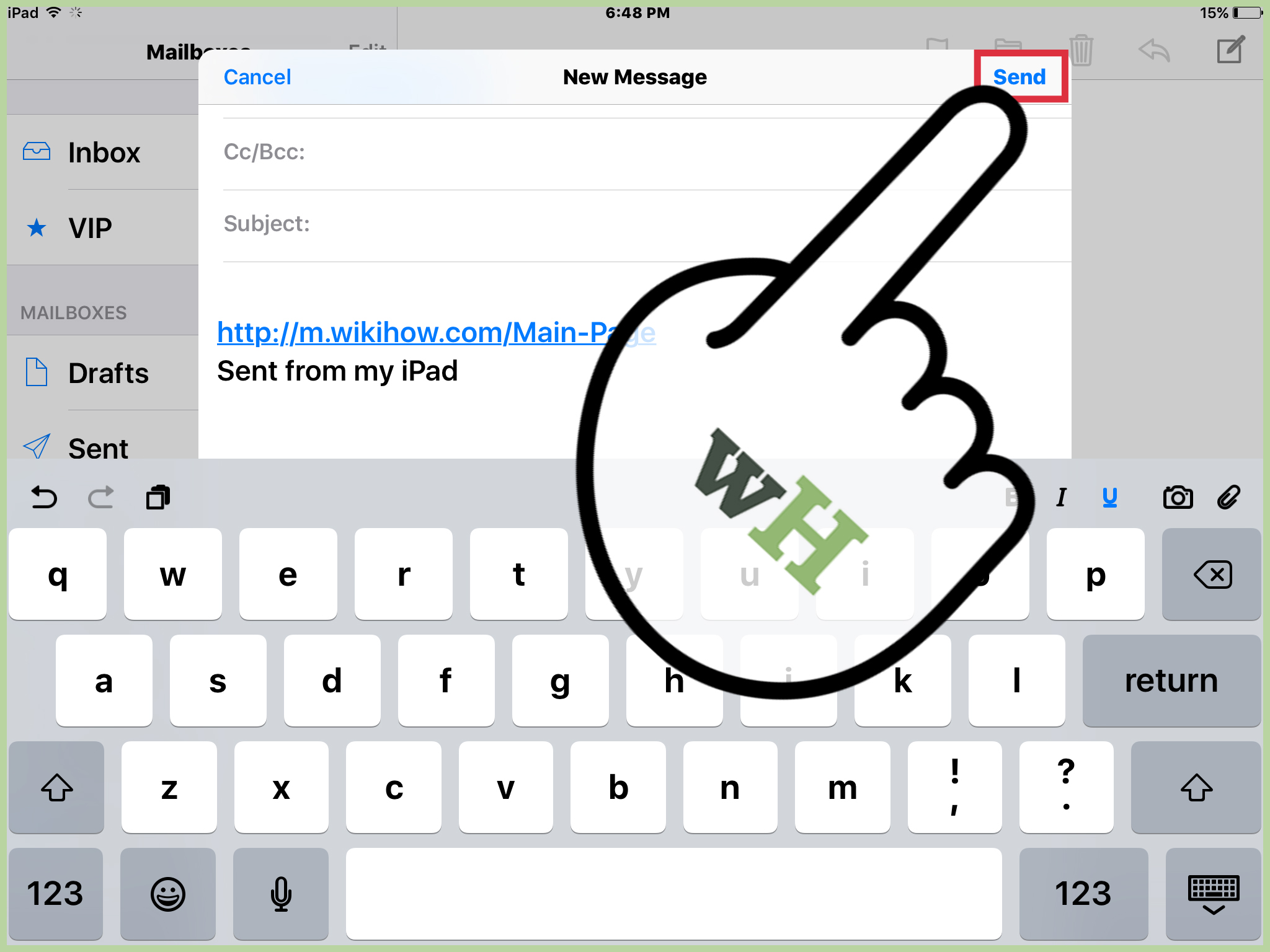
Step 10: Tap Send
Tap the Send button, usually shown as an upward arrow or paper airplane-style icon in the Mail draft. If the message sends successfully, you are done. If it stays in the Outbox, check your internet connection, email account settings, and whether the email address was typed correctly.
Step 11: Confirm the Email Sent
Open the Sent mailbox in Mail and confirm the message appears there. This is especially useful when sending important links for work, school, customer communication, or time-sensitive planning. If the email is still in Outbox, your iPad may be offline, your email account may need authentication, or the Mail app may be waiting for a server connection.
Alternative Method: Copy and Paste the Link into an Email
If the Share button does not work, copying and pasting is the reliable backup. Open the web page in Safari, tap the address bar, then choose Copy. Next, open Mail, start a new message, tap in the body of the email, and choose Paste. The URL will appear in the message.
This method is useful when Mail is missing from the Share Sheet, when you want to use Gmail or Outlook manually, or when you want full control over where the link appears in your message. It is also handy for adding several links to one email. For example, you might write:
“Here are the three pages I found: the official guide, the comparison chart, and the FAQ page.”
Then paste each link under its description. This makes the email easier to read and much more useful than a mysterious pile of URLs.
How to Add a Hyperlink to Text in Mail
On iPad, you can also create a cleaner-looking hyperlink in an email. Copy the webpage URL first. Then, while composing your email in Mail, type the words you want to turn into a link, such as “read the full guide.” Highlight that text and paste the copied URL. The selected words can become linked text instead of showing the full web address.
This is helpful for professional emails because it keeps the message tidy. Compare these two examples:
Messy: “Read this: https://example.com/really-long-page-name-with-symbols-and-tracking-code.”
Clean: “You can read the full guide here.”
The second version is friendlier, especially on mobile screens. Just make sure the linked text clearly describes where the link goes.
How to Mail a Link from Chrome on iPad
If you use Chrome on your iPad, open the page you want to share and tap the Share icon near the address bar. You can also touch and hold a link on a page, then choose Share from the menu. Select Mail, Gmail, Outlook, or another email app if available. If the app does not appear, use Copy Link, then paste it into a new email manually.
The main difference between Safari and Chrome is button placement. Safari places sharing tightly into the Apple ecosystem, while Chrome may show Google-related options and a browser-specific share menu. The result is the same: you are sending a URL through email.
What to Do If Mail Does Not Appear in the Share Sheet
If Mail is missing from the Share Sheet, try these fixes:
Check the More Menu
Swipe across the row of app icons in the Share Sheet and tap More. Mail may be hidden but still available. You can sometimes move it into your favorites for faster access.
Make Sure Mail Is Set Up
If no email account is connected to Apple Mail, the app may not behave as expected. Add or re-authenticate your email account in Settings.
Restart the App
Close Safari and Mail, then reopen them. This simple fix works surprisingly often. It is the digital equivalent of “have you tried turning it off and on again,” but with fewer cables and less sighing.
Update iPadOS
If sharing behaves strangely after an update or app change, check whether a newer iPadOS update is available. Software updates often include bug fixes for system apps and sharing features.
Use Copy and Paste
When all else fails, copy the link and paste it manually into your email app. It may not feel fancy, but it works.
Tips for Sending Links Professionally
A well-sent link is more than a URL. It is a tiny communication package. If you are mailing a link for school, work, business, or customer service, use a clear subject line, add context, and explain what the recipient should do with it.
Instead of writing, “See link,” try: “Here is the registration page for Friday’s workshop. Please use the blue Sign Up button near the top.” That one sentence saves time and prevents confusion.
If you are sending several links, organize them with short labels:
- Main article: for the primary reading source
- Reference page: for background details
- Video tutorial: for visual instructions
- Signup form: for action steps
This structure makes your email easier to scan, especially for readers on phones.
Privacy and Safety Reminders Before Mailing a Link
Not every link should be shared. Before mailing a URL, ask yourself whether it contains personal, private, or account-specific information. Links from shopping carts, cloud documents, school portals, banking pages, medical portals, or private dashboards may reveal more than you intend. Some links include tracking codes or access tokens, while others only work for the person currently logged in.
For shared documents, check permission settings before sending. If the recipient needs access, make sure the document is set to allow viewing by the right people. For private documents, avoid public “anyone with the link” settings unless that is truly appropriate.
Also, avoid sending suspicious links, shortened links from unknown sources, or pages that ask for passwords in strange ways. A helpful email should not accidentally become a tiny delivery truck for trouble.
Common Problems and Quick Fixes
The Link Preview Looks Wrong
Sometimes Mail creates a preview using the page title, image, or metadata. If the preview looks odd, delete it and paste the plain URL instead. The link can still work even if the preview is not beautiful.
The Recipient Says the Link Does Not Open
Open the sent email and test the link yourself. If the page requires a login, send instructions instead of assuming direct access will work. If it is a private document, update sharing permissions.
The Email Is Stuck in Outbox
Check Wi-Fi or cellular data, confirm the recipient’s address, and make sure your email account is signed in. If needed, remove and re-add the email account after confirming you know the correct password.
The Share Button Is Hard to Find
In Safari, look near the address bar for the square with an upward arrow. In other browsers, look near the address bar, menu button, or three-dot menu. When in doubt, tap the browser menu and look for Share or Copy Link.
When Copying the Link Is Better Than Using Share
The Share button is fast, but copying the link gives you more control. Use copy and paste when you want to send multiple links, place the link under a specific paragraph, create a cleaner message, or use an email app that does not appear in the Share Sheet.
Copying is also better when you need to remove extra tracking information. Some URLs contain long strings after a question mark. These may include campaign tags or referral details. In many cases, the page works without the extra tracking portion, but be careful: some websites need certain URL details to load the correct page. If you are unsure, paste the link into a new browser tab and test it before sending.
Best Practices for Better Link Emails
To make your link emails more useful, keep them short and clear. Tell the recipient why you are sending the link, what they should notice, and whether they need to take action. For example:
“Here is the hotel page I mentioned. Please check the cancellation policy before we book.”
That is much better than sending a bare link with no explanation. A little context turns a random URL into a helpful message.
Also consider your recipient’s device. If they are likely reading on a phone, avoid long paragraphs. Put the link on its own line and use simple language. If the link is urgent, say so in the subject line. If it is just interesting, keep the tone casual.
Experience Notes: What I’ve Learned from Mailing Links on an iPad
After using an iPad for everyday browsing, work notes, shopping research, reading, and the occasional “I need to send this before I forget it forever” moment, one thing becomes clear: the Share button is excellent, but copy and paste is still the dependable old friend who shows up with snacks. The fastest way to mail a link is usually Safari to Share to Mail, but the best way depends on the situation.
For quick personal sharing, the Share button wins. If you are reading an article and want to send it to a friend, it takes only a few taps. The message draft appears, the link is already there, and you can add a line like, “This explains what I was talking about.” It feels natural and saves time. This is especially useful when you are relaxing on the couch and do not want a simple task to become a full-time administrative career.
For work or school, I prefer copying the link manually. That gives me time to write a better message, check the subject line, and make sure the link appears exactly where I want it. When sending a source to a classmate, client, teacher, or coworker, context matters. A bare link can look rushed or confusing. A labeled link with one sentence of explanation feels more polished and respectful.
I have also learned to test important links before sending them. This matters most with shared documents, online forms, cloud folders, and pages behind logins. A link may work perfectly for you because you are signed in, but fail for the recipient because they do not have permission. When the link is important, open it in a private window, another browser, or another device if possible. That quick check can prevent the classic reply: “I can’t open this.” Few sentences are more powerful at shrinking your productivity mood.
Another useful habit is cleaning up the email before tapping Send. If Mail creates a giant preview that pushes your message down the page, you can delete the preview and keep the plain URL. If the page title is unclear, write your own description. If the URL looks suspiciously long, test whether a shorter version still works. The goal is not to make every email look like a magazine layout; the goal is to make the message easy to understand.
Finally, do not underestimate the subject line. “Link” is technically a subject, in the same way cereal for dinner is technically a meal. It works, but we can do better. Use “Recipe for Saturday,” “Article About iPad Mail,” “Project Research Link,” or “Hotel Option Near Downtown.” A clear subject helps the recipient find the email later, and it makes you look organized even if your open Safari tabs suggest otherwise.
The iPad is a strong tool for sharing links because it combines touch controls, browser sharing, email apps, and copy/paste into one simple workflow. Once you understand both methodsShare Sheet and manual copyyou can handle almost any link-sending situation without frustration. And if something goes wrong, remember the golden rule: copy the URL, paste it into a fresh email, add a human sentence, and send. Simple still wins.
Conclusion
Learning how to mail a link from an iPad is one of those small skills that becomes useful almost every day. You can send a link directly from Safari with the Share button, choose Mail, add a recipient, write a short note, and tap Send. If the Share Sheet does not cooperate, copying and pasting the URL into a new email works just as well.
The key is to send links clearly and safely. Check the page, add context, avoid sharing private account pages, and confirm important emails are actually sent. Once you get comfortable with the process, your iPad becomes a quick communication tool for articles, resources, documents, products, forms, maps, videos, and anything else worth sharing.