Creating a mailing list in Yahoo Mail is one of those small productivity tricks that feels almost too simple once you know where to click. Instead of typing ten, twenty, or fifty email addresses every time you want to send an update, you can create a contact list once and reuse it whenever needed. It is like putting your regular email crowd into a neat little digital bus and saying, “Everyone aboard, we have news.”
Whether you are organizing a family reunion, sending weekly club updates, coordinating a volunteer team, managing a neighborhood group, or keeping in touch with loyal customers, Yahoo Mail contact lists can save time and reduce mistakes. The key is knowing the difference between a casual contact list and a true email marketing system. Yahoo Mail is excellent for personal and small-group communication. For large promotional campaigns, subscriber analytics, automated unsubscribe links, and compliance tools, a dedicated email marketing platform is usually the better choice.
This complete guide explains how to create a mailing list in Yahoo Mail, add and remove contacts, send messages to the list, protect recipient privacy, troubleshoot common problems, and manage your list like a person who has not lost a battle with their inbox since 2014.
What Is a Mailing List in Yahoo Mail?
In Yahoo Mail, a mailing list is usually called a contact list. It is a saved group of contacts that you can email by typing the list name into the recipient field. For example, instead of entering every address for your book club individually, you can create a list called “Book Club” and send one message to the whole group.
A Yahoo Mail contact list does not create a public newsletter signup page, automated welcome sequence, unsubscribe landing page, or campaign report. It simply helps you send email to a saved group of people from your Yahoo Mail account. That makes it perfect for small groups and everyday communication, but limited for formal email marketing.
Before You Create a Yahoo Mail Mailing List
Before clicking around Yahoo Mail like you are defusing a tiny email bomb, take a minute to prepare. A clean list now prevents headaches later.
Make Sure Your Contacts Already Exist
Yahoo Mail contact lists work best when the people you want to add are already saved in your Yahoo Contacts. You can add a brand-new contact from the Contacts area, or you can add someone directly from an email they sent you. If you try to build a list from messy, outdated, or misspelled addresses, the list will be about as useful as a shopping list that only says “stuff.”
Use Yahoo Mail on a Desktop Browser When Possible
The Yahoo Mail mobile app is useful for reading and sending messages, but contact-list management is often easier from the web version of Yahoo Mail on a desktop or laptop browser. If you do not see the same options on your phone, switch to a computer before assuming the feature has vanished into the internet fog.
Decide Who Belongs on the List
Group people by purpose. A list named “Family Updates” should not include your dentist, your old landlord, and that one person from a conference whose name you saved as “Maybe Marketing Guy.” Clear groups make email easier to manage and reduce accidental oversharing.
How to Create a Mailing List in Yahoo Mail
Follow these steps to create a contact list in Yahoo Mail:
- Sign in to Yahoo Mail. Open Yahoo Mail in your browser and log in to your account.
- Open Contacts. Click the Contacts icon, usually found in the right-side panel or near the top-right area of the Yahoo Mail interface.
- Go to the Lists tab. In the Contacts panel, choose the Lists tab.
- Click Create list. Select + Create list or a similar option.
- Name your list. Choose a clear name, such as “Soccer Parents,” “Monthly Clients,” “Church Volunteers,” or “Holiday Card List.”
- Add contacts. Start typing names or email addresses and choose the matching contacts you want to include.
- Save the list. Click Save to finish creating your Yahoo Mail mailing list.
Once saved, the list becomes available when you compose a new message. You can update it later, so do not panic if you forget someone. Email lists are editable; family drama is not always so forgiving.
How to Add New Contacts Before Creating a List
If the person you want to include is not already in Yahoo Contacts, add them first. Here is the basic process:
- Open Yahoo Mail and click the Contacts icon.
- Choose the All tab.
- Click Add a new contact.
- Enter the person’s name, email address, phone number, or other useful details.
- Click Save.
You can also add a contact from an email message. Open the message, hover over the sender’s name or email address, choose Add to contacts, complete any missing details, and save. This is especially helpful when you are building a list from people who already email you regularly.
How to Send an Email to a Yahoo Mail Contact List
After creating the list, sending an email to the group is simple:
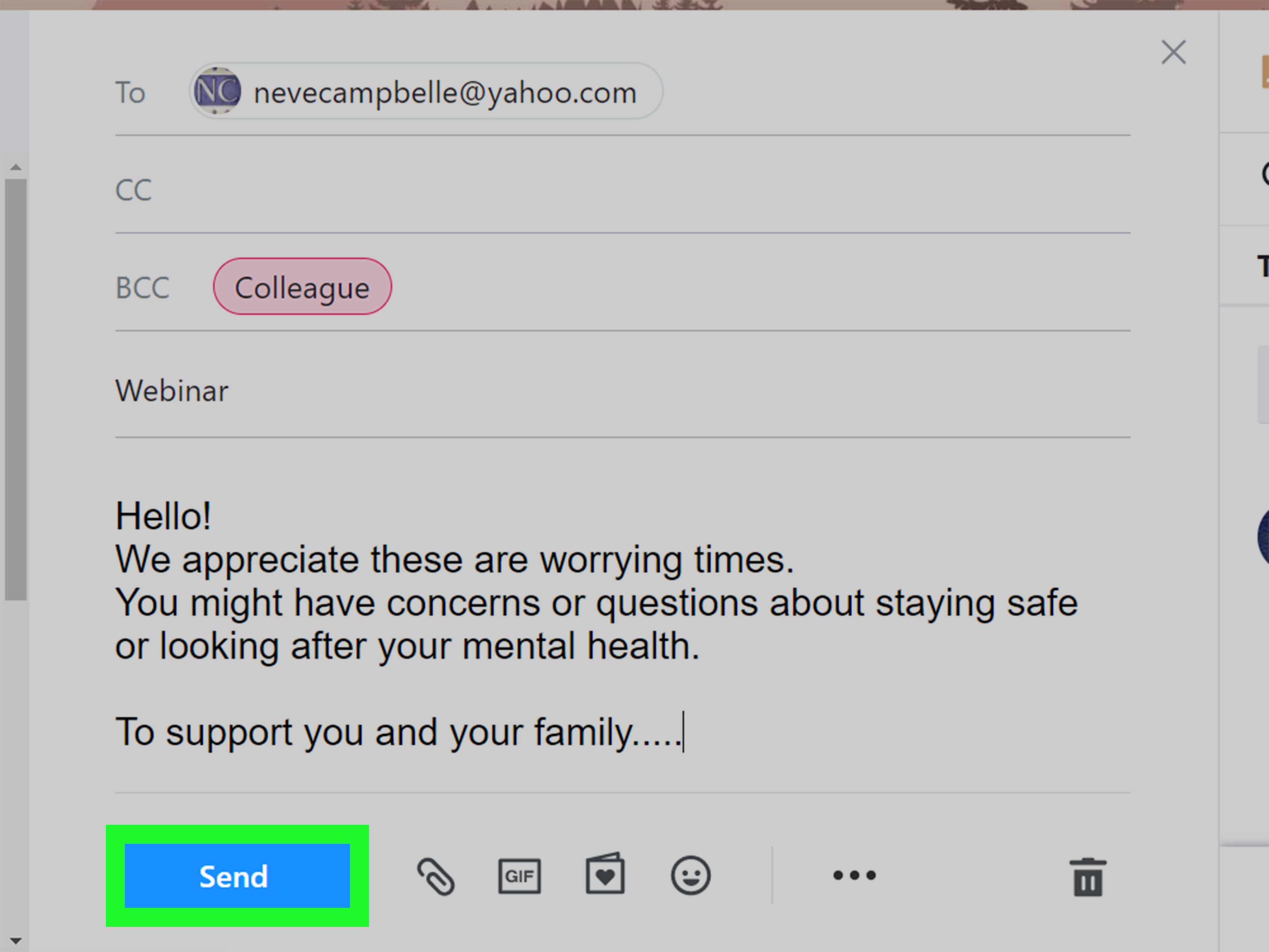
- Click Compose in Yahoo Mail.
- Start typing the list name in the To, Cc, or Bcc field.
- Select the matching contact list when it appears.
- Write your subject line and message.
- Review the recipients, proofread your email, and click Send.
Should You Use To, Cc, or Bcc?
For most group emails, Bcc is the smartest choice. Bcc hides recipients from one another, which protects privacy and keeps people from accidentally hitting “Reply All” and launching a full-scale inbox thunderstorm. Use To when everyone already knows each other and expects to see the group. Use Cc when recipients should be visible but are not the main audience.
Example: If you are emailing your immediate project team, the To field may be fine. If you are sending a community announcement to 40 neighbors, Bcc is much better. Nobody needs to wake up to a reply-all chain about whether the potluck needs more potato salad.
How to Edit a Mailing List in Yahoo Mail
Lists change. People move, unsubscribe, switch email addresses, or ask to be removed because they are “cutting down on digital noise,” which is a polite way of saying they are tired of everything. To edit a Yahoo Mail contact list:
- Open Contacts in Yahoo Mail.
- Click the Lists tab.
- Select the list you want to update.
- Choose Edit list.
- Add new contacts by searching for their names or email addresses.
- Remove contacts by clicking the X next to an address.
- Click Save.
Editing the list does not usually delete the person from your entire address book. It only removes them from that specific group. Think of it like taking someone off the party-planning committee, not erasing them from human history.
How to Delete a Mailing List in Yahoo Mail
If a list is no longer useful, delete it to keep your Contacts area clean:
- Open Yahoo Mail and click Contacts.
- Go to the Lists tab.
- Select the list you want to remove.
- Click Edit list.
- Open the More options menu.
- Choose Delete list.
- Confirm the deletion.
Deleting a list should not delete the individual contacts from Yahoo Contacts. It only removes the group label. Still, if the list is important, export or back up your contacts first for peace of mind.
How to Import or Export Yahoo Contacts
If you already have contacts stored elsewhere, Yahoo Mail may let you import contacts from linked accounts. You can also export Yahoo Contacts as a file, commonly useful for backup, sorting, or moving contacts to another platform.
Exporting contacts is a good habit if you rely on your mailing list for volunteer work, client communication, or regular community updates. Save a backup file before making major edits. It is not glamorous, but neither is rebuilding 300 email addresses from memory while whispering, “I should have backed this up.”
One practical tip: keep contact names simple. Some contact systems can be picky about special characters, accent marks, unusual symbols, or formatting copied from spreadsheets. If an import fails, clean up the file and try again.
Best Practices for Yahoo Mail Mailing Lists
1. Get Permission Before Sending
Even for small groups, permission matters. Send email to people who expect to hear from you. If you are emailing customers, subscribers, or prospects, be especially careful. U.S. commercial email rules require honesty, accurate sender information, clear subject lines, a valid way to opt out, and respect for unsubscribe requests.
2. Keep Lists Focused
Do not create one giant “Everyone I Have Ever Met” list. Smaller lists perform better because the message can match the audience. A school volunteer list, client update list, family list, and event planning list should be separate.
3. Use Clear List Names
Name lists in a way future-you will understand. “Clients – Monthly Updates” is better than “List 3.” Future-you is busy, slightly under-caffeinated, and not interested in solving a naming mystery.
4. Use Bcc for Privacy
When recipients do not all know each other, use Bcc. This protects email addresses and helps prevent accidental reply-all disasters. Privacy is not just polite; it builds trust.
5. Send a Test Email First
Before emailing a large group, send the message to yourself. Check formatting, links, attachments, typos, and whether the subject line makes sense. A test email is the seat belt of group messaging: boring until it saves you.
6. Avoid Oversized Attachments
Large attachments can slow delivery, trigger errors, or annoy recipients on mobile devices. For big files, use a cloud storage link instead. Your recipients’ inboxes will thank you silently.
7. Clean Your List Regularly
Remove outdated addresses, duplicates, bounced addresses, and people who ask not to receive your emails. A smaller, cleaner list is better than a huge list full of people who ignore you with Olympic-level commitment.
Common Problems and How to Fix Them
The Contacts or Lists Tab Is Missing
Yahoo Mail changes its interface from time to time. If you do not see Contacts or Lists, try using a desktop browser, expand the right-side panel, refresh the page, clear your browser cache, or sign in from another browser. Also make sure you are using the full Yahoo Mail experience rather than a limited mobile view.
The Contact List Does Not Appear When Composing
Make sure the list was saved successfully. Then start typing the exact list name slowly in the recipient field. If it still does not appear, return to Contacts, open the list, confirm that it contains valid contacts, and save it again.
Some Contacts Are Not Receiving the Email
Check for misspelled addresses, full inboxes, spam filtering, or bounced messages. Ask recipients to add your email address to their contacts. Avoid spammy subject lines such as “FREE!!! URGENT!!! CLICK NOW!!!” unless your goal is to make spam filters stretch before sprinting.
Yahoo Blocks or Limits Sending
Yahoo Mail uses sending limits to reduce spam and protect users. The exact limits may vary and are not always publicly disclosed. If you send too many messages too quickly, your account may be temporarily limited. Split large sends into smaller groups, slow down, and avoid using a personal Yahoo Mail account for mass marketing campaigns.
Contacts Look Duplicated or Messy
Duplicates usually happen when contacts are imported from several accounts or automatically saved over time. Review your Yahoo Contacts, merge or remove duplicate entries where possible, and keep one preferred address for each person.
When Yahoo Mail Is Not Enough
Yahoo Mail contact lists are convenient, but they are not designed to replace professional email marketing software. If you need signup forms, segmentation, automated welcome emails, performance analytics, bounce handling, unsubscribe management, branded templates, or compliance support, consider using a dedicated email marketing service.
Use Yahoo Mail for personal groups, clubs, small teams, and simple announcements. Use an email marketing platform for newsletters, business campaigns, ecommerce promotions, fundraising drives, and any list where people need a formal way to subscribe or unsubscribe.
Practical Examples of Yahoo Mail Mailing Lists
Family Reunion List
Create a list called “Family Reunion 2026.” Add relatives who need travel updates, hotel details, meal plans, and schedule changes. Use Bcc if not everyone wants their address shared across the entire family tree.
Local Club List
Create a list for a running club, book club, gardening circle, or community volunteer team. Send reminders, meeting notes, event locations, and schedule changes. Keep the list updated when members join or leave.
Small Client Update List
If you work with a small group of clients who have agreed to receive updates, create a simple contact list for occasional notices. For promotional campaigns or larger customer lists, switch to an email marketing tool that includes unsubscribe and compliance features.
Security and Privacy Tips
Protect your Yahoo Mail account with a strong password and two-step verification if available. A mailing list is only helpful when your account is secure. If someone gains access to your email, they could misuse your contacts, send spam, or damage trust with people who know you.
Be careful when forwarding chain messages, jokes, or sensitive details to a list. Group email multiplies mistakes. Before sending, ask: “Would every person on this list reasonably expect to receive this?” If the answer is no, pause. The Send button is powerful, tiny, and emotionally unavailable once clicked.
Experience-Based Tips for Creating a Better Yahoo Mail Mailing List
After helping many everyday users organize group email, one lesson stands out: the technical steps are usually easier than the people-management part. Creating the Yahoo Mail list takes a few minutes. Keeping it useful takes a little discipline. The best mailing lists are built with a clear purpose, a clean audience, and a sending rhythm that respects people’s inboxes.
For example, imagine someone creates a Yahoo Mail list for a neighborhood association. At first, it includes twelve people. Easy. Then a block party happens, five new neighbors ask to be added, two people move away, one person changes jobs and stops using an old email address, and another person says, “Please send these to my spouse instead.” Within a few months, the list becomes messy unless someone maintains it. That is why it helps to review your list every month or before every major announcement.
A smart habit is to create a simple naming system. Instead of one list called “Neighbors,” use “Neighbors – Announcements” for official updates and “Neighbors – Social Events” for casual invitations. This avoids sending every tiny update to everyone. People are more likely to read your emails when the content matches what they expected to receive.
Another useful experience: always send one test message to yourself before contacting the full list. This sounds unnecessary until you catch a broken link, missing attachment, incorrect date, or subject line that accidentally says “Meating Tonight” instead of “Meeting Tonight.” Unless you are inviting people to discuss beef, that typo needs fixing.
Bcc is also a lifesaver. Many users learn this the hard way after one group email turns into a reply-all parade. With Bcc, recipients receive the message without seeing everyone else’s address. It looks cleaner, protects privacy, and prevents people from accidentally emailing the whole list with “Thanks!” “Me too!” or “Please remove me,” followed by thirteen people replying, “Stop replying all.” Humanity has suffered enough.
Finally, remember that Yahoo Mail is best for manageable groups. If your list grows into hundreds or thousands of people, or if you are sending marketing messages, move to a dedicated email platform. That is not because Yahoo Mail is bad; it is because the job has changed. A bicycle is great for a neighborhood ride. It is not the right vehicle for hauling furniture across three states.
The real secret is simple: treat your mailing list like a relationship, not a dumping ground. Send useful messages, keep the list accurate, respect privacy, and remove people when they ask. Do that, and your Yahoo Mail contact list becomes more than a shortcut. It becomes a reliable communication tool that saves time without making your inbox feel like a haunted attic.
Conclusion
Creating a mailing list in Yahoo Mail is a practical way to send messages to a group without typing every email address by hand. Start by saving your contacts, open the Contacts area, use the Lists tab, create a clearly named list, add the right people, and save it. When sending, consider using Bcc to protect privacy and reduce reply-all chaos. Keep the list clean, update it often, and use Yahoo Mail for the kind of communication it handles best: personal groups, small teams, clubs, family updates, and simple announcements.
For large-scale email marketing, Yahoo Mail is not the ideal tool. A professional email marketing platform will give you better list management, unsubscribe features, compliance support, and reporting. But for everyday group email, Yahoo Mail contact lists are simple, useful, and refreshingly low-dramaas long as you do not name every list “Important People.”