Converting a Word document to HTML sounds like one of those tasks that should take twelve seconds and one button. Then you open the exported file, see a suspicious jungle of tags, inline styles, mystery spans, and image folders, and suddenly your coffee tastes like panic. The good news? You can absolutely turn a Word document into usable HTML without becoming a full-time web developer or whispering apologies to your keyboard.
Whether you are publishing a blog post, preparing a help article, moving content into WordPress, building an email draft, or giving a developer clean copy for a website, the best method depends on one thing: what kind of HTML you need. If you want a quick web page, Microsoft Word can export it. If you want a simple online workflow, Google Docs or a clean HTML converter can help. If you want cleaner, more structured code, tools like Pandoc or Mammoth are usually the better choice.
In this guide, you will learn how to convert a Word document to HTML using three easy methods, when to use each one, and how to avoid the classic “why is my paragraph wearing six font tags?” problem. Let’s turn that .docx file into web-friendly HTML with less drama.
What Happens When You Convert Word to HTML?
A Word document is designed for pages. HTML is designed for screens. That difference matters. Word thinks in terms of margins, page breaks, headers, footers, fonts, line spacing, and print layout. HTML thinks in terms of headings, paragraphs, links, lists, images, tables, semantic structure, and responsive display.
When you convert a Word document to HTML, the converter has to translate document formatting into web markup. A bold sentence becomes a <strong> tag. A heading may become an <h2>. A bullet list may become <ul> and <li>. Images may be extracted into a separate folder. Tables may become HTML tables. So far, lovely.
The challenge is that Word documents often contain hidden formatting. A document may look clean on screen but contain extra styles from copying, templates, comments, track changes, pasted email content, or old formatting. When exported, those hidden instructions can become bloated HTML. That is why “convert Word to HTML” does not always mean “get clean HTML.” Sometimes it means “get HTML that technically works but needs a shower.”
Before You Convert: Clean Up the Word Document First
Before using any Word to HTML converter, spend a few minutes preparing your file. This small step can save a large amount of cleanup later.
Use Real Heading Styles
Instead of manually making text large and bold, use Word’s built-in Heading 1, Heading 2, and Heading 3 styles. Proper heading styles are much easier for converters to turn into clean HTML headings. This also improves SEO, accessibility, and readability after publication.
Remove Unnecessary Formatting
If your document has inconsistent fonts, random colors, copied email formatting, or strange spacing, simplify it before conversion. Use clear paragraph breaks, consistent lists, and basic formatting. Think of it as brushing the document’s hair before picture day.
Check Images and Links
Make sure images are inserted properly and links work. If you convert a document with images, many tools create an HTML file plus an image folder. Keep those files together, or your beautiful screenshots may vanish like socks in a dryer.
Method 1: Convert Word to HTML Using Microsoft Word
The easiest way to convert a Word document to HTML is to use Microsoft Word itself. This method works on Windows and Mac, and it is best for quick exports, simple web pages, internal previews, and documents where preserving the visual layout matters more than producing perfectly clean code.
How to Convert Word to HTML in Microsoft Word
- Open your Word document.
- Click File.
- Select Save As or Save a Copy.
- Choose a location for the file.
- Open the file type menu.
- Select Web Page, Web Page, Filtered, or a similar HTML option.
- Click Save.
- Open the saved HTML file in a browser to preview it.
On many versions of Word, you may see more than one web-related format. Web Page keeps more of Word’s formatting, which can create a larger file. Web Page, Filtered usually removes some Word-specific markup and may produce lighter HTML. If your goal is to publish the content on a website, the filtered option is often the better starting point.
Pros of Using Microsoft Word
Microsoft Word is convenient because it is already where the document lives. You do not need to upload sensitive files to another website, install developer tools, or learn commands. It also does a decent job of preserving visible formatting, especially for basic headings, lists, links, and images.
Cons of Using Microsoft Word
The downside is code quality. Word-generated HTML can include extra styles, comments, classes, and layout instructions that are not ideal for modern websites. It may also preserve formatting that you do not actually want. For example, if a sentence has a tiny font change hidden inside a paragraph, Word may faithfully export that tiny chaos into HTML.
Best Use Case
Use this method when you need a fast conversion, want to keep the document’s appearance, or are creating a simple standalone HTML page. If you are preparing content for a CMS, blog, or production website, plan to clean the code afterward.
Method 2: Convert Word to HTML with Google Docs or an Online Converter
Another simple method is to upload the Word document to Google Docs, then download it as an HTML file. This is a friendly option if you work in the browser, collaborate with others, or want a quick way to extract images and text from a .docx file.
How to Convert Word to HTML with Google Docs
- Go to Google Drive.
- Upload your Word document.
- Open the file with Google Docs.
- Review the formatting and fix anything that shifted.
- Click File.
- Select Download.
- Choose Web Page (.html, zipped) if available.
- Unzip the downloaded file.
- Open the HTML file in a browser or code editor.
The downloaded ZIP file usually contains an HTML file and a folder for images. This makes Google Docs useful when your Word document includes screenshots, charts, or photos. It is also handy when you want to do light editing before export.
Using an Online Word to HTML Converter
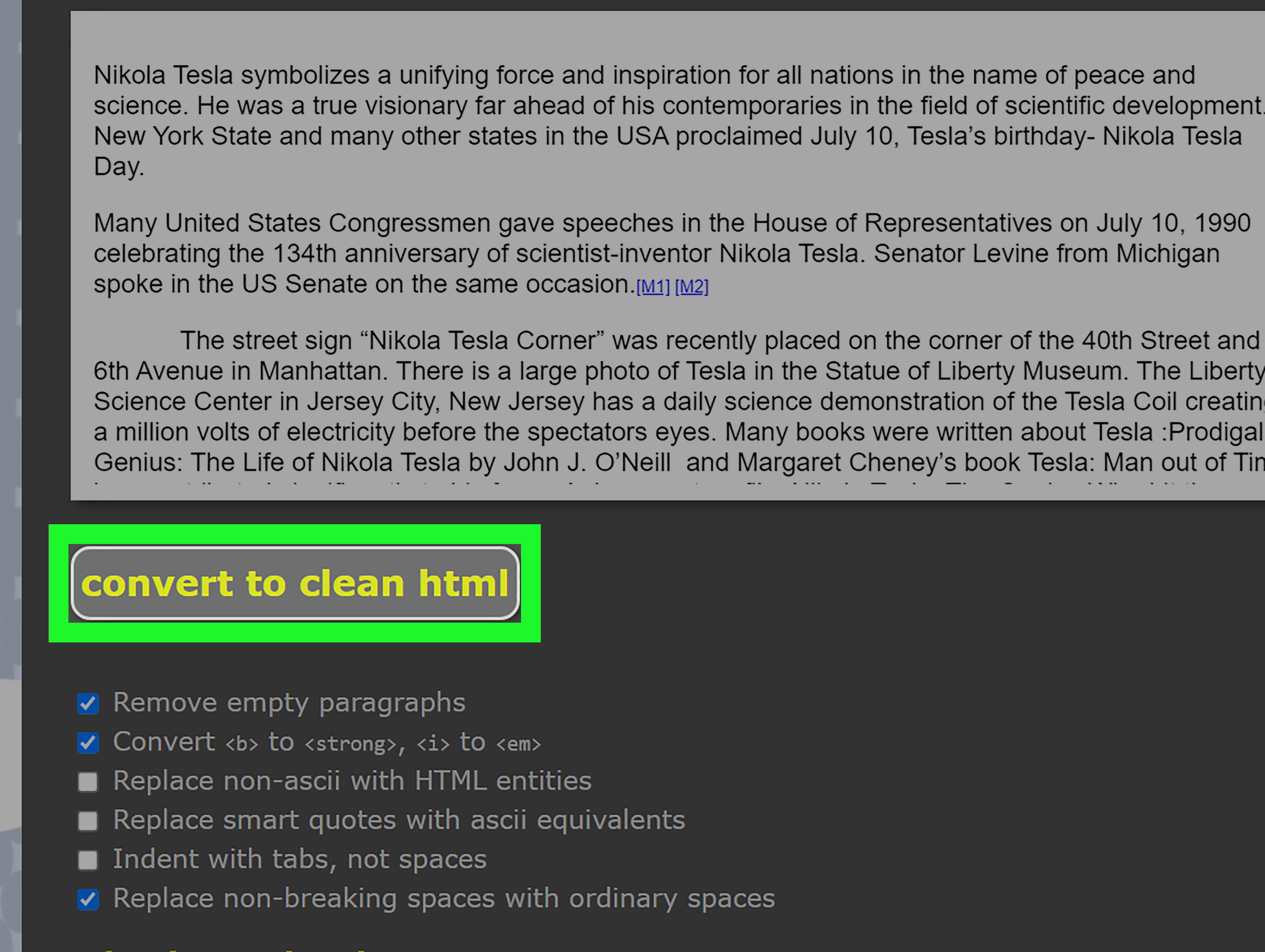
Online converters can be even faster. Many tools let you upload a Word file or paste formatted text, then copy the generated HTML. Some also include cleanup options such as removing inline styles, stripping empty tags, converting smart quotes, or simplifying tables.
The typical process is simple:
- Open a trusted Word to HTML converter.
- Upload the .docx file or paste the content.
- Choose clean HTML or basic formatting options.
- Preview the result.
- Copy the HTML into your website, CMS, or editor.
Important Privacy Tip
Do not upload confidential contracts, private business plans, medical files, unpublished legal documents, or client-sensitive material to random online converters. For public blog drafts, basic help articles, or non-sensitive content, online tools can be convenient. For sensitive files, use Microsoft Word locally, Google Workspace under your organization’s account, or an offline tool.
Best Use Case
Use Google Docs or an online converter when you want a beginner-friendly workflow, quick image extraction, easy browser access, and a cleaner copy-paste experience. This method is especially practical for bloggers, students, marketers, and small business owners who do not want to touch the command line.
Method 3: Convert Word to Clean HTML with Pandoc or Mammoth
If you care about clean HTML, repeatable workflows, or converting many documents, developer-friendly tools are worth considering. Two popular options are Pandoc and Mammoth. They are especially useful when you want semantic HTML instead of a pixel-by-pixel copy of Word formatting.
Option A: Use Pandoc
Pandoc is a powerful document conversion tool that can convert between many formats, including DOCX and HTML. It is widely used by writers, developers, researchers, publishers, and technical documentation teams.
A basic Pandoc command might look like this:
This tells Pandoc to read the Word document and create an HTML file. You can also create a full standalone HTML page, include a table of contents, apply a CSS file, or convert multiple documents as part of a publishing workflow.
Pandoc is excellent when your Word document uses proper styles. If Heading 1, Heading 2, lists, block quotes, footnotes, and tables are structured correctly in Word, Pandoc can produce organized HTML that is much easier to edit than a messy export.
Option B: Use Mammoth
Mammoth is another useful DOCX to HTML converter. Its main strength is that it focuses on semantic structure rather than trying to copy every visual detail from Word. In plain English, Mammoth cares more about “this is a heading” than “this heading is blue, 18.5 points, and emotionally attached to Calibri.”
Mammoth is a strong choice for websites, CMS imports, documentation systems, and applications that need clean content. It can map Word styles to HTML elements, such as turning a Word heading into an HTML heading. This makes the output easier to style with your website’s CSS.
Pros of Pandoc and Mammoth
- Cleaner HTML than many direct Word exports.
- Better structure for websites and apps.
- Useful for batch conversions.
- Great for documentation and publishing workflows.
- Less unwanted Word-specific formatting.
Cons of Pandoc and Mammoth
These tools may require installation, basic command-line knowledge, or developer setup. They may also ignore some visual formatting by design. That is not a bug; it is the point. Clean HTML usually means your website’s stylesheet controls the final appearance, not the original Word file.
Best Use Case
Use Pandoc or Mammoth when you want clean, reusable HTML for a website, app, knowledge base, or content migration project. These tools are also ideal when converting many documents because they can be included in a repeatable workflow.
Which Word to HTML Method Should You Choose?
Here is the simple version: use Microsoft Word when speed matters, use Google Docs or an online converter when convenience matters, and use Pandoc or Mammoth when code quality matters.
| Method | Best For | Main Advantage | Main Drawback |
|---|---|---|---|
| Microsoft Word | Quick exports and visual previews | Fast and built in | Can create bloated HTML |
| Google Docs or Online Converter | Browser-based editing and simple cleanup | Easy to use | Privacy depends on the tool |
| Pandoc or Mammoth | Clean HTML and repeatable workflows | Better structure | Requires setup |
How to Clean HTML After Conversion
No matter which method you choose, review the HTML before publishing. Even good converters can produce code that needs a quick polish.
Remove Unnecessary Inline Styles
Inline styles can make your content harder to manage. For example, a paragraph may include style rules for font size, color, margin, or line height. If your website already has CSS, remove extra inline styles so the content matches your design.
Check Heading Order
Use one H1 for the page title, then organize sections with H2 and H3 headings. Do not jump from H1 to H4 just because the text “looked about right” in Word. Search engines and screen readers prefer logical structure.
Fix Image Paths
If your converter creates an image folder, make sure image paths are correct after uploading. A broken image icon is the web’s version of a sad trombone.
Validate the Markup
Before publishing important pages, check the HTML with a validator or cleanup tool. Validation helps catch unclosed tags, invalid nesting, missing alt text patterns, and other issues that can affect layout, accessibility, or search performance.
SEO Tips for Converting Word Documents to HTML
Converting the file is only half the job. If the content will be published online, optimize the HTML for search engines and readers.
Use Descriptive Headings
Headings should help readers scan the article. A heading like “Method 1: Convert Word to HTML Using Microsoft Word” is clearer than “First Option.” Clear headings also help Google and Bing understand the page.
Add Alt Text to Images
If the Word document contains images, add concise alt text after conversion. Describe what the image shows and why it matters. Do not stuff keywords into alt text. Search engines are smart enough to notice when an image description sounds like a robot swallowed a thesaurus.
Keep Paragraphs Short
Word documents often contain long paragraphs that feel fine on paper but heavy on mobile screens. Break long blocks into shorter paragraphs for better readability.
Use Clean Internal Links
If the document includes links, check that they point to the correct pages. Use natural anchor text, such as “download the style guide,” instead of vague text like “click here.”
Common Problems and Quick Fixes
The HTML Looks Different from the Word Document
This is normal. Word and browsers render content differently. If exact visual matching matters, you may need custom CSS. If web readability matters more, focus on clean structure instead of perfect visual duplication.
The Code Is Full of Extra Tags
Try saving as filtered HTML, using a cleanup tool, or converting with Pandoc or Mammoth. Also check the original Word file for messy formatting.
Images Are Missing
Make sure the image folder was uploaded with the HTML file. Then confirm that the image paths in the code match the actual folder location.
Tables Look Bad on Mobile
Word tables can be difficult on small screens. Consider simplifying the table, converting it into bullet points, or wrapping it in a responsive container with CSS.
Conclusion
Learning how to convert a Word document to HTML is not just a technical trick. It is a practical publishing skill. Microsoft Word gives you the fastest route. Google Docs and online converters provide a friendly browser-based workflow. Pandoc and Mammoth offer cleaner, more structured HTML for serious publishing and repeatable conversions.
The best method depends on your goal. For a quick preview, use Word. For a blog draft, try Google Docs or a trusted converter. For clean website content, choose Pandoc or Mammoth and let your CSS handle the design. And before you publish, always check headings, links, images, and formatting. Your future self will thank you, probably with fewer debugging snacks.
Real-World Experience: What Actually Works Best When Converting Word to HTML
In real publishing work, the biggest lesson is this: the conversion method matters, but the original Word document matters even more. A clean document with proper heading styles, simple lists, working links, and consistent formatting usually converts well with almost any tool. A messy document with copied email fragments, random fonts, pasted tables, hidden comments, and three generations of formatting history can turn even a great converter into a tired janitor.
For everyday blog publishing, the smoothest workflow is often to prepare the article in Word, remove unnecessary formatting, then move it through Google Docs or a clean HTML converter. This gives non-technical users enough control without forcing them to install command-line tools. It is also easy to preview the article, fix spacing, and copy the final HTML into a CMS. For WordPress users, pasting into the block editor may work surprisingly well, but checking the generated HTML is still smart, especially for long posts, tables, and image-heavy tutorials.
For business websites, knowledge bases, and documentation projects, Pandoc or Mammoth tends to be more dependable. The HTML is usually easier to style because it is less attached to Word’s visual formatting. This is important when the content must match a brand design. You do not want every imported document bringing its own font sizes, colors, margins, and spacing like an overpacked suitcase. Clean semantic HTML lets the website’s CSS do its job.
One common mistake is trying to preserve the Word document exactly. That sounds reasonable, but it often creates poor web pages. A document designed for an 8.5-by-11-inch page does not automatically become a good mobile experience. Web content should breathe. Shorter paragraphs, clear subheadings, responsive images, accessible links, and simple tables usually perform better than a perfect copy of the printed page.
Another practical tip is to keep a checklist. After every Word to HTML conversion, review the title, heading hierarchy, paragraph spacing, links, image alt text, table display, and mobile preview. Then paste the HTML into your publishing system and preview it again. This second preview matters because a CMS may add its own styles or strip certain tags.
Finally, save your best workflow. If you convert Word documents often, create a standard template in Word with approved heading styles, list formatting, image rules, and link guidelines. Then choose one conversion method and stick with it. Consistency reduces cleanup time, improves SEO, and keeps your HTML from turning into a digital junk drawer. The goal is not just to convert Word to HTML. The goal is to publish clean, readable, search-friendly content without having to fight the code every single time.