Connecting Sony headphones to a Mac should be as easy as making coffee: press a button, wait a moment, enjoy the good stuff. Most of the time, it is. But occasionally, your Mac and your headphones act like two guests at a party who have both forgotten how introductions work. One device says “Bluetooth pairing.” The other says absolutely nothing. Very dramatic.
The good news is that Sony Bluetooth headphones and earbuds work well with Mac computers, including MacBook Air, MacBook Pro, iMac, Mac mini, Mac Studio, and Mac Pro. Whether you own Sony WH-1000XM6, WH-1000XM5, WH-1000XM4, WF-1000XM5, WF-C700N, LinkBuds, or another Sony wireless model, the basic process is similar: put the headphones in pairing mode, open Bluetooth settings on your Mac, select the headphones, and choose them as the audio output device.
This helpful guide explains how to connect Sony headphones to Mac step by step, how to reconnect them later, how to fix common Bluetooth problems, and how to get better sound for music, video calls, movies, and deep-focus work sessions where your only coworker is lo-fi jazz.
Before You Start: What You Need
Before pairing your Sony headphones with a Mac, make sure you have the basics ready. You do not need a cable, an adapter, or a degree in wireless engineering. You only need three things: a charged pair of Sony headphones, a Mac with Bluetooth turned on, and a few quiet seconds to put the headphones into pairing mode.
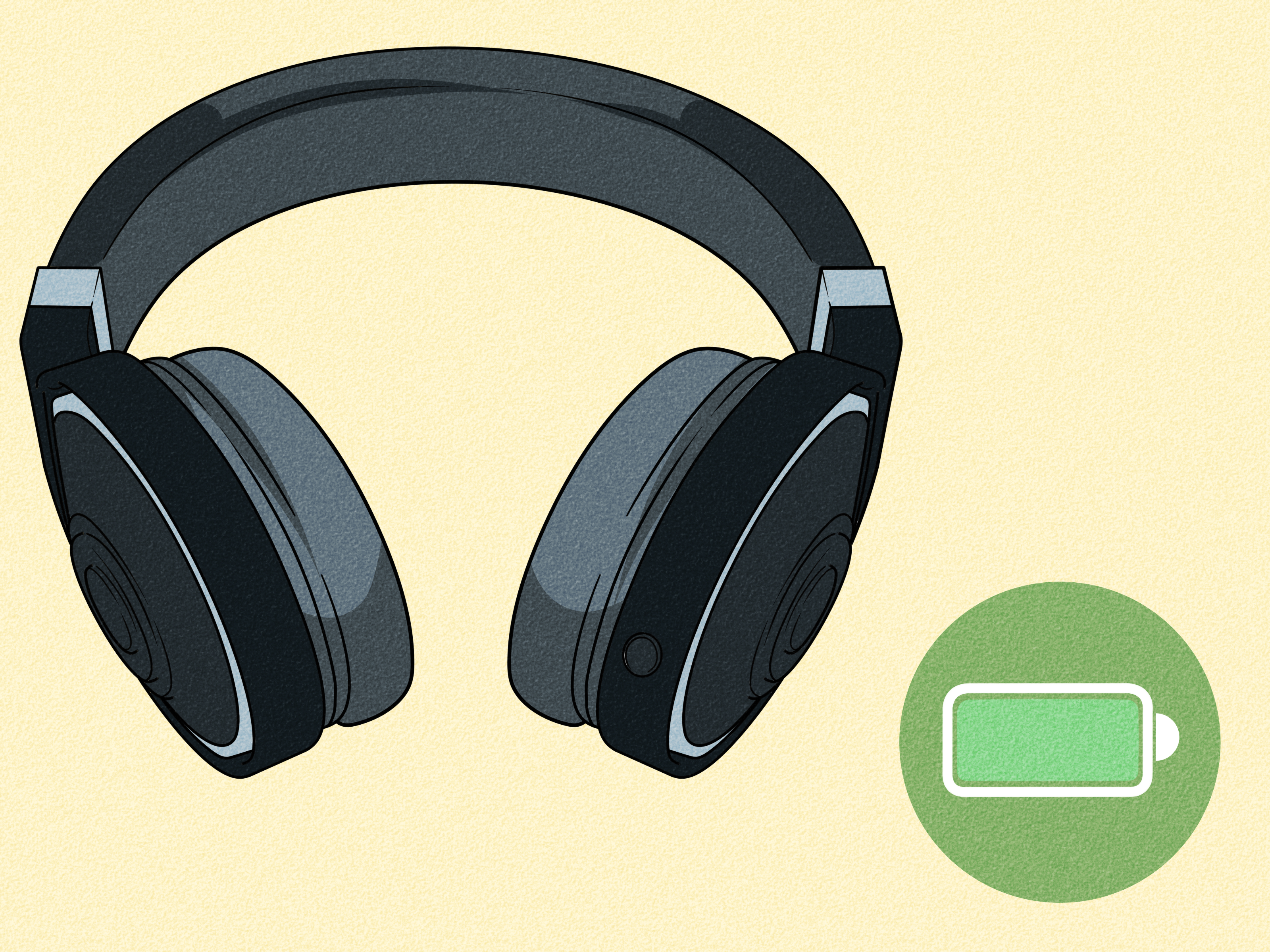
Check the Battery First
Low battery can make Bluetooth pairing unreliable. If your Sony headphones are almost out of power, charge them for at least 10 to 15 minutes before trying again. For over-ear models like the Sony WH-1000XM5 or WH-1000XM4, connect the USB-C cable and let the battery gain some life. For earbuds like the Sony WF-1000XM5 or WF-C700N, place both earbuds in the charging case and confirm that the case has power.
A weak battery does not always prevent pairing, but it can cause strange behavior, such as the headphones appearing briefly in Bluetooth settings and then disappearing like a magician with commitment issues.
Know Your Headphone Model
Your Mac will usually show the model name in Bluetooth settings. For example, you may see “WH-1000XM5,” “WH-1000XM4,” “WF-1000XM5,” or “WF-C700N.” If you see multiple Sony devices, choose the one that matches your headphones. Some older models may display a slightly different name, but it should still be recognizable.
Disconnect from Other Devices
If your Sony headphones are already connected to an iPhone, iPad, Android phone, Windows laptop, or tablet, they may not appear on your Mac right away. Some Sony models support multipoint connection, meaning they can connect to two devices at once, but not every model does. To avoid confusion, turn off Bluetooth on the other device temporarily or disconnect the headphones from that device before pairing with your Mac.
How to Put Sony Headphones in Pairing Mode
Pairing mode makes your Sony headphones discoverable to your Mac. Think of it as the headphones raising their hand and saying, “Hello, I am available.” The exact method depends on whether you have over-ear headphones or true wireless earbuds.
For Sony Over-Ear Headphones
For many Sony over-ear headphones, including models in the WH-1000X series, press and hold the power button for about seven seconds. Keep holding until you hear voice guidance such as “Bluetooth pairing” or see the blue indicator light flash repeatedly. If the headphones are brand new or recently reset, they may enter pairing mode automatically the first time you turn them on.
Do not release the power button too early. A quick press usually only turns the headphones on. A longer press tells them to start looking for a new device.
For Sony True Wireless Earbuds
For Sony earbuds, the pairing method varies by model. Some earbuds enter pairing mode automatically when you remove them from the charging case for the first time. Other models require you to keep the earbuds in the case with the lid open and press the pairing button on the back of the case for several seconds. Certain older models may use touch sensors on both earbuds to activate pairing mode.
If you are pairing earbuds with your Mac for the second time or adding your Mac after already pairing with a phone, check the model-specific instructions. The general goal is the same: make the earbuds discoverable so your Mac can find them.
How to Connect Sony Headphones to Mac
Once your Sony headphones are in pairing mode, the Mac side of the process is straightforward. The wording may vary slightly depending on your macOS version, but the path is nearly the same.
Step 1: Open Bluetooth Settings
On your Mac, click the Apple menu in the top-left corner of the screen. Select System Settings, then click Bluetooth in the sidebar. If you are using an older version of macOS, you may see System Preferences instead of System Settings.
Make sure Bluetooth is turned on. If it is off, switch it on and wait a few seconds while your Mac scans for nearby devices.
Step 2: Find Your Sony Headphones
Look under nearby devices. Your Sony headphones should appear by model name, such as WH-1000XM5, WH-1000XM4, WF-1000XM5, or WF-C700N. If you do not see them, confirm that the headphones are still in pairing mode. Pairing mode can time out after a few minutes, so you may need to start it again.
Step 3: Click Connect
Click Connect next to your Sony headphones. If your Mac asks for a passkey, enter 0000. Most modern Sony headphones do not require you to type a code, but 0000 is the standard passkey Sony lists for many Bluetooth pairing situations.
Once connected, your headphones may play a notification sound or voice prompt. Your Mac should also show the device as connected in Bluetooth settings.
Step 4: Select Sony Headphones as Sound Output
Sometimes the Mac connects to the headphones but continues playing sound through its internal speakers. This is annoying, but easy to fix. Go to System Settings > Sound > Output, then select your Sony headphones from the list.
If you plan to use the headphones for Zoom, Google Meet, FaceTime, Teams, or another video call app, also check the Input tab. Select your Sony headphones if you want to use their microphone, or choose the Mac’s built-in microphone if you prefer clearer voice pickup in some situations.
How to Reconnect Sony Headphones to Mac Later
After the first successful pairing, reconnecting is easier. Turn on your Sony headphones, open Bluetooth settings on your Mac, and click Connect next to the headphone name if they do not connect automatically.
If your headphones were last connected to your phone, they may reconnect to the phone first. In that case, disconnect them from the phone or turn off Bluetooth on the phone for a moment. Then connect from the Mac. Once both devices learn the routine, switching usually becomes smoother.
Using Sony Multipoint with Mac and Phone
Many newer Sony headphones support multipoint Bluetooth connection, which lets the headphones stay connected to two devices at the same time. For example, you can connect them to your Mac for music and your phone for calls. When a call comes in, the headphones can switch attention to the phone. When the call ends, they can return to your Mac audio.
To use multipoint, open the Sony Sound Connect or Sony Headphones Connect app on your phone. Look for a setting such as Connect to 2 devices simultaneously. Turn it on, then pair the headphones with both your Mac and phone. The exact menu may vary by model and app version.
Multipoint is convenient, but it can also create confusion when troubleshooting. If your Mac says the headphones are connected but you hear audio from another device, check whether the headphones are also connected to your phone. Bluetooth is useful, but it is not psychic. It sometimes needs a little direction.
How to Improve Sound Quality on Mac
After you connect Sony headphones to Mac, the next step is making them sound as good as possible. Sony headphones are known for strong noise cancellation, customizable sound, and comfortable listening. A few small settings can make the experience better.
Use the Sony Sound Connect App
The Sony Sound Connect app is available for phones, not directly for Mac, but it can still improve your Mac listening experience. Pair your headphones with your phone, open the app, and adjust settings such as equalizer, noise cancellation, ambient sound, speak-to-chat, touch controls, and multipoint. Many settings are stored on the headphones, so they can affect how the headphones behave when connected to your Mac.
Choose the Right Audio Output
If the sound feels distant or thin, check your Mac’s sound output. Go to System Settings > Sound > Output and make sure your Sony headphones are selected. Also check the volume slider on your Mac and the physical or touch volume controls on the headphones.
For Video Calls, Test the Microphone
Bluetooth headphones often switch audio behavior when the microphone is active. During calls, the sound may become less rich because the headphones are handling both input and output. This is normal for many Bluetooth headsets. If your priority is voice clarity, try using the Mac’s built-in microphone while keeping your Sony headphones selected for output.
Common Problems and Quick Fixes
Bluetooth problems are usually fixable. The trick is to avoid changing ten things at once. Try one solution, test it, then move to the next.
Problem: Sony Headphones Do Not Appear on Mac
First, confirm that your headphones are in pairing mode. If they are already connected to another device, disconnect them from that device. Move the headphones closer to the Mac, ideally within a few feet. Turn Bluetooth off and on again on your Mac. If the headphones still do not appear, restart the Mac and try pairing again.
Problem: Headphones Connect but No Sound Plays
Open System Settings > Sound > Output and select your Sony headphones. Then check the app you are using. Some apps, including meeting apps and audio production software, have their own audio output settings. Make sure the same Sony headphones are selected there too.
Problem: Mac Keeps Connecting to the Wrong Device
If your Sony headphones keep connecting to your iPhone or another computer, temporarily disable Bluetooth on that device. Then connect from your Mac. If you use multipoint, open the Sony app and review the connected devices list. Remove any device you no longer use.
Problem: Audio Cuts Out or Stutters
Bluetooth audio can stutter when the signal is blocked or crowded. Move closer to your Mac, avoid placing metal objects between the headphones and computer, and disconnect unnecessary Bluetooth devices. If you are near a crowded desk full of wireless keyboards, mice, speakers, hubs, phones, and mysterious cables you are afraid to unplug, signal interference may be part of the issue.
Problem: The Headphones Were Paired Before but Will Not Reconnect
Forget the headphones on your Mac and pair them again. Go to System Settings > Bluetooth, click the information button next to your headphones, and choose the option to forget or remove the device. Then put the Sony headphones back into pairing mode and reconnect from the beginning.
Problem: The Microphone Does Not Work
Go to System Settings > Sound > Input and select your Sony headphones. Then open your meeting app and check its microphone setting. If people still cannot hear you clearly, switch the input to your Mac’s built-in microphone. This simple change often improves call quality while still letting you hear audio through your Sony headphones.
Should You Reset Sony Headphones?
Resetting should not be your first move, but it can help when nothing else works. A basic reset usually restarts the headphones without deleting all pairing information. Initializing the headphones is more serious: it can delete Bluetooth pairing history and restore factory settings.
If your headphones refuse to pair, connect to the wrong device, or behave unpredictably after several attempts, check Sony’s instructions for your specific model and perform the recommended reset. After initializing, remove the old headphone entry from your Mac’s Bluetooth settings, then pair again from scratch.
Wired Listening: Can You Connect Sony Headphones to Mac with a Cable?
Some Sony over-ear headphones include a headphone cable for wired listening. If your Mac has a 3.5 mm headphone jack, plug the cable into the Mac and the headphones. If your Mac does not have a headphone jack, you may need a compatible USB-C audio adapter.
Wired listening can be useful when the battery is low, when Bluetooth is acting stubborn, or when you want lower audio delay for editing video or playing instruments. However, features such as active noise cancellation may still require battery power, depending on your headphone model.
Best Uses for Sony Headphones on Mac
Once connected, Sony headphones are excellent for everyday Mac use. They are especially helpful for remote work, writing, editing, studying, streaming, and travel. Noise cancellation can reduce background sounds from fans, traffic, roommates, coffee shops, and the neighbor who has apparently taken up furniture assembly as a full-time hobby.
For Work and Study
Use noise cancellation when you need focus. If your model supports ambient sound, switch it on when you need awareness of your surroundings. This is useful in offices, libraries, airports, or homes where someone may ask whether you have seen the scissors.
For Movies and Music
Make sure your headphones are selected as the Mac’s output device before opening your streaming app. If audio seems delayed, pause and restart playback or reconnect the headphones. For most video streaming, modern Sony headphones and Macs provide a smooth experience.
For Calls and Meetings
For calls, test your audio before the meeting starts. Choose your headphones for output and decide whether the headphone microphone or Mac microphone sounds better. Five seconds of testing can save five minutes of “Can you hear me?” which is the official anthem of remote work.
Real-World Experience: What It Is Actually Like to Connect Sony Headphones to Mac
In real use, connecting Sony headphones to a Mac is usually quick after the first setup. The first pairing is the only moment where people tend to get stuck. Most problems happen because the headphones are not really in pairing mode, are already connected to another device, or are connected to the Mac but not selected as the sound output. Once you know those three trouble spots, the process feels much less mysterious.
A common experience goes like this: you turn on your Sony headphones, hear the startup sound, and assume they are ready to pair. But they immediately reconnect to your phone because that was the last device used. On the Mac, nothing appears. This feels like a Mac problem, but it is usually just a Bluetooth priority issue. Turning off Bluetooth on the phone for a moment often makes the headphones appear on the Mac almost instantly.
Another real-world lesson is that the Sound settings matter just as much as Bluetooth settings. Many users pair successfully and still hear audio from the MacBook speakers. The headphones are connected, the Bluetooth icon looks happy, and yet the music is blasting from the laptop like it has something to prove. The fix is simple: open Sound settings and manually choose the Sony headphones under Output.
For people who switch between phone calls and Mac work, multipoint can feel like magic when configured correctly. You can listen to a podcast on your Mac, answer a call on your phone, then return to the Mac without digging through menus. But multipoint also adds one more layer to troubleshoot. If your Mac audio pauses or does not play, check whether your phone has taken control of the headphones. Bluetooth is not always wrong; sometimes it is just too loyal to the last device that spoke to it.
For video meetings, the best setup often depends on the room. In a quiet office, using the Mac’s built-in microphone with Sony headphones as output may sound cleaner. In a noisy space, the headphone microphone may be more practical because it stays closer to your mouth. The smartest approach is to test both before an important call. Your future self, and everyone else in the meeting, will appreciate it.
Battery habits also matter. Sony headphones often have strong battery life, but earbuds depend heavily on the charging case. If only one earbud connects, sounds quieter, or fails to appear, placing both earbuds back in the case and removing them again can help resync them. It is the earbud version of “turn it off and on again,” and yes, it still works surprisingly often.
The final experience-based tip is to keep the setup simple. Pair the headphones cleanly, remove old duplicate Bluetooth entries, update your Mac when practical, and use Sony’s app on your phone for headphone-specific settings. Once everything is organized, Sony headphones can become one of the best Mac accessories you own: comfortable, reliable, great for focus, and much easier than explaining to your family that “noise cancellation” is not personal.
Conclusion
Learning how to connect Sony headphones to Mac is simple once you understand the pairing flow. Put the headphones in pairing mode, open Bluetooth settings on your Mac, click Connect, and choose the headphones as your sound output. If something goes wrong, check battery level, disconnect from other devices, forget and re-pair the headphones, or adjust Sound settings.
Sony headphones are a strong match for Mac users who want better sound, effective noise cancellation, and flexible wireless listening. Whether you are editing a video, joining a meeting, writing a report, watching a movie, or pretending not to hear construction outside, a properly connected pair of Sony headphones can make your Mac experience smoother and quieter.
Note: Menu names can vary slightly depending on your macOS version and Sony headphone model. If one step looks different on your screen, follow the closest matching Bluetooth or Sound setting.