Discord is wonderful until it starts acting like a sleepy raccoon trapped inside your device. Images load slowly, profile pictures refuse to update, voice channels feel moody, and the app suddenly takes up more storage than your entire photo collection of questionable screenshots. When that happens, learning how to clear Discord cache can be the quick reset your app needs.
Discord cache is a collection of temporary files the app stores to help things load faster. That includes images, emojis, stickers, thumbnails, scripts, and other app data. Most of the time, cache is helpful. It saves Discord from downloading the same assets over and over again. But when the cache becomes bloated or corrupted, it can cause lag, crashes, missing media, update errors, or storage problems.
The good news: clearing Discord cache is usually safe. It does not delete your servers, friends, messages, Nitro subscription, or account. You may notice Discord loading a little slower the first time you reopen it because the app needs to rebuild fresh temporary files. Think of it as giving Discord a new notebook instead of forcing it to keep scribbling in one that fell into soup.
This guide covers five practical ways to clear Discord cache on Windows, macOS, Android, iPhone, iPad, and the browser version. It also explains when to clear cache, what not to delete, and what to try if the problem sticks around like an overexcited bot in general chat.
What Is Discord Cache?
Discord cache is temporary local data stored on your device. The desktop app uses cache folders to keep reusable files close by. The mobile app stores cached files through your phone’s app storage system. The browser version relies on your browser’s cache and site data.
Cache can include:
- Server icons and user avatars
- Images, GIF previews, stickers, and emojis
- Temporary media files
- Interface assets that help Discord load faster
- Web-style files used by the desktop app
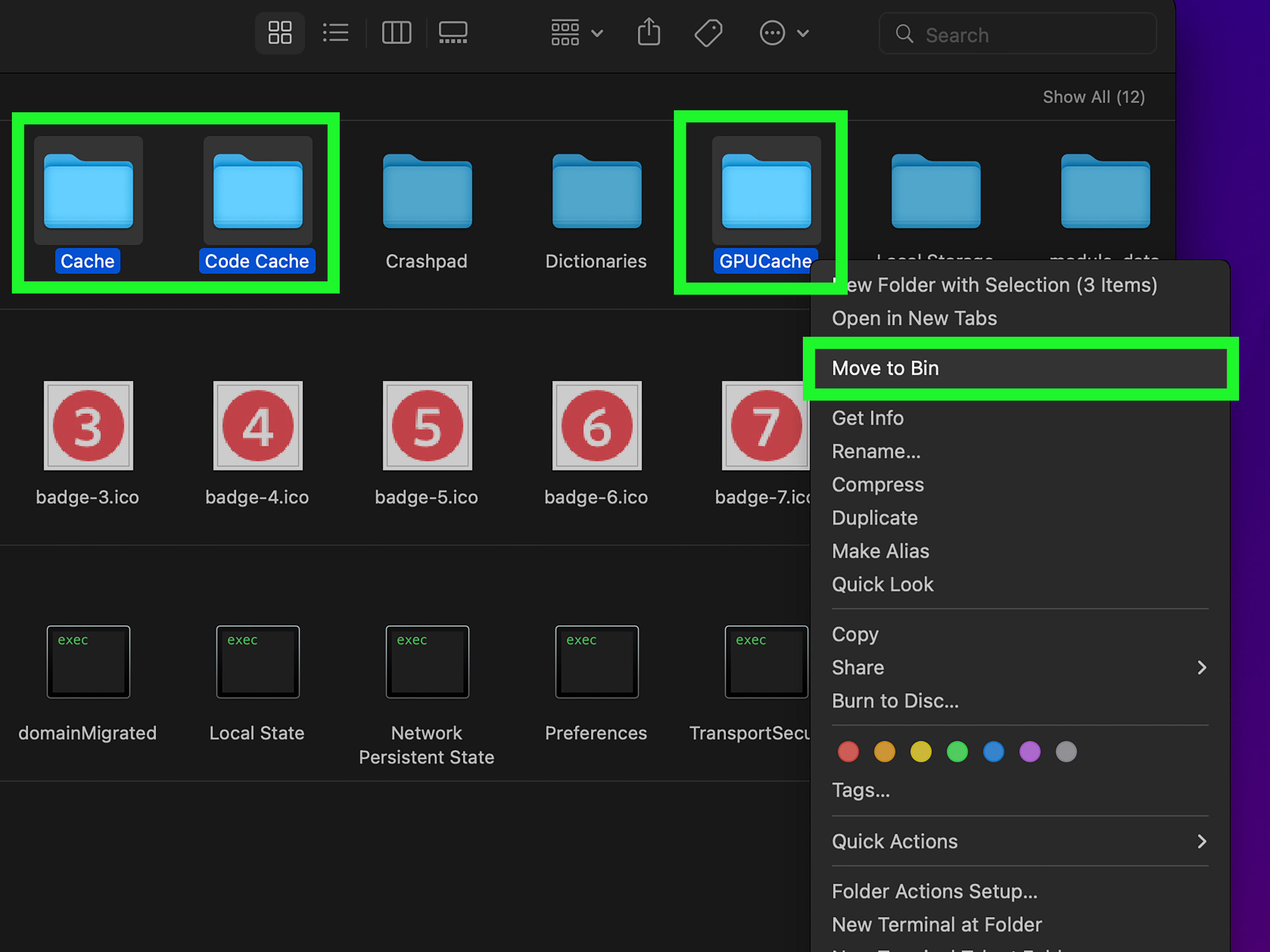
Discord’s desktop app is built like a modern web app wrapped in desktop clothing, so folders such as Cache, Code Cache, and GPUCache commonly appear. Deleting these cache folders forces Discord to create fresh ones the next time it launches.
When Should You Clear Discord Cache?
You do not need to clear Discord cache every Tuesday at sunrise while whispering “performance optimization.” Cache is normal. Clear it when there is a real reason.
Clear Discord cache if:
- Discord is slow, freezing, or crashing.
- Images, avatars, or GIFs are not loading correctly.
- The app takes up too much storage.
- You see old icons or outdated profile pictures.
- Discord refuses to update or open properly.
- Voice, video, or screen share features behave strangely.
Before clearing anything, fully close Discord. On desktop, make sure it is not still running in the system tray or background. On mobile, swipe it away from your recent apps. This prevents files from being locked while you delete them.
Way 1: How to Clear Discord Cache on Windows
Windows users can clear Discord cache by opening the Discord folder inside AppData and deleting the cache folders. This is one of the most common fixes for Discord lag, broken images, and update weirdness.
Steps for Windows 10 and Windows 11
- Close Discord completely. Check the system tray near the clock, right-click Discord, and choose Quit Discord.
- Press Windows + R to open the Run box.
- Type %appdata%/discord and press Enter.
- Look for folders named Cache, Code Cache, and GPUCache.
- Delete those folders.
- Empty the Recycle Bin if you want to recover the storage immediately.
- Reopen Discord.
If you use Discord Canary or Discord PTB, the folder name may be slightly different, such as discordcanary or discordptb. The idea is the same: close the app, open the correct Discord AppData folder, and remove the cache folders.
What Not to Delete on Windows
Do not randomly delete everything inside AppData unless you know what it does. AppData is where many apps store settings, session files, and important local information. For a basic Discord cache cleanup, stick to Cache, Code Cache, and GPUCache. If you are troubleshooting a corrupted installation, a full reinstall may require removing more Discord folders, but that is a bigger step.
Way 2: How to Clear Discord Cache on macOS
On Mac, Discord stores cache inside the user Library folder. The folder is hidden from everyday view because macOS knows most people should not wander around system-style folders with the confidence of a raccoon opening a picnic basket.
Steps for Mac
- Quit Discord completely. Use Command + Q or choose Quit Discord from the menu.
- Open Finder.
- Click Go in the menu bar.
- Choose Go to Folder.
- Type ~/Library/Application Support/discord/ and press Return.
- Find Cache, Code Cache, and GPUCache.
- Move those folders to the Trash.
- Empty the Trash if you want to free the space immediately.
- Open Discord again.
If Discord refuses to delete files because they are “in use,” open Activity Monitor, search for Discord, and quit any remaining Discord processes. Then try deleting the folders again.
Mac Tip: Restart After Cleaning
Usually, reopening Discord is enough. But if you were clearing cache because Discord would not update, crashed at launch, or showed a blank screen, restart your Mac after deleting the cache. A restart clears stubborn background processes and gives Discord a cleaner launch environment.
Way 3: How to Clear Discord Cache on Android
Android makes cache clearing simple because it includes a built-in option for individual apps. This is the cleanest mobile method because you can clear Discord’s temporary files without deleting your account or removing the entire app.
General Android Steps
- Open Settings.
- Tap Apps or Applications.
- Find and tap Discord.
- Tap Storage or Storage & cache.
- Tap Clear cache.
- Reopen Discord.
The exact wording may vary depending on your phone. A Google Pixel, Samsung Galaxy, OnePlus, Motorola, or other Android device may place the buttons in slightly different spots. The destination is usually the same: Discord’s app storage screen.
Clear Cache vs. Clear Data on Android
This part matters. Clear cache removes temporary files. It is the safe first step. Clear data or Clear storage resets the app more aggressively and may sign you out, remove local settings, and force Discord to behave like it was freshly installed.
Use Clear cache first. Try Clear data only if Discord is still crashing, not opening, or acting completely broken. Before clearing data, make sure you know your Discord login, password, and two-factor authentication method if you use one. Nothing ruins a quick cleanup like realizing your 2FA backup codes are hiding in the digital Bermuda Triangle.
Way 4: How to Clear Discord Cache on iPhone or iPad
iPhone and iPad do not offer the same universal “Clear cache” button for every app that Android does. For Discord on iOS, the practical options are usually to offload the app or delete and reinstall it. Offloading removes the app while keeping documents and data. Deleting removes the app and its local data more completely.
Option A: Offload Discord
- Open Settings.
- Tap General.
- Tap iPhone Storage or iPad Storage.
- Scroll down and tap Discord.
- Tap Offload App.
- Reinstall Discord from the same screen or from the App Store.
Offloading can help recover space taken by the app itself while keeping some related data. It is less dramatic than deleting. However, if your goal is to wipe Discord’s local clutter as thoroughly as possible, deleting and reinstalling is often more effective.
Option B: Delete and Reinstall Discord
- Touch and hold the Discord app icon.
- Tap Remove App.
- Choose Delete App.
- Confirm deletion.
- Open the App Store.
- Download Discord again.
- Log back into your account.
Before deleting Discord, confirm your login details. If you use two-factor authentication, make sure your authenticator app or backup codes are available. Your Discord account, servers, friends, and messages are stored online, not only on your phone, but you still need access to your account to get back in.
Way 5: Clear Discord Cache in a Browser or Do a Fresh Reinstall
If you use Discord in Chrome, Edge, Firefox, or Safari, the cache problem may not be inside the Discord desktop app at all. It may be your browser holding old Discord site data. This can cause login loops, blank screens, broken media previews, or settings that refuse to refresh.
Clear Discord Browser Cache
The easiest browser method is to clear cached images and files for the browser. A more targeted option is to clear site data for Discord only.
- Open your browser settings.
- Find Privacy and security or a similar section.
- Open Cookies and site data or Clear browsing data.
- Search for Discord site data if your browser allows it.
- Delete Discord-related cached files and cookies.
- Reload Discord in the browser and sign in again if needed.
If you clear cookies, you may be logged out of Discord and other websites depending on what you choose. Read the browser options carefully before clicking the button that vaporizes half your login sessions.
Fresh Reinstall for Stubborn Desktop Problems
If Discord still will not open, update, or behave after clearing cache, consider a full reinstall. On Windows, uninstall Discord, then remove leftover Discord folders from %appdata% and %localappdata% before installing a fresh copy. On Mac, quit Discord, remove Discord from Applications, and delete related Discord folders from Application Support before reinstalling.
A reinstall is not the first move for ordinary lag. It is the “fine, we are replacing the couch” option when normal cleanup does not fix the mess.
Will Clearing Discord Cache Delete Messages?
No. Clearing Discord cache does not delete your messages, servers, friends, roles, channels, or account. Those are tied to your Discord account and Discord’s servers. Cache is local temporary data on your device.
However, clearing app data, deleting the app, clearing browser cookies, or reinstalling Discord may sign you out. That is why you should always know your login information before using stronger cleanup methods.
Benefits of Clearing Discord Cache
Clearing Discord cache can help in several ways:
- Free storage: Cache can grow over time, especially if you view many images, GIFs, and media-heavy channels.
- Fix broken visuals: Old avatars, missing icons, and stuck thumbnails may refresh after cache is cleared.
- Improve app behavior: Corrupted temporary files can cause crashes, blank screens, or odd loading errors.
- Help updates install: A fresh cache can reduce problems caused by old app files.
- Reduce clutter: Your device gets a cleaner local Discord folder instead of a museum of old temporary files.
What to Do If Discord Is Still Slow After Clearing Cache
Cache is powerful, but it is not magic dust. If Discord still feels slow, try these fixes:
- Restart your device.
- Update Discord to the latest version.
- Check your internet connection.
- Disable unnecessary overlays on desktop.
- Turn off hardware acceleration if the desktop app feels glitchy.
- Try Discord in a browser to compare performance.
- Check whether Discord is having a service outage.
- Free up device storage if your phone or computer is nearly full.
If Discord works fine in the browser but not the desktop app, the desktop installation may be the issue. If it fails everywhere, the problem may be your internet connection, Discord’s servers, account settings, or a device-level problem.
Common Mistakes to Avoid
Deleting Random AppData or Library Files
Do not delete random folders just because they look suspiciously chunky. Cache folders are safe targets. Random configuration folders may not be.
Clearing Data Before Clearing Cache
On Android, clear cache first. Clear data only if necessary because it resets more local app information and may sign you out.
Forgetting Two-Factor Authentication
Before deleting or reinstalling Discord, make sure your 2FA method is available. A clean cache is great. Accidentally locking yourself out is less great.
Expecting Cache Clearing to Fix Every Problem
If Discord is down, cache cleaning will not bring the servers back. It will only make your device feel emotionally prepared for when they return.
Experience Notes: What Clearing Discord Cache Is Like in Real Life
In everyday use, Discord cache problems usually show up slowly. At first, everything seems fine. Then one friend’s avatar refuses to update. A GIF freezes in place like it saw a ghost. The desktop app takes longer to open. On mobile, Discord starts occupying a suspicious amount of storage, and you begin wondering whether a tiny goblin is saving every meme you have ever scrolled past. That is usually when clearing cache becomes worth trying.
On Windows, the process feels more technical than it really is. The first time you open %appdata%, it can look like you have stepped behind the curtain of your computer’s brain. But once you find the Discord folder, the cleanup is simple. Deleting Cache, Code Cache, and GPUCache is quick, and Discord usually rebuilds those folders without complaining. The most common mistake is leaving Discord open in the background. If Discord is still running, Windows may refuse to delete some files. Quitting from the system tray solves that problem most of the time.
On Mac, the experience is similar, except the Library folder is tucked away like Apple is protecting it from curious clicking. The Go to Folder shortcut makes the process painless. Once you paste the Discord Application Support path, the cache folders are easy to find. Mac users who are cleaning cache to fix update errors should also check Activity Monitor if Discord seems fully closed but files still will not move to Trash.
Android is the friendliest platform for this job. The built-in Clear cache button is direct, fast, and easy to understand. It is especially helpful if Discord is slow after viewing media-heavy servers. For example, if you spend time in art communities, gaming clip channels, meme servers, or study groups full of shared images, Discord cache can build up quickly. Clearing it may not turn an old phone into a rocket, but it can free space and remove corrupted temporary files that make the app misbehave.
iPhone and iPad are more annoying because there is no universal Discord-only cache button. Offloading can help, but deleting and reinstalling is often the cleaner fix. The trade-off is inconvenience. You need to log back in, and if you forgot your password or lost access to two-factor authentication, your simple cleanup becomes a tiny adventure nobody asked for. Before deleting Discord on iOS, always confirm your account access first.
The browser version has its own personality. If Discord works in the desktop app but not in Chrome or Edge, clearing browser cache or Discord site data can help. However, clearing all cookies may log you out of other sites too. A targeted cleanup is better when possible. Search for Discord in your browser’s site data settings and remove only that data. It is the difference between cleaning your desk and throwing the entire desk out the window.
From a practical standpoint, clearing Discord cache is best treated as a maintenance tool, not a daily ritual. Use it when Discord is slow, broken, oversized, or visually confused. If the app is working well, leave the cache alone. Cache exists to make apps faster, and deleting it too often simply forces Discord to rebuild what it already had. But when the cache gets corrupted or bloated, clearing it is one of the easiest troubleshooting wins available.
Conclusion
Clearing Discord cache is a simple way to fix slow loading, broken images, update glitches, storage bloat, and random app weirdness across desktop and mobile. Windows and Mac users can delete Discord’s cache folders manually. Android users can use the built-in Clear cache button. iPhone and iPad users can offload or reinstall Discord. Browser users can clear Discord site data or cached files.
The safest approach is to start small: close Discord, clear cache, reopen the app, and test it. If the problem continues, move to stronger options such as clearing app data, reinstalling Discord, updating the app, or checking your connection. Most of the time, a clean cache gives Discord the fresh start it needs without touching your account, servers, or messages. In other words, you get the digital equivalent of cleaning your room without accidentally selling the house.