Macs have a reputation for being polished, secure, and just a little smug about it. And honestly? Fair. But even a well-behaved Mac can get awkward when apps start asking for permission to use your camera, microphone, files, screen recording, or location. Suddenly, your peaceful little laptop turns into a nightclub bouncer asking, “Name? Purpose? Why do you need access to everything?”
If you have ever opened Zoom five minutes before a meeting and discovered your camera was blocked, or launched a screen recorder only to realize it had permission to do absolutely nothing, you are not alone. Learning how to change application permissions on a Mac is one of those small tech skills that saves big headaches. It also helps you protect your privacy without turning your computer into a dramatic diva that refuses to cooperate.
This guide walks through the easy steps to manage Mac app permissions, explains the most important permission categories, and shows you how to fix common issues when apps will not behave. Whether you want to allow camera access, remove microphone access, review Full Disk Access, or stop suspicious background apps from creeping into your startup routine, you are in the right place.
What Are Application Permissions on a Mac?
Application permissions are the rules that decide what an app can access on your Mac. Think of them as backstage passes. One app may only need access to your microphone. Another might need your Downloads folder. A more powerful utility could ask for Full Disk Access, Accessibility, or screen recording privileges. That is a much bigger deal.
On macOS, permissions are designed to give you control over sensitive data and system-level features. Instead of letting every app poke around like a nosy neighbor, your Mac asks for approval before handing over access to private resources.
Common Mac permissions include:
- Camera: For video calls, photo apps, and some browsers.
- Microphone: For voice recording, meetings, and dictation-based tools.
- Location Services: For maps, weather, and region-aware apps.
- Files and Folders: For access to Documents, Desktop, Downloads, and external drives.
- Photos: For editing and importing images.
- Screen & System Audio Recording: For screen capture, remote support, and recording tools.
- Accessibility: For apps that control your Mac, automate clicks, or monitor input.
- Full Disk Access: For antivirus, backup, search, and system utility apps that need broad storage access.
The key point is simple: not every app deserves every permission. A weather app does not need your microphone. A basic calculator definitely does not need screen recording unless it has become wildly ambitious.
Where to Find App Permissions on a Mac
On newer versions of macOS, most application permissions live in one main place:
- Click the Apple menu in the top-left corner.
- Open System Settings.
- Click Privacy & Security in the sidebar.
- Scroll through the permission categories and select the one you want to review.
If you are using an older version of macOS, you may see System Preferences instead of System Settings, and Security & Privacy instead of the newer layout. Same mission, slightly older outfit.
Inside Privacy & Security, you can review which apps have access to specific features and turn permissions on or off. Some categories require you to restart the app after making changes. In other cases, your Mac may prompt you for an administrator password or Touch ID before it lets you change the setting.
How to Change Application Permissions on a Mac
1. Change Camera Permissions
If an app cannot use your camera, or you want to revoke that access, do this:
- Go to Apple menu > System Settings > Privacy & Security.
- Click Camera.
- Turn access on or off for the apps listed.
- Quit and reopen the app if needed.
This is one of the most common permission fixes for FaceTime alternatives, meeting apps, and browser-based video tools.
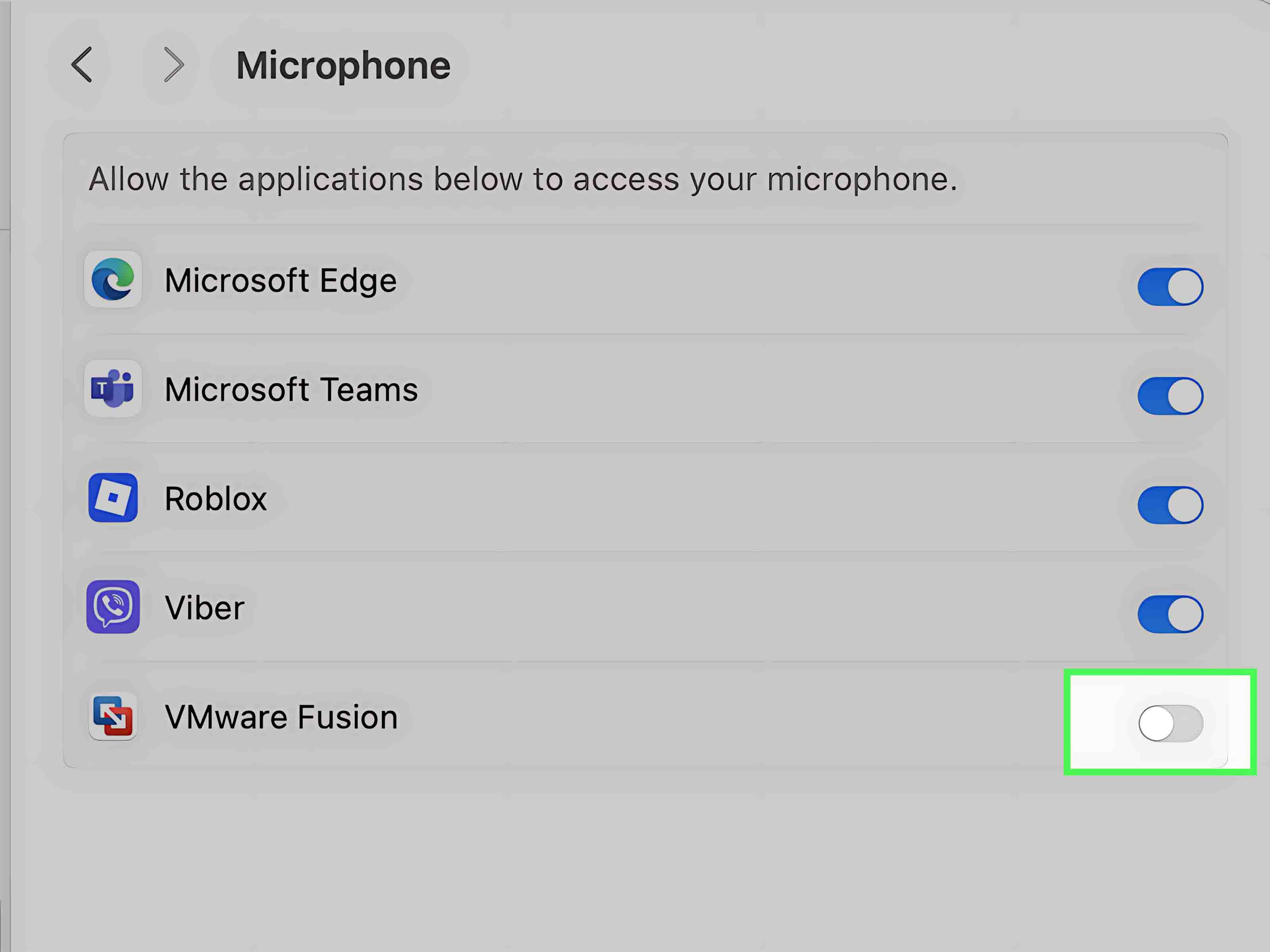
2. Change Microphone Permissions
If a recording app hears nothing but the sound of your disappointment, check microphone access:
- Open System Settings.
- Select Privacy & Security.
- Click Microphone.
- Enable or disable the apps that should use your mic.
This is especially helpful for podcast tools, Zoom, Teams, Discord, and browser tabs that insist they are “just listening for quality purposes.”
3. Change Location Services Permissions
Location access can be useful, but it is also one of the easiest permissions to over-grant.
- Go to System Settings > Privacy & Security.
- Click Location Services.
- Turn Location Services on if needed.
- Choose which apps can use your location.
Allow location only when it makes sense. Maps? Sure. Local weather? Reasonable. A random note-taking app? That is a little suspicious.
4. Change Files and Folders Permissions
Some apps need access to specific folders like Desktop, Documents, Downloads, or external volumes. If they cannot open or save files properly, this is a likely culprit.
- Open System Settings > Privacy & Security.
- Click Files and Folders.
- Select the app and review which folders it can access.
- Turn permissions on or off as needed.
This is common for editing apps, cloud storage tools, file transfer utilities, and creative software.
5. Change Screen Recording Permissions
If a screen capture app records a black screen or nothing at all, check this setting:
- Go to System Settings > Privacy & Security.
- Click Screen & System Audio Recording or Screen Recording, depending on your macOS version.
- Toggle access for the app you want to allow or block.
- Relaunch the app afterward.
Remote support tools, streaming software, and screen recorders usually need this permission.
6. Change Accessibility Permissions
Accessibility access sounds innocent, but it is actually very powerful. Apps with this permission may control parts of your Mac, automate input, or interact deeply with other apps.
- Open System Settings > Privacy & Security.
- Click Accessibility.
- Review the list carefully.
- Turn off anything you do not fully trust or no longer use.
Password managers, automation tools, launchers, and remote-control apps often request Accessibility. Only approve it when the feature really requires it.
7. Change Full Disk Access
Full Disk Access is the heavyweight champion of Mac permissions. It gives an app broad access to your storage, including protected areas. Useful for antivirus, backup tools, and advanced utilities. Not something to hand out like free samples at a grocery store.
- Go to System Settings > Privacy & Security.
- Click Full Disk Access.
- Turn the app on or off.
- Authenticate with your admin password or Touch ID if prompted.
- Restart the app if necessary.
How to Manage Login Items and Background Apps
Sometimes the issue is not a privacy permission. Sometimes the app is just lurking in the background, opening at login, sipping system resources, and pretending it belongs there.
To manage startup and background behavior:
- Open System Settings.
- Click General.
- Select Login Items.
- Review apps that open at login and background items allowed to run.
- Remove or disable anything unnecessary.
This does not replace camera or file permissions, but it does help you tighten overall control of what apps do on your Mac. Less clutter, fewer surprise helpers, better performance.
What to Do If You Cannot Change a Permission
Sometimes the toggle is grayed out. Sometimes the app is missing from the list. Sometimes your Mac acts like you never asked. Classic.
Try these fixes:
- Quit and reopen the app: Some apps only appear after they request permission the first time.
- Restart your Mac: Oldest trick in the book, still weirdly effective.
- Update the app and macOS: Permission issues can come from outdated software.
- Reinstall the app: A fresh install can trigger permission prompts again.
- Check for admin rights: Some changes require an administrator account.
- Review security prompts: macOS may ask you to quit and reopen the app before changes take effect.
If an app still needs unusual system-level access and you cannot verify why, pause before enabling it. That is not paranoia. That is good judgment wearing sensible shoes.
Best Practices for Mac App Permissions
Review permissions regularly
Do a permission audit every few months. Apps pile up. So do forgotten approvals. Your Mac should not be running on old trust decisions from three software crushes ago.
Grant only what the app truly needs
Let the app earn its badge. A video conferencing app needing camera and microphone access makes sense. A wallpaper app asking for Full Disk Access does not.
Be extra cautious with high-impact permissions
The most sensitive permissions on macOS usually include Accessibility, Full Disk Access, Screen Recording, and broad file access. These deserve a second look every time.
Download apps from trusted sources
Mac app permissions matter, but so does the app itself. If you install software from a sketchy source, the permission screen is just the last polite warning before chaos enters wearing loafers.
Read prompts before clicking Allow
Yes, prompts are annoying. No, “Allow” should not become a reflex. Read what is being requested and ask whether the feature truly needs it.
Common Real-World Examples
Example 1: Zoom cannot use your camera.
Open Privacy & Security, click Camera, turn Zoom on, then relaunch it.
Example 2: A screen recorder captures a blank display.
Check Screen & System Audio Recording permissions and restart the recording app.
Example 3: A backup utility keeps failing.
It may need Full Disk Access to protected folders and drives.
Example 4: A writing app cannot open files in Documents.
Review Files and Folders permissions for that app.
Example 5: A launcher or macro tool wants to “control your computer.”
That usually means Accessibility access. Only allow it if you trust the developer and need the feature.
Final Thoughts
Learning how to change application permissions on a Mac is one of the easiest ways to improve both privacy and performance. It helps you decide what apps can actually do, fixes frustrating issues with cameras and microphones, and keeps overreaching software from wandering through your system like it owns the place.
The golden rule is simple: give apps the minimum access they need, review those permissions often, and treat big requests like Full Disk Access and Accessibility with healthy skepticism. Your Mac is powerful, but it still benefits from an owner who occasionally says, “Absolutely not, sir.”
Experiences and Lessons From Real Mac Permission Problems
Here is where this topic gets very real. On paper, changing app permissions on a Mac sounds simple. In real life, it usually starts with confusion, mild panic, and a deadline. A lot of Mac users do not think about permissions until something breaks. The camera fails right before an interview. The microphone stops working two minutes before class. A screen recorder launches with great confidence and then records nothing but a very expensive black rectangle.
One common experience is with meeting apps. Everything looks ready, the lighting is decent, the shirt is acceptable, and then the app says it cannot access the camera. Most people immediately assume the camera is broken. Usually, it is not. The permission just was never granted, was turned off during an update, or was blocked after reinstalling the app. The fix often takes less than a minute, but that minute feels like a full movie trilogy when other people are waiting.
Another familiar problem happens with microphone access. Creators, students, remote workers, and gamers run into this all the time. The app opens, the sound settings look fine, and yet the audio meter sits there like a bored teenager. Again, the app often just needs microphone permission in Privacy & Security. Once enabled and reopened, it suddenly works as if nothing happened, which is helpful but also slightly insulting.
Then there are file access issues. Writers, designers, and editors may install a new app, try to open something in Documents or Downloads, and get blocked. The app itself works, but the folders it needs are off-limits. This is where Files and Folders permissions quietly save the day. The same thing happens with backup software and disk-cleaning utilities that need broader access than ordinary apps.
The most eye-opening experience usually involves Accessibility or Full Disk Access. Users often grant these permissions without fully understanding them, especially when setup screens say things like “required for best experience.” Later, they realize they handed major control to an app they barely use. That realization tends to inspire a full permission audit and a dramatic deletion spree. Honestly, not the worst outcome.
The bigger lesson is that Mac permissions are not there to annoy you. They are there to force a useful pause between “install app” and “let app do whatever it wants forever.” Once you understand where the controls live and what each permission means, your Mac becomes easier to manage, more secure, and much less likely to surprise you at the worst possible moment.