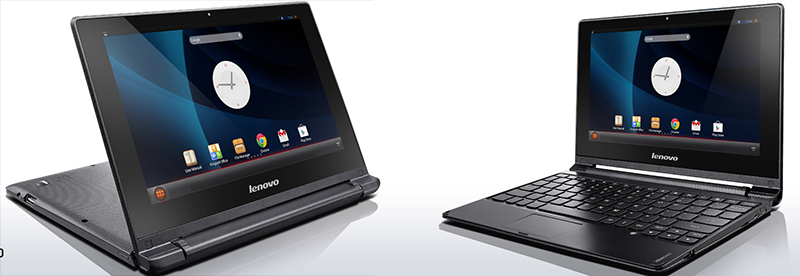
An Android laptop sounds like a gadget invented during a late-night meeting where someone said, “What if we took a tablet, bolted on a keyboard, and called it productivity?” Surprisingly, that idea was not terrible. Devices like the Lenovo A10 and other Android-based netbooks proved that lightweight hardware could be useful for writing, browsing, tinkering, and learning. But for many curious users, Android alone feels like a locked apartment with a very nice lobby. The real fun begins when you ask: can this thing run Linux?
The answer is yes, sometimes, but not always in the way people expect. Android already uses the Linux kernel, but it does not behave like a traditional desktop Linux distribution such as Ubuntu, Debian, Fedora, Arch, or Linux Mint. Android is built around mobile apps, touch-first design, Google services, app sandboxing, and a security model that is very different from the classic “open a terminal and compile something weird at 2 a.m.” Linux experience.
Hacking an Android laptop to run Linux can mean several things. It might mean running a Linux terminal environment inside Android. It might mean installing a Debian or Ubuntu userland through a proot or chroot setup. It might mean flashing a full Linux-based mobile operating system. In rare cases, it might mean replacing Android entirely with a native Linux distribution. The best path depends on the device, processor architecture, bootloader status, kernel support, drivers, storage, and how brave you feel before breakfast.
What “Running Linux” Really Means on an Android Laptop
Before grabbing USB cables and emotionally preparing your warranty for retirement, it helps to define the goal. Android is technically built on Linux, but most people searching for “Android laptop Linux” want a familiar GNU/Linux environment. They want a package manager, Bash or Zsh, SSH, Git, Python, GCC, Vim, Emacs, a desktop environment, and maybe the comforting ability to break their system in a completely self-inflicted way.
There are three realistic levels of Linux on an Android laptop:
1. Linux Inside Android
This is the safest and most beginner-friendly route. Apps such as Termux and UserLAnd let users run a Linux-like environment without replacing Android. Termux provides a terminal emulator with a package collection and tools like SSH, Git, editors, compilers, and shell utilities. UserLAnd can run full Linux distributions or individual Linux applications on top of Android without root. This approach is ideal for coding, scripting, learning Linux commands, managing servers, or turning a dusty Android laptop into a lightweight development machine.
2. Linux Beside Android
A more advanced option is to run a chroot environment, often with root access. Tools such as Linux Deploy create a Linux filesystem image or directory, mount it, and run Linux applications alongside Android. This can support SSH, VNC, and lightweight desktop environments like LXDE or XFCE. The advantage is more flexibility. The disadvantage is that rooting and chroot setups can create compatibility headaches, especially on newer Android versions with stronger security controls.
3. Linux Instead of Android
This is the big one: replacing Android with a native Linux system or a mobile Linux distribution. Projects such as postmarketOS and Ubuntu Touch show that real Linux-based systems can run on selected Android-era hardware. However, full replacement depends heavily on device support. The bootloader must be unlockable, the kernel must boot, the display and input must work, and drivers for Wi-Fi, audio, battery reporting, suspend, graphics acceleration, and storage must cooperate. In hardware hacking, “almost working” often means “the screen turns on, but the Wi-Fi has gone to live on a farm.”
Why Android Laptops Are Both Tempting and Annoying
Android laptops are attractive targets because they are often cheap, low-power, fanless, and surprisingly usable. Many include ARM processors, built-in keyboards, touchscreens, decent batteries, and storage that can handle lightweight Linux tasks. They are perfect candidates for experiments: portable writing stations, SSH terminals, retro computing boxes, coding notebooks, or small home-lab controllers.
The problem is that many Android laptops were never designed to be general-purpose Linux machines. Manufacturers often ship locked bootloaders, custom kernels, device-specific partitions, and proprietary hardware blobs. Unlike a standard x86 laptop, where you can often boot a Linux USB installer and be drinking coffee while the installer partitions your drive, Android hardware may require device trees, kernel patches, vendor files, boot image repacking, and more patience than any reasonable person should be expected to possess.
The Lenovo A10 is a classic example of why these projects are interesting. It was essentially an Android notebook: keyboard, screen, ARM processor, and a form factor that begged to become a tiny Linux laptop. Hackers saw potential where the original product lifecycle saw retirement. That is the spirit of this project: not breaking into anything, but giving forgotten hardware a second career.
Step One: Identify the Hardware Before Touching Anything
The first real step is not flashing. It is research. Find the exact model number, processor architecture, RAM amount, storage type, Android version, bootloader status, and whether the device has a known developer community. A “Lenovo A10” and another Android laptop with a similar shell may be completely different inside. Hardware vendors have a talent for changing internal components while keeping product names confusingly similar, because apparently chaos needed branding.
Look for the chipset first. Is it ARM, ARM64, x86, or x86-64? Most Android laptops and tablets use ARM or ARM64 chips, while some hybrids and mini PCs use Intel or AMD x86 hardware. This matters because x86 machines are usually easier to adapt to desktop Linux, while ARM devices require more device-specific kernel and bootloader work.
Next, check whether the bootloader can be unlocked. Official Android documentation explains that many devices ship with locked bootloaders by default, and unlocking allows partitions to be reflashed. It also usually triggers a factory reset. That means personal files, photos, local app data, and anything not backed up can disappear faster than a cheap USB cable in a junk drawer.
Understand Bootloaders, Verified Boot, and Why Android Says “No”
Modern Android devices use a security chain that verifies software during boot. Android Verified Boot is designed to help ensure that the device starts from trusted firmware and verified system partitions. This is good for security, but it complicates custom operating system work. When the bootloader is locked, the device is expected to reject unofficial boot images. When it is unlocked, the device may warn the user, wipe data, and display a boot warning.
For legitimate tinkering, this is not a villain. It is a guardrail. The goal is not to bypass someone else’s security or defeat a stolen device’s protections. The safe and ethical route is to work only on hardware you own, use official unlocking methods, back up data, and accept that some devices simply cannot be unlocked. If the bootloader is permanently locked, the practical answer may be to run Linux inside Android rather than replacing Android.
The Easiest Route: Termux for a Linux-Like Workspace
For most users, Termux is the best first stop. It does not require rooting the device, and it gives you a capable terminal environment directly on Android. You can install shells, editors, Git, Python, Node.js, compilers, SSH clients, rsync, curl, and many other tools. On an Android laptop with a physical keyboard, Termux feels surprisingly natural. Suddenly the odd little netbook becomes a pocket-sized command center.
Termux is especially useful for students, developers, server admins, and hobbyists. You can clone repositories, write scripts, connect to a VPS, edit configuration files, test Python programs, and learn Linux commands. It will not replace a full desktop Linux installation, but it may solve 80 percent of what many people actually need.
The main limitations are Android’s app sandboxing, filesystem differences, and hardware access restrictions. Termux is powerful, but it is still running under Android. You are not replacing the Android kernel, and some low-level operations will not behave like they do on a normal Linux laptop. For many projects, that is fine. For kernel hacking, driver work, or full desktop replacement, it is not enough.
UserLAnd: Running Full Distros Without Root
UserLAnd offers another friendly approach. It allows users to run distributions such as Debian or Ubuntu on top of Android without root. Instead of replacing Android, it creates a userspace environment where Linux applications can run. This is handy for people who want a more recognizable Linux distribution structure without committing to dangerous flashing experiments.
The experience can be surprisingly usable when paired with SSH or VNC. You may not get native graphics acceleration, and performance will depend on the processor, memory, and storage speed, but for lightweight development, command-line learning, and remote administration, it works well. Think of it as giving your Android laptop a Linux backpack rather than performing a full operating-system transplant.
Linux Deploy and Chroot: More Power, More Responsibility
Linux Deploy is aimed at users who want a fuller GNU/Linux environment on Android, often with root. It can create a Linux image, install a distribution, configure SSH or VNC, and run services inside a chroot environment. This can make an Android laptop feel more like a small Linux workstation, especially with lightweight desktops such as LXDE.
The trade-off is complexity. Root access changes the security posture of the device. Newer Android versions can be less friendly to old chroot workflows. Audio, graphics, permissions, storage mounting, and networking may require trial and error. If you enjoy debugging, it is a playground. If you hate debugging, it is a haunted playground.
Native Linux: postmarketOS, Ubuntu Touch, and the Driver Wall
Installing a native Linux system on Android hardware is the most exciting route, but it is also the least predictable. postmarketOS focuses on extending the life of consumer electronics with free and open-source software, while Ubuntu Touch provides a Linux-based mobile operating system for supported devices. These projects are valuable because they build real alternatives for hardware that might otherwise become electronic waste.
However, support is device-specific. A Linux distribution needs a working kernel, boot process, display output, input, storage, battery management, Wi-Fi, sound, suspend, and sometimes GPU acceleration. Android devices often depend on proprietary vendor components. That is why one device may boot beautifully while another device with similar specs fails before the logo can finish stretching its legs.
If your Android laptop has an x86 processor, the problem may be easier. Standard desktop Linux distributions have broader support for x86 laptops. But if the machine is ARM-based, native Linux usually requires more research. You may need an existing port, a device tree, kernel sources, or community instructions. Without those, you are not installing Linux so much as applying to become the device’s unpaid firmware archaeologist.
What About Android-x86?
Android-x86 is often mentioned in the same conversation, but it solves the opposite problem: it ports Android to x86 PCs and laptops. It is useful if you want Android on a regular computer, not necessarily Linux on an Android laptop. Still, it teaches an important lesson. Operating systems are not magic stickers. Hardware architecture matters. Drivers matter. Boot methods matter. A clean install depends on the platform being supported by the operating system.
Practical Use Cases for a Linux-Powered Android Laptop
Lightweight Writing Machine
A Linux environment can turn an old Android laptop into a distraction-resistant writing machine. Use Vim, Emacs, nano, Markdown tools, Git, and cloud sync through command-line utilities. The battery life is often excellent, and the low-end hardware becomes a feature: it cannot tempt you with modern gaming if it can barely animate a settings menu.
Portable SSH Terminal
This is one of the best uses. With Termux or a small Linux environment, an Android laptop becomes a compact SSH client for managing servers, Raspberry Pi systems, NAS boxes, or cloud instances. Add a decent keyboard and you have a practical admin tool.
Learning Linux
For beginners, an Android laptop is a low-risk way to practice shell commands, package management, scripting, permissions, and networking basics. Breaking a test environment is far less tragic than breaking your main computer. It is like a sandbox, except the sand occasionally contains dependency errors.
Small Home-Lab Node
With the right setup, an old Android laptop can run lightweight services, local scripts, automation tasks, or monitoring tools. It is not a replacement for a proper server, but it can be a fun low-power project machine.
Common Problems and How to Think About Them
Wi-Fi Does Not Work
Wireless chips often need proprietary firmware or Android-specific drivers. If native Linux cannot see the Wi-Fi device, a USB Ethernet adapter or supported USB Wi-Fi dongle may be easier than fighting the built-in chip.
Touchpad or Keyboard Behaves Weirdly
Input devices may use unusual firmware or scan codes. Sometimes Linux recognizes them. Sometimes the keyboard acts like it has been raised by raccoons. Community patches or custom key maps may help.
No Sound
Audio routing on Android hardware can be complicated. Chroot and proot environments may rely on workarounds. Native Linux ports often need device-specific configuration.
Battery Reporting Is Missing
Battery and charging data may depend on vendor drivers. A Linux desktop without battery status is still usable, but it adds suspense. Nothing says productivity like your laptop turning off mid-sentence.
Graphics Are Slow
Without proper GPU acceleration, desktop environments can feel sluggish. Lightweight window managers and desktops are your friends. XFCE, LXDE, Openbox, and command-line workflows are often better choices than heavy desktop environments.
Best Strategy: Start Small, Then Go Deeper
The smartest approach is gradual. First, try Termux. If that meets your needs, stop there and enjoy the win. Next, try UserLAnd or a proot-based distribution if you want a more complete Linux userspace. If you need deeper integration and own the device, investigate root and chroot options. Only after researching device-specific support should you consider flashing a new boot image or replacing Android entirely.
This sequence protects your data, your time, and your sanity. It also helps you learn what you actually need. Many users begin dreaming of a full native Linux install, then discover that a terminal environment inside Android already handles coding, SSH, Git, and scripting perfectly well.
Safety, Ethics, and the “Hacking” Mindset
In this context, hacking means creative modification, not unauthorized access. Work only on devices you own or have explicit permission to modify. Do not try to bypass security protections on someone else’s hardware. Do not follow random flashing instructions without understanding the model number and risks. Back up important files before unlocking, rooting, repartitioning, or flashing anything.
Also remember that some devices are not worth the fight. If the bootloader is locked forever, kernel sources are missing, and nobody in the community has touched the model, running Termux may be the heroic ending. Not every project needs to become a three-week debugging saga involving obscure forum posts from 2014 and a charger that only works at a 37-degree angle.
Experience Notes: What It Feels Like to Hack an Android Laptop Into a Linux Machine
The first thing you learn while hacking an Android laptop to run Linux is that optimism boots faster than the device does. You look at the hardware and think, “Keyboard, screen, processor, batterythis is basically a laptop.” Then the bootloader reminds you that “basically” is doing enough work to qualify for overtime.
A realistic project often starts with excitement and a model number. You search for the exact device, hoping to find a friendly guide with screenshots, working downloads, and comments from happy users. Sometimes you find a treasure map. Sometimes you find one forum post from a person named KernelWizard2009 who says, “I got it working,” then disappears from the internet forever. This is normal. Old Android hardware lives in a strange zone between mobile repair, Linux development, and digital archaeology.
The most satisfying early success is usually not a full Linux desktop. It is opening Termux, installing a few packages, connecting to a server over SSH, and realizing the machine is useful again. That small victory matters. A device that was once too outdated for modern Android apps can become a writing terminal, code editor, or portable admin console. The keyboard that felt silly in Android suddenly makes sense when paired with Bash, Git, and Vim.
The next stage is ambition. You try a fuller Linux distribution through UserLAnd or a proot setup. Now the Android laptop feels more serious. You can install Debian-like tools, run Python scripts, experiment with packages, and maybe connect through VNC to a lightweight desktop. It is not lightning fast, but it has character. Old hardware with character is just slow hardware that has earned affection.
If you move into root, chroot, or native Linux territory, the experience becomes more technical. You start caring about kernel versions, filesystems, mount points, SELinux, device trees, and firmware blobs. You learn that “Linux support” is not one thing. The screen can work while Wi-Fi fails. The keyboard can work while suspend breaks. Audio can vanish like it joined a witness protection program. Every working component feels like a small trophy.
The biggest lesson is that success should be measured by usefulness, not purity. A no-root Linux terminal that helps you write code is a win. A chroot with SSH and a lightweight desktop is a win. A native Linux boot with half the hardware working may be educational, but not always practical. The best setup is the one that makes the laptop useful again without turning every Saturday into a firmware support group.
There is also something satisfying about refusing to throw away hardware just because the original software experience aged badly. Linux-on-Android projects are part repair, part recycling, and part stubborn curiosity. You are not just installing packages; you are arguing politely with planned obsolescence. Sometimes planned obsolescence wins. Sometimes you get a tiny Linux laptop out of the deal. Either way, you learn more than you expected.
Conclusion
Hacking an Android laptop to run Linux is one of those projects that rewards patience, research, and realistic expectations. The easiest path is running Linux tools inside Android with Termux or UserLAnd. The more advanced path is using root and chroot tools such as Linux Deploy. The most ambitious path is replacing Android with a native Linux-based system, but that depends heavily on device support, bootloader access, kernel compatibility, and drivers.
For many users, the best result is not a perfect Ubuntu laptop clone. It is a useful, lightweight, portable machine that can write code, manage servers, run scripts, and teach Linux fundamentals. That is more than enough. After all, the best hack is not always the flashiest one. Sometimes it is simply taking a forgotten Android laptop and making it useful againpreferably before the battery gives up and the Wi-Fi driver starts composing poetry.