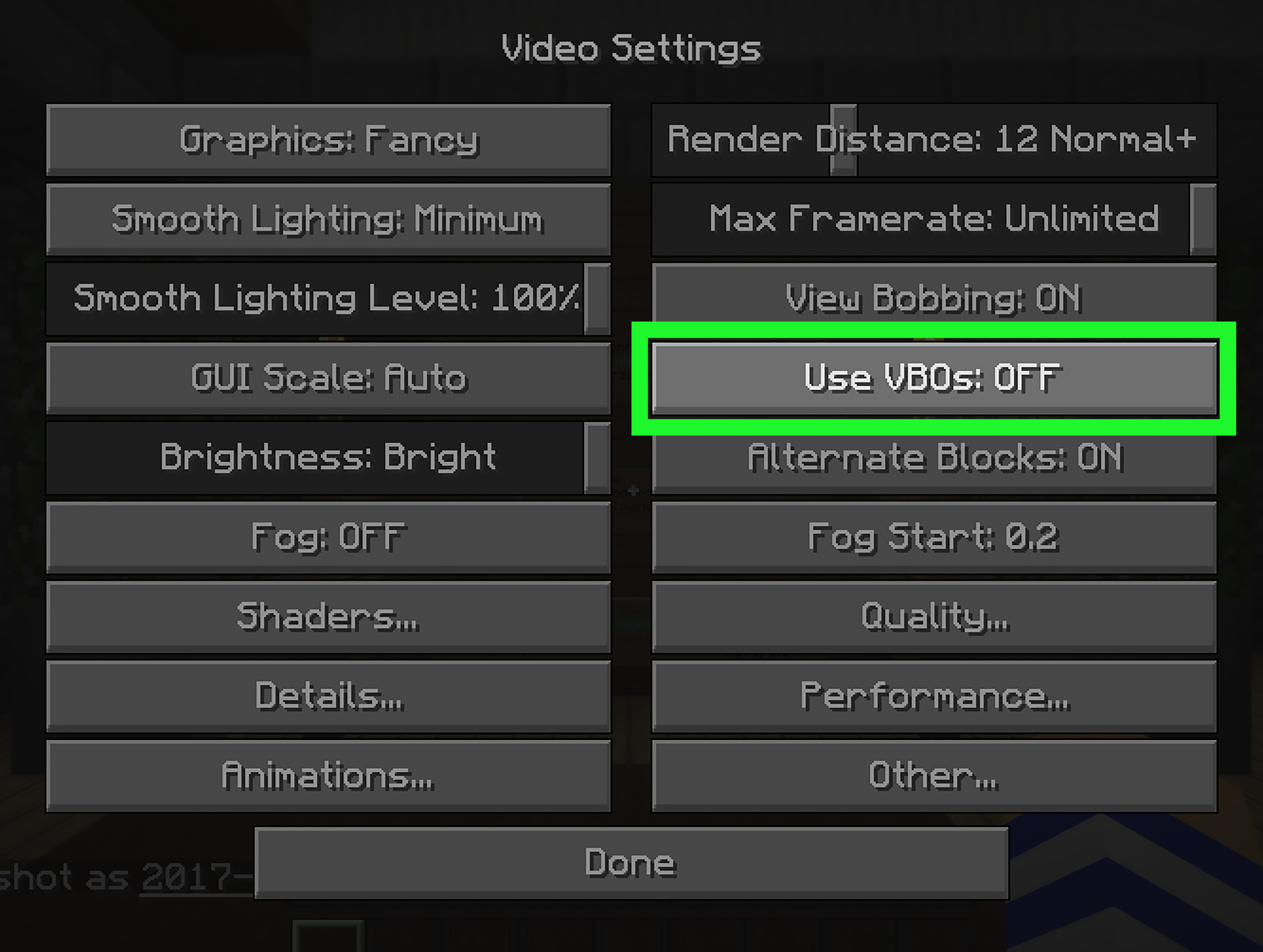
Minecraft is famous for giving players endless freedom. Unfortunately, that freedom occasionally includes the freedom to crash without explaining why.
You click Play, the loading screen appears, and then the Minecraft Launcher returns with an ominous message such as “Game crashed with exit code 1” or “Process crashed with exit code -1073740791.” Neither message tells you whether the culprit is Java, a mod, a graphics driver, insufficient memory, or a shader pack attempting to turn your laptop into a small toaster.
The good news is that Minecraft exit codes are usually fixable. The trick is to treat the code as a clue rather than a complete diagnosis. This guide explains how to fix Minecraft exit code 1, the Windows crash code commonly displayed as -1073740791, and several other launcher errors using a systematic troubleshooting process.
What Is a Minecraft Exit Code?
An exit code is a number returned when the Minecraft process closes. A successful program normally returns zero. A crash, forced shutdown, Java exception, driver failure, or operating-system intervention may produce a different value.
However, one exit code can have several causes. Exit code 1, for example, does not mean “one specific file is broken.” It simply means Minecraft ended with a general error. The useful explanation is usually found in the game log, crash report, or Windows Event Viewer.
Minecraft’s official support guidance recommends checking the installation, game version, graphics environment, and memory allocation when Java Edition repeatedly crashes. Creating a clean installation can also reveal whether the existing profile is damaged.
Before Troubleshooting: Protect Your Worlds
Most fixes in this guide are safe, but deleting folders or reinstalling the game without a backup can turn a minor crash into a much more dramatic afternoon.
Copy your saves folder to another location before resetting the installation. The default Minecraft folder is usually located here:
- Windows:
%AppData%\.minecraft - macOS:
~/Library/Application Support/minecraft - Linux:
~/.minecraft
Back up the saves, screenshots, resourcepacks, and shaderpacks folders. Modded players should also preserve their mods, config, and modpack instance folders, although those files should not be copied into a clean test installation immediately.
Quick Minecraft Crash Troubleshooting Checklist
Try these actions in order before moving to code-specific fixes:
- Restart the computer rather than reopening only the launcher.
- Install pending Windows, macOS, or Linux updates.
- Launch the latest stable version of vanilla Minecraft.
- Disable mods, shaders, resource packs, and custom JVM arguments.
- Update the graphics driver from NVIDIA, AMD, Intel, or the computer manufacturer.
- Create a fresh Minecraft installation profile.
- Check
latest.logand the newest crash report. - Repair or reinstall the Minecraft Launcher if every profile fails.
The official Minecraft Launcher can be repaired or reinstalled when it freezes, crashes, or refuses to open. Microsoft also recommends obtaining hardware drivers through Windows Update or the device manufacturer rather than downloading random “driver booster” utilities.
How to Fix Minecraft Exit Code 1
Minecraft exit code 1 is a broad Java Edition error. It frequently appears after a mod fails to load, an incompatible Java runtime is selected, a JVM argument is invalid, or a configuration file becomes corrupted.
1. Test a Completely Vanilla Installation
The fastest diagnostic test is not reinstalling everything. Instead, create a separate vanilla profile:
- Open the Minecraft Launcher.
- Select Minecraft: Java Edition.
- Open the Installations tab.
- Create a new installation using a stable release.
- Choose an empty game directory or allow the launcher to create one.
- Do not add Forge, Fabric, NeoForge, OptiFine, shaders, or mods.
If vanilla Minecraft works, your account, launcher, and core game files are probably fine. The fault is more likely inside the original profile.
Minecraft Help specifically recommends creating a new Java Edition installation when an existing installation crashes after selecting Play.
2. Check Mod and Loader Compatibility
A mod must match the Minecraft version and usually the exact loader family. A Fabric mod cannot simply be dropped into a Forge profile, and a mod built for one Minecraft release may crash another release even when their version numbers look similar.
Temporarily move every file out of the mods folder. Launch the game with only the required mod loader. If it starts, return the mods in small groups.
For a large pack, use the half-split method:
- Add half of the mods.
- Launch the game.
- If it crashes, the problem is probably in that half.
- If it works, test the other half.
- Continue dividing the failing group until the incompatible mod is identified.
Also verify required dependencies. A library mod may not add visible gameplay features, but another mod may refuse to start without it. CurseForge recommends checking whether the failure affects every profile or only a particular mod loader, while Fabric documentation advises using the stack trace to identify the mod involved in a crash.
3. Reset Custom Java and JVM Settings
The official launcher normally manages the runtime needed by its standard installations. Problems often begin after a player manually selects another Java executable or pastes a collection of “ultimate FPS” JVM arguments from a six-year-old forum post.
Open the affected installation, select More Options, and inspect the Java executable and JVM arguments. Restore the profile defaults when possible. Remove experimental garbage-collection flags, unsupported options, and references to an old Java installation.
Mod loaders and Minecraft releases can require different Java generations. For example, current Forge development documentation for modern releases calls for a 64-bit Java 21 environment, while older Forge branches may target Java 17. The correct runtime therefore depends on the exact Minecraft and loader version.
4. Delete Damaged Configuration Files
Configuration files can survive mod updates and continue referring to removed items, outdated settings, or renamed features.
Rename the profile’s config folder to something such as config-backup. Launch the game so the loader and mods can generate fresh files. Do the same with a suspicious mod’s individual configuration file if the log repeatedly mentions it.
Renaming is better than immediately deleting because you can recover keybindings and customized settings later.
5. Read the Actual Error in the Log
Exit code 1 is the headline. The log is the article.
Open the following file:
.minecraft/logs/latest.log
Also check:
.minecraft/crash-reports
Search from the bottom upward for terms such as:
Caused by:ExceptionMixinApplyErrorNoClassDefFoundErrorModResolutionExceptionOutOfMemoryErrorUnsupportedClassVersionError
The first meaningful Caused by entry is often more valuable than the final hundred lines. Fabric’s troubleshooting documentation identifies the crash-report stack trace as a key section for finding the mod or component that initiated the failure.
How to Fix Minecraft Exit Code -1073740791
The code players usually mean is -1073740791, including the minus sign. In 32-bit hexadecimal form, it corresponds to 0xC0000409, which Microsoft identifies as a fail-fast exception.
A fail-fast exception means a Windows application or one of its native components stopped immediately after detecting a serious condition. It does not automatically prove that Minecraft itself is defective. Graphics drivers, overlays, recording software, native mod libraries, unstable memory settings, and other injected components may all be involved.
If your launcher displays 1073740791 without a minus sign, inspect latest.log and Windows Event Viewer before assuming it is the same Windows status. The sign and the way the launcher converts a process result matter.
1. Update or Clean-Install the Graphics Driver
Start by identifying the graphics hardware under Device Manager > Display adapters. Download the appropriate driver directly from the manufacturer:
- NVIDIA GeForce driver for NVIDIA graphics cards
- AMD Software: Adrenalin Edition for AMD Radeon hardware
- Intel graphics driver or Intel Driver & Support Assistant
- The laptop manufacturer’s approved driver when the system uses customized hybrid graphics
If the problem began immediately after a driver update, rolling back to the previous stable driver may work better than installing an even newer package. Microsoft documents both updating and rolling back display drivers, while AMD recommends a clean installation when driver files or software conflicts are suspected.
2. Disable Overlays and Recording Tools
Temporarily close programs that draw an overlay on top of Minecraft or hook into the rendering process. Common examples include:
- Discord’s in-game overlay
- Xbox Game Bar recording
- NVIDIA or AMD recording overlays
- MSI Afterburner and RivaTuner Statistics Server
- Overwolf overlays
- SteelSeries Moments
- Third-party FPS counters and screen recorders
Do not merely close the visible window. Exit the application from the system tray or disable its startup service for one test. If Minecraft stops crashing, reactivate the tools individually to identify the conflict.
3. Remove Shaders and Rendering Mods
Shaders and performance mods operate close to the graphics pipeline. A shader pack may work perfectly with one driver and collapse dramatically after a driver, game, or loader update.
Test without OptiFine, Iris, Sodium, Embeddium, Oculus, shader packs, high-resolution textures, or other rendering modifications. Then reinstall versions that explicitly support your game and loader.
4. Check Windows Event Viewer
Press Windows + R, type eventvwr.msc, and open Windows Logs > Application. Look for an error at the time of the Minecraft crash involving javaw.exe, java.exe, or the launcher.
Pay attention to the faulting module name. A module associated with NVIDIA, AMD, or Intel points toward the graphics stack. A mod’s native library points toward that mod. A Windows runtime module is less specific but may justify repairing system components and testing a clean boot.
5. Return Overclocks to Default
Minecraft Java Edition can reveal instability that does not appear during lighter tasks. Temporarily restore default settings for the CPU, GPU, and RAM. Disable GPU undervolting, experimental memory timings, and aggressive overclocking profiles.
If crashes happen only after 30 or 60 minutes, also check temperatures. Heat-related instability often looks like a random software problem until the same crash reappears whenever the system warms up.
Fixing Memory-Related Minecraft Crashes
Too little memory can cause loading failures, stuttering, or OutOfMemoryError. Assigning nearly all system memory can be just as troublesome because Windows, the launcher, background applications, and graphics processes still need room.
For vanilla Minecraft, begin with the launcher’s default allocation. For a modpack, follow the pack developer’s recommendation. As a practical starting point on a computer with 16 GB of physical RAM, a moderate modpack may be tested with approximately 4 to 6 GB, but the correct amount varies substantially by pack.
Close memory-heavy browser tabs and applications before testing. Confirm that the Windows page file has not been disabled. Minecraft Help notes that an allocation that does not suit the available system RAM or game requirements can contribute to crashes, lag, and stuttering.
Other Minecraft Exit Codes and What They Suggest
| Exit code | What it generally suggests | Best first action |
|---|---|---|
0 |
The process ended successfully, although a third-party launcher may occasionally label the session incorrectly. | Check whether the game actually crashed and review the launcher log. |
1 |
A general startup or Java failure, frequently involving mods, configuration, JVM arguments, or version mismatches. | Test a clean vanilla profile and read latest.log. |
-1 |
A broad crash result often accompanied by a more useful Java exception or crash report. | Find the first meaningful exception and its Caused by line. |
255 |
A generic process failure commonly seen in launch scripts, servers, or third-party launchers. | Check permissions, Java paths, startup scripts, and the complete console output. |
137 |
On Linux and hosted servers, the Java process was often forcefully killed, frequently because of memory pressure. | Inspect system memory, container limits, hosting limits, and operating-system logs. |
-1073740791 |
A Windows fail-fast exception that may involve a graphics driver, overlay, native library, or unstable system component. | Update or roll back the GPU driver, disable overlays, and inspect Event Viewer. |
These descriptions are starting points rather than universal definitions. Third-party launchers may transform, truncate, or report process results differently. Always combine the number with the crash log and the behavior that occurred immediately before the shutdown.
Repairing or Reinstalling Minecraft Safely
If every profile crashes, including a new vanilla installation, repair the launcher through Windows settings:
- Open Settings > Apps > Installed apps.
- Find Minecraft Launcher.
- Open its advanced options.
- Select Repair.
- Use Reset only if repairing does not help.
You can also reinstall the launcher from its official distribution source. If a complete Java Edition reinstall becomes necessary, preserve your world backups before removing the .minecraft directory. Minecraft’s support documentation notes that manually removing remaining files may help when normal updating or reinstalling does not correct damaged game data.
A Reliable Order for Diagnosing Any Minecraft Exit Code
- Confirm the scope: Determine whether one world, one profile, one modpack, or every installation crashes.
- Reproduce the failure: Note whether it happens before the menu, while joining a world, or after several minutes.
- Test vanilla: Use a separate, clean game directory.
- Read the evidence: Check
latest.log, crash reports, and Event Viewer. - Match versions: Confirm the Minecraft version, mod loader, mods, dependencies, and Java runtime.
- Eliminate external interference: Disable overlays, recorders, antivirus exceptions, and performance tools temporarily.
- Check the system layer: Update the operating system and graphics driver, then test without overclocking.
- Repair last: Repair or reinstall only after backing up personal data.
This sequence prevents the classic troubleshooting mistake of changing fifteen settings at once. When the game suddenly works, you should know which change fixed itnot merely celebrate while quietly fearing the next launch.
Practical Experiences: What Usually Solves Minecraft Exit Codes
Real-world Minecraft troubleshooting often begins with a player blaming the launcher. That is understandable because the launcher is the messenger standing beside the crash message looking suspicious. In many cases, however, the actual cause is a recent change inside the game profile.
A common exit code 1 scenario starts after a player updates three mods but leaves the rest of the pack untouched. The loading screen reaches the mod-initialization stage and closes. Removing all mods makes the game work, but that alone does not identify the problem. The half-split method usually narrows dozens of files to one incompatible mod within several launches. The winning clue is often a dependency error near the bottom of latest.log, not the exit code displayed by the launcher.
Another familiar situation involves copying JVM arguments from an optimization guide. The player expects a miraculous frame-rate boost, but one unsupported option prevents Java from starting. Resetting the JVM arguments to their defaults fixes the crash instantly. This is why clean testing is so effective: it removes years of accumulated tweaks and asks Minecraft to launch without carrying everyone’s old experiments on its back.
The -1073740791 crash tends to feel more random. A player may enter a world successfully, play for 20 minutes, and then be dropped to the launcher without a normal Minecraft crash report. In that pattern, the Windows Application log becomes especially useful. When the faulting module belongs to a display driver or an overlay application, updating the driver or disabling recording software often produces a more convincing result than repeatedly reinstalling Java.
Driver updates can also create trouble rather than solve it. A newly released graphics package may conflict with a particular shader, older GPU, or laptop’s hybrid-graphics configuration. When crashes begin on the same day as a driver update, rolling back one stable version is a sensible diagnostic test. On laptops, the manufacturer-provided graphics package may behave better than a generic package because it includes device-specific power and display configurations.
Memory problems create a different set of clues. The game may become increasingly sluggish before freezing, chunk loading may stop, or the log may explicitly report an inability to allocate memory. Players sometimes respond by assigning nearly every available gigabyte to Minecraft. That can make the whole computer less stable. A better approach is to use a moderate allocation, close unnecessary applications, and leave enough memory for the operating system.
World-specific crashes deserve separate attention. When Minecraft reaches the main menu but crashes only while opening one world, reinstalling the launcher is unlikely to help. The issue may involve a corrupted chunk, removed modded block, entity, data pack, or dimension. Testing a copy of the world is essential. Never perform repair experiments on the only copy of a five-year survival world unless you enjoy learning difficult lessons with excellent emotional clarity.
The most dependable lesson is simple: change one variable at a time. Begin with a clean profile, collect the logs, and move outward from Minecraft to Java, mods, drivers, and the operating system. Exit codes become far less mysterious when each layer is tested independently.
Conclusion
Minecraft exit codes are frustrating because the number shown by the launcher is rarely the full explanation. Exit code 1 usually requires checking mods, configurations, Java settings, and version compatibility. Exit code -1073740791 calls for closer attention to Windows fail-fast events, graphics drivers, overlays, native libraries, and system stability.
Start with a backed-up, clean vanilla profile. If that profile works, rebuild the affected installation carefully. When it does not work, inspect the logs, update the system, repair the launcher, and test the hardware and driver layers. A patient process of elimination may not be as exciting as fighting the Ender Dragon, but it is considerably more effective than reinstalling everything and hoping the creepers responsible feel remorse.
Note: Exit codes are diagnostic clues, not guaranteed diagnoses. Record the exact code, preserve the complete log, and note what changed before the first crash. Never download Java packages, drivers, mods, or repair utilities from unverified websites.