Your LG TV has a picture so sharp it could expose your pores from across the room, but the sound has vanished like a sock in the dryer. Annoying? Absolutely. A reason to panic-buy a new TV? Not yet.
In most cases, an LG TV with no sound is caused by a simple setting, a confused HDMI connection, a muted external device, a glitchy streaming app, or a sound output option that quietly wandered off to the wrong place. The good news: many fixes take less time than finding the remote under the couch cushions.
This guide walks you through 9 quick fixes to try at home, starting with the easiest checks and moving toward deeper troubleshooting. Whether your LG TV has no sound through built-in speakers, no audio from a soundbar, or silence only when using HDMI, these steps will help you narrow down the problem without turning your living room into a tech-support crime scene.
Before You Start: Identify the Type of LG TV Sound Problem
Not all silence is the same. Before changing every setting like you are defusing a bomb, take a minute to identify what is happening:
- No sound from any source: TV channels, apps, HDMI devices, and menus are all silent.
- No sound from one app: Netflix, YouTube, Hulu, Disney+, or another app has no audio, but other sources work.
- No sound from HDMI: A cable box, game console, Blu-ray player, or laptop shows video but no sound.
- No sound from soundbar: The TV speakers may work, but HDMI ARC, eARC, optical, Bluetooth, or external speakers do not.
- Sound cuts in and out: Audio appears, disappears, or lags behind the picture.
Once you know the pattern, the right fix becomes much easier to spot. Let’s get your LG TV talking again.
1. Check Volume, Mute, and the Remote First
Yes, this sounds almost too obvious. No, you should not skip it. The humble mute button has embarrassed many intelligent people, including people who know what HDMI ARC means and still forget their TV is muted.
What to do
- Press Volume Up on the LG remote.
- Press Mute once or twice to confirm it is off.
- Look for the volume indicator on the screen.
- If you use a cable box, Roku, Apple TV, Fire TV Stick, game console, or satellite receiver, turn up the volume on that device too.
- If you use a soundbar, check the soundbar remote, power button, input mode, and volume level.
Also check whether headphones, Bluetooth earbuds, or a wireless speaker are connected. Some LG TVs may route audio to a paired Bluetooth device, making the TV speakers seem dead when the sound is actually playing somewhere elsepossibly in a drawer.
2. Set Sound Out to the Correct Speaker
One of the most common reasons an LG TV has picture but no sound is the wrong Sound Out setting. Your TV might be trying to send audio to a soundbar, optical output, Bluetooth device, or HDMI ARC system instead of its internal speakers.
How to check LG TV Sound Out
- Press the Settings button on your LG remote.
- Go to All Settings.
- Select Sound.
- Choose Sound Out.
- Select TV Speaker or Internal TV Speaker if you want sound from the TV itself.
If you use a soundbar or receiver, select the matching output, such as HDMI ARC, HDMI eARC, Optical, Wired Speaker, or Bluetooth Device, depending on your setup.
Here is a quick example: if your LG TV is set to Optical Out but your optical cable is not connected, the TV may behave like a very expensive silent movie machine. Set it back to TV Speaker and test again.
3. Run the LG Sound Self-Diagnosis Test
Modern LG webOS TVs include a built-in sound test or Sound Self-Diagnosis. This tool helps determine whether the problem is with the TV speakers or with the source device, app, cable, or external audio system.
How to run a sound test on an LG TV
- Press Settings on the LG remote.
- Open All Settings.
- Go to Support.
- Select Sound Self-Diagnosis or Sound Test.
- Follow the on-screen instructions.
Menu names vary by webOS version. On some OLED models, the option may be under General > OLED Care > Device Self Care > Sound Self-Diagnosis. Older LG TVs may place it under Sound > Sound Test.
How to understand the result
If the test sound plays normally, your TV speakers are probably fine. The issue is more likely coming from an HDMI device, streaming app, set-top box, soundbar, or audio format setting. If the test produces no sound at all, even with Sound Out set to TV Speaker, the TV may need a deeper reset or professional service.
4. Power Cycle the TV Properly
A soft restart can clear temporary audio bugs. But do not just turn the TV off and on with the remote. Many smart TVs stay in standby mode, which is more like a nap than a reset.
How to power cycle an LG TV
- Turn off the TV.
- Unplug the power cord from the wall outlet.
- Wait at least 60 seconds.
- While the TV is unplugged, press and hold the physical power button on the TV for about 10 seconds, if your model has one.
- Plug the TV back in and turn it on.
This can refresh the TV’s audio processing, clear a frozen app state, and reset minor software confusion. Think of it as letting your TV take a deep breath and reconsider its choices.
If you use a soundbar, AV receiver, cable box, or game console, power cycle those devices too. Audio problems often come from the entire chain, not just the TV.
5. Check HDMI ARC, eARC, Optical, and Soundbar Connections
If your LG TV has no sound from a soundbar, the problem is often a cable, port, or handshake issue. HDMI ARC and eARC are convenient, but when they misbehave, they can make a universal remote look emotionally stable by comparison.
For HDMI ARC or eARC
- Make sure the HDMI cable is plugged into the TV port labeled HDMI ARC or HDMI eARC.
- On the soundbar or receiver, use the port labeled HDMI OUT, TV ARC, or eARC.
- Go to Settings > Sound > Sound Out and choose HDMI ARC or eARC.
- Use a certified high-speed HDMI cable, especially for eARC and Dolby Atmos setups.
- Unplug both the TV and soundbar for a minute, reconnect HDMI, then power on the TV first and the soundbar second.
For optical audio
- Confirm the optical cable clicks firmly into both devices.
- Remove the tiny plastic caps from the cable ends if it is new.
- Set LG Sound Out to Optical or Wired Speaker / Optical.
- Set the soundbar input to Optical, D.IN, or the equivalent mode.
If the TV speakers work but the soundbar does not, the internal speakers are probably not the villain. Focus on output settings, cable quality, port choice, and soundbar input mode.
6. Turn On SIMPLINK HDMI-CEC
LG calls HDMI-CEC SIMPLINK. This feature allows compatible devices to communicate over HDMI, control power, adjust volume, and help ARC or eARC audio work correctly.
How to enable SIMPLINK on many LG webOS TVs
- Press Settings.
- Go to All Settings.
- Select General.
- Choose Devices or Connection, depending on your model.
- Open HDMI Settings or Device Connection Settings.
- Turn SIMPLINK (HDMI-CEC) on.
After enabling SIMPLINK, restart the TV and external audio device. If you use an AV receiver or soundbar, check its settings too. HDMI-CEC must often be enabled on both ends of the connection. Different brands use different names: Anynet+, Bravia Sync, VIERA Link, EasyLink, or simply CEC.
If ARC still does not work, unplug all HDMI devices except the soundbar or receiver. Test again. Sometimes another HDMI device interrupts the handshake like an uninvited guest at a very nerdy party.
7. Test Another App, Channel, or Input
If your LG TV has no sound only on one app, the TV itself may not be the problem. Streaming apps can freeze, update badly, or temporarily fail to decode audio correctly.
Try this source test
- Open YouTube and play a different video.
- Switch from Netflix to live TV or an HDMI input.
- Try a different HDMI device, such as a game console or laptop.
- Play something from the LG home menu or built-in media player if available.
If sound works everywhere except one app, close the app fully, reopen it, and try again. If that fails, update the app, delete and reinstall it, or sign out and sign back in. Also check the app’s audio language and audio format options. A movie set to a surround format your sound system cannot decode may cause silence or strange playback.
For cable boxes and streaming sticks, check the device’s audio settings. If the box is set to Dolby Digital, Bitstream, or surround output, try changing it to PCM or Stereo as a test. PCM is not glamorous, but it is often the “just make sound happen” option.
8. Adjust Digital Sound Output and Audio Format
Audio format mismatches are common when an LG TV is connected to a soundbar, receiver, cable box, Blu-ray player, or game console. The picture may show perfectly while the audio fails because one device is sending a format the other cannot process.
Settings worth testing
- Go to Settings > Sound > Advanced Settings.
- Find Digital Sound Output.
- Try Auto, then test.
- If that does not work, try PCM.
- If you use eARC and a compatible sound system, test Pass Through if available.
Use PCM when troubleshooting because it is widely compatible. Once sound returns, you can experiment with Auto, Pass Through, Dolby Digital, Dolby Atmos, or Bitstream settings depending on your equipment.
Gamers should also check console audio settings. On PlayStation, Xbox, Nintendo Switch, and PCs, the selected output format matters. A laptop connected by HDMI may send video to the LG TV but keep audio routed to the laptop speakers unless the TV is selected as the audio output device.
9. Update Software, Reset Audio Settings, or Factory Reset as a Last Resort
If nothing has worked, your LG TV may have a software bug, corrupted setting, or app issue. Updating webOS can fix audio problems, improve compatibility, and resolve glitches introduced by previous updates.
How to check for LG TV software updates
- Press Settings.
- Open All Settings.
- Go to Support.
- Select Software Update.
- Choose Check for Updates.
If an update is available, install it, then restart the TV. Also update external devices such as streaming sticks, gaming consoles, cable boxes, and soundbars.
Reset audio or AV settings
Some LG TVs allow you to reset sound or audio/video settings without deleting everything. Look for options under Sound, Advanced Settings, Support, or General. This can undo a confusing mix of sound modes, outputs, and format choices.
Factory reset only when needed
A factory reset should be the final at-home step because it removes accounts, app logins, network settings, and personal preferences. On many LG webOS TVs, you can find it under Settings > All Settings > General > System > Reset to Initial Settings. Older models may place it under General or Support.
Before resetting, write down your Wi-Fi password, app logins, picture settings, and any special soundbar configuration. Nobody wants to fix the audio and then spend the evening trying to remember a streaming password created in 2019.
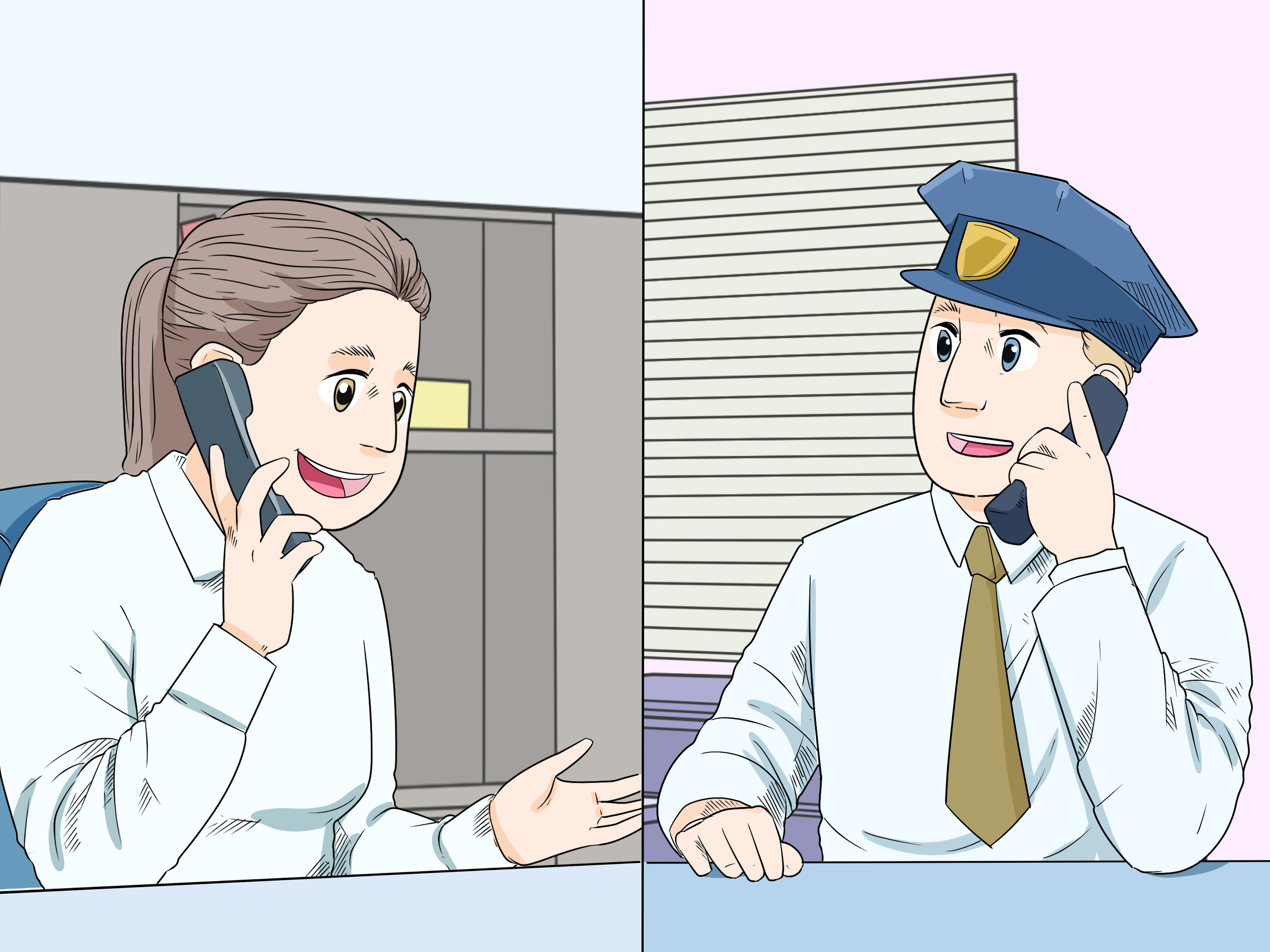
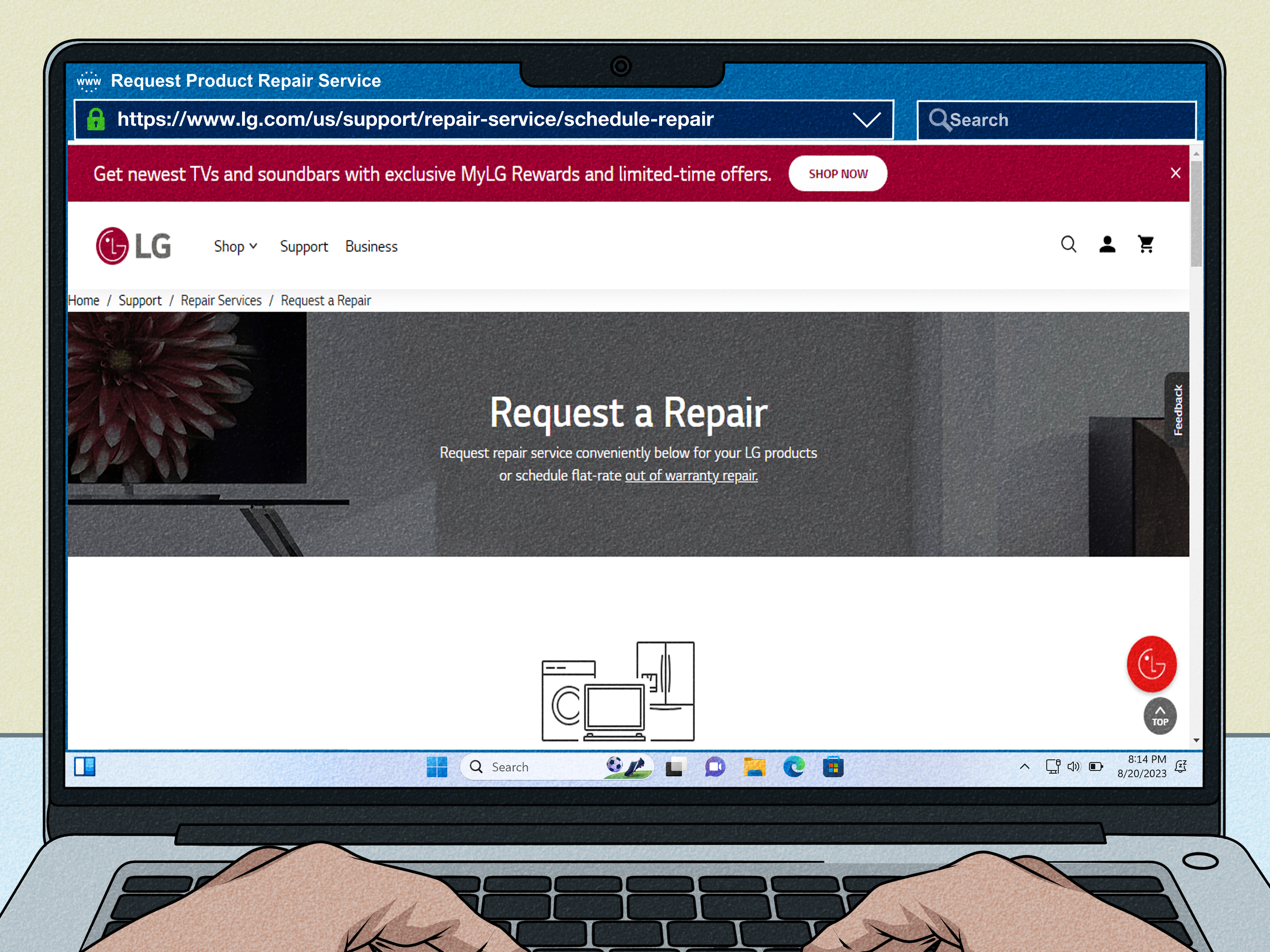
When to Call LG Support or a Repair Technician
Call for help if your LG TV still has no sound after these steps, especially if:
- The LG sound test produces no audio from internal speakers.
- The TV makes crackling, popping, or distorted noises.
- The sound disappears on every source and every output.
- The TV recently suffered a power surge, impact, or liquid exposure.
- The HDMI, optical, or headphone ports appear damaged.
- The TV is still under warranty.
Hardware failures can involve the main board, audio amplifier, speakers, ports, or power components. Those are not great DIY projects unless you already know how to work safely with electronics. When in doubt, get professional service instead of turning your TV into a very flat puzzle.
Quick Troubleshooting Checklist
Need the short version? Try these steps in order:
- Turn up the volume and disable mute.
- Check the volume on external devices.
- Set Sound Out to TV Speaker.
- Run Sound Self-Diagnosis.
- Unplug the TV for at least 60 seconds.
- Check HDMI ARC, eARC, optical, or Bluetooth connections.
- Enable SIMPLINK HDMI-CEC.
- Test another app, channel, or input.
- Try PCM for digital audio output.
- Update software.
- Reset audio settings or factory reset only as a last resort.
Real-Life Experience: What Usually Fixes an LG TV With No Sound
After dealing with home theater setups, smart TVs, streaming devices, and soundbars, one pattern becomes clear: most “dead audio” problems are not actually dead audio problems. They are communication problems. The TV is speaking one language, the soundbar is expecting another, and the streaming app is sitting in the corner pretending it had nothing to do with it.
One common experience is the “worked yesterday, silent today” situation. The TV turns on, the picture looks normal, the remote works, but the audio is gone. In many cases, nothing is broken. The TV may have updated overnight, the soundbar may have lost its HDMI ARC handshake, or the output may have switched from internal speakers to an external device. The fastest fix is usually to unplug both the TV and soundbar, disconnect the HDMI cable, wait a minute, reconnect the HDMI ARC ports, power on the TV first, and then power on the soundbar. It feels too simple, but it often works because HDMI devices sometimes need to renegotiate their connection from scratch.
Another frequent scenario happens after someone connects Bluetooth headphones. Later, the headphones are off, but the TV still remembers them as the preferred audio output. The owner increases the TV volume, sees movement on screen, and hears nothing. Switching Sound Out back to TV Speaker solves the mystery. This is why checking audio output should be one of the first steps, not something you do after sacrificing three hours to the troubleshooting gods.
Streaming apps create their own comedy show. You may have sound on YouTube but silence on Netflix, or audio on live TV but not Disney+. When that happens, it is rarely a speaker failure. Closing the app, clearing app data if your model allows it, reinstalling the app, or changing the audio track from surround to stereo can restore sound. If a show is set to a Dolby format your soundbar or receiver cannot process, switching to stereo or PCM can bring voices back instantly.
For HDMI devices, the biggest lesson is to test one thing at a time. If a cable box has no sound, plug in a game console using the same HDMI port. If the console works, the cable box settings are probably the issue. If both devices fail on the same HDMI port, try another port or cable. If HDMI video works but audio does not, check whether the source device is set to output audio through HDMI. PCs and laptops are especially guilty here because they may keep sending sound to internal speakers while the TV only receives video.
Soundbars add another layer. Many people assume that if the soundbar lights up, it is correctly connected. Not always. The input may be set to Bluetooth instead of HDMI ARC, optical instead of eARC, or an inactive source. The fix is to match three things: the TV’s Sound Out setting, the physical cable connection, and the soundbar’s input mode. When all three agree, sound usually returns. When one disagrees, silence wins.
In everyday use, the most practical habit is to keep your setup simple. Use one high-quality HDMI cable for ARC or eARC, enable SIMPLINK HDMI-CEC, keep TV and soundbar firmware updated, and avoid changing advanced audio formats unless you know why. If someone in the house loves pressing random buttons on the remoteno judgment, but we see youwrite down the normal settings so you can restore them quickly.
The best takeaway is this: an LG TV with no sound does not automatically mean an expensive repair. Start with volume, Sound Out, power cycling, sound testing, HDMI connections, and audio format settings. Those fixes solve a large share of cases. Save factory reset and repair calls for last. Your TV may just need a small settings nudge, not a dramatic farewell montage.
Conclusion
When your LG TV has no sound, start simple and stay systematic. Check mute, volume, Sound Out, and connected devices first. Then run the LG sound test, power cycle the TV, inspect HDMI ARC or optical connections, enable SIMPLINK, test other apps, adjust digital audio output, and update software. Most no-audio problems are caused by settings, cables, app glitches, or handshake issuesnot catastrophic hardware failure.
If the built-in sound test fails, or if every source stays silent after resets and updates, contact LG support or a qualified repair technician. Until then, these nine quick fixes give you a strong chance of bringing the sound back without leaving the couchexcept maybe to unplug the TV. Sorry, technology still requires cardio sometimes.
Note: This article is based on current manufacturer-style troubleshooting practices and real-world home theater repair patterns. Menu names may vary depending on LG TV model, webOS version, region, and connected audio equipment.