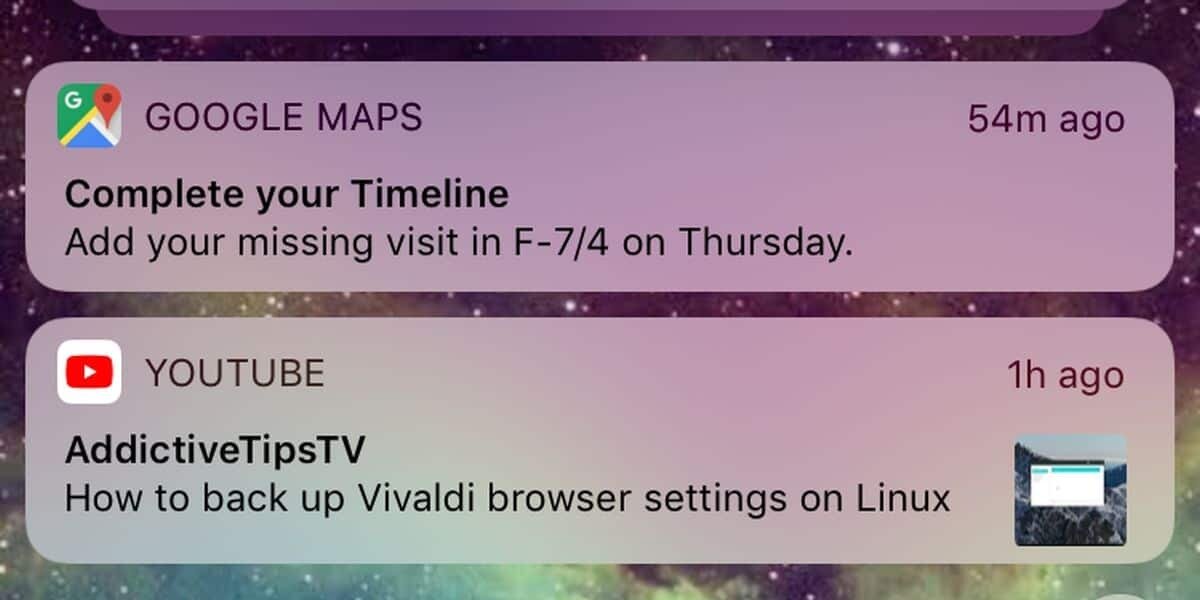
Google Maps is fantastic at getting you from Point A to Point B. It is less fantastic at knowing when to stop talking. One of the more annoying nudges is the “Complete your timeline” alert, which pops up when Google thinks it has partial location history and wants you to confirm, edit, or finish filling in the blanks. Helpful? Sometimes. Persistent? Absolutely.
If you are here, you probably do not want a digital travel diary. You want directions, maybe traffic, maybe the nearest coffee shop, and definitely fewer interruptions. The good news is that you can usually disable these alerts. The mildly chaotic news is that Google Maps does not always give them one neat little switch with a giant button that says “Stop bothering me.” Depending on your device and account setup, the fix may involve Maps notifications, Timeline settings, app permissions, or broader Google activity controls.
This guide walks through the cleanest ways to shut down “Complete your timeline” alerts from Google Maps, whether you want to mute only the nags, turn off Timeline entirely, or tighten your privacy settings so Google stops trying to build a travel scrapbook out of your errands.
What the “Complete your timeline” alert actually means
Google Maps Timeline is the feature that remembers where you have been, the routes you took, and sometimes the places it thinks you visited. In older explanations, this was often tied to “Location History.” In newer Google Maps language, it is simply called Timeline. If Timeline is on, Google Maps may ask you to confirm missing stops, fix inaccurate visits, or review locations that look incomplete.
That is where the “Complete your timeline” alert comes from. It is usually not a bug. It is Google Maps trying to turn fuzzy location data into a cleaner record of your day. In plain English: your phone noticed movement, Google made an educated guess, and now it wants you to do unpaid administrative work for your own commute.
There is another wrinkle. Google has also changed how Timeline works for many users. Instead of living primarily as a web-accessible history, Timeline is now tied more directly to your mobile device, with backup options and migration prompts. That means some people are not just seeing classic visit-confirmation nudges. They are also seeing app notices, push alerts, or emails asking them to keep, move, back up, or review Timeline data. So if the wording looks slightly different on your phone, you are not imagining things. Google Maps has been rearranging the furniture.
The fastest way to stop the alerts without changing everything else
If you still want to use Google Maps for navigation, traffic, saved places, and search, but you do not want Timeline prompts, the easiest fix is to turn off Google Maps notifications first. This is the least dramatic option and usually the best starting point.
On Android
- Open Settings on your phone.
- Tap Notifications, then App notifications.
- Find Google Maps.
- Turn off all notifications, or open its categories and disable the ones you do not want.
You can also do this from inside Maps on many Android versions:
- Open Google Maps.
- Tap your profile picture.
- Go to Settings > Notifications.
- Turn off the notification categories that feel too chatty.
This route is ideal if your goal is simple: keep Maps, lose the commentary.
On iPhone
- Open the Settings app.
- Tap Notifications.
- Select Google Maps.
- Turn off Allow Notifications.
On some versions of the app, you can also manage alerts from inside Google Maps:
- Open Google Maps.
- Tap your profile picture.
- Go to Settings > Notifications.
- Disable the categories you do not want.
If the “Complete your timeline” alert disappears after this step, congratulations. You solved the problem with the digital equivalent of putting your phone on a gentle, well-deserved timeout.
If you want Timeline alerts gone for good, turn off Timeline
If muting notifications is not enough, the next move is to turn off Timeline itself. This stops Google Maps from continuing to build the visit history that feeds many of those prompts.
How to turn off Timeline in Google Maps
- Open Google Maps.
- Tap your profile picture.
- Tap Your timeline.
- Tap More or the menu button.
- Open Location & privacy settings.
- Tap Timeline is on.
- Select Turn off or Turn off and delete activity.
If you choose Turn off, future Timeline tracking stops, but your old data may remain unless you delete it. If you choose Turn off and delete activity, you are taking the cleaner break-up route. No mixed signals. No awkward reunion tour.
This is the most direct answer to the article’s title. If Google Maps cannot keep a Timeline for you, it has far less reason to ask you to complete one.
Want less tracking but not a full scorched-earth reset? Use auto-delete instead
Some people like Timeline in theory but do not want it hanging around forever like a diary written by a GPS chip. In that case, auto-delete is a decent compromise.
- Open Google Maps.
- Go to Your timeline.
- Open Location & privacy settings.
- Tap Auto-delete Timeline.
- Choose a retention period, such as 3 months, 18 months, or 36 months.
This will not necessarily stop every Timeline-related prompt, but it reduces how much data Google keeps and helps prevent your account from becoming a museum of every gas station, pharmacy, and sandwich shop you have wandered into since 2019.
Delete existing Timeline data if you want a cleaner slate
If the alerts are tied to old or incomplete visits, deleting stored history can help. Google Maps lets you remove everything, a specific range, a single day, or even an individual visit.
Your main delete options
- Delete all Timeline data if you want a hard reset.
- Delete range of Timeline data if you only want to remove a certain period.
- Delete day if one day is especially wrong.
- Remove a visit if Maps insists you had dinner somewhere you absolutely did not.
This is especially useful when Timeline is not just noisy, but inaccurate. If Google Maps thinks your quick stop at a strip mall was a three-hour spiritual retreat, editing or deleting entries can cut down on future nags.
If you still want Maps, change location permissions instead
Turning off Timeline is one thing. Cutting back on Maps’ access to your location is another. If your real goal is to limit what Google can collect in the first place, app permissions matter.
On Android
- Open Settings > Location or Apps.
- Find Google Maps.
- Open Permissions or App location permissions.
- Choose Allow only while using the app, Ask every time, or Don’t allow.
- Turn off Use precise location if you want less exact tracking.
On iPhone
- Open Settings.
- Tap Privacy & Security > Location Services.
- Select Google Maps.
- Choose While Using the App, Ask Next Time, or Never.
If you set Maps to work only while the app is open, you usually reduce the background tracking that contributes to Timeline. It is a smart middle ground for people who still want directions but do not want their phone quietly taking attendance all day.
Important: turning off Timeline is not the same as turning off all Google location-related activity
This is the part many people miss. Turning off Timeline stops Google Maps from building that specific travel history, but it does not automatically shut down every location-related signal connected to your Google account. Broader activity settings can still save certain searches, app interactions, and related data through Web & App Activity.
If privacy is your bigger concern, not just the notifications, check your Google Account settings too:
- Go to your Google Account.
- Open Data & privacy.
- Under History settings, review Timeline and Web & App Activity.
- Pause or adjust what you do not want saved.
Think of Timeline as one folder in a larger filing cabinet. Closing that folder helps, but if your main concern is the filing cabinet itself, you need to review the other drawers too.
Use Incognito mode when you want a temporary quiet zone
Maybe you do not want to rework all your settings. Maybe you just want one peaceful afternoon where Google Maps does not remember your route, personalize the app, or toss notifications at you. That is where Incognito mode helps.
- Open Google Maps.
- Tap your profile picture.
- Tap Turn on Incognito mode.
When Incognito mode is on, Maps will not save your searches to your account, update your Timeline, or use your activity to personalize the app on that device. It is not a total invisibility cloak, but it is useful when you want fewer traces and fewer nudges without rebuilding your settings from scratch.
Why the alerts may keep returning even after you changed something
If the “Complete your timeline” alert keeps coming back, one of these usual suspects is probably responsible:
- You turned off notifications inside Maps, but not at the phone level. Some alerts are governed by the operating system’s app notification settings.
- You muted notifications, but left Timeline on. Google can still keep collecting data even if it is quieter about it.
- You changed permissions on one device, not all relevant devices. Timeline can be affected by whichever signed-in device is saving location data.
- You are seeing a migration or backup reminder, not a classic visit prompt. Newer Timeline changes can trigger one-time or temporary account notices.
- Your app version changed the menu labels. Google loves renaming things just enough to make you wonder whether you are in the right place.
If you want the simplest, most reliable combination, do this: turn off Maps notifications, turn off Timeline, and review Web & App Activity. That three-step stack covers most of the reasons the alerts appear.
What about Timeline emails?
Some users are not just seeing push alerts. They are also getting Timeline-related emails. In older versions of Google Maps, some people reported a visible setting for Timeline emails. In newer setups, email notices may be tied more directly to account or Timeline migration changes. If you still receive them, first check whether the Google Maps app offers any Timeline email preference in its settings. If it does, turn it off.
If there is no such switch, the practical fix is usually one of two things: either finish the Timeline migration prompt inside the app, or turn Timeline off altogether. If the messages are clearly just email reminders and not product-critical alerts, a mail filter can also keep them from cluttering your inbox. Elegant? Maybe not. Effective? Usually, yes.
Composite user experiences: what this looks like in real life
For many people, the problem starts innocently. They open Google Maps to check traffic, then a notification appears later asking them to “complete” a visit. At first it feels harmless, even slightly impressive. Wow, my phone knows I went to the grocery store. Then Google gets weirdly confident. It suggests you visited a coffee shop when you were just parked nearby. It claims your fifteen-minute errand was a proper stop worth archiving for future generations. Suddenly your map app has become an overenthusiastic biographer.
A common experience is frustration, not because the feature exists, but because the alerts feel repetitive. Someone might ignore the first few prompts, only to see more. They turn off one notification category inside the app, yet the phone still shows banners. Or they disable Timeline in one place, but another Google setting remains active, so they assume nothing changed. The result is that familiar modern-tech feeling: “I clicked the thing. Why is the thing still happening?”
Another frequent scenario involves privacy rather than annoyance. A user does not mind Maps knowing where they are while using Maps, but they do mind the idea of a long-term travel log. They discover that turning off Timeline helps, but then learn that broader account activity can still matter. That realization tends to shift the conversation from “How do I stop this one alert?” to “How much of my location behavior is this company saving, and where?” It is a fair question, and it is why so many people now pair Timeline changes with permission changes and Web & App Activity review.
Then there are the users caught in Google’s Timeline transition. They are not even trying to use the feature much, but they start receiving prompts about keeping Timeline, backing it up, or deciding what happens next. These are not the classic “you went somewhere, please confirm it” nudges. They feel more like administrative notices about a moving target. For those users, the experience is less “Maps is helping me” and more “Maps has assigned me homework.”
What usually works best in practice is not one magic button, but a small stack of sensible choices. People who want convenience tend to keep Maps, change notifications, and set location access to only while using the app. People who want a cleaner privacy setup often go further by turning off Timeline, deleting old history, and reviewing Web & App Activity. And people who just want occasional peace without changing everything often rely on Incognito mode for temporary quiet.
The biggest lesson from real-world use is simple: Google Maps can be either a very helpful navigator or a very nosy travel assistant, depending on your settings. Once you know where those settings live, the app becomes much easier to manage. Until then, it can feel like your phone is trying to co-author your memoir, one pharmacy run at a time.
Final thoughts
If you want to disable “Complete your timeline” alerts from Google Maps, start with notifications. If the prompts still annoy you, turn off Timeline. If your real concern is privacy, go further and review permissions plus Web & App Activity. And if you just want a temporary break, Incognito mode is your low-drama escape hatch.
The best setting is the one that matches how you actually use Google Maps. Some people want a personal travel archive. Others just want directions to tacos without getting asked to validate their existence afterward. Both are reasonable. The trick is knowing that Google Maps has more than one switch involved, and the right combination is what finally makes the alerts go quiet.