Searching for a movie on Amazon Prime Video sounds simple until you are ten minutes deep, holding the remote like a detective holding a flashlight in a haunted attic. One title says “included with Prime,” another says “rent,” a third lives inside a channel you do not remember subscribing to, and somehow your search for a cozy comedy has produced a documentary about submarines. Streaming is convenient, yes, but finding the right movie can still feel like opening a refrigerator repeatedly and hoping a better snack appears.
The good news is that Prime Video gives you several ways to narrow the hunt. You can search by title, actor, genre, collection, subscription status, profile, device, and even voice command on supported Fire TV devices. You can also use smart habitslike checking whether a title is truly included with Prime before pressing playto avoid accidental rentals, mystery charges, and the classic family debate known as “Why is this movie not free?”
This guide explains easy ways to search Amazon Prime movies in 15 practical steps. Whether you are using the Prime Video website, mobile app, smart TV app, Fire TV, or a streaming guide, these tips will help you find better movies faster, keep your watchlist useful, and spend more time watching films instead of scrolling through thumbnails like a digital raccoon.
Why Searching Prime Video Can Feel Confusing
Prime Video is not only a library of movies included with an Amazon Prime membership. It is also a storefront where users can rent or buy additional titles, a hub for add-on subscriptions, a place for live sports and channels, and a streaming app available across many supported devices. That variety is useful, but it also means search results can include several types of content at once.
For example, a movie may appear in search because it is available to rent, because it is included with Prime, because it is part of a paid channel, or because it is available for purchase. If you do not look closely at the label, you may assume every result is included in your membership. Spoiler: your wallet may disagree.
The key is learning how to search with a purpose. Instead of typing a random word and hoping Prime Video understands your entire personality, use the steps below to narrow results by title, category, availability, mood, rating, device, and viewing situation.
Easy Ways to Search Amazon Prime Movies: 15 Steps
1. Start With the Prime Video Search Bar
The fastest method is still the simplest: use the search bar or magnifying glass icon in the Prime Video app or website. Type the exact movie title if you know it. If you are not sure of the full title, type the most memorable words. For example, instead of guessing the full title of a complicated sequel, search the unique part of the name.
You can also search by actor, director, franchise, or keyword. Searching “Tom Hanks,” “romantic comedy,” “space movie,” or “James Bond” can bring up related titles. This is helpful when you know the vibe but not the name. It is basically asking Prime Video, “Please understand my Friday night energy.”
2. Check the Label Before You Click Play
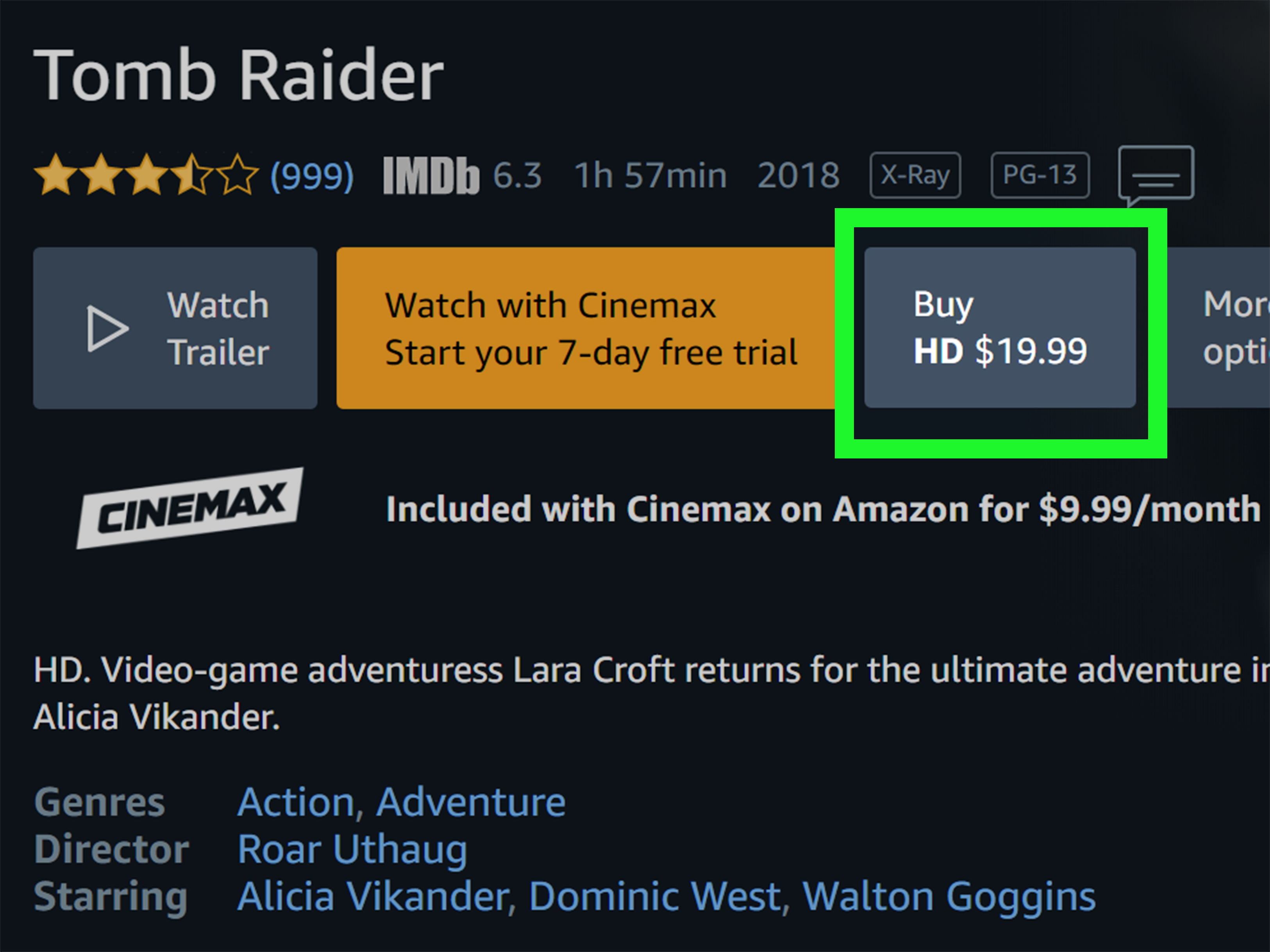
Before choosing a movie, look carefully for labels such as “Included with Prime,” “Rent,” “Buy,” “Free trial,” or the name of an add-on channel. This is one of the most important Prime Video search tips because the same search page can show free-with-membership movies beside paid titles.
If your goal is to watch without extra cost, focus on movies clearly marked as included with Prime. If a title shows a rental or purchase price, it is not currently part of your Prime membership library. The movie may still be worth it, but at least you will know you are paying by choice, not by thumbnail hypnosis.
3. Use the Movies Section Instead of General Search
If you only want films, go directly to the Movies area of Prime Video rather than searching from the home page. General search can return TV shows, episodes, sports content, channels, and other media. The Movies section keeps your browsing more focused.
This is especially useful when you are browsing by mood. You may not know the exact title, but you know you want an action movie, mystery, family film, thriller, documentary, or comfort-watch comedy. Starting in the movie area reduces clutter and helps Prime Video show results that match your intent.
4. Browse by Genre
Genre browsing is one of the easiest ways to discover Prime Video movies. Look for categories such as comedy, drama, action, horror, romance, documentary, science fiction, fantasy, animation, family, and independent films. Genres are useful because they let you search by feeling instead of title.
For example, if you are planning a low-effort Sunday, “romantic comedy” may be better than searching for one specific movie. If you are hosting friends, “action” or “thriller” may get everyone’s attention faster than asking five people what they want and receiving five versions of “I’m fine with anything.” Nobody is fine with anything. They are simply avoiding responsibility.
5. Search by Actor or Director
If you enjoy a certain performer or filmmaker, search their name. Prime Video often surfaces movies and shows connected to that person. This works well for actors with large filmographies, directors with recognizable styles, or family-friendly stars your household already likes.
Try searches such as “Denzel Washington movies,” “Meryl Streep,” “Christopher Nolan,” “Greta Gerwig,” or “classic Clint Eastwood.” Results will vary based on current availability, region, subscriptions, and rental options, but this method is excellent when you want something familiar without watching the same favorite for the 42nd time.
6. Search by Franchise or Series Name
Many viewers search for movie franchises, not individual titles. Try entering the franchise name, such as “Mission Impossible,” “Rocky,” “Transformers,” or “The Lord of the Rings.” This can help you find related films, spin-offs, rentals, purchases, and included titles in one place.
Always check each movie individually. A franchise search may show one film included with Prime, another available through a channel, and another only available to rent. Streaming rights change over time, so a complete series may not always live in one subscription library. Streaming platforms enjoy keeping us humble.
7. Use Voice Search on Supported Devices
If you use Fire TV or another supported device with voice features, voice search can be faster than typing with a remote. Press the microphone button and say the title, actor, genre, or phrase you want. Examples include “Find action movies on Prime Video,” “Search for family movies,” or “Show me movies with Sandra Bullock.”
Voice search is especially helpful on TV screens because typing with arrow buttons can feel like writing a novel with a toothpick. Speak clearly, use specific words, and check whether the results come from Prime Video, a channel, or another app on your device.
8. Use Profiles for Better Recommendations
Prime Video profiles can separate recommendations, watch progress, and watchlists for different users. If several people share one account, profiles help prevent recommendation chaos. Without profiles, your carefully curated drama list may be invaded by cartoons, wrestling, reality shows, and one suspiciously specific documentary about ancient plumbing.
Choose the correct profile before searching. Over time, Prime Video can better understand what that profile watches. This does not make search perfect, but it can improve rows such as recommended movies, continue watching, and related titles.
9. Build a Watchlist While You Search
When you find a movie that looks interesting, add it to your Watchlist instead of trying to remember it. The Watchlist is useful for collecting movies you may want later, especially when you are browsing during lunch but watching at night.
A good Watchlist turns random searching into organized searching. Add movies by genre, mood, or family interest. Then, when movie night arrives, you can choose from a shorter list instead of restarting the entire search ritual. Think of it as meal prepping, but for your eyeballs.
10. Search the Store When You Want New Releases
If you are looking for a newer movie that is not included with Prime, check the Prime Video Store. Many newer releases are available to rent or buy before they arrive in a subscription library. This is useful for movie nights, date nights, or moments when everyone refuses to wait six months.
Renting usually gives you temporary access, while buying adds the title to your digital video library. Always read the price and playback terms before confirming. Also remember that availability can vary by marketplace, device, and licensing rights.
11. Search Within Add-On Channels
Prime Video also offers add-on subscriptions, sometimes called channels. These may include premium networks, niche streaming services, sports packages, or specialty libraries. When searching, you may see a movie that requires a channel subscription or free trial.
If you already subscribe to a channel, searching inside that channel’s area can make discovery easier. If you do not subscribe, check whether the movie is available through a free trial, monthly subscription, rental, or purchase. Do not start a trial unless you actually plan to use itand maybe set a reminder, because free trials have the memory of an elephant and the billing speed of a cheetah.
12. Use Age Ratings for Family Movie Searches
When searching for family-friendly Prime Video movies, pay attention to age ratings such as G, PG, PG-13, R, TV-Y, TV-PG, or TV-14. Ratings help you avoid awkward surprises, especially when kids are in the room and the remote is mysteriously never in your hand.
Prime Video also supports parental controls and restrictions. If children use the account, set up appropriate restrictions and profiles so search results and playback options are better matched to the household. This makes family movie night smoother and reduces the chance of a “Well, that escalated quickly” situation.
13. Use Third-Party Streaming Guides for Better Filters
Third-party streaming guides such as JustWatch can help you search Prime Video movies with extra filters. These tools often let you browse by streaming provider, genre, release year, age rating, price, and availability. They can be especially useful when Prime Video’s built-in search feels too broad.
For example, you can filter for movies available on Amazon Prime Video, then narrow the list to thrillers from the 1990s or family movies with a specific rating. After finding a title, open it in Prime Video and confirm the current availability. Streaming rights change, so always double-check before gathering snacks and announcing, “I found the perfect movie.”
14. Search IMDb Before You Decide
IMDb is useful when you want more context before watching a movie. You can look up cast members, directors, release years, parental guidance, plot summaries, reviews, and ratings. Since IMDb and Amazon are connected brands, Prime Video users often see IMDb-related information around titles and playback features.
This is helpful when two movies have similar names or when you recognize an actor but cannot place them. It also helps you avoid accidentally choosing a remake, sequel, or unrelated film with a title that sounds suspiciously familiar.
15. Refresh Your Search Strategy Regularly
Prime Video’s catalog changes as licensing agreements, new releases, original films, and channel offerings change. A movie that was included last month may require a rental today, while a paid title may become included later. That means your search strategy should be flexible.
Check new releases, browse recently added movies, revisit your Watchlist, and search by genre when you are not sure what to watch. If a movie is unavailable, search again later or use a streaming guide to see whether it moved to another service. In the streaming world, movies migrate like tiny digital birds.
Best Search Tips for Different Devices
Searching on the Prime Video Website
The Prime Video website is often the easiest place for detailed searching because you can type quickly, open multiple pages, compare prices, and read title information without fighting a remote. Use the search bar, browse the Movies section, and check labels carefully. If you are planning a watchlist, the website is a convenient place to add several titles at once.
Searching in the Mobile App
The Prime Video mobile app is useful for searching on the go. You can browse titles, add movies to your Watchlist, download eligible titles for offline viewing, and continue playback later on another device. Downloads are especially helpful before flights, road trips, or any place where Wi-Fi behaves like a shy woodland creature.
Searching on Smart TVs
Smart TV apps are great for watching but can be slower for searching. Use shorter search terms, browse categories, or rely on your Watchlist. If typing with the remote becomes annoying, search on your phone or computer first, add the movie to your Watchlist, and then open the Watchlist on your TV.
Searching on Fire TV
Fire TV users can often search with voice commands, browse Prime Video rows, or search across apps. When results appear, confirm whether the title is available on Prime Video, another installed app, a channel, or the Prime Video Store. Fire TV can be powerful, but broad results require careful reading.
Common Prime Video Search Mistakes to Avoid
Assuming Every Result Is Free With Prime
This is the biggest mistake. Prime Video search results may include included titles, rentals, purchases, channel titles, and unavailable titles. Always check the label and price before selecting a movie.
Ignoring Region and Availability Changes
Movie availability can differ by country and change over time. If you read an old recommendation list online, the movie may no longer be included with Prime in your region. Use current search results as the final source of truth.
Letting the Watchlist Become a Junk Drawer
A Watchlist is only helpful if it stays organized. Remove movies you no longer want, titles that are no longer available, and random additions from that one night when you were convinced you needed six pirate documentaries.
Forgetting About Rentals and Purchases
Sometimes the movie you want is not included, but renting it may still be the best option. Compare the rental price with your interest level. A small rental fee can be worth it for a specific movie night, while a random “maybe” title can wait.
How to Find Better Movies Faster
To search Prime Video efficiently, combine several methods. Start with a genre, narrow by actor or release era, check whether the title is included with Prime, read the details, and add promising movies to your Watchlist. If Prime Video’s built-in search does not give you enough control, use a streaming guide to filter more deeply.
Here is a simple example: Suppose you want a mystery movie for adults, preferably from the 2000s, included with Prime. Instead of searching “good movie,” search “mystery,” browse the movie results, check labels for “Included with Prime,” and use IMDb or a streaming guide to confirm rating, cast, and release year. That approach is faster and less chaotic than scrolling until your thumb files a complaint.
Another example: Suppose your family wants a PG comedy. Search “family comedy,” check age ratings, add three options to the Watchlist, and let everyone vote. This prevents the endless scroll spiral, also known as the part of movie night where popcorn is finished before the movie begins.
Experience-Based Tips for Searching Amazon Prime Movies
After using Prime Video across phones, browsers, smart TVs, and streaming devices, one lesson becomes obvious: the best search experience usually starts before you sit down to watch. When everyone is already on the couch, expectations are high, patience is low, and someone has already opened a bag of chips with the emotional intensity of a movie trailer. That is not the ideal time to investigate whether a film is included with Prime, only available through a channel, or hiding behind a rental fee.
A practical habit is to build a Watchlist during the week. Whenever you hear about a movie from a friend, podcast, review, trailer, or social media post, search for it immediately and add it if it looks interesting. Later, when you actually want to watch something, you are choosing from a list of pre-approved options instead of wandering through the Prime Video homepage like a tourist without a map.
Another useful experience is to search by mood rather than title. Many people open Prime Video with the sentence, “I don’t know what I want.” That is fine. Start with mood words: “funny,” “suspense,” “feel-good,” “classic,” “scary,” “romantic,” “family,” or “based on true story.” Results will not be perfect, but they can push you toward a category. Once you see a few titles, your brain usually wakes up and says, “Ah yes, I want something like that, but with fewer explosions and more dogs.”
For households, profiles are more important than they first appear. If everyone uses the same profile, recommendations become a strange soup of competing tastes. One person watches superhero movies, another watches preschool shows, someone else watches documentaries about volcanoes, and suddenly the algorithm thinks your household is a five-year-old geologist with a cape. Separate profiles keep search results and recommendations cleaner.
It also helps to search on the easiest device and watch on the best device. A laptop or phone is better for typing, comparing, and reading details. A TV is better for viewing. Search on your phone, add the title to your Watchlist, then open it on your TV. This small workflow can save a surprising amount of time, especially if your TV remote treats text entry like a medieval punishment.
Finally, do not be afraid to use outside tools. Prime Video is the place to watch, but a streaming guide or IMDb page can be the place to decide. Check genre, rating, runtime, cast, parental guidance, and availability before committing. A two-minute check can prevent a two-hour mistake. That is not overthinking; that is responsible couch management.
Conclusion
Searching Amazon Prime movies is easy once you know where to look and what the labels mean. Use the search bar for exact titles, browse the Movies section for discovery, filter by genre when you only know your mood, search by actor or franchise when you want something familiar, and check “Included with Prime” before you press play. Add useful titles to your Watchlist, use profiles for cleaner recommendations, and rely on third-party streaming guides when you need stronger filters.
The goal is not to search harder. The goal is to search smarter. With these 15 steps, Prime Video becomes less of a scrolling maze and more of a movie library you can actually use. And that means more time watching, less time arguing, and fewer tragic evenings lost to thumbnail fatigue.