Small text on a Windows screen can turn a normal workday into a staring contest with your monitor. You lean forward. You squint. You zoom in with your face like a detective examining a clue in a mystery movie. Good news: Windows already includes several built-in ways to make text bigger, easier to read, and less likely to make your eyes file a formal complaint.
Whether you use Windows 11 or Windows 10, you can increase text size, use display scaling, zoom in with keyboard shortcuts, or open Magnifier for temporary close-up viewing. The trick is knowing which method solves your problem. Making only text bigger is different from making everything bigger. Browser zoom is different from Windows Magnifier. And yes, your keyboard has shortcuts that can save you from digging through Settings like you are on a digital treasure hunt.
This guide explains how to make text bigger in Windows using shortcuts, Magnifier, Accessibility settings, browser zoom, and practical display adjustments. It also includes real-world tips from everyday use, so you can choose the best method instead of randomly pressing keys and hoping the screen behaves.
Quick Answer: The Fastest Ways to Make Text Bigger in Windows
If you need a quick fix, start with these options:
- Make Windows text bigger: Press Windows + U, choose Text size, move the slider, and select Apply.
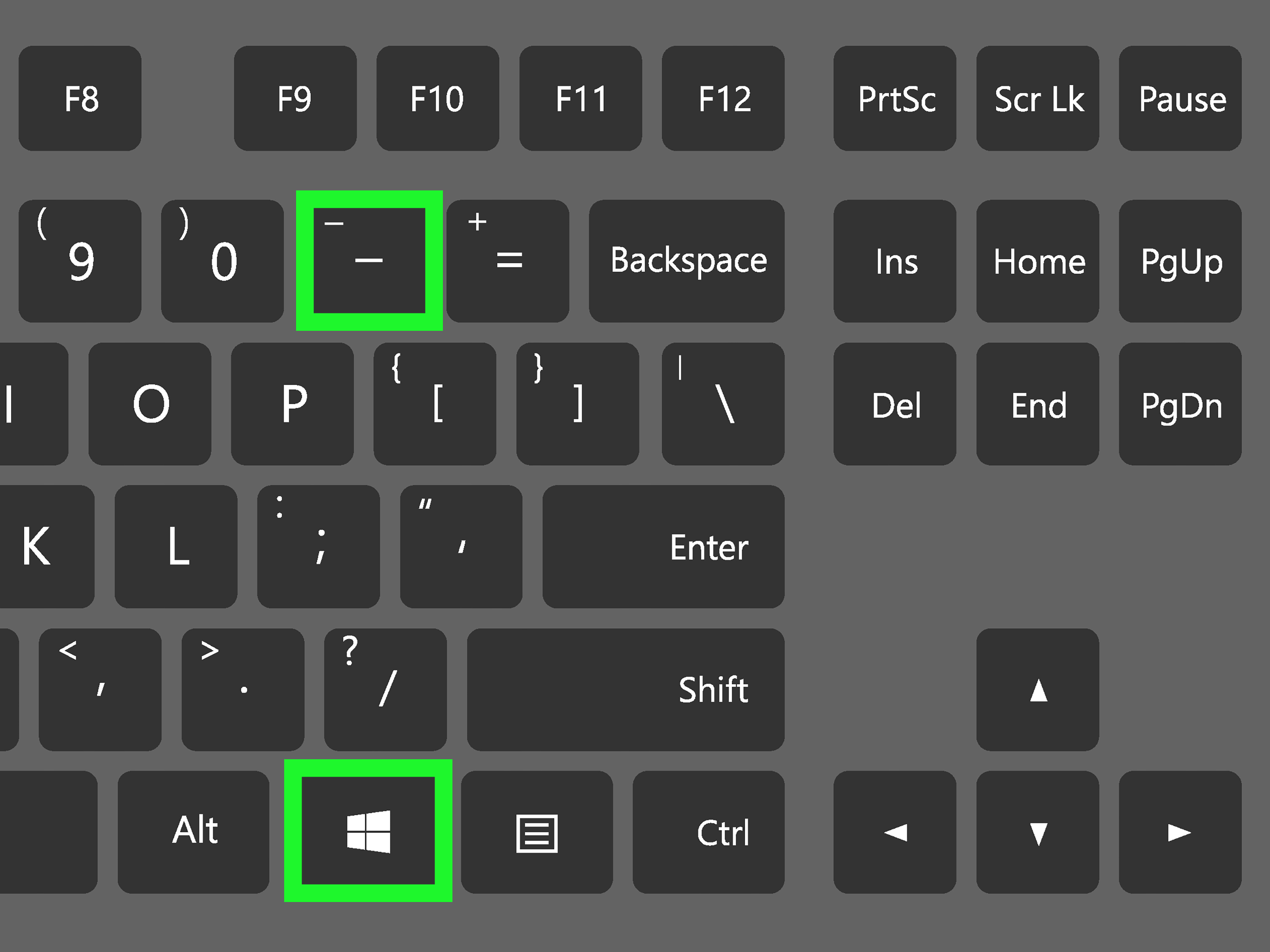
- Open Magnifier instantly: Press Windows + Plus (+).
- Zoom out with Magnifier: Press Windows + Minus (-).
- Turn off Magnifier: Press Windows + Esc.
- Make a web page bigger: Press Ctrl + Plus (+) in most browsers.
- Reset browser zoom: Press Ctrl + 0.
For a permanent readability upgrade, use Windows text size or display scaling. For a temporary close-up, use Magnifier. For websites, use browser zoom. Think of them as three different tools in the same “please stop making me squint” toolbox.
Method 1: Make Only Text Bigger in Windows Settings
The best first step is usually the built-in Text size setting. This makes many words in Windows larger without making every icon, button, window, and app balloon in size. It is ideal when menus, labels, title bars, and system text feel too small, but the rest of your screen layout is fine.
How to increase text size in Windows 11
- Click the Start button.
- Open Settings.
- Select Accessibility.
- Choose Text size.
- Move the slider to the right until the preview text looks comfortable.
- Select Apply.
You can also press Windows + U to open Accessibility settings faster. This shortcut is handy if you are setting up a new PC for someone who needs larger text right away.
How to increase text size in Windows 10
- Click Start.
- Open Settings.
- Go to Ease of Access.
- Select Display.
- Under Make text bigger, move the slider to the right.
- Choose Apply.
This option is especially helpful for people who can read large headings comfortably but struggle with small menu labels, file names, app settings, and system messages. It gives Windows a readability boost without making the desktop feel like it was designed for a movie theater screen.
Method 2: Make Everything Bigger With Display Scaling
Sometimes text is not the only problem. Maybe icons are tiny, app buttons are hard to click, and dialog boxes look like they were built for ants with excellent vision. In that case, use display scaling.
Display scaling increases the size of text, apps, icons, buttons, and other on-screen elements. It is often the best solution on high-resolution laptops, 4K monitors, small screens, or any display where Windows looks technically sharp but practically microscopic.
How to change display scale in Windows
- Press Windows + I to open Settings.
- Select System.
- Choose Display.
- Find Scale under Scale & layout.
- Choose a larger percentage, such as 125%, 150%, or the recommended option.
If you are unsure what to choose, start with the recommended scale. Then test your everyday apps: browser, email, file manager, spreadsheets, design tools, and video calls. If everything feels too large, step back down. If text still looks too small, go higher.
Text size vs. scaling: What is the difference?
Text size changes many words in Windows while leaving most interface elements close to their original size. Display scaling changes the size of almost everything. Text size is a gentle adjustment. Scaling is the bigger hammer. Both are useful, but they solve slightly different problems.
For example, if File Explorer labels are small but icons are fine, try Text size first. If the entire screen feels too small, use Scale. If you only need to inspect something briefly, use Magnifier instead.
Method 3: Use the Windows Magnifier Shortcut
Magnifier is the fastest way to zoom in on part or all of your screen. It does not permanently change your display settings. Instead, it acts like a digital magnifying glass. This is perfect when you need to read fine print in an app, inspect a small button, review a dense chart, or decode a tiny error message that seems personally offended by readability.
Essential Magnifier keyboard shortcuts
- Windows + Plus (+): Turn on Magnifier and zoom in.
- Windows + Minus (-): Zoom out.
- Windows + Esc: Turn off Magnifier.
- Ctrl + Alt + Mouse wheel: Zoom in or out using your mouse.
- Ctrl + Alt + Arrow keys: Move around the magnified screen.
- Windows + Ctrl + M: Open Magnifier settings.
- Ctrl + Alt + M: Switch between Magnifier views.
The most important shortcut is Windows + Plus (+). Press it once, and Magnifier opens. Keep pressing it to zoom in further. When you are done, press Windows + Esc. That is the emergency exit, the “thank you, Magnifier, your shift is over” key combination.
Method 4: Choose the Best Magnifier View
Magnifier has different viewing modes. The right one depends on how you work and how much of the screen you want enlarged.
Full screen view
Full screen magnifies the entire display. This is useful if you want a broad zoomed-in experience across Windows. The downside is that you may not see the entire desktop at once, so you need to move the pointer or keyboard focus to navigate around the enlarged area.
Lens view
Lens works like a movable magnifying glass. Only the area around your pointer is enlarged. This is great when most of the screen is readable but you occasionally need help with small details.
Docked view
Docked keeps a magnified area at the top of the screen while the rest of the desktop stays normal. This can be useful for reading lines of text, checking menus, or following along while typing.
To cycle through views, press Ctrl + Alt + M. Try each one for a few minutes. Full screen feels immersive, Lens feels flexible, and Docked feels organized. None is “best” for everyone; the winner is the one that makes your eyes relax.
Method 5: Make Text Bigger in Web Browsers
If the small text problem happens mostly on websites, you may not need to change Windows at all. Browser zoom is quick, reversible, and works in Microsoft Edge, Chrome, Firefox, and many other browsers.
Browser zoom shortcuts
- Ctrl + Plus (+): Zoom in on a web page.
- Ctrl + Minus (-): Zoom out.
- Ctrl + 0: Reset the page to default zoom.
- Ctrl + Mouse wheel up: Zoom in.
- Ctrl + Mouse wheel down: Zoom out.
Browser zoom is excellent for articles, online forms, dashboards, shopping pages, email sites, and help documents. It is also safer than changing your screen resolution, which can make text blurry or create awkward display proportions.
One small warning: zooming a website too far may cause menus or page elements to shift. That is not your fault. Some websites handle large zoom gracefully; others behave like a folding chair at a windy picnic. If a page looks broken, lower the zoom a little or try Reader Mode or Immersive Reader when available.
Method 6: Use App-Specific Font Settings
Some programs have their own text-size controls. For example, Microsoft Office apps, Outlook, Teams, code editors, PDF readers, and design tools may let you change font size, zoom level, reading view, message list spacing, or editor preferences.
This matters because Windows text size does not always control every third-party app. If one program remains stubbornly tiny after you change Windows settings, open that app’s settings and search for words like font, zoom, display, accessibility, appearance, or view.
Common app examples
- Word or Google Docs: Use the zoom control or increase document font size.
- PDF readers: Use zoom percentage, fit width, or reading mode.
- Email apps: Look for message list text size or reading pane zoom.
- Code editors: Increase editor font size and terminal font size separately.
- Browsers: Use page zoom or default font-size settings.
App-specific settings are often the most precise fix. They let you enlarge the area where you actually read without changing your entire Windows layout.
Method 7: Improve Text Clarity, Not Just Text Size
Bigger text is helpful, but clarity matters too. If text looks blurry, fuzzy, jagged, or slightly smeared, increasing size may only make the blur bigger. In that case, check these settings.
Use the recommended display resolution
Open Settings > System > Display and make sure your display resolution is set to the recommended option. LCD and OLED screens usually look sharpest at their native resolution. Lowering resolution can make everything larger, but it often reduces sharpness. That is like solving a small-print problem by putting petroleum jelly on your glasses. Technically different, not exactly better.
Try ClearType text tuning
Windows includes ClearType, a feature designed to make text easier to read on many screens. Search the Start menu for Adjust ClearType text, open the ClearType Text Tuner, and follow the prompts. You will choose the text samples that look best to you. It only takes a minute and can make fonts look smoother.
Check multiple monitors
If you use more than one monitor, each display may need its own scale setting. A laptop screen at 150% and an external monitor at 100% can work well, but mismatched resolutions or scaling can make apps look odd when dragged between screens. Test your main apps on each monitor and adjust scaling separately if needed.
Best Settings for Different Situations
If you read articles and emails all day
Use browser zoom, email reading pane zoom, and Windows Text size. This combination improves comfort without making the whole desktop feel oversized.
If you use a small laptop screen
Try display scaling at 125% or 150%. Small high-resolution laptop screens often need scaling because everything can look crisp but tiny.
If you give presentations or share your screen
Use Magnifier for temporary zooming. It lets your audience see details without permanently changing your settings before every meeting.
If you help a parent, student, or coworker
Start with Text size, then adjust Scale if needed. Also teach them Windows + Plus and Windows + Esc. Those two shortcuts are easy to remember and surprisingly empowering.
Troubleshooting: Why Did My Screen Suddenly Get Huge?
If your screen suddenly looks enormous, you probably activated Magnifier by accident. Press Windows + Esc to close it. If only a website is huge, press Ctrl + 0 in the browser. If the entire Windows interface is permanently large, check Settings > System > Display > Scale.
If desktop icons changed size, you may have used Ctrl + mouse wheel on the desktop. Right-click the desktop, choose View, and select small, medium, or large icons. Windows has many zoom-related shortcuts, which is useful until your cat walks across the keyboard and turns your desktop into a billboard.
Practical Experience: What Actually Works Best in Daily Use
In real-world use, the best way to make text bigger in Windows is rarely one single setting. Most people get the best results by combining two or three small adjustments. For example, a comfortable setup on a 13-inch or 14-inch laptop might use Windows display scaling at 125%, browser zoom at 110%, and Magnifier only when reading tiny labels in software tools. That setup keeps the screen usable without making everything feel comically oversized.
One of the most common mistakes is changing screen resolution instead of scaling. It may seem logical: lower resolution makes things bigger. But on modern displays, this often makes text look soft or blurry. Scaling is usually the better option because it keeps the screen at its sharp native resolution while enlarging interface elements in a cleaner way.
Another practical lesson: browser zoom solves more problems than people expect. Many users complain that “Windows text is too small,” but what they really mean is that websites, online banking pages, recipes, dashboards, or email newsletters are too small. In that situation, Ctrl + Plus is faster than changing system settings. Even better, Ctrl + 0 instantly resets the page if you overdo it.
Magnifier is best treated as a temporary tool, not always a permanent lifestyle. It is excellent for reading a tiny serial number in a support window, checking spreadsheet details, reviewing small UI controls, or helping someone over a video call. But if you find yourself using Magnifier every five minutes, that is a sign your normal text size or display scale should be increased.
For older adults or anyone with eye strain, the most successful setup usually starts with three changes: increase Windows Text size, set display Scale to a comfortable percentage, and pin or remember Magnifier shortcuts. The goal is not simply to make everything large; the goal is to reduce effort. A good setting lets you sit naturally, read without leaning forward, and use the computer for longer without fatigue.
For people who work with spreadsheets, accounting software, medical portals, or dense admin dashboards, the Lens view in Magnifier can be surprisingly useful. Full screen zoom may feel disorienting because you lose the overall layout. Lens view lets you keep the big picture while zooming only the part under the pointer. It feels more like using a real magnifying glass and less like falling into your monitor.
For writers, editors, students, and researchers, app-level zoom is often the cleanest fix. In Word, Google Docs, PDF readers, and browsers, increasing zoom inside the app gives you larger reading text while keeping Windows menus normal. This prevents the “giant toolbar, tiny document” problem that can happen when only one part of the experience needs adjustment.
Finally, comfort changes over time. A setting that felt perfect on a sunny morning may feel too small at night. A laptop that looks fine at your desk may be hard to read in a coffee shop. Do not be afraid to adjust. Windows gives you these tools because screens, eyes, lighting, and tasks all change. The best setup is the one that helps you read naturally, click accurately, and stop negotiating with tiny letters.
Conclusion
Learning how to make text bigger in Windows is not just a tech trick; it is a simple way to make your computer more comfortable, accessible, and productive. Use Text size when words are too small, Display scaling when the entire interface needs to grow, Magnifier when you need a quick close-up, and browser zoom when websites are the main problem.
The best shortcuts to remember are Windows + Plus to open Magnifier, Windows + Minus to zoom out, Windows + Esc to close Magnifier, Ctrl + Plus to zoom in on web pages, and Ctrl + 0 to reset browser zoom. With those in your pocket, tiny text loses most of its power. Your monitor can stop being a puzzle, and your eyes can finally take a coffee break.