Redialing sounds like one of those tiny phone skills that should not need an article. Press a button, call again, go live your life, right? Not quite. Depending on whether you are using an iPhone, an Android phone, a landline, or a business calling app, the fastest way to redial can be slightly different. And when you are trying to reach a doctor’s office, a customer service agent, your delivery driver, or that one friend who somehow treats voicemail like ancient pottery, every tap matters.
This guide explains 4 ways to redial clearly, practically, and without making your phone feel like it came with homework. You will learn how to redial the last number, call back from recent calls, use landline redial features, and redial through modern calling apps such as Google Voice, Microsoft Teams, Zoom Phone, or similar VoIP tools. We will also cover smart etiquette, scam safety, and real-world tips so you do not accidentally call back a suspicious number at 2:07 a.m. and become the main character in a cautionary tale.
What Does “Redial” Mean?
To redial means to call a number again after you have already dialed it or after that number has called you. In everyday use, people usually mean one of two things: calling the last number they dialed, or calling back a number from their recent call history. On older phones, redial was often a dedicated button. On smartphones, it usually lives inside the Phone app, Recents list, call log, or dial pad.
The exact redial method depends on the device and service. An iPhone can redial the last outgoing number directly from the keypad. Android phones usually let you redial through the Recents tab or call history. Landlines may support star codes such as *69 for calling back the last incoming number or *66 for busy redial where available. Business phone systems often use a call history screen with a “call back” option.
1. Redial the Last Number on an iPhone
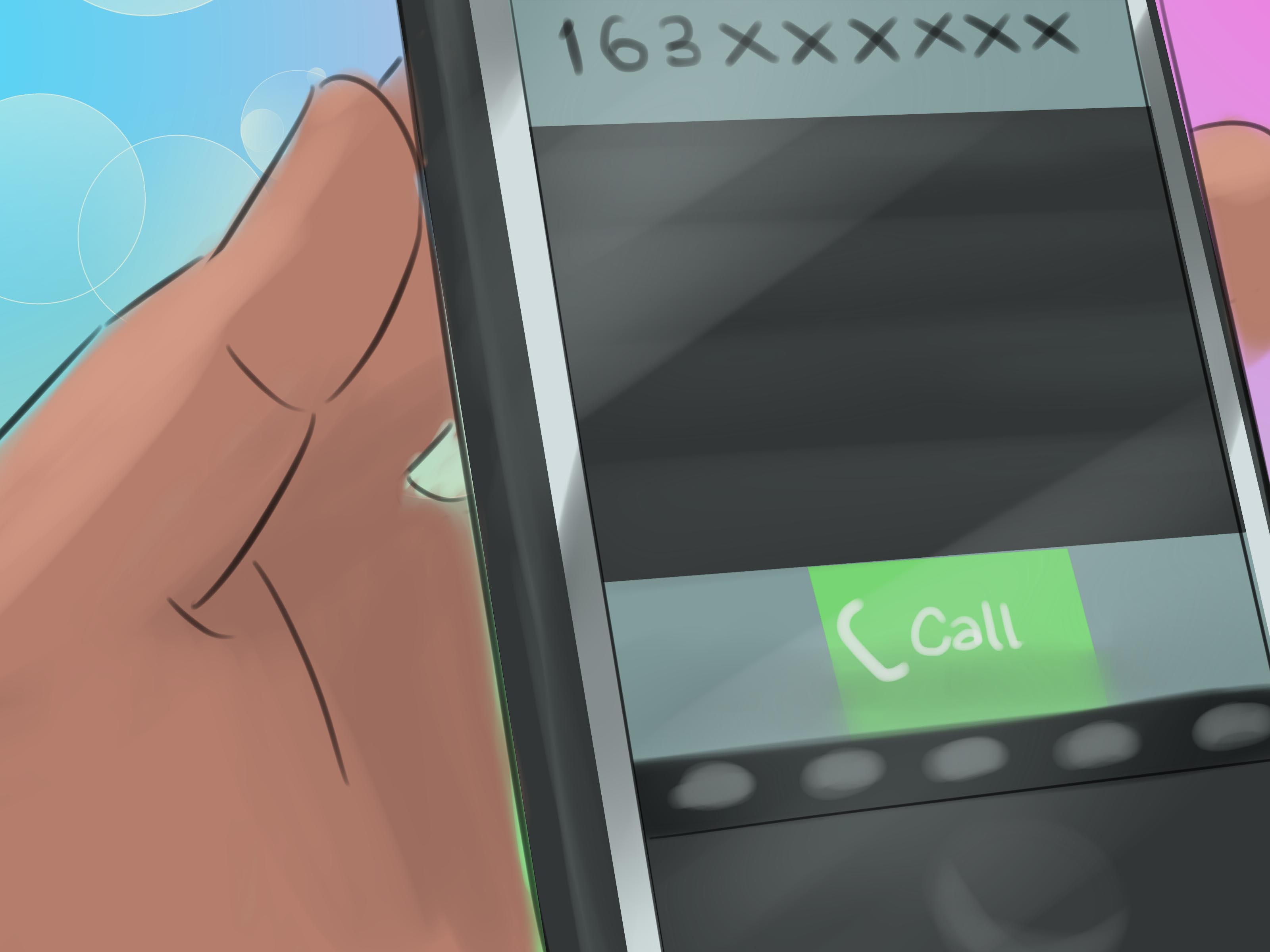
If you use an iPhone, the quickest redial trick is hiding in plain sight. Open the Phone app, tap Keypad, and press the green Call button once. Your iPhone should display the last number you dialed. Press the green Call button again, and the phone places the call.
Step-by-Step: iPhone Last Number Redial
- Open the Phone app.
- Tap Keypad.
- Tap the green Call button once.
- Check that the number shown is the one you want.
- Tap the green Call button again to redial.
This method is especially useful when your previous call did not connect, rang forever, or hit a busy line. It saves you from hunting through the Recents list like a detective with low battery.
Redial from iPhone Recents
You can also redial from your iPhone’s Recents list. Open the Phone app, tap Recents, and tap the number or contact you want to call again. This is better when the number was not the very last one you dialed. For example, maybe you called your dentist, then your mom, then your dentist again because adulthood is apparently 40% scheduling appointments.
Before tapping, check whether the call was incoming, outgoing, or missed. If a contact has multiple numbers, such as mobile, office, and home, make sure you are calling the correct one. Calling someone’s office line at night is not illegal, but it does feel like sending a carrier pigeon to a locked building.
2. Redial on Android Phones
On Android, redialing depends a little on your phone model and default dialer app. Many Android phones use the Phone by Google app, while Samsung Galaxy devices may use Samsung’s Phone app. The good news is that the basic idea is similar: open the Phone app, go to Recents or Call history, and tap the number you want to call again.
Step-by-Step: Android Redial from Recents
- Open the Phone app.
- Tap Recents, Call history, or a similar tab.
- Find the number or contact you want to redial.
- Tap the phone icon or the call entry.
- Confirm the call if your phone asks.
Some Android phones also allow you to tap the call button on the keypad to bring back the last dialed number, though this behavior may vary by manufacturer, Android version, and dialer app. If it works on your device, congratulations: your phone just gave you a tiny productivity coupon.
Redial on Samsung Galaxy Phones
On many Samsung Galaxy phones, open the Phone app and tap Recents. You will see recent incoming, outgoing, missed, and rejected calls. Tap the number or contact, then tap the phone icon to call again. Samsung phones may also offer filters so you can view missed calls, outgoing calls, or all calls, which is helpful when your call log looks like a small-town election result.
Helpful Android Redial Tips
If a number is not appearing in your call history, check whether you used another calling app, such as Google Voice, WhatsApp, Zoom Phone, or a carrier Wi-Fi calling feature. Some apps keep their own call logs. That means the number you want may be hiding in a different app, quietly judging your organizational system.
Also, be careful with third-party auto-redial apps. Some apps may request broad permissions, behave inconsistently, or fail to place calls automatically because of Android security limits. If you use one, choose carefully, review permissions, and avoid apps that seem suspicious or promise magical access to call histories that are not yours.
3. Redial on a Landline Using Redial, *69, or *66
Landline phones may feel old-school, but they still know a few tricks. Depending on your phone model and service provider, you may have a physical Redial button, a Call Return feature, or a Busy Redial service. These features are especially useful for home phones, office desk phones, and traditional business lines.
Use the Redial Button
Many landline handsets have a dedicated Redial button. Pick up the receiver, wait for the dial tone, and press Redial. The phone usually calls the last outgoing number you dialed. This is the classic method: simple, fast, and blessedly free of software updates.
Use *69 to Call Back the Last Incoming Number
Some landline services support *69, often called Call Return. This feature can call back the last incoming number, when the number is available and not blocked. To use it, pick up the phone, listen for the dial tone, and press *69. Follow the voice prompts if your provider gives instructions.
There are limits. The number may not be available if the caller blocked caller ID, used a private number, or called through a system that does not pass along the callback number. Also, *69 is for calling back the last incoming call, not necessarily the last number you dialed.
Use *66 for Busy Redial
Some traditional phone providers offer *66, often called Busy Redial, Repeat Dialing, or Continuous Redial. It is designed for calling a busy number again automatically for a limited time, often up to about 30 minutes depending on the provider. When the line becomes available, your phone may alert you with a special ring.
To try it, call the number. If you hear a busy signal, hang up, pick up the receiver again, and dial *66. To cancel, many providers use *86, but you should check your own phone company’s instructions because star codes can vary by service and location.
4. Redial in Calling Apps and Business Phone Systems
Modern calling does not always happen through the default phone app. Many people use Google Voice, Microsoft Teams, Zoom Phone, RingCentral, Dialpad, or another VoIP service. In these apps, redial usually means opening the app’s call history and selecting the number or contact you want to call again.
Redial in Google Voice
Google Voice stores call, text, and voicemail history inside the Google Voice app or web interface. If you made the call through Google Voice, check Google Voice history rather than your phone’s regular Recents list. Tap the call entry, then choose the call option. This is useful when you use one number for personal calls and another number for work, side projects, or avoiding chaos like a responsible adult.
Redial in Microsoft Teams
Microsoft Teams includes a Calls area where users can view call history, access contacts, and call back people from previous calls. If your organization uses Teams Phone or business calling, open Calls, check History, and select the call-back option for the contact or number.
Redial in Zoom Phone
Zoom Phone users can view missed, answered, and outgoing calls in call history. Open the Zoom app, go to the phone or call history area, and select the number you want to call again. This is particularly handy for remote teams, customer support, sales calls, and anyone whose workday is basically “Can you hear me?” with better lighting.
Redial in RingCentral and Similar VoIP Tools
RingCentral and similar cloud phone systems usually include call logs for inbound and outbound calls. In most cases, open the phone or call history section, find the entry, and choose Call back or the phone icon. Some systems also allow filtering by missed calls, voicemails, call direction, or date, which is helpful for businesses that need to track customer conversations.
When You Should Not Redial
Redialing is convenient, but not every missed call deserves a comeback tour. Be cautious with unknown numbers, especially international numbers, one-ring calls, and numbers that leave vague or threatening messages. Scammers sometimes use missed calls to tempt people into calling back, which can lead to unexpected charges or attempts to steal personal information.
Do Not Redial Suspicious Numbers Automatically
Before calling back an unknown number, ask yourself a few quick questions:
- Do I recognize the number or area code?
- Did the caller leave a clear voicemail?
- Was the call only one ring?
- Does the message pressure me to act immediately?
- Could I verify the number through an official website or contact page?
If the call claims to be from a bank, government agency, delivery company, school, or medical office, do not rely only on caller ID. Look up the official number yourself and call that number directly. Caller ID can be spoofed, which is a fancy way of saying the screen can lie with confidence.
Redial Etiquette: How Many Times Is Too Many?
Just because you can redial does not mean you should launch a full-scale phone campaign. If someone does not answer, one or two redial attempts are usually enough unless the call is urgent or expected. After that, leave a voicemail or send a short text explaining why you called.
For businesses, repeated redialing can feel aggressive to customers. A better approach is to call once, leave a useful message, and follow up through the appropriate channel. For personal calls, avoid rapid-fire redialing unless you have a real reason. Nobody enjoys looking down and seeing seven missed calls unless the house is on fire, the dog is driving, or someone found the last slice of pizza.
Troubleshooting: Why Redial Might Not Work
If redial is not working, the cause is usually simple. The number may be blocked, unavailable, private, deleted from call history, or stored in a different calling app. You may also be dealing with weak signal, Wi-Fi calling problems, carrier routing issues, or app permissions.
Try These Fixes
- Restart your phone if call history is not loading.
- Check whether the number appears in another app, such as Google Voice or Teams.
- Update your phone app if features seem missing.
- Confirm that your SIM, carrier plan, or VoIP account supports calling.
- For landlines, ask your provider whether *69 or *66 is available.
- Make sure you are not trying to redial a blocked, private, or restricted number.
If you run a business and call history matters, consider exporting logs or using a phone system that keeps searchable records. For individuals, adding important numbers to contacts is still the simplest way to avoid future call-log archaeology.
Real-Life Experiences and Practical Lessons About Redialing
Redialing seems tiny until the exact moment you need it. One common experience is the “customer service loop.” You call a company, wait through hold music that sounds like a keyboard falling down stairs, finally reach a menu, and then the call drops. In that moment, knowing how to redial quickly can save several minutes and a surprising amount of emotional weather. On an iPhone, using the keypad redial shortcut can be faster than scrolling through Recents. On Android, the Recents tab is usually the safest route because you can visually confirm the number before calling again.
Another real-world situation is calling busy offices. Medical clinics, school offices, repair shops, and local government departments often have phone lines that get overwhelmed at certain times. Manual redial works, but it can become annoying quickly. If you are using a landline and your provider supports Busy Redial, *66 may help by repeatedly checking the busy line for you. However, this feature is not universal, and mobile networks typically do not work the same way. On a smartphone, patience plus a well-timed callback often beats tapping call 47 times like you are trying to win a carnival game.
There is also the “which app did I use?” problem. Many people now have regular phone calls, Google Voice calls, WhatsApp calls, Teams calls, and Zoom Phone calls all living in separate places. If you cannot find a number in your normal call log, think back to where the call happened. A work call may be in Teams. A client call may be in Zoom Phone. A second-number call may be in Google Voice. The phone is not hiding the number to be dramatic; it is probably just filed under a different app.
One useful habit is to save important numbers immediately after a call. If a delivery driver, contractor, school office, or support agent calls you, add the number to contacts with a clear label. Future-you will appreciate it. Future-you is already busy forgetting passwords and looking for chargers.
Another lesson: redialing unknown numbers is not always harmless. Many people have returned missed calls only to hear strange recordings, sales pitches, or suspicious requests. A good rule is simple: if the caller did not leave a real voicemail and you do not recognize the number, do not rush to redial. Search the number cautiously, check official websites, or wait for a proper message. A legitimate caller usually gives you enough context to respond safely.
For business users, redialing should be part of a larger communication habit. Keep notes after important calls, use call history filters, and avoid calling customers repeatedly without context. A quick follow-up message such as “Hi, I tried calling about your appointment request” is often more helpful than three silent missed calls. Redial is a tool, not a personality trait.
In short, the best redial method is the one that fits the device, the situation, and the caller. Use iPhone keypad redial for speed, Android Recents for control, landline star codes for traditional phone features, and VoIP call logs for business communication. And when the number looks suspicious, let caution answer the phone first.
Conclusion
Learning 4 ways to redial makes everyday calling faster and less frustrating. You can redial the last number on an iPhone, call back from Android Recents, use landline options like redial buttons or star codes, and redial through calling apps such as Google Voice, Microsoft Teams, Zoom Phone, and RingCentral. The key is knowing where your call history lives and checking the number before you call again.
Redialing is useful, but smart redialing is better. Confirm the number, avoid suspicious callbacks, use voicemail or text when repeated calls would be annoying, and save important contacts so you are not digging through call logs later. Your phone may be smart, but it still appreciates a little human supervision.
Note: This article is written for general educational use and is based on current phone, carrier, VoIP, and consumer-safety guidance. Feature names and star codes may vary by device, app version, service provider, and location.