The Steam Deck is not just a handheld gaming machine. It is also a small Linux computer wearing controller pants. That means you can play Elden Ring, check a walkthrough, open Gmail, stream video, manage cloud saves, and search “why is my boss fight suddenly a yoga class?” all from the same device. To do that comfortably, many users want Google Chrome on their Steam Deck.
The good news: downloading Chrome on a Steam Deck is simple. You do not need to replace SteamOS, install Windows, unlock scary developer settings, or whisper terminal commands into the void. In most cases, you can install Chrome directly from Gaming Mode or through Desktop Mode using the Discover app. Both methods work, but they serve slightly different situations.
This guide explains the 2 easy ways to download Google Chrome on a Steam Deck, how to launch it in Gaming Mode, what to do if Chrome does not appear, and how to make browsing on the Deck feel less like typing an email with a toaster.
Why Install Google Chrome on a Steam Deck?
Steam Deck already has a Steam interface, and Steam itself includes browser-like features in some areas. But a full browser such as Google Chrome gives you much more flexibility. You can sign in to your Google account, sync bookmarks, use password managers, open web apps, watch streaming services, access cloud gaming sites, read game guides, and manage accounts that do not fit neatly inside the Steam Store.
Chrome is especially useful if you use the Steam Deck as a travel device. A handheld that plays PC games and opens regular desktop websites can replace a laptop for light tasks. It is not exactly the world’s thinnest productivity machine, but it does a surprisingly good impression of one when paired with a dock, keyboard, mouse, and monitor.
Before You Start: What You Should Know
The Steam Deck runs SteamOS, which is based on Linux. Its Desktop Mode uses KDE Plasma, a familiar desktop environment with a taskbar, application launcher, software center, file manager, and regular windows. In other words, when you switch to Desktop Mode, the Deck stops pretending to be a console and starts acting like a mini PC.
Chrome on Steam Deck is typically installed as a Flatpak-style desktop app through the Discover software center or through SteamOS’s built-in Chrome prompt. Once installed, Chrome can be added to your Steam Library as a non-Steam app. That lets you open Chrome from Gaming Mode just like you would launch a game. Except instead of defeating dragons, you defeat login pages.
What You Need
- A Steam Deck or Steam Deck OLED with internet access
- A few minutes of free time
- Optional but helpful: a keyboard, mouse, or dock
- Your Google account login, if you want bookmark and password sync
You can complete both methods using only the Steam Deck controls. The trackpads work as a mouse, the right trigger works as a click, and Steam + X opens the on-screen keyboard. It is not glamorous, but neither was early space travel, and that worked out pretty well.
Method 1: Download Chrome from Gaming Mode
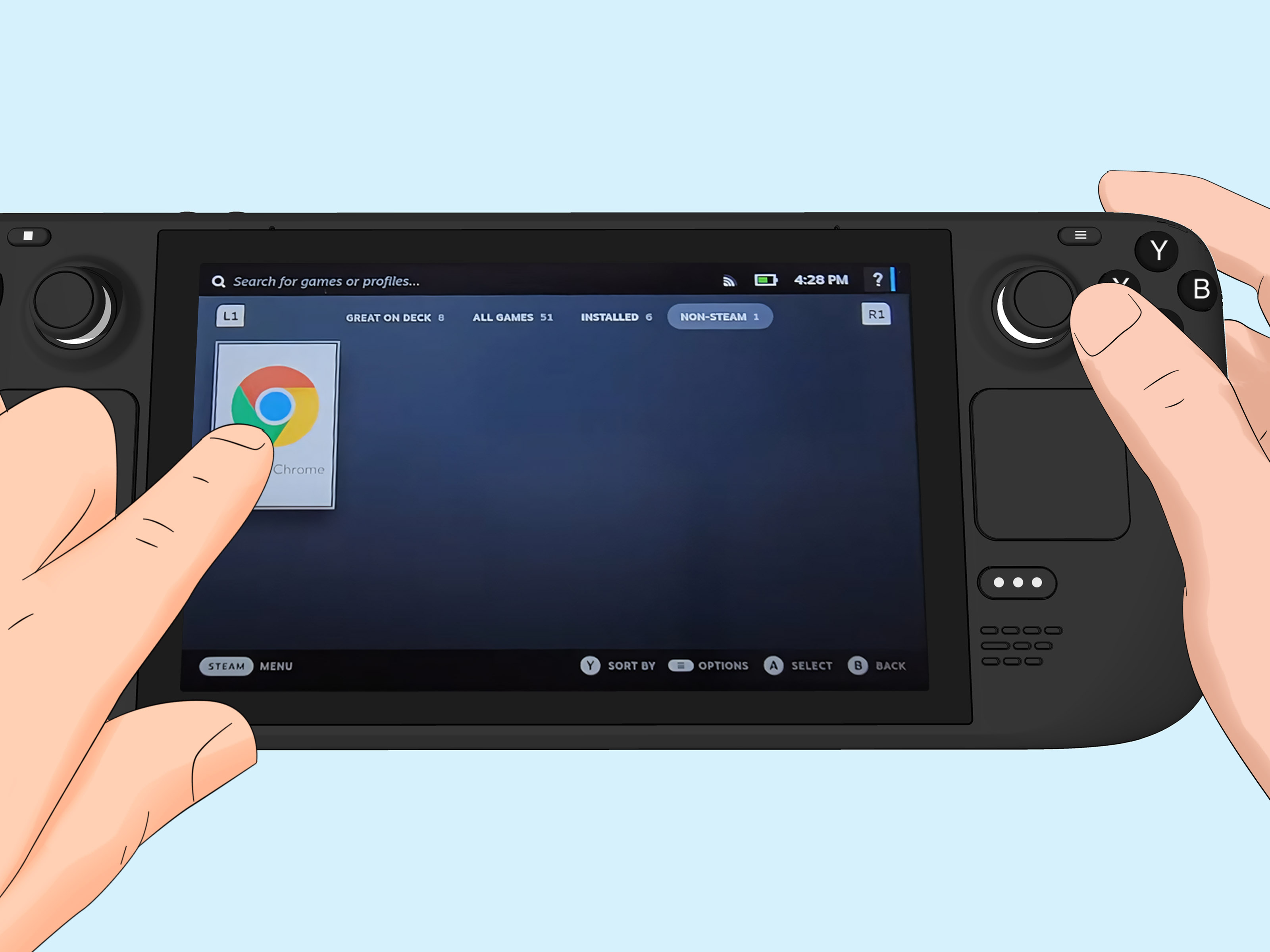
The easiest way to install Google Chrome on Steam Deck is through Gaming Mode. This method is best for new users because it avoids Desktop Mode entirely. SteamOS may show a built-in prompt in the Non-Steam section of your Library offering to install Chrome. If you see that option, take the win. Steam Deck has handed you the browser on a digital silver platter.
Step-by-Step Instructions
- Press the Steam button on your Steam Deck.
- Select Library.
- Use the R1 button to move to the Non-Steam tab.
- Look for a prompt or tile that offers to install Google Chrome.
- Select Add Chrome or the equivalent install option.
- Wait for the download and installation to finish.
- Open the Non-Steam tab again.
- Select Google Chrome, then press Play.
That is the fast route. No desktop. No package files. No complicated Linux commands. Just a few taps and Chrome appears in your Steam Library like a well-behaved guest.
When This Method Works Best
This method is ideal if your Steam Deck is new, recently reset, or has not had many non-Steam applications added yet. The Chrome prompt is designed to help users understand that non-Steam apps can be installed and launched from the Deck interface. It is convenient, quick, and beginner-friendly.
However, the prompt may not always appear. If you dismissed it earlier, already installed other non-Steam apps, or your system simply does not show it, do not panic. Your Steam Deck is not judging you. It is just time to use Method 2.
Method 2: Download Chrome in Desktop Mode with Discover
The second easy way to download Google Chrome on a Steam Deck is through Desktop Mode. This method gives you more control and is the best fallback if the Gaming Mode prompt does not appear. It is also the method you will use for many other desktop apps, so learning it is like unlocking a new skill tree.
Step 1: Switch to Desktop Mode
- Press the Steam button.
- Select Power.
- Choose Switch to Desktop.
Your Steam Deck will leave the console-style Gaming Mode and load the KDE Plasma desktop. This may take a moment. Once it loads, you will see a more traditional desktop interface.
Step 2: Open the Discover App
Look for the Discover icon on the taskbar. It usually looks like a shopping bag. Discover is the Steam Deck’s graphical software center in Desktop Mode. You can use it to search for and install many Linux apps without touching the terminal.
Open Discover, select the search bar, and type Google Chrome. If the on-screen keyboard does not appear automatically, press Steam + X.
Step 3: Install Google Chrome
When Google Chrome appears in the search results, select it and choose Install. Wait for the installation to complete. The download size can vary as versions change, but it is usually small enough that the process should be quick on a decent Wi-Fi connection.
If Discover asks for confirmation, accept it. If it seems stuck, check your internet connection, restart Discover, or reboot the Steam Deck and try again. Discover sometimes behaves like a cat near a closed door: perfectly capable, occasionally dramatic.
Step 4: Add Chrome to Steam
Installing Chrome in Desktop Mode lets you open it from the desktop, but most users also want Chrome available in Gaming Mode. To make that happen, add it to Steam as a non-Steam app.
- While still in Desktop Mode, open the Steam desktop app.
- Go to your Library.
- Click Add a Game in the lower-left corner.
- Select Add a Non-Steam Game.
- Find and check Google Chrome.
- Click Add Selected Programs.
Now Chrome is part of your Steam Library. It is not a game, of course, unless your idea of a game is opening 47 tabs and pretending RAM is infinite.
Step 5: Return to Gaming Mode
On the desktop, double-click Return to Gaming Mode. Once the Steam Deck returns to its main interface, press the Steam button, open Library, go to the Non-Steam tab, and select Google Chrome. Press Play to launch it.
Which Method Should You Choose?
If the Chrome prompt appears in Gaming Mode, use Method 1. It is the fastest and easiest option. If the prompt does not appear, or if you prefer a more traditional app installation process, use Method 2 through Desktop Mode and Discover.
Both methods ultimately do the same important thing: they put Chrome on your Steam Deck and make it available from the Non-Steam tab. The difference is mainly how you get there. Method 1 is like taking an elevator. Method 2 is like taking the stairs, but the stairs teach you how the building works.
How to Use Chrome Comfortably on Steam Deck
After installing Chrome, the next challenge is using it comfortably. The Steam Deck screen is sharp, but websites are not always designed for a seven-inch handheld display controlled by thumbs. A few small adjustments can make the experience much better.
Use Steam + X for the Keyboard
Whenever you need to type, press Steam + X to bring up the on-screen keyboard. This shortcut is essential. Without it, you may find yourself poking at text fields and wondering whether the website, the Deck, or the universe has betrayed you.
Use the Trackpads Like a Mouse
The right trackpad works well for moving the cursor. The right trigger can act as a left click, and the left trigger can often behave like a right click depending on your controller layout. For quick searches, this is enough. For longer sessions, a Bluetooth keyboard and mouse are much more comfortable.
Pin Chrome for Faster Access
Once Chrome is in your Non-Steam Library, you can favorite it or organize it into a collection. This makes it easier to find later. You can also customize artwork if you like your library to look polished. A gray placeholder tile works, but it does not exactly scream “premium handheld browser command center.”
Sign In Carefully
If you sign in to Chrome with your Google account, you can sync bookmarks, passwords, history, and extensions. That is convenient, but only do it on a Steam Deck you control. If the device is shared, set a lock screen PIN and be careful with saved passwords.
Common Problems and Easy Fixes
Chrome Does Not Show Up in Gaming Mode
If you installed Chrome in Desktop Mode but cannot find it in Gaming Mode, you probably forgot to add it as a non-Steam app. Go back to Desktop Mode, open Steam, choose Add a Game, select Add a Non-Steam Game, and add Google Chrome manually.
Chrome Is Missing from the Add Non-Steam Game List
If Chrome does not appear in the list, restart Steam while still in Desktop Mode. You can also restart the Steam Deck. If it still does not show up, launch Chrome once from the desktop application menu, close it, and try adding it again.
Discover Will Not Download Chrome
First, check Wi-Fi. Then close and reopen Discover. If that fails, restart the Steam Deck. Sometimes software centers need a refresh before they behave. Also make sure your system has enough free internal storage, because a nearly full drive can cause strange desktop problems.
Chrome Opens with a Tiny Interface
Some websites and desktop apps can feel small on the Steam Deck screen. Use Chrome’s zoom controls to increase page size. You can press Ctrl + Plus if you have a keyboard connected, or use Chrome’s menu to adjust zoom. In Gaming Mode, controller input can also be customized through Steam Input.
Video Streaming Feels Awkward
Chrome can be useful for streaming sites, but not every service behaves perfectly on Linux, handheld screens, or gamepad-style controls. For best results, use full-screen mode, keep the Deck plugged in during long viewing sessions, and consider a dock if you are watching on a TV or monitor.
Is Google Chrome Safe to Install on Steam Deck?
Yes, Google Chrome is safe to install on Steam Deck when you use the normal SteamOS prompt, Discover, or reputable software sources. As with any browser, the bigger safety risk is not the app itself but what you do inside it. Avoid suspicious downloads, fake login pages, strange pop-ups, and websites promising free games in exchange for your soul and possibly your Steam credentials.
Keep Chrome updated through Discover when updates appear. Also keep SteamOS updated, because system updates can improve compatibility, security, and general performance. The Steam Deck is a PC, and PCs enjoy updates the way houseplants enjoy water: not constantly, but definitely before things get crispy.
Can You Download Chrome from Google’s Website?
On a normal Linux desktop, Google offers Chrome packages for certain Linux distributions. But on Steam Deck, the simpler and cleaner approach is to use SteamOS’s built-in option or Discover. SteamOS is designed around a managed system layout, and desktop apps are commonly installed in a way that avoids unnecessary changes to the base operating system.
In plain English: do not make this harder than it needs to be. Use the easy methods. Your future self will thank you, probably while eating chips and browsing a walkthrough.
Best Uses for Chrome on Steam Deck
Once Chrome is installed, it can turn your Steam Deck into a more flexible device. Here are some practical uses:
- Opening walkthroughs while playing difficult games
- Watching YouTube, Twitch, or other video platforms
- Accessing Google Docs, Gmail, Drive, and Calendar
- Using cloud gaming services that support Chrome
- Managing accounts for game launchers and online stores
- Reading forums, patch notes, and mod instructions
- Checking maps, wikis, and build planners
The Steam Deck is at its best when it feels like a console but still has the freedom of a PC. Chrome fits neatly into that idea. You can keep the simple Gaming Mode experience while still having a proper browser one tab away.
Extra Experience: What It Is Really Like Using Chrome on a Steam Deck
Installing Chrome on the Steam Deck is easy, but the real question is whether it feels good to use afterward. The answer is: yes, with a few realistic expectations. Chrome on Steam Deck is not exactly the same as Chrome on a laptop. The screen is smaller, typing takes more effort, and some websites feel like they were designed by someone who believes every human owns a 27-inch monitor. Still, it is surprisingly useful.
The first thing most users notice is how handy Chrome becomes for game guides. Instead of grabbing a phone, unlocking it, searching for a boss strategy, getting distracted by messages, and somehow ending up watching a video about raccoons stealing pizza, you can open Chrome directly on the Deck. This is especially helpful for RPGs, survival games, puzzle games, and anything with crafting recipes that look like tax paperwork.
Chrome also works well for account management. Many PC games require logins, email confirmations, launcher accounts, two-factor authentication, or web-based settings. Having a browser available on the same device can save time. You can open Gmail, confirm a login, check a support page, or reset a password without leaving the Deck ecosystem completely.
For streaming, Chrome is useful but depends on the site. YouTube generally feels natural, especially in full screen. Text-heavy sites can be more awkward because scrolling and clicking small buttons with the trackpad requires patience. A dock changes everything. Connect the Steam Deck to a monitor, add a keyboard and mouse, and suddenly Chrome feels much more like a regular desktop browser. At that point, the Steam Deck becomes a tiny Linux PC that happens to also run your Steam library. That is a pretty excellent party trick.
Battery life is another practical detail. Browsing usually uses less power than demanding games, but video streaming, many open tabs, and background web apps can still drain the battery. If you plan to watch long videos or use Chrome for extended browsing, plug in the charger or use a power bank. Your Steam Deck battery is brave, not magical.
Typing is the biggest adjustment. The on-screen keyboard is fine for searches, short messages, and passwords, but it is not ideal for long writing sessions. If you want to use Google Docs, WordPress, email, or online work tools, a Bluetooth keyboard is worth it. Even a compact travel keyboard makes the Deck feel far more capable. Add a mouse, and Desktop Mode becomes comfortable enough for light productivity.
Extensions are another reason users like Chrome. Password managers, ad blockers, grammar tools, bookmark managers, and productivity extensions can make the browser feel familiar. However, be selective. Too many extensions can slow things down or clutter the experience. The Steam Deck has solid hardware for a handheld, but it is still a portable gaming device, not a workstation built to host 73 extensions and a small weather satellite.
The best experience comes from treating Chrome as a companion app rather than the main attraction. Use it for guides, media, quick searches, account pages, cloud tools, and web apps. For heavy desktop work, dock the Deck. For quick gaming support, launch Chrome from the Non-Steam tab. Once set up, it becomes one of those small upgrades that makes the Steam Deck feel much more complete.
Conclusion
Downloading Google Chrome on a Steam Deck is simple once you know where to look. The fastest option is to install Chrome directly from the Non-Steam section in Gaming Mode when the prompt appears. The more reliable fallback is to switch to Desktop Mode, open Discover, install Chrome, and add it to Steam as a non-Steam app.
Both methods are beginner-friendly, safe, and practical. Once Chrome is installed, your Steam Deck becomes more than a game launcher. It becomes a flexible handheld PC for guides, videos, cloud tools, email, account management, and everyday browsing. Just remember the golden rule of Steam Deck browsing: Steam + X is your keyboard shortcut, and a real keyboard is your sanity shortcut.
Note: SteamOS menus and app listings may change over time, but the two core methods remain the same: use the Gaming Mode Chrome prompt when available, or install Chrome through Desktop Mode with Discover and add it to Steam manually.