If your PC feels like it’s juggling 37 apps, 200 browser tabs, and that one mystery process that sounds like a lawnmower, you’re not alone. Closing programs one-by-one is fine… until you do it every day, or you need a “clean slate” before gaming, presenting, recording, or troubleshooting. That’s where a Windows batch file comes in: one double-click, and your chosen apps politely leave the party (or get escorted out).
This guide shows you how to close multiple programs with a batch file using built-in Windows commands like tasklist and taskkill. You’ll get a simple script, safer “try to close first” logic, a force-close fallback, plus troubleshooting tips so your batch script doesn’t go full chaos mode on your workflow.
Before You Start: A Quick Reality Check
Closing apps by process name is powerful, but it’s not magic. If an app has unsaved work, Windows can’t always save it for you (shocking, I know). And some programs spawn “helper” processes that need to be closed too. The goal here is to build a batch file that’s predictable, repeatable, and not a data-loss speedrun.
What You’ll Use
- Task Manager (to find the right process names)
- tasklist (to list running processes)
- taskkill (to end processes by name, PID, or filters)
- Notepad (or any text editor) to create the .bat file
The 9 Steps to Close Multiple Programs with a Batch File
-
Step 1: Decide What You Want to Close (and What You Absolutely Don’t)
Start by making a short list of programs you regularly want to closethink Chrome, Slack, Teams, Spotify, Discord, Steam, etc. Then make a second list: stuff you should not kill unless you enjoy troubleshooting Windows at 2 a.m. (system processes, antivirus components, “Windows Explorer” unless you know how to restart it, and anything with “driver” in the name).
Pro tip: batch files are best when they’re boring. “Close my usual apps” is great. “Close anything that moves” is how legends are born… and how support tickets are created.
-
Step 2: Find the Exact Process Names (They’re Picky Like That)
Windows doesn’t close “Google Chrome” or “Microsoft Teams.” It closes processes like chrome.exe or ms-teams.exe (names vary). To find them:
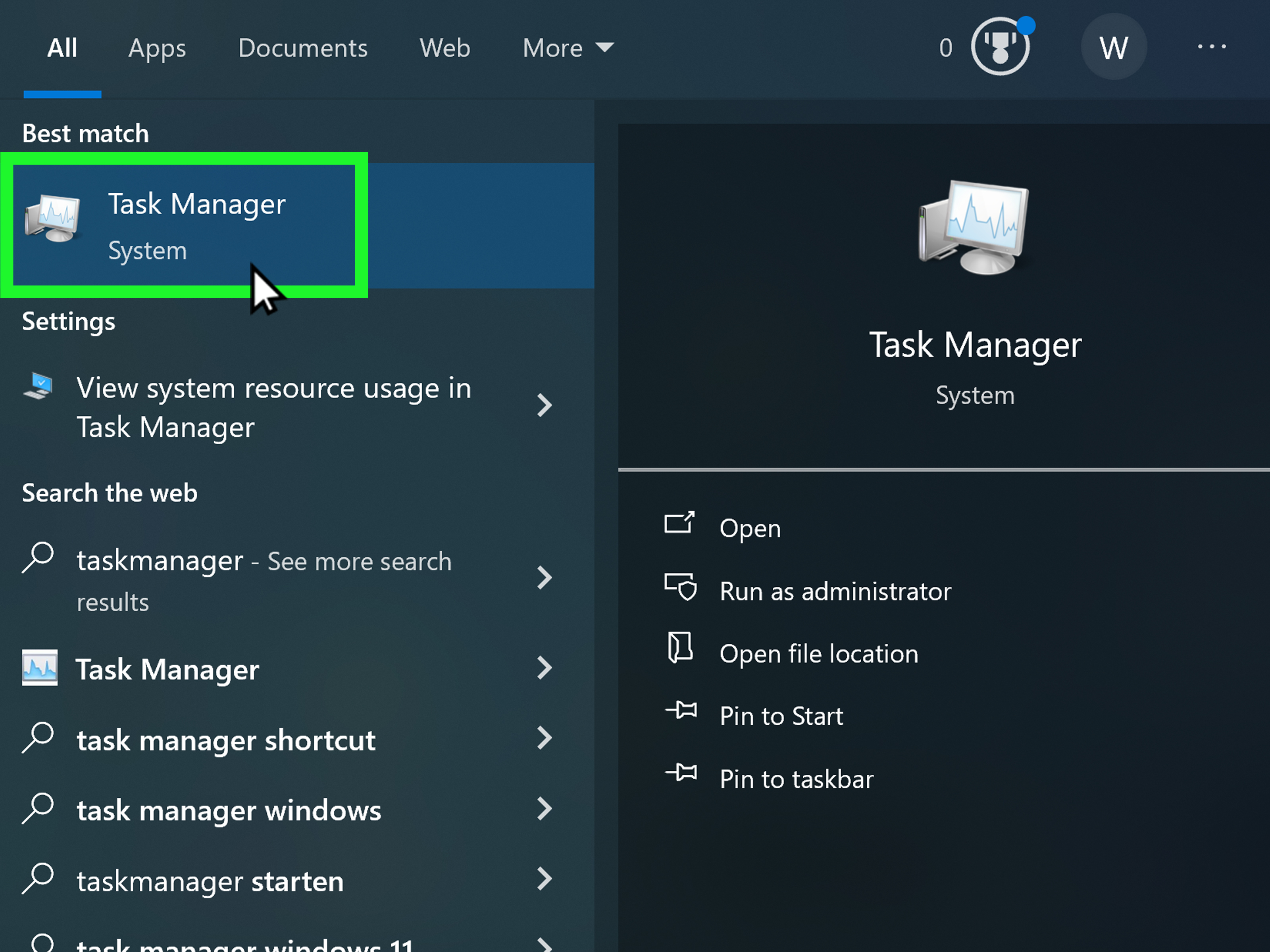
- Open Task Manager (Ctrl + Shift + Esc).
- Go to the Details tab.
- Look for the program and note the Image Name (that’s your
.exe).
Alternative: use Command Prompt and run:
You can also filter:
If you don’t get the exact process name right,
taskkillwill stare at you blankly and do nothing. So yesspelling counts. -
Step 3: Create Your Batch File the Right Way (So It’s Not a Sneaky .txt)
Open Notepad and create a new file. Then go to File > Save As:
- Set Save as type to All Files.
- Name it something like Close-My-Apps.bat.
- Pick a spot you’ll remember (Desktop is fine).
If you save it as
Close-My-Apps.bat.txt, Windows will treat it like a text file, not a script. (Yes, Windows loves practical jokes.) -
Step 4: Start with a Friendly Skeleton Script
Add a clean header that makes the script readable, quiet, and less dramatic. Paste this into your new
.batfile:@echo offreduces clutter by not printing every command. Your future self will thank you. -
Step 5: Add “Try to Close Normally” Commands First (Less Data Loss, More Peace)
You can attempt a normal close by using
taskkillwithout/Ffirst. This is basically Windows saying, “Hey app, could you wrap it up?” Some apps will close gracefully; some will ignore you like a teenager asked to take out the trash.Example (replace the process names with yours):
The
>nul 2>&1part hides output (success messages and errors). Your script stays clean and your console stays quiet. -
Step 6: Add a Force-Close Fallback for Stubborn Apps
Some programs won’t close nicelyespecially if they’re frozen, stuck in a “Not Responding” moment, or just emotionally unavailable. That’s when you use
/F(force). Use this carefully: forcing closure can cause data loss.A good pattern is: try normal close, wait a moment, then force close anything still running.
That tiny delay helps apps that need a second to exit cleanly before you bring out the “force” button.
-
Step 7: Close Child Processes Too (Because Apps Love Bringing Friends)
Some programs spawn child processes (launchers, helpers, rendererslooking at you, browsers). Add
/Tto terminate the process tree (parent + child processes).Want to get fancy? You can target by window title using filters if you’re trying to close a specific window instance. Example patterns often start with something like:
Filters are powerful, but also a little “measure twice, cut once.” If your filter is too broad, you may close more than you intended.
-
Step 8: Add Safety Features (Prompts, Logging, and “No Big Deal” Errors)
Batch files get smarter when they don’t panic. Two improvements you’ll love:
A) Add a confirmation prompt
B) Log what happened
Logging is helpful when a user says “the script didn’t work,” and you’d like evidence.
Also note:
taskkillcan return an exit code when a process isn’t running. In automation tools, that can look like a failure. In a personal batch file, it’s usually finebecause the end state is what you wanted: the program is not running. -
Step 9: Test, Adjust, and Make It One-Click Convenient
Test your batch file in a low-stakes moment first (not right before a meeting where you’re hosting). Double-click it and see:
- Did it close the right programs?
- Did it accidentally close something you needed?
- Did you need Run as administrator for certain apps?
If everything checks out, make it easy to run:
- Create a shortcut on your desktop.
- Pin the shortcut to Start or taskbar (pinning the shortcut works better than pinning the
.batdirectly in many setups). - Optionally schedule it with Task Scheduler if you want a daily cleanup.
A Practical Example: A “Close My Usual Apps” Batch File
Here’s a ready-to-edit template you can drop into your Close-My-Apps.bat. Replace process names with the ones you found in Step 2.
Troubleshooting: When Your Batch File Doesn’t Behave
“Access is denied.”
Some processes require admin permissions. Right-click the batch file (or its shortcut) and choose Run as administrator. If this is a work PC, you may not have permission to close certain corporate security toolsand that’s intentional.
“It closed, but it came back.”
Some apps have auto-relaunch features (update services, background agents). You may need to disable “Run at startup” inside the app or in Task Manager’s Startup tab. Batch files can close what’s running now, but they can’t stop an app from re-opening itself later if the app is configured to do so.
“It didn’t close everything.”
Use /T to include child processes, and verify you used the correct process name. Also, some apps run under different process names depending on version (especially Microsoft Teams and some browser variants).
“My script says it failed, but everything is already closed.”
That can happen when taskkill tries to close something that isn’t running. For personal use, it’s usually not a problem. If you want to avoid the message entirely, keep redirecting output to nul or log it instead.
of Real-World Experience: The Stuff Nobody Mentions Until You’ve Killed the Wrong Thing Once
Closing multiple programs with a batch file sounds like the kind of productivity hack that turns your PC into a well-trained butler: “Chrome, Slack, Teamsleave the room.” In real life, it’s more like training a pack of cats. Most will cooperate. One will stare at you and knock a glass off the table.
The first lesson people learn is that process names are not brand names. “Teams” isn’t always teams.exe. Chrome is easy (chrome.exe), but other apps hide behind helper processes with names that feel like a keyboard slipped on a banana peel. That’s why the Details tab in Task Manager is your best friend: it tells you what Windows actually sees.
The second lesson: “force close” is a last resort, not a lifestyle. Using /F is incredibly effective, but it’s also incredibly indifferent to your unsaved spreadsheet. A smarter approach is the two-phase close: first try a normal close (no /F), wait a beat, then force close only what refuses to exit. In practice, that small delay saves a lot of “wait, where did my draft go?” moments.
Third: browsers are hydras. You close one Chrome process and five more are still running because browsers spawn multiple processes for tabs, extensions, and sandboxing. That’s why /T mattersit helps you shut down the whole process tree. It’s the difference between “Chrome closed” and “Chrome is pretending it closed.”
Fourth: if you use this trick for worklike closing apps before running an installerexpect harmless “not found” results. In many automation contexts, that’s not a failure; it’s confirmation that the app wasn’t running (which is exactly what you wanted). For a personal batch file, redirecting output to nul keeps things calm. For bigger setups, logging is your “receipt” when something goes weird.
Finally: batch files become favorites when they’re specific. The best ones are not “Close Everything.” They’re “Close My Usual Distractions,” “Prep for Recording,” or “Reset After Gaming.” Give the script a job, keep the target list tight, and it becomes a reliable tool instead of a roulette wheel. And if you ever feel tempted to add explorer.exe to the list, make sure you also know how to restart it because nothing says “fresh start” like temporarily losing your taskbar.
Conclusion
A batch file is one of the simplest ways to close multiple programs on Windowsfast. The secret is getting accurate process names, using a “try to close first” approach, and keeping a force-close option for the rare apps that won’t cooperate. Build it once, test it carefully, and you’ll have a one-click cleanup button that feels like cheating (the good kind).