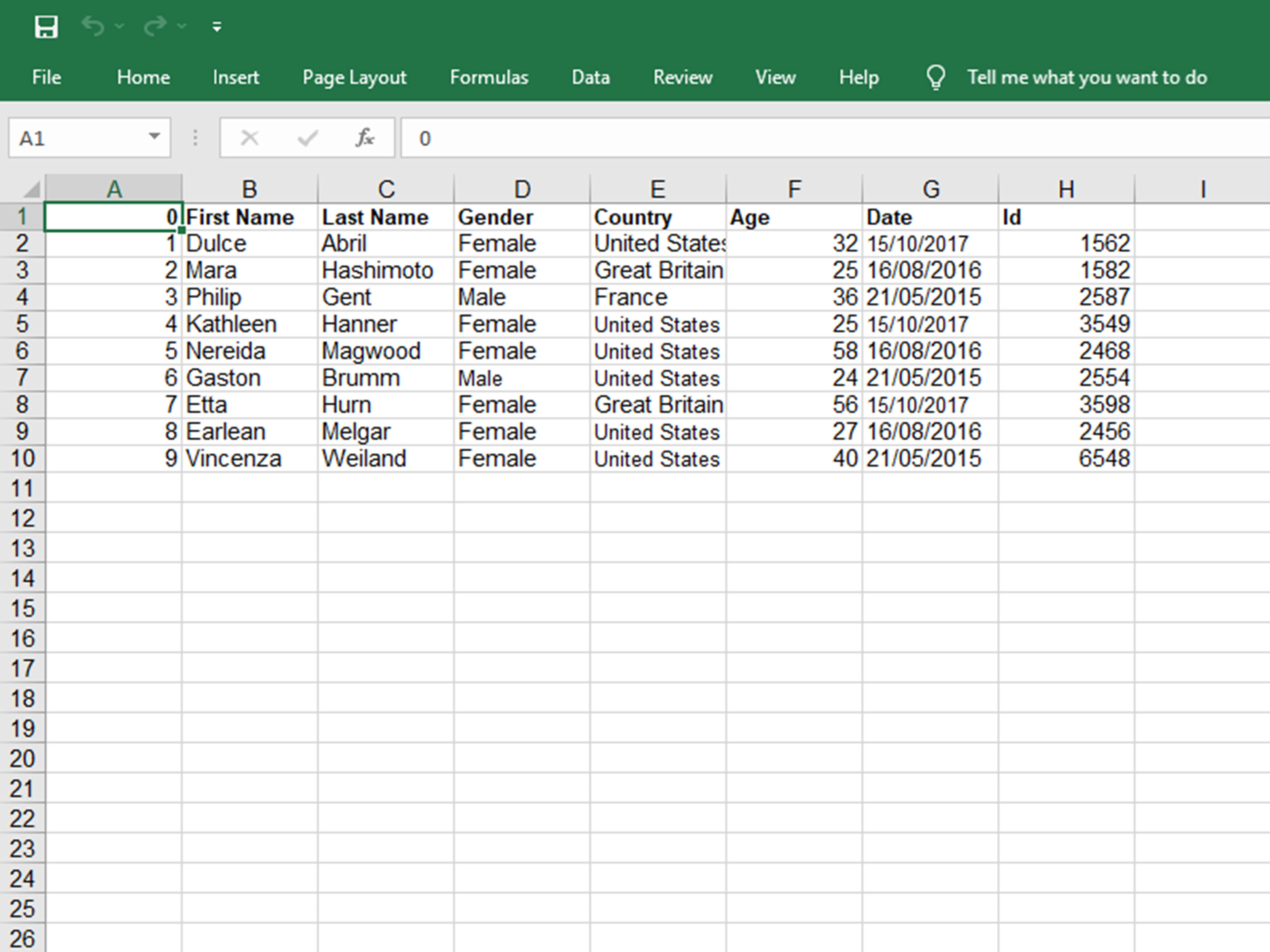
You double-click a spreadsheet expecting rows, columns, and perhaps one mildly terrifying budget. Instead, your computer asks which app should open the fileor acts as though .ODS arrived from another planet.
Fortunately, learning how to open an ODS file on a PC or Mac is much easier than the unfamiliar extension makes it seem. An ODS file is simply a spreadsheet saved in the OpenDocument Spreadsheet format. It can contain familiar spreadsheet ingredients such as numbers, text, formulas, multiple sheets, formatting, and charts.
The two easiest ways to open an ODS file are to use a compatible desktop spreadsheet application or open the file with a browser-based spreadsheet service. Both methods work on Windows and macOS, although the best choice depends on whether you need maximum formatting compatibility, quick viewing, editing, or conversion to Excel’s XLSX format.
This guide walks through both methods step by step, explains what to do when an ODS file refuses to cooperate, and shares practical advice for avoiding the most common compatibility headaches.
What Is an ODS File?
An ODS file is an OpenDocument Spreadsheet file. It belongs to the broader OpenDocument Format, or ODF, an open standard designed for editable office documents such as spreadsheets, text documents, and presentations.
The .ods extension identifies the spreadsheet member of that family. Other related extensions include .odt for text documents and .odp for presentations.
ODS files are commonly associated with spreadsheet programs such as LibreOffice Calc and Apache OpenOffice Calc. However, they are not limited to open-source software. Microsoft Excel can also work with ODS files, and several online spreadsheet services can import them.
Think of ODS and XLSX as two different languages spoken by spreadsheet programs. They can often understand one another quite well, but a particularly fancy chart, specialized formula, advanced table feature, or unusual formatting choice may develop a slight accent during translation.
Method 1: Open an ODS File With a Desktop Spreadsheet App
The most reliable method is to open the file in software installed on your computer. This approach is especially useful when the spreadsheet contains complex formulas, formatting, charts, or multiple worksheets that you want to preserve as accurately as possible.
Option A: Open an ODS File in Microsoft Excel on Windows
If Microsoft Excel is already installed on your PC, start there. Current supported desktop versions of Excel can open OpenDocument Spreadsheet files.
- Open Microsoft Excel.
- Select File and then Open.
- Choose Browse if necessary.
- Navigate to the folder containing your
.odsfile. - Select the file and click Open.
You can also try right-clicking the ODS file in File Explorer, selecting Open with, and choosing Microsoft Excel.
If Excel is not listed, select the option to choose another app and locate Excel manually. You can also set Excel as the default application for ODS files if you expect to receive them regularly.
What Happens When Excel Opens an ODS File?
For ordinary spreadsheets containing basic formulas, values, dates, and standard cell formatting, the result may look nearly identical to the original. However, ODS and XLSX do not support every spreadsheet feature in exactly the same way.
Some advanced formatting, charts, table features, filters, data tools, or specialized formulas may behave differently after a file moves between formats. That does not mean Excel cannot open ODS files. It simply means that format conversion is not always a perfect photocopy.
Before making major edits to an important workbook, keep the original ODS file as a backup. It is the spreadsheet equivalent of keeping the spare key instead of confidently locking it inside the house.
How to Convert an ODS File to XLSX in Excel
After opening the file, you may want to save an Excel version for easier sharing with people who primarily use Microsoft Office.
- Open the ODS file in Excel.
- Select File > Save As.
- Choose a destination folder.
- Select Excel Workbook (*.xlsx) as the file type.
- Give the workbook a name and click Save.
Keep the original ODS file until you have checked the converted workbook. Review formulas, charts, merged cells, conditional formatting, number formats, and important page-layout settings before treating the XLSX copy as the new master file.
Option B: Open an ODS File With LibreOffice Calc on Windows or Mac
If you do not have Excelor simply want a program designed to work naturally with OpenDocument spreadsheetsLibreOffice Calc is an excellent choice.
LibreOffice is a desktop office suite available for major operating systems, including Windows and macOS. ODS is a native spreadsheet format for Calc, making it particularly useful when preserving the original OpenDocument structure matters.
- Install LibreOffice from its official source.
- Launch LibreOffice Calc.
- Select File > Open.
- Find your ODS file.
- Select it and click Open.
You can also double-click the file after associating the .ods extension with LibreOffice Calc.
Why LibreOffice Is Often the Best Choice for ODS Files
Because Calc works natively with OpenDocument spreadsheets, it is often the safest option for files originally created in LibreOffice or another ODF-focused application. It is also useful when you need to edit ODS files repeatedly rather than simply view one attachment and move on with your life.
Another advantage is that Calc can save spreadsheets in other commonly used formats. For example, after opening an ODS workbook, you can use Save As to create an XLSX copy when you need to exchange the file with Excel users.
Again, check the converted copy before deleting anything. Spreadsheet formats contain many overlapping features, but “overlapping” is not the same as “identical.”
How to Open an ODS File on a Mac
Mac users have several workable options, but LibreOffice Calc and compatible versions of Microsoft Excel for Mac are the most straightforward desktop choices.
With Office for Mac, you can generally use File > Open, navigate to the ODS file, and select it. Depending on the version and configuration of Office, you may see a notice related to opening or converting an OpenDocument Format file.
LibreOffice provides another direct route and is especially useful when the spreadsheet was created in an OpenDocument application.
Apple Numbers should not automatically be assumed to be a universal native ODS opener. Apple’s current import documentation focuses primarily on Numbers files, Microsoft Excel spreadsheets, and supported text formats. When an ODS file does not open in Numbers, use LibreOffice, Excel, or the browser method below rather than repeatedly double-clicking the file and hoping optimism becomes a file converter.
Method 2: Open an ODS File Online in Your Web Browser
Do not want to install another application? A browser-based spreadsheet editor can be the quickest way to open an ODS file on either a PC or Mac.
This method is ideal when you need to inspect a file, make basic edits, collaborate with someone, or convert the spreadsheet to another format.
How to Open an ODS File With Google Sheets
- Open Google Drive in your web browser and sign in.
- Upload the ODS file from your computer.
- Locate the uploaded file.
- Open it with Google Sheets or import it into a spreadsheet.
- Review the workbook to make sure formulas and formatting appear correctly.
Once the spreadsheet is open, you can edit the data using your browser. You can also download or export a copy in another supported spreadsheet format when needed.
This approach works on both Windows and macOS because the heavy lifting takes place in the browser rather than in a platform-specific desktop application.
When the Online Method Makes Sense
A browser-based option is particularly convenient when:
- You only need to open one ODS file quickly.
- You are using a computer without Excel or LibreOffice.
- You want to collaborate on the spreadsheet online.
- You need to convert the file into a more convenient format.
- You are switching between a PC and a Mac.
Other online spreadsheet services may also support ODS imports. For example, Zoho Sheet supports OpenDocument spreadsheets. The exact import workflow can vary, but the general process is the same: upload the file, open or import it, inspect the results, and then export a new copy if necessary.
A Privacy Warning Before Uploading ODS Files
Online tools are convenient, but convenience should not outrank common sense. Avoid uploading spreadsheets containing confidential financial records, private customer information, medical details, passwords, or other sensitive material to a random file-conversion website.
For sensitive documents, use trusted software installed locally or a cloud service approved by your organization. A free converter called something like “DefinitelySafeSpreadsheetConverter247” may technically work, but that is not the same thing as being a wise place for your payroll data.
Which Method Should You Use?
Choose Microsoft Excel when you already work primarily in the Microsoft ecosystem and plan to convert the ODS file to XLSX.
Choose LibreOffice Calc when you want a free desktop program with strong native support for OpenDocument spreadsheets on Windows or Mac.
Choose Google Sheets or another reputable online spreadsheet service when you need fast browser access, collaboration, or a convenient conversion workflow without installing software.
For an important or highly formatted ODS file, opening it first in LibreOffice Calc is often the most conservative approach. For a simple table of names, numbers, and totals, almost any reputable compatible spreadsheet application will probably do the job.
What to Do If an ODS File Will Not Open
If neither method works, the problem may not be the absence of compatible software. Try these troubleshooting steps.
1. Check the File Extension
Make sure the file actually ends in .ods. Similar-looking extensions may belong to completely different file types. Renaming an unrelated file to .ods does not convert it; it merely gives the file a fake mustache.
2. Download the File Again
Email attachments and interrupted downloads can become incomplete or corrupted. Download a fresh copy from the original source and try opening it again.
3. Try Another Compatible Spreadsheet App
If Excel reports an error, try LibreOffice Calc. If a browser import fails, test the original file locally. A second application can help determine whether the problem involves compatibility or the file itself.
4. Avoid Repeated Conversions
Repeatedly moving a workbook from ODS to XLSX, back to ODS, into another online format, and then back again can gradually introduce differences. Every conversion is another opportunity for unsupported features to change.
Keep one master file whenever possible and create separate copies for sharing.
5. Check Whether the File Is Password-Protected or Damaged
Protected or corrupted files may fail to open normally. Ask the sender whether the workbook requires a password or whether another copy is available.
How to Make ODS Files Easier to Share
If you regularly exchange spreadsheets with people using different software, decide which format should serve as the master version.
ODS makes sense when your team primarily uses OpenDocument-compatible applications. XLSX may be more convenient when most recipients use Microsoft Excel. PDF is useful when people only need to view or print the information and should not edit the underlying spreadsheet.
For important conversions, check:
- Formulas and calculated results
- Date and currency formatting
- Charts and data labels
- Conditional formatting
- Hidden rows, columns, and sheets
- Filters and sorting
- Print areas and page breaks
A workbook can open successfully while still containing small visual or functional differences. “It opened” is therefore the beginning of the compatibility check, not always the end.
Practical Experience: What to Expect When Working With ODS Files
The most useful lesson from real-world ODS workflows is that simple spreadsheets are rarely a problem. A workbook containing a contact list, inventory table, household budget, or straightforward formulas will often move between Calc, Excel, and online spreadsheet editors with little drama.
Complications tend to appear when the workbook becomes more ambitious. Advanced charts, specialized formatting, unusual formula behavior, sophisticated data tools, external connections, or application-specific features are where differences between spreadsheet programs become noticeable.
A practical habit is to separate opening a file from converting it. Opening the original ODS workbook and immediately saving over it in another application can be risky. A safer workflow is to preserve the original, inspect the spreadsheet, and save changes as a new file. For example, keep Quarterly-Budget.ods and create Quarterly-Budget-Excel-Copy.xlsx. The filenames are not glamorous, but neither is spending Saturday rebuilding formulas.
Another useful experience is that the best application often depends on where the file came from. If a colleague created the workbook in LibreOffice Calc and sends it as ODS, opening it in Calc first usually gives you the best chance of seeing the file as intended. If the ultimate destination is an Excel-heavy workplace, you can then create an XLSX copy and verify it before distributing it.
Browser tools are excellent for speed. When someone sends a simple ODS file and you only need to read a few values, uploading it to a trusted online spreadsheet service may be faster than installing a full office suite. The trade-off is that browser-based import creates another translation step, so a complicated workbook deserves closer inspection.
Mac users also benefit from resisting the assumption that every spreadsheet automatically belongs in Numbers. Numbers is a capable application, but file support is not identical across spreadsheet formats. When an ODS file does not appear as an obvious supported import, moving directly to LibreOffice or a compatible version of Excel is usually more productive than trying to force the file through an unsuitable workflow.
The final practical lesson is simple: never judge spreadsheet compatibility by the first visible sheet alone. Click through every worksheet. Test a few important formulas. Open the charts. Check totals. Look for hidden sheets if the file is business-critical. A workbook may look perfect on page one while a chart on page five has quietly decided to pursue a minimalist lifestyle.
With that small amount of caution, ODS files are not difficult to manage. They are standard spreadsheet documents, not mysterious technical artifacts. Once you have Excel, LibreOffice Calc, or a trustworthy browser-based editor available, opening one becomes an ordinary task.
Conclusion
To open an ODS file on a PC or Mac, you have two easy choices: use a compatible desktop spreadsheet application or open the file through a reputable online spreadsheet service.
Microsoft Excel is convenient for users who already work with Office, while LibreOffice Calc is an especially strong cross-platform option because ODS is a native OpenDocument spreadsheet format. For quick access without installing software, Google Sheets and other established online spreadsheet platforms can provide a practical browser-based route.
Whichever method you choose, preserve the original file before converting it and check important formulas, charts, and formatting afterward. Most ODS files open without much fuss. The complicated ones simply need a little more attentionand perhaps a respectful moment of silence for the chart that changed fonts during conversion.