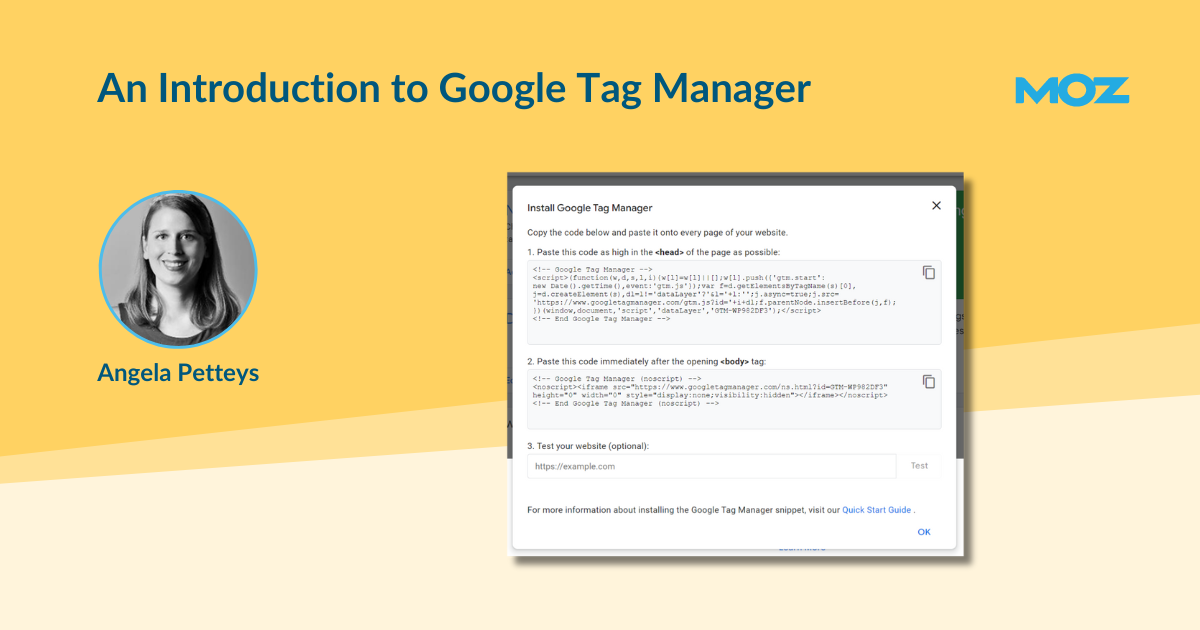
Imagine your website is a busy kitchen. Google Analytics wants to know what dishes people order, Google Ads wants to track which meals led to reservations, Meta Pixel wants to peek at the dessert menu, and your email platform wants to know who grabbed the coupon. Without a system, every tool asks a developer to tape one more sticky note to the refrigerator. Eventually, the fridge looks like a conspiracy board.
That is where Google Tag Manager, often called GTM, steps in. Google Tag Manager is a free tag management platform that helps marketers, analysts, and website owners add, organize, test, and publish tracking tags without constantly editing website code. In plain English: it gives you one control panel for many tracking tools. Instead of asking a developer to install every marketing script one by one, you install the GTM container once, then manage many tags from inside the GTM interface.
This introduction to Google Tag Manager explains what GTM is, how it works, why it matters for digital marketing, and how beginners can use it without accidentally turning their analytics into soup. We will cover tags, triggers, variables, the data layer, GA4 events, preview mode, consent settings, server-side tagging, and practical lessons from real implementation experience.
What Is Google Tag Manager?
Google Tag Manager is a tag management system that allows you to deploy and manage small pieces of tracking code, called tags, on a website or app. These tags can send information to platforms such as Google Analytics 4, Google Ads, Floodlight, Microsoft Advertising, Meta, LinkedIn, heatmap tools, A/B testing platforms, and other marketing or analytics services.
Before GTM, adding tracking usually meant placing JavaScript snippets directly into a website’s source code. That worked, but it was slow, messy, and not exactly beginner-friendly. If a marketer wanted to track a “Contact Us” button, they might need to send a ticket to a developer, wait in the mysterious queue of “we’ll look at it next sprint,” then test the change later. GTM shortens that process by giving non-developers a safer workspace to configure tracking.
GTM does not replace Google Analytics. This is a common beginner mistake. Google Analytics 4 is the reporting tool that stores and analyzes data. Google Tag Manager is the delivery system that helps send data to GA4 and other platforms. Think of GA4 as the notebook and GTM as the courier who delivers the notes.
Why Google Tag Manager Matters
Modern websites depend on measurement. You want to know which pages attract visitors, which buttons people click, which forms generate leads, which campaigns drive sales, and where users politely escape your checkout process like they saw a ghost. GTM makes that measurement easier to manage.
1. Faster Marketing Tracking
With GTM, teams can add many common tracking tags without waiting for a full code deployment. A marketing team can set up GA4 event tracking, conversion pixels, remarketing tags, or scroll tracking from one interface. Developers are still important, especially for complex data layer work, ecommerce tracking, and custom applications, but GTM removes many small repetitive requests from their plate.
2. Cleaner Website Code
Instead of scattering tracking snippets across dozens of pages, GTM uses a container. A container is like a labeled toolbox that holds tags, triggers, variables, templates, and settings. This helps keep tracking more organized. It also reduces the risk of old tags hiding in page templates long after everyone has forgotten why they were installed.
3. Better Testing Before Publishing
GTM includes Preview and Debug tools that let you test tags before they go live. You can see which tags fired, which did not fire, and what data was available at each step. This is extremely useful because analytics errors are sneaky. A tag may look perfectly fine until you discover it only fires when the moon is full and the user clicked with their left hand. Debug mode helps you catch problems before real data gets polluted.
4. More Flexible Event Tracking
Google Analytics 4 is built around events. Page views, clicks, video plays, file downloads, form submissions, purchases, and sign-ups can all be treated as events. GTM makes it easier to define these events and send them to GA4 with useful parameters, such as button text, page path, form ID, product name, or transaction value.
The Core Parts of Google Tag Manager
To understand GTM, you need to understand four main building blocks: containers, tags, triggers, and variables. Once these click, GTM becomes far less intimidating. It may still look like a spaceship dashboard at first, but at least you will know which buttons not to press.
Containers
A container is the home for your GTM setup. When you create a GTM account, you create a container for a website, app, or server environment. GTM gives you code snippets to install on your website. After that installation, you can manage many tracking configurations from the GTM web interface.
Most websites use a web container. Larger organizations may use multiple containers for different domains, apps, environments, or business units. A simple small business website usually needs only one main web container.
Tags
A tag is a piece of code or configuration that sends data to another platform. For example, a Google tag can send data to GA4. A GA4 Event tag can send a specific event, such as generate_lead or newsletter_signup. A Google Ads conversion tag can report a completed purchase or form submission. A third-party tag may support remarketing, heatmaps, affiliate tracking, or customer support chat.
Tags answer the question: What should happen? For example: “Send a GA4 event when someone clicks the pricing button.”
Triggers
A trigger tells GTM when a tag should fire. Triggers can be based on page views, link clicks, button clicks, form submissions, scroll depth, video engagement, custom events, consent states, timers, or other conditions.
Triggers answer the question: When should it happen? For example: “Fire this tag only when the clicked URL contains /pricing” or “Fire this event when a user reaches 75% scroll depth on a blog post.”
Variables
A variable stores information GTM can use in tags and triggers. Variables can capture values such as the current page URL, click text, click ID, form class, ecommerce value, product category, or a user’s consent status.
Variables answer the question: What information should GTM use? If a trigger is the “when,” a variable is often the “which one” or “what value.”
How Google Tag Manager Works: A Simple Example
Let’s say you want to track clicks on a “Get a Quote” button. Without GTM, you might ask a developer to add custom JavaScript to the button. With GTM, the process can be simpler:
- Create a GA4 Event tag named
generate_lead. - Create a click trigger that fires when the button text equals “Get a Quote.”
- Use variables such as Click Text, Click URL, and Page Path to capture context.
- Test the setup in Preview mode.
- Publish the container version when everything works.
Now GA4 can receive an event whenever someone clicks that button. Later, you can mark the event as a key event in GA4 if it represents an important business action. Congratulations: your button now has a tiny analytics reporter living inside it, but in a healthy, non-creepy way.
Google Tag Manager and GA4
One of the most common uses of GTM is setting up Google Analytics 4. GA4 collects website and app interaction data using an event-based model. GTM helps configure the Google tag and GA4 Event tags, making it easier to track meaningful actions beyond basic page views.
A typical GA4 setup in GTM includes a Google tag that loads GA4 on your website. Then, additional GA4 Event tags can be created for actions such as:
- Newsletter sign-ups
- Lead form submissions
- Product clicks
- Add-to-cart events
- Checkout steps
- Purchases
- Video plays
- File downloads
- Outbound link clicks
GA4 already collects some events automatically or through enhanced measurement, depending on your settings. However, GTM becomes especially valuable when you need tracking that matches your business logic. A SaaS company may care about demo requests. An ecommerce store may care about product detail views and purchases. A publisher may care about scroll depth and ad engagement. A local service company may care about phone number clicks and quote forms.
The Data Layer: GTM’s Secret Superpower
The data layer is one of the most important concepts in Google Tag Manager. It is a structured place where your website can pass information to GTM. Instead of making GTM scrape details from page elements, the data layer gives GTM clean, reliable information.
For example, an ecommerce website can push purchase details into the data layer after a transaction:
GTM can listen for the purchase event, read the transaction value, and send that data to GA4 or advertising platforms. This approach is much more stable than relying on button colors, CSS classes, or page layouts that may change during a redesign.
For small tracking tasks, you may not need a custom data layer. For serious ecommerce, lead generation, SaaS onboarding, membership websites, or complex funnels, the data layer is not optional decoration. It is the foundation. Without it, your tracking can become fragile, like balancing a laptop on a stack of pancakes.
Preview Mode and Debugging
Never publish a GTM container without testing it first. That sentence deserves a tiny analytics trophy. GTM’s Preview mode lets you connect your website to Tag Assistant and inspect how tags behave before publishing.
In Preview mode, you can check:
- Which tags fired on a page
- Which tags did not fire
- Why a trigger matched or failed
- What variables were available
- Whether data layer events appeared correctly
- Whether GA4 events contain the right parameters
After testing in GTM, you should also check GA4 DebugView or real-time reports when relevant. GTM may fire a tag successfully, but the destination platform still needs to receive and process the event correctly. Good tracking is not “I clicked publish and prayed.” Good tracking is “I tested the event, checked the parameters, confirmed the report, and then enjoyed a responsible snack.”
Common Google Tag Manager Use Cases
Conversion Tracking
GTM is widely used to track conversions for Google Ads, Microsoft Ads, Meta Ads, LinkedIn Ads, and other platforms. A conversion might be a purchase, form submission, quote request, phone click, app download, or account registration. Accurate conversion tracking helps advertisers understand which campaigns generate real business outcomes.
Remarketing Tags
Remarketing tags help build audiences based on user behavior. For example, you might create an audience of visitors who viewed a product but did not purchase. GTM can help deploy these tags with more control and cleaner rules.
Form Tracking
Forms are often business-critical. GTM can track form submissions, but beginners should be careful. Some forms submit normally, some use AJAX, some redirect to thank-you pages, and some behave like they were built during a lightning storm. The best method depends on the form technology. A thank-you page trigger may work for simple forms, while a custom data layer event is usually better for complex forms.
Click Tracking
GTM can track clicks on buttons, links, phone numbers, email addresses, navigation items, and calls to action. Click tracking is useful, but it should not become a hobby with no purpose. Track clicks that answer a business question. “Did users click the pricing CTA?” is useful. “Did users click the decorative icon shaped like a llama?” probably less so, unless llamas are your conversion strategy.
Ecommerce Tracking
For ecommerce, GTM can help send events such as view item, add to cart, begin checkout, add payment info, and purchase. Ecommerce tracking requires careful planning because revenue, currency, item arrays, transaction IDs, discounts, and refunds must be consistent. This is one area where collaboration with developers is usually essential.
Google Tag Manager and Consent
Privacy expectations have changed. Users, regulators, browsers, and platforms now care much more about consent, cookies, and data control. GTM includes consent-related features that help tags adjust behavior based on a user’s consent choices.
For example, a website may use a Consent Management Platform to ask visitors whether they accept analytics or advertising cookies. GTM can use consent settings to decide whether certain tags are allowed to fire or how they should behave. Google Consent Mode can help Google tags adjust measurement behavior based on consent signals.
This does not magically solve every legal requirement. Consent rules vary by region and business type. Website owners should work with qualified legal and privacy professionals when needed. GTM is a tool, not a lawyer wearing a tiny Google hat.
Server-Side Tagging: The Advanced Chapter
Traditional GTM runs mostly in the user’s browser. Server-side tagging moves part of the tagging process to a server container. Instead of every vendor tag collecting data directly from the browser, data can be sent to a server endpoint first, processed, and then forwarded to selected vendors.
Server-side tagging can help improve performance, data quality, and privacy controls when implemented properly. It may also reduce dependency on browser-side scripts. However, it is more advanced than a basic web container. It can involve cloud hosting, custom domains, server container configuration, and ongoing maintenance.
For most beginners, the right path is to learn standard GTM first: tags, triggers, variables, data layer, and debugging. Server-side tagging becomes more relevant when your organization has stronger measurement needs, higher traffic, stricter privacy requirements, or a mature analytics team.
Best Practices for Beginners
Use a Clear Naming Convention
Messy naming is one of the fastest ways to make a GTM container painful. Use names that describe what each item does. For example:
GA4 - Event - generate_leadTrigger - Click - Get a Quote ButtonVariable - DLV - ecommerce.value
Future you will be grateful. Future you may even whisper, “Wow, past me had their life together.”
Use Folders for Organization
Folders help group tags, triggers, and variables by platform or purpose. You might create folders for GA4, Google Ads, Meta, ecommerce, consent, or testing. A clean container reduces mistakes and makes audits easier.
Do Not Publish Without Previewing
Always test in Preview mode. Click through the real user path. Submit test forms. Check data layer events. Confirm that tags fire only when expected. Publishing untested tracking is like sending a raccoon to do your taxes: bold, memorable, and probably expensive.
Document Important Changes
GTM supports versions, and each published version can include notes. Use version names and descriptions that explain what changed. For example, “Added GA4 lead form event for contact page” is much better than “update” or “final_final_really_final.”
Limit Unnecessary Tags
Every tag can affect performance, privacy, or data quality. Do not install tags just because a platform asked nicely. Review whether each tag supports a real business goal. Remove old tags that are no longer needed.
Work With Developers When Needed
GTM is powerful, but it is not a replacement for good development. If you need reliable ecommerce data, user IDs, subscription events, or complex funnel logic, involve developers early. The best GTM setups happen when marketers, analysts, developers, and privacy teams work together.
Common Mistakes to Avoid
Mistake 1: Thinking GTM Stores Your Analytics Data
GTM does not store analytics reports. It sends data to tools such as GA4. If your GA4 reports look wrong, the issue may be in GTM, GA4 settings, consent behavior, filters, or the website itself.
Mistake 2: Tracking Everything
More data is not always better. Tracking every tiny interaction can create noise. Focus on meaningful events tied to business goals: leads, purchases, sign-ups, engagement milestones, and important navigation behavior.
Mistake 3: Relying on Fragile Click Selectors
Click triggers based on CSS classes or button structure can break when a website design changes. Whenever possible, use stable IDs, custom attributes, clear data layer events, or consistent URL patterns.
Mistake 4: Ignoring Consent
Consent is not a decorative checkbox. If your site operates in regions with privacy requirements, your GTM setup should respect consent choices. This may affect when tags fire and what data is sent.
Mistake 5: Forgetting to Audit
Containers collect clutter over time. Old campaign tags, abandoned pixels, duplicate GA4 events, and mystery variables can pile up. Schedule periodic audits to keep your GTM container clean and trustworthy.
A Beginner-Friendly GTM Setup Checklist
Here is a simple checklist for starting with Google Tag Manager:
- Create a GTM account and web container.
- Install the GTM container snippets on every page of your website.
- Create or configure your Google tag for GA4.
- Enable useful built-in variables, such as click variables and form variables.
- Identify your most important business actions.
- Create GA4 Event tags for those actions.
- Use clear trigger rules.
- Test everything in Preview mode.
- Check GA4 DebugView or real-time reporting.
- Publish with a clear version name and description.
- Document what was implemented.
- Review your container regularly.
Is Google Tag Manager Good for SEO?
GTM is not an SEO ranking magic wand. Installing it will not instantly push your pages to the top of Google, where everyone celebrates by throwing confetti made of schema markup. However, GTM can support SEO indirectly by improving measurement.
For SEO teams, GTM can help track scroll depth, internal link clicks, content engagement, file downloads, lead form submissions, and other behavior that shows whether organic traffic is valuable. It can also help deploy certain structured measurement tools or testing scripts, although critical SEO elements should not always depend on JavaScript injection through GTM.
The best SEO use of GTM is insight. When you know which pages attract visitors, which content converts, and where users lose interest, you can make better decisions. GTM helps collect the signals; your strategy turns those signals into action.
Real-World Experience: Lessons From Working With Google Tag Manager
One of the biggest lessons from using Google Tag Manager in real projects is that GTM rewards planning more than button-clicking. Beginners often open the interface and immediately start creating tags. That excitement is understandable. GTM makes tracking feel accessible, and there is something oddly satisfying about seeing a tag fire in Preview mode. But the smartest projects begin with a measurement plan, not a random tag festival.
A good measurement plan answers simple questions: What actions matter? Which platforms need the data? What should each event be called? Which parameters should be included? Who will use the reports? For example, a lead generation website may not need twenty different button click events. It may need clean tracking for contact form submissions, phone clicks, quote requests, and newsletter sign-ups. An ecommerce store may need reliable product views, add-to-cart events, checkout steps, purchases, refunds, and coupon usage. The clearer the plan, the cleaner the container.
Another practical lesson is that naming conventions save lives. Well, maybe not lives, but definitely afternoons. A container with names like “Tag 1,” “Test,” “New GA4,” and “Button thing” becomes impossible to manage. Six months later, nobody remembers what those tags do. A strong naming system makes GTM easier to audit, debug, and hand off to another person. The best names describe the platform, tag type, and purpose. Something like GA4 - Event - newsletter_signup is boring in the best possible way. Boring is excellent when you are troubleshooting analytics.
Experience also teaches that not every click should be tracked. Many teams begin by asking for everything: every menu click, every image click, every footer link, every scroll, every hover, every sneeze near the laptop. But excessive tracking creates noisy reports. The real goal is not to collect the largest pile of data. The goal is to collect useful data that helps people make decisions. If nobody will use a metric, question whether it deserves space in your setup.
The data layer is where GTM starts to feel professional. Basic click tracking can work for simple websites, but complex businesses need structured information. For ecommerce, a purchase event without item names, prices, currency, and transaction ID is incomplete. For SaaS, a sign-up event may need plan type, user role, or trial status. For lead generation, a form submission may need form location or service category. When developers push clean data layer events, GTM becomes more stable and less dependent on fragile page elements.
Testing is another non-negotiable habit. Preview mode should be part of every workflow. After that, check the destination platform too. If you are sending an event to GA4, confirm that GA4 receives it with the correct parameters. If you are setting up an ad conversion, verify that the conversion platform recognizes the tag. A tag firing in GTM is good news, but it is not the finish line. The finish line is accurate data appearing where decision-makers need it.
Consent has also become a major part of real GTM work. Years ago, some teams treated tracking like a “set it and forget it” task. Today, privacy expectations require more care. Tags may need to respect analytics consent, ad storage consent, or regional requirements. This means GTM is no longer just a marketing convenience. It sits at the intersection of analytics, advertising, development, and privacy operations.
Finally, GTM works best when teams treat it as a living system. Websites change. Campaigns change. Forms change. Analytics platforms change. A clean GTM container today can become messy next year if nobody maintains it. Regular audits help remove old tags, fix duplicates, update triggers, and confirm that key events still work. In real-world use, the most successful GTM users are not the ones who know every advanced trick. They are the ones who document carefully, test patiently, and keep the container organized enough that another human can understand it before finishing their coffee.
Conclusion
Google Tag Manager is one of the most useful tools in digital marketing because it gives teams a flexible, organized way to manage tracking. It helps connect your website with platforms like GA4, Google Ads, and other marketing tools while reducing the need for constant code changes. For beginners, the key is to understand the basics: containers hold your setup, tags send data, triggers decide when tags fire, variables provide information, and the data layer makes tracking more reliable.
GTM is powerful, but it should be used thoughtfully. A clean setup begins with a measurement plan, clear naming conventions, careful testing, privacy awareness, and regular audits. When used well, Google Tag Manager turns website tracking from a chaotic pile of scripts into a manageable system. It may not make analytics glamorous, but it can make it accurate, scalable, and far less likely to cause a group panic in a Monday meeting.
Note: This article is written for educational and publishing purposes. Technical implementation details may vary depending on your website platform, consent requirements, analytics setup, and business goals.