If your iPad battery seems to vanish faster than free pizza at a school fundraiser, you are not imagining things. Tablets are supposed to feel effortless, but the moment brightness is cranked up, notifications are exploding, and three streaming apps are quietly doing gymnastics in the background, your “all-day battery” can turn into “where is my charger?” in record time.
The good news is that you usually do not need a new iPad to get better battery life. In most cases, you need better battery habits. A handful of smart setting changes can stretch each charge, reduce surprise battery drops, and help your iPad age more gracefully over time. This guide breaks down seven practical ways to extend the battery life of an iPad, plus real-life experiences that show what these tips actually look like outside a tech support article and inside normal human chaos.
Why iPad Battery Life Drops Faster Than Expected
Before jumping into the fixes, it helps to know what drains power the fastest. The usual suspects are not mysterious. They are your display, background activity, constant network hunting, location tracking, notifications, and heat. Heavy tasks like gaming, video calls, photo editing, and streaming at high brightness will always chew through more power than reading, note-taking, or browsing with a dimmer screen.
That means “bad battery life” is not always a battery problem. Sometimes it is just an enthusiastic iPad living a very busy life. The trick is to reduce unnecessary power use without turning your tablet into a sad gray rectangle that does nothing fun.
1. Lower Screen Brightness and Stop Letting the Display Act Like a Tiny Sun
If you want the fastest win, start with the screen. The display is one of the biggest battery drains on any iPad, especially if brightness is high for long stretches. A lot of people keep it brighter than necessary because they adjusted it once outside, forgot about it, and now their iPad is glowing indoors like it is auditioning to replace a lighthouse.
What to do
Turn the brightness down to a comfortable level and enable Auto-Brightness so the iPad adapts to your environment. In a dim room, you do not need your screen screaming at your eyeballs. You can also use Dark Mode in the evening or in low-light settings. Dark Mode is not magic, but paired with lower brightness, it can help reduce overall power use and make the screen easier on your eyes.
Why it works
Every extra notch of brightness demands more energy. Lower brightness also reduces heat, and heat is terrible for both short-term battery performance and long-term battery lifespan. If you do nothing else today, tame the display first. It is the low-hanging fruit of iPad battery life.
2. Use Low Power Mode Before Your Battery Starts Begging for Mercy
Low Power Mode is not just a last-second emergency button for when you are clinging to 8 percent battery at the airport. It is a legitimate battery-saving tool that works best when you use it strategically. If you know you have a long class, flight, meeting day, or road trip ahead, turn it on early instead of waiting until your iPad enters a dramatic third act.
What to do
Go to Settings > Battery and turn on Low Power Mode, or add it to Control Center so it is easier to toggle on and off. Use it during long reading sessions, web browsing, email, messaging, or travel days when battery anxiety likes to appear uninvited.
What changes
Low Power Mode reduces background activity, tones down certain visual effects, lowers brightness behavior, and can limit display refresh rates on supported models. Translation: your iPad becomes a little less flashy and a lot more frugal. For everyday tasks, most people barely notice the difference. Your battery, however, absolutely notices.
3. Shorten Auto-Lock So Your iPad Is Not Daydreaming With the Screen On
An iPad left awake on a desk is like a car idling in the driveway for no reason. It is not going anywhere useful, but it is still burning fuel. Many users set Auto-Lock to a long interval or disable it entirely because it feels convenient. Convenient, yes. Efficient, not even slightly.
What to do
Head to Settings > Display & Brightness > Auto-Lock and choose a shorter time, such as two minutes or five minutes, depending on how you use the device. If your iPad often sits open beside you while you work, a shorter Auto-Lock setting can save more battery than you think.
Why it matters
The screen burns battery every second it stays awake. A shorter lock time is especially helpful for students, remote workers, parents, and anyone who tends to set the iPad down “for just a second” and then accidentally leaves it glowing through an entire snack break.
4. Cut Background App Refresh and Other Behind-the-Scenes Shenanigans
Your iPad is polite enough to keep many apps updated in the background, but politeness has a power cost. Social media, shopping apps, email apps, and news apps love to refresh content when you are not looking. That convenience can quietly drain battery all day long.
What to do
Visit Settings > General > Background App Refresh and either turn it off entirely or disable it for apps that do not deserve VIP backstage access to your battery. You can also review automatic downloads, mail fetch behavior, and app updates so your iPad is not constantly doing tiny jobs in secret.
How to decide what stays on
Keep background activity for apps that truly matter in real time, like messaging or essential work tools. Turn it off for apps that can wait until you open them. Most people do not need a coupon app, a furniture app, and a weather app all waking up every few minutes like caffeinated interns.
5. Use Wi-Fi When You Can, and Stop Forcing Your iPad to Hunt for Weak Signals
Wireless connections have a direct effect on battery life. In general, Wi-Fi is more battery-friendly than cellular data. Weak signal areas are even worse, because your iPad has to work harder to stay connected. Think of it as your tablet climbing a hill while carrying your streaming video on its back.
What to do
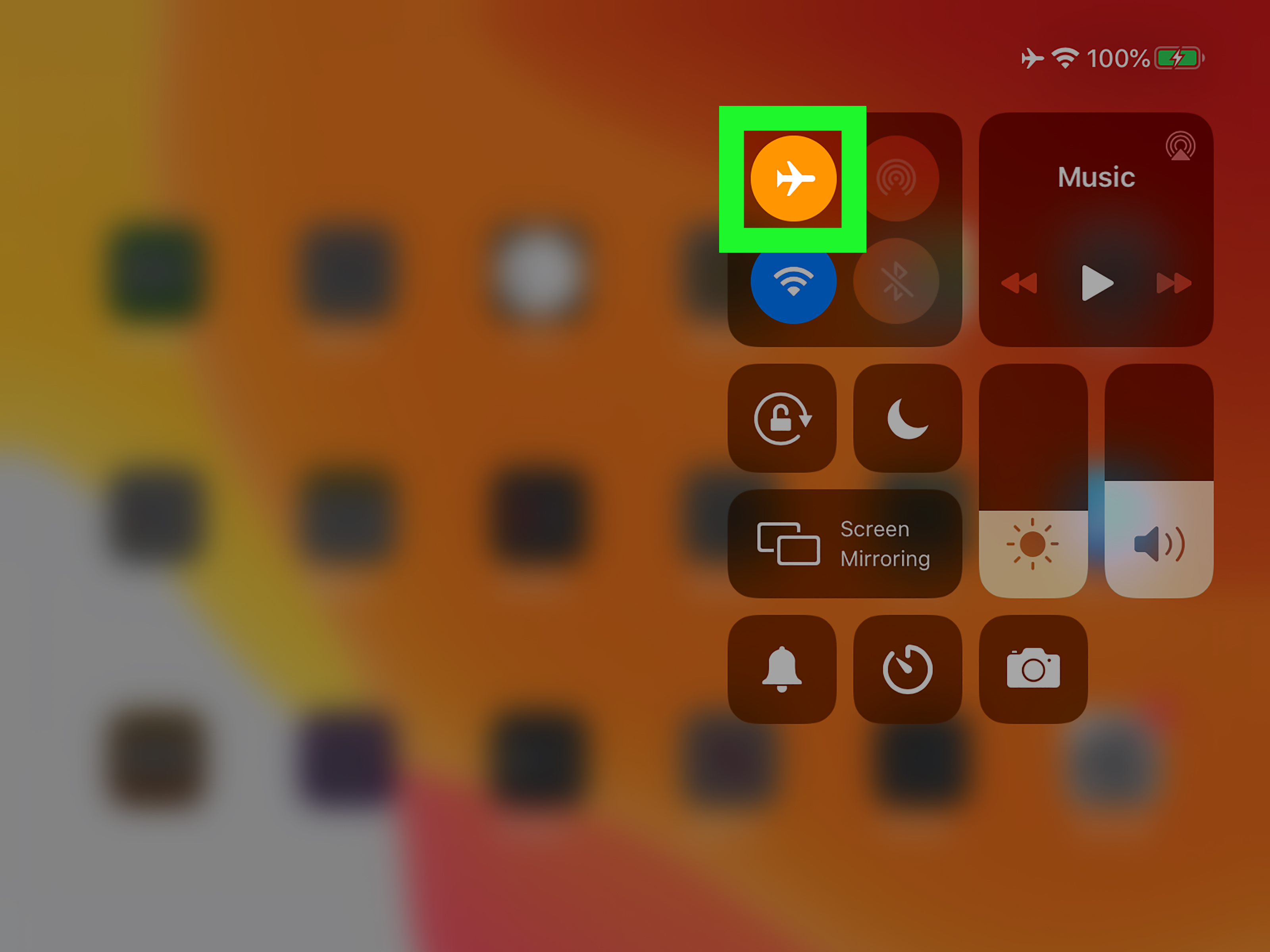
Whenever possible, connect to a reliable Wi-Fi network instead of using cellular data. If you are in an area with poor service and you do not need to be connected, use Airplane Mode. Also turn off Bluetooth, AirDrop, or other wireless features when you are not actively using them.
Why this helps
Constant scanning for networks and maintaining weak connections uses extra energy. This is especially noticeable during travel, commuting, and events where the signal is weak or crowded. On those days, your iPad battery is not lazy; it is just overworked.
6. Tame Location Services and Notifications Before They Multiply Like Rabbits
Every app wants something. Some want your location. Some want to notify you that a stranger liked a chair you viewed three weeks ago. All of that activity costs battery. Not always a huge amount individually, but together it adds up.
What to do
Review Settings > Privacy & Security > Location Services and switch apps to While Using rather than Always whenever possible. Then visit Settings > Notifications and be ruthless. Keep alerts for messages, calendar reminders, and important apps. Mute the digital equivalent of people tapping your shoulder every four minutes.
Why it works
Location checks, screen wake-ups, vibrations, and repeated background requests all use power. Your iPad battery lasts longer when fewer apps are allowed to behave like clingy roommates.
7. Check Battery Usage, Keep iPadOS Updated, and Protect Battery Health From Heat
Sometimes the best battery fix is not a single setting. It is paying attention. Your iPad already tells you what is draining power, but many users never look. Meanwhile, software updates can improve efficiency, and high heat can hurt both battery performance and long-term lifespan.
What to do
Open Settings > Battery and review battery usage by app. If one app keeps showing up as the main offender, you have found your battery goblin. Update iPadOS regularly, because efficiency and bug fixes often matter. Also avoid charging or using the iPad in very hot environments, such as direct sun, parked cars, or under blankets where electronics apparently go to roast.
Long-term battery health matters too
All rechargeable batteries age. Over time, capacity drops, and eventually battery life will shorten no matter how well you behave. On supported iPads, Battery Health can show useful details like maximum capacity and cycle information. If your battery seems dramatically worse than it used to be, checking battery health can tell you whether the issue is usage habits, aging hardware, or both.
Bonus Habit: Match the iPad to the Job
If you are editing video, running graphics-heavy games, taking long video calls, or streaming for hours at max brightness, the battery will drop faster. That is normal. Battery-saving habits are most effective when paired with realistic expectations. An iPad reading ebooks on 35 percent brightness is not living the same life as an iPad rendering art files, blasting speakers, and bouncing between Wi-Fi and cellular all afternoon.
In other words, do not judge your battery life based on your most power-hungry day and assume the battery has betrayed you personally.
Real-World Experiences: What Extending iPad Battery Life Actually Looks Like
In real life, battery-saving advice is less about one magic switch and more about patterns. For example, a college student using an iPad for note-taking in class may think the battery is weak, but the real culprit is often max brightness in lecture halls, dozens of browser tabs, and constant Bluetooth use for earbuds between classes. Once brightness drops, Auto-Lock is shortened, and Low Power Mode is turned on before the day starts, the same iPad can suddenly feel much more reliable. It is not glamorous, but neither is begging a classmate for a charger.
A frequent traveler often notices battery drain the most in airports, train stations, and rideshares. That makes sense. These are all places where devices work harder to maintain unstable wireless connections. In that situation, one of the best experiences people report is switching to Airplane Mode when they are only watching downloaded content, reading, or working offline. The difference can be surprisingly dramatic. The iPad stops constantly hunting for a better signal like an overly determined bloodhound.
Parents often have a different experience. The iPad becomes a family device, passed around for streaming, games, homework, and video calls with relatives. In that setup, battery drain usually comes from a perfect storm of bright screens, nonstop notifications, and apps refreshing all day. A few household rules can help: keep brightness at a sane level, turn off notifications for nonessential apps, and charge the iPad in a cool place overnight. It is not exactly thrilling dinner-table conversation, but it works.
Creative users, especially those drawing or editing photos, tend to notice that their iPad battery depends heavily on what kind of work they are doing. Sketching with Apple Pencil for an hour is not the same as layering large files, keeping the screen bright for color accuracy, and exporting artwork while music streams in the background. The most useful lesson here is not to chase impossible battery expectations. Instead, build a workflow: lower brightness when precision is not critical, close out unneeded background tools, and use Wi-Fi instead of cellular when uploading files. That turns battery life from unpredictable to manageable.
Remote workers often describe another common experience: the iPad seems fine in the morning and mysteriously drained by late afternoon, even on days without intense use. Usually, the battery is being chipped away by dozens of small actions rather than one giant offender. Email fetch, calendar syncing, Slack alerts, cloud storage updates, Bluetooth accessories, and long screen-on sessions all team up like tiny energy thieves. The fix is usually a cleanup, not a repair. Review battery usage, disable what is unnecessary, and use Low Power Mode when the day gets long.
The big takeaway from these experiences is simple. Extending the battery life of an iPad is rarely about babying the device. It is about making smarter choices that remove waste. Once those habits are in place, the iPad feels more dependable, charging becomes less frantic, and the battery stops feeling like a dramatic coworker who quits at the first sign of pressure.
Conclusion
If you want to extend the battery life of an iPad, focus on the habits that matter most: lower brightness, use Low Power Mode strategically, shorten Auto-Lock, reduce background app activity, prefer strong Wi-Fi, trim location services and notifications, and keep an eye on battery usage and heat. None of these tips is complicated. Together, though, they can make your iPad last longer during the day and age better over the years.
The best part is that you do not have to apply every trick all at once. Start with the display, then tackle background refresh, then clean up notifications and wireless settings. A few thoughtful changes can turn your iPad from “always looking nervous at 22 percent” into a device that actually makes it through the day with dignity intact.