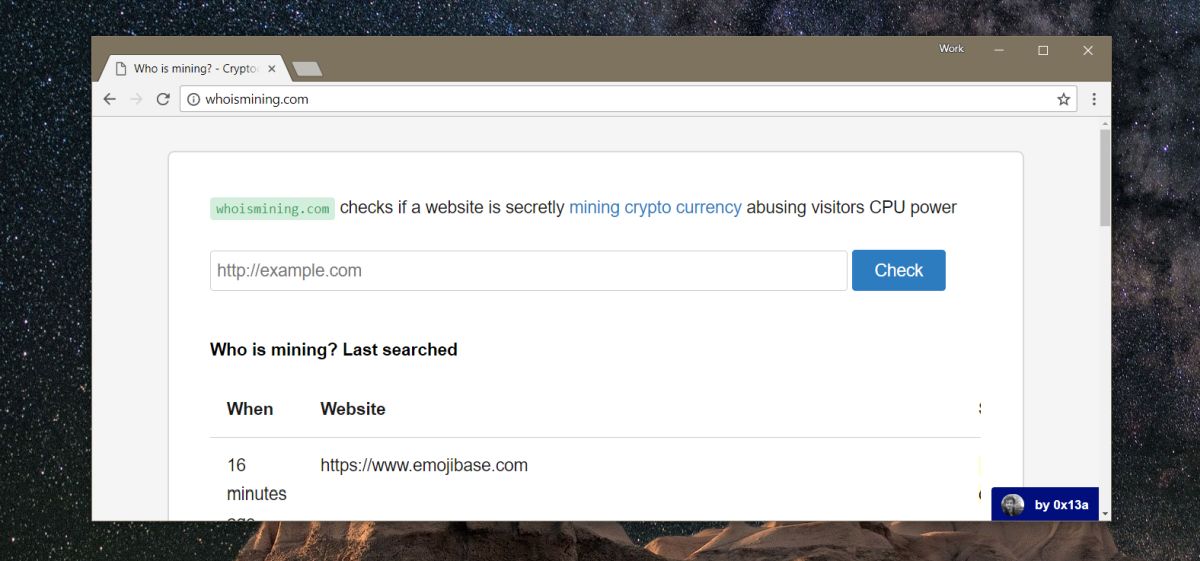
You open a website to read one innocent little article, and suddenly your laptop sounds like it is preparing for takeoff. The fan spins up, your battery starts melting faster than ice cream in July, and the browser tab feels heavier than your entire workweek. That does not automatically mean the site is mining cryptocurrency, but it is a fair reason to raise an eyebrow.
Website-based cryptocurrency mining, often called browser cryptojacking or in-browser cryptomining, happens when a page uses your device’s processing power to generate cryptocurrency without clear, informed permission. In plain English, somebody else is borrowing your CPU and sending you the electric bill. Sometimes the culprit is a malicious site. Sometimes it is a compromised ad, a bad third-party script, or a shady browser extension. And sometimes the website is just badly built and JavaScript-hungry, which is annoying but not the same thing.
If you want to know how to check if a website is mining cryptocurrency, the goal is not to panic every time your computer gets warm. The goal is to gather evidence. You want to figure out whether the resource spike is tied to one site, one tab, one script, or something broader on your device. Once you know that, you can decide whether to close the page, block the source, remove an extension, reset your browser, or investigate deeper.
This guide walks through the practical ways to check a suspicious website, explains what signs actually matter, and shows how to separate cryptomining from ordinary bad web performance. No tinfoil hat required. Just a browser, a few built-in tools, and a healthy distrust of websites that make your fan scream.
What Website Crypto Mining Actually Looks Like
When a website is mining cryptocurrency in your browser, it usually runs JavaScript, WebAssembly, workers, or other client-side code that performs heavy computations in the background. The tab may stay responsive, or it may turn into digital oatmeal. The mining activity often continues as long as the page remains open. In some cases, the behavior is tied to a third-party script, injected ad, compromised plugin, or malicious extension rather than the site owner’s main code.
That distinction matters. If a site is truly mining cryptocurrency, you are looking for sustained, unusual resource use that tracks closely with the page being open. Close the tab and the spike should usually drop. Reopen it and the spike comes back. That repeatable pattern is your first real clue.
Just remember: high CPU alone is not a smoking gun. Video editors in the browser, 3D product viewers, browser games, real-time dashboards, AI tools, badly optimized analytics, and memory leaks can also turn a webpage into a tiny furnace. So the right mindset is detective, not drama queen.
Common Signs a Website May Be Mining Cryptocurrency
The most common symptom is sustained high CPU usage while a specific page is open. If the site is mostly text and simple images, but your CPU shoots up and stays there, that is suspicious. If you close the tab and usage drops, the suspicion gets stronger.
Another clue is excessive battery drain, especially on laptops. Websites that secretly mine tend to keep the processor busy for long stretches, which can chew through battery life much faster than normal browsing. The same goes for overheating. If your computer gets unusually hot from a lightweight site, something may be off.
You may also notice lag, stuttering, frozen scrolling, delayed clicks, or frequent browser crashes. Some users first spot the issue because their machine becomes sluggish only when one site is open. Others notice the browser staying weirdly busy even when the page looks idle.
At the network level, suspicious pages can maintain connections to unfamiliar domains or long-lived background sessions that do not make sense for the site’s visible features. That still is not absolute proof, but it can help support your case. If the page looks like a recipe blog and behaves like a small data center, you are allowed to be skeptical.
How To Check If A Website Is Mining Cryptocurrency: Step by Step
1. Start With a Baseline Test
Before blaming a website, reduce the noise. Close extra tabs, pause downloads, and shut down heavyweight apps. Then open your browser and check your normal CPU usage while sitting on a blank tab or a trusted low-resource page. This gives you a rough baseline.
Now open the suspicious website by itself. Wait a minute or two. If CPU usage jumps sharply and stays elevated, you have a useful comparison. Close the tab and watch whether the numbers fall back down. Reopen the page and see if the spike returns. A repeatable pattern is much more meaningful than one random blip.
This simple test is boring, but boring tests solve real problems. Cybersecurity is full of glamourless victories.
2. Check System Resource Usage
Use your operating system’s performance tools to see whether the browser is suddenly consuming more CPU, memory, or GPU than usual. On Windows, Task Manager is the obvious place to look. On macOS, Activity Monitor does the job. On Linux, system monitors or top-style tools can help.
Focus on whether the browser process ramps up when the suspicious site is open and settles down when it closes. You are not just looking for a high number. You are looking for a cause-and-effect relationship. If the browser is calm until one page loads, that page deserves your attention.
Also note whether the resource strain is limited to the browser or affects the whole machine. If the spike continues after you close the page, the issue may be a malicious extension, a hidden background tab, or malware installed on the device rather than a single website.
3. Use Browser-Level Diagnostics
Firefox has a Task Manager feature that can help show which tabs and extensions are consuming CPU and memory. That is useful when you want to confirm whether one tab is behaving like a tiny crypto farm. For Chrome-based browsers, even if you mostly rely on the operating system’s task tools, developer diagnostics can still show what the page is doing under the hood.
The point here is simple: narrow the behavior down to a specific tab, extension, or process. If one page is wildly out of proportion to what it visibly does, that is a strong sign to keep digging.
4. Open Developer Tools and Watch Performance
If you are comfortable using browser developer tools, they can be incredibly helpful. In Chrome DevTools, the Performance panel and Performance Monitor can show CPU activity, JavaScript heap size, event listeners, DOM activity, and other metrics in real time. You do not need to be a full-time developer to get value from this. You just need to notice whether the page keeps hammering the CPU while apparently doing nothing useful.
Record activity for a short window after the page loads. If you see long-running scripting work, constant background activity, or recurring computational bursts that do not match normal user interaction, that is suspicious. A static article page should not behave like it is solving advanced math homework for a blockchain.
Heavy scripting is not proof by itself, but it helps you distinguish between “this page is bloated” and “this page is doing something quietly expensive.”
5. Inspect Network Requests
Use the Network panel in your browser’s developer tools and reload the page. Watch for repeated requests to unfamiliar third-party domains, persistent background connections, or long-running sessions that seem unrelated to the page’s visible features. If the site is just displaying text and photos, but the browser is chatting constantly with obscure endpoints, that deserves scrutiny.
You do not need to identify every request like a digital Sherlock Holmes. Instead, ask a simpler question: do the network calls make sense for the page? Analytics, fonts, images, and content delivery requests are common. A pile of unexplained background activity on a simple page is less comforting.
This step is especially helpful when the source of the problem is not the site owner’s main code, but a third-party ad network, tag manager, widget, or injected script.
6. Look for Suspicious Client-Side Behavior
If you view the loaded scripts in developer tools, keep an eye out for heavily obfuscated JavaScript, unusual worker activity, or a strong reliance on WebAssembly in places where it seems unnecessary. None of those automatically means mining, because legitimate apps use them too. But if you combine those findings with high CPU usage and repeatable performance spikes, your case gets stronger.
The key is correlation. One clue is weak. Several clues pointing in the same direction are much better. Think less “gotcha” and more “I now have enough evidence to stop trusting this tab.”
7. Rule Out Browser Extensions
Sometimes the website is innocent and the extension is the gremlin. A malicious or compromised extension can inject code into pages, cause hidden background activity, or create the illusion that a specific site is the problem. To test this, open the same site in a private window with extensions disabled, or try a fresh browser profile.
If the suspicious behavior disappears, the site may not be the real culprit. Review your extensions carefully and remove anything you do not trust, do not recognize, or no longer use. Browser stores have become stricter over time, but bad extensions still slip through, and off-store installs are even riskier.
8. Test in Another Browser or on Another Device
This is one of the easiest ways to narrow things down. Open the same page in a different browser with no shared extensions, or check it on another device. If the issue follows the page across clean environments, the site becomes more suspicious. If it appears only in one browser profile on one machine, the issue may be local.
Cross-checking saves time because it helps separate website behavior from browser pollution. Your browser profile can accumulate old extensions, weird settings, and forgotten permissions the same way a junk drawer accumulates cables from devices nobody remembers owning.
9. Scan and Reset if Needed
If you still suspect hidden mining activity, run a reputable security scan on the device. Also review browser settings, site permissions, notification permissions, and installed extensions. If your browser keeps acting strangely across multiple sites, consider a browser reset and make sure the operating system and browser are fully updated.
This matters because some cryptojacking-related symptoms come from broader malware or unwanted software, not from a page you can simply close. If the machine is infected, treating one website as the villain is like blaming the smoke alarm instead of the fire.
What Counts as Good Evidence?
If you are trying to decide whether a website is mining cryptocurrency, the strongest evidence usually looks like this: the page causes sustained resource spikes, the behavior returns when you reload it, the issue disappears when you close it, and developer tools show unusual background scripting or network activity that the page cannot reasonably explain.
Weak evidence looks like this: your laptop got warm once, a modern web app used a lot of memory, or a single video-heavy page pushed CPU for a moment. That is not enough.
In other words, do not convict a site based on vibes alone. Suspicion is useful. Proof is better.
How To Tell the Difference Between a Bad Website and a Mining Website
A badly optimized website often has visible reasons for its performance problems. Maybe it loads huge images, auto-plays video, runs animations everywhere, or ships enough tracking scripts to fill a small warehouse. It is obnoxious, but you can usually see why it is slow.
A mining website, by contrast, tends to show a mismatch between what you see and what the browser is doing. The page may look simple, but the machine behaves as though it is under serious computational load. That mismatch is one of the most useful practical clues.
Another difference is persistence. Normal page activity often spikes during load, then settles. Mining-style behavior may continue steadily for as long as the tab remains open. If the page keeps burning CPU while you do absolutely nothing, it is not doing itself any favors in court.
If You Own the Website
If this is your website and you are checking whether it has been compromised, the job is a little different. Start by auditing recent script changes, third-party tags, ad partners, analytics tools, plugins, and content delivery dependencies. Many web-based cryptojacking incidents come from injected client-side code, compromised third-party scripts, or tampered supply-chain components rather than a dramatic full-site hack.
Review your source changes and scan for unexpected scripts, obfuscated code, or new external domains. Compare current files with known-good versions. Check whether any ad or marketing tags were added recently. Audit plugins and extensions in your CMS. If you use multiple third-party scripts, pay extra attention to anything that was updated without your team intentionally touching it.
For prevention, use tighter control over third-party scripts, apply Content Security Policy where practical, consider Subresource Integrity for static script dependencies, and monitor changes to client-side code. Site owners often focus on server-side threats and forget the browser is a security battleground too. Attackers have not forgotten.
How To Protect Yourself Going Forward
The easiest defense is healthy browser hygiene. Keep your browser updated, trim unnecessary extensions, and avoid installing random add-ons because a popup promised to make the internet “faster.” The internet has been making that promise for years, and somehow it still shows up late.
Use reputable security software, block or remove suspicious extensions, and be cautious with sites that immediately trigger popups, odd permission requests, or unexplained performance spikes. If a site seems sketchy, close it first and investigate second. You are not obligated to stay on a page that is treating your laptop like rented mining equipment.
For advanced users, browser developer tools, resource monitors, and security-focused blockers can make detection much easier. For everyone else, the most practical rule is simple: if one site consistently causes high CPU, heat, lag, and battery drain for no visible reason, trust your instincts and stop using it until you know what is happening.
Real-World Experiences and Lessons From Suspicious Websites
One common experience goes like this: a user opens what should be a simple page, maybe a blog post, a coupon site, or a file converter. Within seconds, the laptop fan gets loud, scrolling becomes sticky, and battery life starts dropping like a rock. The user assumes the browser is just having a bad day. Then they close the tab, and the machine calms down almost immediately. That kind of before-and-after change is often what first makes people suspect browser cryptomining.
Another typical story involves misdiagnosis. Someone blames a website because the issue seems to happen there every time. After a little testing, they discover the real problem is a rogue extension injecting code into multiple pages. The suspicious site was not entirely innocent, but it was not the true source either. This is why testing in a clean browser profile or private window matters so much. It turns guesswork into something closer to evidence.
Website owners have their own version of this headache. A site may suddenly feel heavier for visitors even though the design has not changed much. Support tickets start coming in: “Your site makes my computer hot,” “My browser freezes on your homepage,” “Why is this tab using so much CPU?” The owner checks the main code and finds nothing obvious. Eventually, the real cause turns out to be a compromised third-party script, ad tag, or plugin update that injected unwanted code into the page. The site itself did not wake up one morning and decide to become a crypto mine. It was dragged into the mess by a dependency.
There are also plenty of false alarms. Modern websites can be absurdly heavy without mining anything at all. Interactive maps, video backgrounds, AI chat widgets, large dashboards, 3D previews, and endless trackers can punish your CPU in perfectly legal ways. That is frustrating, but it is not the same as secret mining. People often learn the hard way that “high CPU” is a clue, not a verdict.
The most useful lesson from all of these experiences is that patterns matter more than one dramatic moment. If a site repeatedly triggers the same behavior, if the spike disappears when the page closes, if the issue survives reloads, and if diagnostic tools show unusual background work, then you likely have a real problem worth acting on. If the behavior is inconsistent, only happens with one browser profile, or vanishes when extensions are disabled, the website may just be the stage where another problem is performing.
In practical terms, the smartest users tend to follow the same routine. They compare baseline performance, isolate the tab, check extensions, test another browser, and only then decide whether the site is malicious, compromised, or simply inefficient. That process is not glamorous, but it works. And in cybersecurity, working beats dramatic every single time.
Conclusion
If you want to check whether a website is mining cryptocurrency, think like an investigator, not a conspiracy theorist. Start with the obvious signs: high CPU usage, heat, battery drain, lag, and repeatable slowdowns tied to a specific page. Then confirm the pattern with browser and system tools. Use performance monitoring, inspect network activity, rule out extensions, and test the page in a clean environment.
Most importantly, remember that not every heavy website is secretly mining crypto. Some pages are just poorly built and spectacularly inconsiderate. But when a simple page causes sustained resource spikes, unexplained background activity, and a clear cause-and-effect pattern, you are right to be suspicious. Close it, scan your system, clean up your browser, and do not donate your CPU to strangers for free. That is a terrible subscription plan.