If your desktop usually looks like a yard sale for browser tabs, spreadsheets, chat windows, and random PDFs you swear you were just using, WinSplit Revolution is the kind of tool that makes you feel like you finally hired a tiny, very efficient office manager. Instead of dragging windows around by hand like it is 2007 and your mouse is doing unpaid overtime, WinSplit Revolution helps you adjust multiple windows on your desktop with fast keyboard shortcuts, clever snapping, and a grid-based approach that turns screen chaos into something close to civilized.
Even though WinSplit Revolution is now more of a legacy favorite than a modern mainstream app, people still search for it because the idea behind it is excellent: split the screen quickly, move windows where you want them, stop fiddling with borders, and get back to actual work. That idea still matters. In fact, it helped shape the way many users think about desktop multitasking today.
This guide explains what WinSplit Revolution is, how it works, why it became such a beloved window management tool, and how you can use its logic to manage multiple windows more efficiently. We will also look at where it still shines, where it shows its age, and what lessons it offers for modern desktop productivity.
What Is WinSplit Revolution?
WinSplit Revolution is a lightweight window management utility for Windows that helps you organize open applications by tiling, resizing, and positioning them into specific areas of the screen. The big appeal is simple: it replaces a lot of clumsy manual resizing with fast commands. Think of it as split-screen multitasking with better reflexes and less drama.
At its core, the software treats your monitor like a 3×3 grid. The numeric keypad becomes a map. Pressing a shortcut tied to a numpad position sends the active window to the matching part of the screen. Lower-left goes lower-left. Upper-right goes upper-right. Center goes center. It is intuitive enough that after a short learning curve, your fingers start doing the work before your brain finishes the sentence, “Where should I put this window?”
One of the smartest touches is that repeated presses can cycle the window through different widths and sizes. So a window does not just land in a region; it can expand or shrink within that anchored area. That makes WinSplit Revolution surprisingly flexible for writing, coding, monitoring dashboards, or comparing documents side by side.
Why WinSplit Revolution Became a Productivity Favorite
It made big monitors actually useful
A lot of people buy a large monitor and then use it like an oversized single sheet of paper. WinSplit Revolution changes that. It encourages you to divide screen real estate intentionally. On a high-resolution display, that is a huge win. One part of the screen can hold your browser, another your notes, and another your messaging app. Suddenly, your desktop stops feeling like a giant empty parking lot and starts behaving like a well-zoned city.
It rewards keyboard-driven workflows
If you hate taking your hands off the keyboard every 30 seconds, this tool feels like a gift. The hotkeys are the star. Many users loved the fact that they could move and resize the active window with combinations such as Ctrl + Alt + a numpad key, all without reaching for the mouse. That saves tiny bits of time over and over again, which is exactly how productivity tools become addictive.
It was friendly to both neat freaks and power users
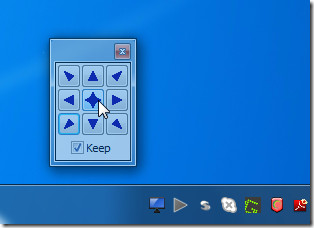
WinSplit Revolution was not just about snapping windows into halves. It could help tile multiple windows, move windows between monitors, keep a window on top, and even offer a clickable virtual numpad for people working on laptops or for those who preferred pointing and clicking over memorizing shortcuts. In other words, it was flexible enough for both advanced users and everyday multitaskers.
How To Adjust Multiple Windows On Desktop With WinSplit Revolution
If you want to understand the workflow, picture your monitor as a board with nine anchor points. That is the heart of the system. Here is how the experience typically works.
1. Use the numpad as a map
The numpad mirrors the screen layout. Press the shortcut for the area you want, and the active window jumps there. A lower-right shortcut sends the window to the lower-right area. A top-center shortcut places it at the top. A center shortcut can maximize or center the window depending on the cycle stage. This is why WinSplit Revolution felt so natural: the keypad already looks like a miniature floor plan of your monitor.
2. Cycle through window sizes
One of the most practical features is size cycling. Press the same placement shortcut again and the window can move through different size presets anchored to the same position. That means you are not stuck with a rigid half-screen or quarter-screen arrangement. You can use a narrow column for chat, a medium panel for email, or a wider section for a document you actually need to read without squinting like a pirate hunting buried treasure.
3. Use Drag’N’Go when you want the mouse
WinSplit Revolution also included a drag-based snapping feature often called Drag’N’Go. Hold the modifier keys, drag a window, and target areas become visible so you can drop the window into place. This is especially handy for people who understand screen layout visually but do not feel like memorizing shortcuts right away.
4. Try the virtual numpad on laptops
No dedicated numpad? No problem. The clickable virtual numpad gives laptop users an easier way to access the same placement logic. This kept the software useful beyond full-size desktop keyboards and made it friendlier for mobile professionals, students, and anyone using a smaller machine.
5. Build repeatable layouts for real work
The best use of WinSplit Revolution is not random snapping. It is repeatable layout design. For example, a writer might keep research on the left, a draft in the center, and notes or messages on the right. A finance user might park a spreadsheet on one side, a browser dashboard on the other, and email in a smaller corner window. A support agent could keep a ticket system, internal docs, and chat open at the same time without constantly minimizing and maximizing windows like a caffeinated accordion.
Best Layout Ideas for Everyday Desktop Multitasking
The writer’s layout
Put your draft in the biggest area, source material in a side column, and your outline or notes in a smaller panel. This reduces tab switching and makes it easier to keep context while writing.
The analyst’s layout
Keep the spreadsheet wide, place a browser window with source data beside it, and reserve a small lower corner for chat or alerts. It is simple, but it turns one monitor into a mini command center.
The customer support layout
Use one large panel for the ticket queue, one for internal knowledge base articles, and one for communication tools. That way you are not constantly hunting for the window that mysteriously disappeared behind everything else.
The study layout
Students and researchers can place lecture notes on one side, a browser or PDF viewer on the other, and a document editor below or centered. It is the digital version of spreading books across a desk, minus the paper cuts.
Strengths That Still Make WinSplit Revolution Worth Remembering
Even now, WinSplit Revolution stands out for a few reasons. First, it is fast. Second, it is logical. Third, it respects how people actually work: with multiple windows open and limited patience for manually arranging them. The grid concept is elegant because it is easy to understand but deep enough to support real customization.
It also helped bridge the gap before Windows built more advanced snapping into the operating system. Native Windows Snap became more useful over time, and Windows 11 added Snap Layouts and Snap Groups. But long before those features became polished, WinSplit Revolution was already showing users that desktop multitasking could be smarter, quicker, and more intentional.
Where WinSplit Revolution Shows Its Age
Now for the honest part: WinSplit Revolution is a legacy tool. It has been discontinued, and some users have run into issues on newer versions of Windows. That does not erase its influence, but it does mean you should treat it like a classic car. Charming? Yes. Iconic? Also yes. The easiest thing to maintain on a modern operating system? Not exactly.
Modern Windows versions offer built-in Snap, Snap Layouts, and Snap Groups. Microsoft PowerToys adds FancyZones, which lets users create customizable zone layouts and even manage multi-monitor setups more elegantly. So while WinSplit Revolution still matters as a concept and may still appeal to enthusiasts who love its shortcut logic, it is no longer the safest recommendation for every average user.
WinSplit Revolution vs. Modern Window Management Tools
WinSplit Revolution
Best for users who love keyboard shortcuts, grid logic, and old-school control. It is fast, lightweight, and satisfying when it works well.
Windows Snap and Snap Layouts
Best for users who want built-in features with no extra software. Windows 11 makes it easy to hover over the maximize button or press Win + Z to create useful layouts. It is convenient, clean, and already sitting there waiting for you.
Microsoft PowerToys FancyZones
Best for users who want custom layouts and modern support. FancyZones feels like the spiritual successor to older window managers. It offers more control than basic Snap and is better suited to complex workflows, ultrawide monitors, and people who treat desktop arrangement as a competitive sport.
Practical Advice If You Like the WinSplit Revolution Style
Even if you never install the original tool, the method behind it is still gold. Start thinking in zones instead of random open space. Give each type of task a home on the screen. Use shortcuts instead of constant dragging. Create repeatable layouts for writing, meetings, coding, budgeting, and research. When your screen layout becomes consistent, your brain does less housekeeping. That mental energy can go to real work instead of window wrangling.
Another smart move is pairing layout management with virtual desktops. One desktop can be for focused work, another for communication, another for personal tasks. That combination keeps your machine from feeling like a cluttered attic with ten half-finished projects hiding behind each other.
Real-World Experiences With Adjusting Multiple Windows on Desktop With WinSplit Revolution
What people tend to remember most about WinSplit Revolution is not just the feature list. It is the feeling of suddenly getting their desktop under control. Before using a tool like this, a lot of workdays follow the same sad little pattern: open browser, open email, open document, resize one, accidentally cover the other, lose chat, find chat, resize again, mutter something unprintable, repeat. WinSplit Revolution interrupts that nonsense. It gives structure to the screen almost immediately.
For a writer or editor, the experience is especially satisfying. Imagine keeping a draft in the center, source notes on the left, and a research tab or style guide on the right. Instead of bouncing between full-screen windows, everything is visible. You stop breaking your concentration every time you need to check a fact. The desktop starts acting like a real workspace instead of a revolving door.
For office users, the benefit is even more obvious. Spreadsheet on one side, email on another, browser in a corner, maybe a chat app tucked into a narrow strip. That setup turns one monitor into a multitasking machine without making you feel like you need three extra arms. People who handle admin work, sales reports, customer service tickets, or online meetings often discover that the time savings are not dramatic in one giant moment. They show up in tiny cuts to friction all day long. A second here, five seconds there, fewer interruptions everywhere.
Laptop users often had a different reaction: relief. Without a full-size numeric keypad, window management tools can feel like they were designed by and for desktop keyboard snobs. WinSplit Revolution’s virtual numpad gave those users another path in. It was not flashy, but it made the tool usable on smaller devices and helped bridge the gap between mouse-first and keyboard-first workflows.
There is also a certain joy in the learning curve. At first, the shortcuts feel like a cheat sheet you need taped to your brain. Then, somewhere around day three or four, they click. You stop thinking, “How do I move this?” and start moving windows automatically. That moment is when the tool goes from software to habit. And once a layout habit sticks, it is hard to go back to freehand window resizing.
Of course, the experience is not perfect. Because WinSplit Revolution is older software, some people find that modern Windows behavior has outgrown it. Newer built-in snapping tools are smoother, more polished, and less likely to throw a compatibility tantrum. But that does not make the original experience less valuable. In many ways, it proves how strong the idea was. If a utility from years ago still feels smarter than the default behavior many users put up with, that utility was doing something right.
The biggest takeaway from the WinSplit Revolution experience is this: once your desktop layout becomes intentional, your workday feels less noisy. You spend less time hunting, dragging, minimizing, maximizing, and reorganizing. You spend more time reading, writing, comparing, responding, building, and finishing. That is the real win. Not the shortcut itself. Not the grid. Not even the software. It is the simple fact that your screen finally starts working for you instead of against you.
Conclusion
Adjusting multiple windows on desktop with WinSplit Revolution is really about adopting a smarter way to work. The software became popular because it solved a very real problem: people do not work in one window at a time, and they should not have to manually wrestle every application into place. With its numpad-based grid, customizable shortcuts, drag-based snapping, and support for practical layouts, WinSplit Revolution helped define a better approach to window management.
Today, it is best understood as both a useful legacy tool and a blueprint for modern multitasking. If you enjoy keyboard-driven workflows and structured screen layouts, its ideas are still incredibly relevant. Whether you use the original program, native Windows Snap, or a modern alternative like FancyZones, the lesson is the same: your desktop is not just a place to open windows. It is a workspace. Organize it like one.