Changing your route in Google Maps on Android sounds like it should be as easy as telling your phone, “No, not that roadthe other one, the one that does not look like a parking lot with turn signals.” Luckily, Google Maps gives Android users several practical ways to adjust directions before and during a trip. You can choose an alternate route, avoid tolls or highways, add stops, reorder destinations, preview turn-by-turn directions, and let Maps recalculate around traffic. It is not magic, although when it saves you from a 40-minute traffic jam, it does feel suspiciously close.
This guide explains how to change the route on Google Maps on Android in 7 clear steps. Whether you are driving across town, planning a road trip, avoiding toll booths, adding a coffee stop, or trying not to arrive at a birthday party with melted ice cream, these steps will help you take more control over your route.
Can You Manually Change a Route on Google Maps Android?
Yes, but with one important limitation: the Android app does not work exactly like Google Maps on desktop. On a computer, you may be able to drag parts of a route line to force a custom path. On Android, the main ways to change a route are to tap an alternate gray route, add a stop, change route options, edit your start or destination, or let Google Maps reroute based on traffic and road conditions.
In plain English: you cannot always “draw” your own road path with your finger. Google Maps is powerful, but it is not a digital Etch A Sketch for highways. If you want to force Maps to use a specific road, the best trick is to add a stop near that road or along that preferred path. This gives the app a strong hint without requiring you to wrestle the blue route line like a stubborn garden hose.
How to Change the Route on Google Maps on Android: 7 Steps
Step 1: Open Google Maps and Enter Your Destination
Open the Google Maps app on your Android phone or tablet. In the search bar, type the place you want to go. You can enter a business name, street address, landmark, saved place, or general destination such as “gas station near downtown.” Once the location appears, tap it and then tap Directions.
If Google Maps detects your current location, it will usually use it as the starting point. If you want to plan from somewhere else, tap the starting point field and replace “Your location” with another address. This is useful when you are planning a trip for later, checking a route from your hotel, or pretending to be organized before a vacation. No judgment; we have all planned a road trip while still packing socks.
Step 2: Choose Your Travel Mode
After tapping Directions, choose the right transportation mode. Google Maps may show options for driving, public transit, walking, cycling, ride services, or two-wheel routes depending on your location. The route choices can change dramatically based on this selection.
For example, a walking route may cut through a pedestrian path that cars cannot use. A transit route may include buses, trains, transfers, and departure times. A driving route focuses on roads, traffic, speed, closures, and estimated arrival time. Before you change the route, make sure the mode matches how you are actually traveling. Otherwise, Maps may politely guide your car onto a sidewalk, and that is generally frowned upon by humans, laws, and sidewalks.
Step 3: Review the Suggested Routes
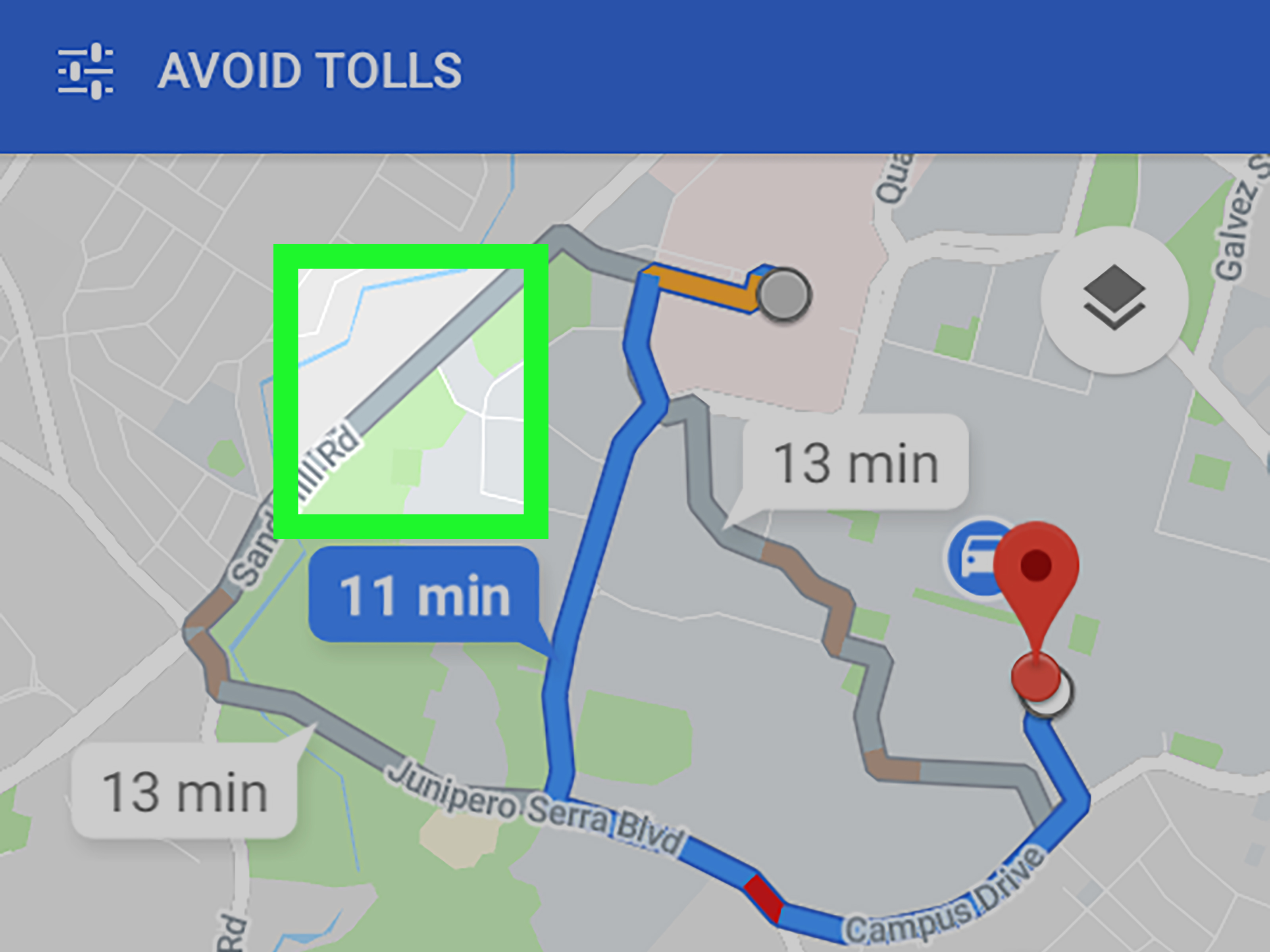
Google Maps usually highlights the recommended route in blue. If alternate routes are available, they appear as gray lines on the map. Each route may show a different estimated travel time. To change to a different route, simply tap the gray route line. Once selected, it becomes the active route.
This is the fastest way to change a route on Google Maps Android. It works well when you want to avoid a busy freeway, take a more familiar road, or choose a route that has fewer turns. Before starting navigation, zoom in and look at the route. Check whether it passes through areas you want to avoid, includes toll roads, or sends you through construction zones. Google Maps is smart, but it cannot always know that you personally hate one particular left turn with the emotional intensity of a Shakespearean tragedy.
Step 4: Use Route Options to Avoid Tolls, Highways, or Ferries
If you want Google Maps to recalculate based on specific preferences, tap the three-dot menu near the route panel or starting point area, then look for Route options. Depending on your region and route type, you may see options such as Avoid tolls, Avoid highways, or Avoid ferries.
Turn on the options you want, then apply them. Google Maps will update the route if a suitable alternative exists. This is especially helpful when you are trying to save money, avoid stressful high-speed roads, or skip a ferry schedule that looks like it was designed by a sleepy calendar.
Keep in mind that avoiding highways may increase travel time. Avoiding tolls can send you through local streets with more traffic lights. Avoiding ferries may require a long detour. The “best” route depends on what matters most to you: time, cost, comfort, fuel, scenery, or not hearing your passengers ask, “Are we there yet?” every twelve minutes.
Step 5: Add a Stop to Force a Preferred Route
If Google Maps refuses to show the road you want, adding a stop is the most reliable workaround on Android. Tap the three-dot menu and choose Edit stops or Add stop. Search for a place along the road you prefer, such as a gas station, café, landmark, parking lot, or intersection near that route. Add it between your starting point and final destination.
After adding the stop, tap Done. Google Maps will recalculate the route to include that stop. This method is useful when you want to take a scenic road, avoid a neighborhood, pass through a certain town, or make sure you drive near a particular area.
For example, suppose Google Maps wants to send you on the fastest freeway route, but you want to take a coastal road. Add a stop at a beach, viewpoint, or café along the coast. Maps will rebuild the trip around that stop. Congratulations: you have just outsmarted your navigation app using coffee and geography.
Step 6: Reorder or Remove Stops
If your trip includes multiple stops, the order matters. A route from home to a grocery store, then to school, then to work may be very different from home to school, then grocery store, then work. To reorder stops, open the route editing screen, press and hold the reorder icon next to a stop, then drag it up or down the list.
You can remove a stop if it is no longer needed. This is helpful when plans change, someone cancels, or you realize that stopping for “one quick snack” has somehow become a 45-minute expedition involving fries. Once you edit the stop order, tap Done and review the updated route.
Google Maps supports multiple destinations for most travel modes, but not every mode allows every route-editing feature. Public transit and flight directions have more limits because schedules, stations, and available services control the route more than your personal preferences do.
Step 7: Start Navigation and Watch for Reroutes
When you are satisfied with the route, tap Start. During navigation, Google Maps may suggest faster routes based on traffic, crashes, road closures, and other live conditions. If an alternate route appears, you can tap it to switch, or continue on your current route if you prefer.
Automatic rerouting can be extremely useful, but it can also surprise you. If you are driving somewhere familiar and Maps suddenly wants you to exit, glance at the time difference and road conditions before switching. Sometimes it is saving you from a major delay. Other times, it may be offering a “shortcut” through tiny streets that make you question the emotional stability of algorithms.
How to Change a Route Before You Start Driving
The best time to change a route is before you start moving. Planning ahead gives you more screen time, more route options, and less pressure. Enter your destination, tap Directions, then compare all visible routes. Look at the estimated time, distance, traffic color, toll indicators, and roads used.
If you need a very specific route, add stops before you begin navigation. This reduces the chance that Google Maps will pull you back to its original preferred route. You can also preview the directions list by swiping up on the route details. This lets you see major turns, road names, and highway exits before you commit.
How to Change a Route While Driving
Changing a route while driving should be done carefully. If you are the driver, use voice commands when possible or pull over safely before tapping through menus. Navigation apps are helpful, but they are not worth turning your dashboard into a tiny tech support crisis at 60 miles per hour.
While navigation is active, Google Maps may display alternate routes on the map. Tap a visible alternate route only when it is safe. You can also search along the route for gas, food, coffee, groceries, or charging stations. Adding a stop during navigation will update your trip and then continue toward your final destination after the stop.
Why Google Maps May Not Show Alternate Routes
Sometimes Google Maps does not show any gray alternate routes. This does not always mean something is wrong. It may simply mean there is no practical alternative, the available alternatives are much slower, traffic data is limited, or your current route preferences are restricting the choices.
If alternate routes are not showing, try these fixes:
- Check your internet connection.
- Update the Google Maps app from Google Play.
- Make sure location permission is enabled.
- Clear the app cache if Maps is acting strangely.
- Turn off restrictive route options such as avoiding highways or tolls.
- Zoom out to see whether alternate gray lines are hidden nearby.
- Add a stop along your preferred road to force a different path.
If you are using offline maps, remember that some live features are limited. Offline maps can help with driving directions inside the downloaded area, but they may not provide live traffic information or alternate routes while you are offline. In other words, offline mode is a lifesaver in poor-signal areas, but it is not a traffic wizard.
Best Tips for Editing Routes on Android
Use Stops as Waypoints
When Android does not let you drag the route exactly where you want, add a stop near the road you want to use. This is the most practical way to create a semi-custom route in the mobile app.
Check Traffic Colors
Green usually means traffic is moving well, orange means slower traffic, and red means heavy congestion. A route that looks shorter on the map may take longer if it is packed with traffic.
Preview the Turns
Before tapping Start, swipe up on the route details to preview the direction list. This helps you avoid surprise exits, confusing turns, or roads you already know are unpleasant.
Save Frequent Trips
If you often travel the same route, save the trip when available. Saved trips make it easier to open directions quickly and compare current traffic before you leave.
Download Offline Maps Before Long Trips
If you are traveling through rural areas, mountains, or places with weak cellular signal, download the map area in advance. It is much better to prepare offline maps before you lose service than to discover your phone is now a very expensive rectangle with anxiety.
Common Mistakes When Changing Routes
One common mistake is assuming the shortest distance is always the fastest route. In cities, a shorter road may include traffic lights, school zones, construction, and enough stop signs to make your brake pedal file a complaint. Another mistake is adding too many unnecessary stops. Every stop changes the route calculation and can make the trip longer than expected.
Some users also forget to check the travel mode. If Maps is set to walking or transit, the route may look completely wrong for driving. Finally, people often ignore the route preview. A 30-second preview can prevent a 30-minute detour, which is a very good return on investment.
Real-World Experience: What It Feels Like to Change Routes on Google Maps Android
In real life, changing a Google Maps route on Android is less about pressing one magical button and more about knowing which tool to use at the right moment. The fastest win is tapping a gray alternate route before you start. That works beautifully for simple trips where Google Maps already understands the available choices. You see three routes, pick the one that avoids the traffic blob, and feel like a responsible adult with excellent decision-making skills.
The more interesting experience happens when you want a specific road that Maps does not suggest. This is where adding a stop becomes the secret weapon. I have seen this work well for scenic drives, airport pickups, school runs, and avoiding roads that locals know are a mess even when the map looks innocent. Add a place near the preferred road, let Maps recalculate, and suddenly the app behaves as if it had the idea all along. Very humble, very Google.
For daily commuting, route changes are usually about timing. A route that is perfect at 9:30 a.m. may be terrible at 5:15 p.m. Google Maps is useful because it keeps checking live traffic and may offer faster alternatives while you drive. Still, it helps to know your own area. If Maps suggests saving three minutes by cutting through a narrow residential street with speed bumps, parked cars, and one heroic delivery truck blocking half the lane, the “faster” route may not feel faster. Human judgment still matters.
On road trips, the best experience comes from planning stops before leaving. Add fuel stops, meal breaks, charging stops, scenic viewpoints, or hotel stops in the correct order. Then review the full route. This avoids the classic road-trip problem where everyone says they are fine, and then ten minutes later someone urgently needs coffee, a restroom, and a snack shaped like a dinosaur.
The biggest frustration is that Android does not offer the same drag-and-drop route editing many people expect from desktop Google Maps. But once you understand that stops act like route anchors, the app becomes much easier to control. Think of Google Maps as a very smart assistant that sometimes needs extremely specific instructions. “Take the nicer road” is vague. “Go through this café on the coastal highway” is clear. The clearer your waypoint, the better your route.
Conclusion
Learning how to change the route on Google Maps on Android gives you more control over every trip. You can tap a gray alternate route, adjust route options, avoid tolls or highways, add stops, reorder destinations, preview directions, and respond to live traffic reroutes. The Android app may not let you freely drag the route line like desktop Maps, but adding stops is an effective workaround when you want to guide the app toward a specific road.
The key is to plan before you start moving. Review the route, check the travel mode, compare estimated times, and add waypoints when needed. Google Maps is excellent at calculating routes, but the best results happen when its data meets your local knowledge. That combination can save time, reduce stress, and keep your trip from turning into a dramatic documentary called Lost, Hungry, and 14 Miles from the Exit.
Note: This article is written for web publishing and reflects current Google Maps Android route-changing behavior, including alternate routes, route options, stops, saved trips, offline maps, and live navigation rerouting.