Few modern experiences are as dramatic as watching your iPhone light up with an unknown number for the third time before lunch. Is it your dentist? A delivery driver? A mysterious robot named “Warranty Department” trying to discuss a car you sold eight years ago? Thankfully, Apple gives iPhone users several ways to block a number, silence unknown callers, filter spam, and reclaim a tiny slice of digital peace.
This guide explains exactly how to block a number on iPhone from the Phone app, Messages, FaceTime, Contacts, and Settings. You will also learn what happens after you block someone, how to unblock a number, how to manage spam calls, and when blocking is not quite enough. The steps below are written for modern iOS versions, including iOS 26, while also noting where older iOS menus may look slightly different.
What Blocking a Number on iPhone Actually Does
Blocking a number on iPhone prevents that person or phone number from reaching you through normal calls, messages, and FaceTime. In many cases, blocking a contact in one Apple communication app also blocks that same contact across related Apple apps. That means you do not need to play digital whack-a-mole by blocking the same person separately in five places.
However, blocking is not magic. The blocked caller may still be able to leave a voicemail, but your iPhone will not notify you the same way it would for a regular call. Text messages from blocked numbers are not delivered to you, and the sender does not receive a dramatic “you have been blocked” announcement. Apple keeps it quiet, which is polite, efficient, and slightly savage.
Blocking also works best for specific numbers. If a spammer keeps changing numbers, you may need extra tools such as Silence Unknown Callers, carrier spam filters, or a trusted call-blocking app.
How to Block a Number on iPhone from Recent Calls
The fastest way to block a number on iPhone is through your recent call history. This is perfect when a random number calls you and you immediately think, “Absolutely not.”
Step-by-step instructions
- Open the Phone app on your iPhone.
- Tap Recents or Calls, depending on your iOS layout.
- Find the number or contact you want to block.
- Tap the Info button next to the number.
- Scroll down and tap Block Caller.
- Confirm your choice when prompted.
That is it. The number is now blocked. You do not need to delete the call from your history unless you want your Recents list to stop looking like a haunted guest book.
How to Block a Saved Contact on iPhone
If the person is already saved in your Contacts, you can block them directly from their contact card. This method is useful for blocking an old coworker, an ex, a pushy salesperson, or anyone whose ringtone now causes emotional weather.
Steps to block a saved contact
- Open the Phone app or the Contacts app.
- Find and tap the contact you want to block.
- Scroll to the bottom of the contact card.
- Tap Block Contact or Block Caller.
- Confirm that you want to block the contact.
Once blocked, that contact cannot reach you through regular calls, texts, or FaceTime from the blocked phone number or contact details saved on your device. If the same person uses a different number, you may need to block that number too.
How to Block a Number from Messages
Spam texts have become impressively creative. One day you are told your package is delayed. The next day someone wants to give you a fake refund, a suspicious prize, or a job that pays $900 a day for “liking videos.” If your common sense is already screaming, your iPhone can help.
Steps to block someone from a text conversation
- Open the Messages app.
- Open the conversation from the number or sender you want to block.
- Tap the sender’s name, number, or icon at the top of the conversation.
- Tap Info.
- Scroll down and tap Block Caller or Block Contact.
- Confirm your choice.
After you block the sender, new messages from that number will not appear in your inbox. The sender is not notified. So, no, they do not get a big red “blocked” stamp. This is not a cartoon courtroom.
How to Block Spam Texts and Report Junk Messages
Blocking a sender stops that specific number from contacting you. Reporting junk is different. When available, the Report Junk or Delete and Report Spam option helps flag suspicious iMessages or SMS messages. This can help Apple, carriers, and messaging systems identify abusive patterns.
If a spam message arrives from an unknown sender, avoid tapping links, replying, or sending personal information. Do not type “STOP” unless you are sure the message came from a legitimate service. With scammers, replying can simply confirm that your number is active, which is like putting a neon “open for chaos” sign on your phone number.
How to Block a Number from FaceTime
FaceTime is wonderful when it is your family. It is less wonderful when a random caller tries to video chat at 11:42 p.m. with the confidence of a raccoon opening a trash can. Fortunately, you can block FaceTime callers too.
Steps to block a FaceTime caller
- Open the FaceTime app.
- Find the number, email address, or contact you want to block.
- Tap the Info button next to it.
- Scroll down and tap Block Caller.
- Confirm the block.
This is especially helpful if someone is contacting you through an Apple ID email address instead of a regular phone number. Blocking the right contact detail matters, so check whether the unwanted FaceTime came from a phone number or email address.
How to Block Contacts from Settings on iPhone
If you want to manage your blocked list in one place, use Settings. On iOS 26, Apple moved blocked contact management into a more privacy-focused area.
For iOS 26
- Open the Settings app.
- Tap Privacy & Security.
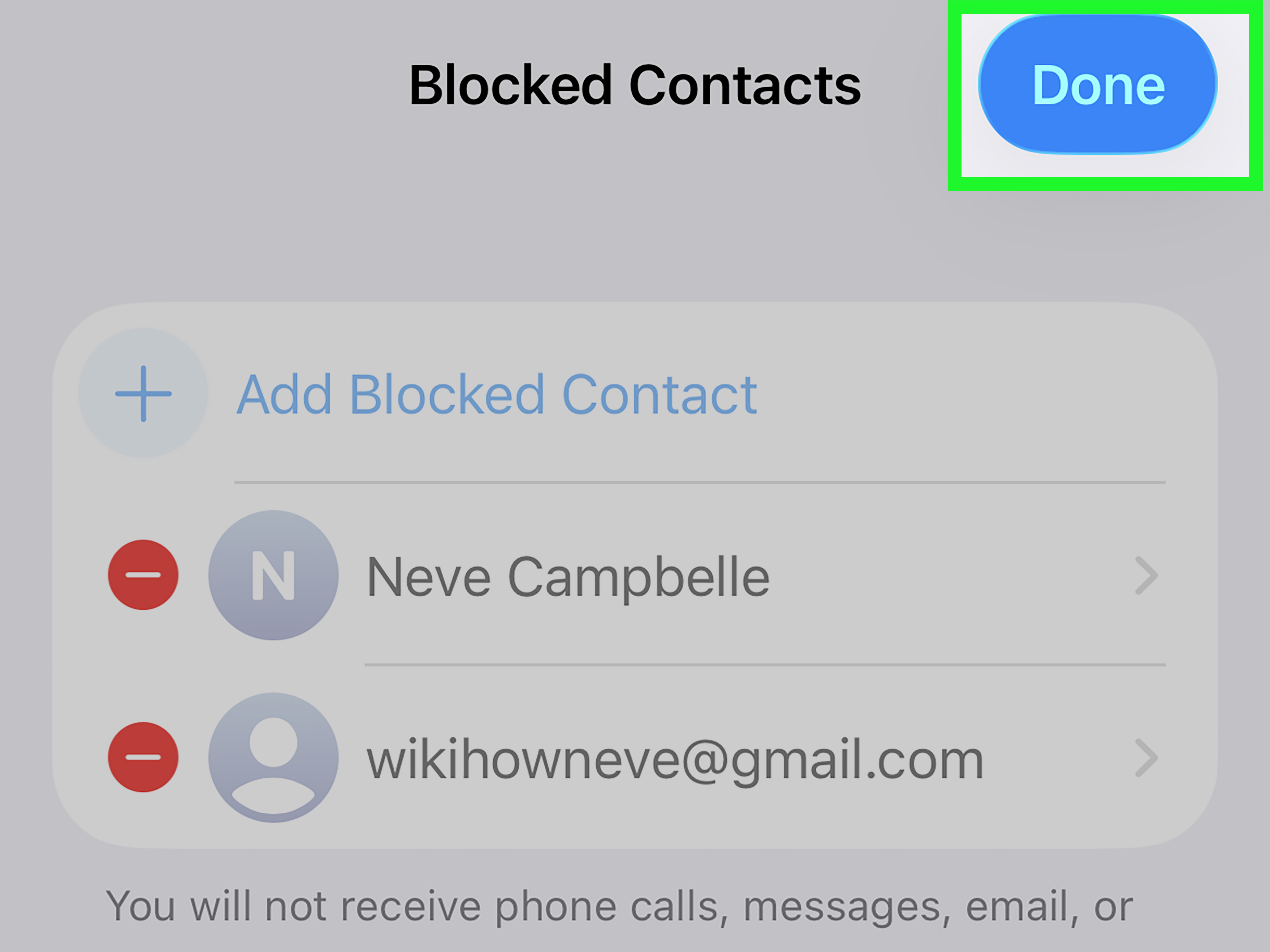
- Tap Blocked Contacts.
- Tap Add Blocked Contact.
- Select the contact you want to block.
- Tap Block Contact if confirmation is required.
For older iOS versions
On older iOS versions, the blocked contacts list may appear under app-specific settings, such as:
- Settings > Phone > Blocked Contacts
- Settings > Messages > Blocked Contacts
- Settings > FaceTime > Blocked Contacts
- Settings > Mail > Blocked
If you cannot find the option exactly where an online guide says it should be, do not panic. Apple occasionally rearranges Settings like someone cleaning a closet at midnight. Use the search bar at the top of Settings and type Blocked Contacts.
How to Unblock a Number on iPhone
Sometimes blocking is temporary. Maybe you blocked a number by mistake. Maybe your cousin got a new phone and somehow became “Unknown Caller.” Maybe you have achieved inner peace. Whatever the reason, unblocking is simple.
Unblock a number in iOS 26
- Open Settings.
- Tap Privacy & Security.
- Tap Blocked Contacts.
- Tap Edit.
- Tap the remove button next to the number or contact.
- Tap Unblock.
Unblock from older iOS menus
On older iOS versions, go to Settings > Phone > Blocked Contacts, swipe left on the number, and tap Unblock. Similar options may appear under Messages, FaceTime, or Mail settings.
How to Silence Unknown Callers on iPhone
If one spam number is annoying, fifty spam numbers are a full-time circus. Blocking numbers one by one can help, but spam callers often rotate numbers. That is where Silence Unknown Callers and newer call screening tools become useful.
On supported iOS versions, you can choose how your iPhone handles numbers that are not saved in your Contacts. Depending on your software version and region, you may see options such as Never, Ask Reason for Calling, or Silence.
How to manage unknown callers
- Open Settings.
- Tap Apps.
- Tap Phone.
- Look for Screen Unknown Callers or a similar call filtering option.
- Choose the setting that fits your needs.
Silence sends calls from unsaved numbers to voicemail. Ask Reason for Calling, when available, screens the caller before your phone rings by asking them to explain why they are calling. This is useful when you do not want to miss real calls but also do not want to personally interview every robocall about your imaginary auto warranty.
Important Warning Before You Silence Every Unknown Number
Silencing unknown callers is powerful, but it can occasionally block calls you actually want. A doctor’s office, school, delivery driver, bank, repair technician, or new employer may call from a number that is not saved in your Contacts.
Before turning on aggressive filtering, add important numbers to your Contacts. Include family, close friends, your child’s school, your workplace, medical offices, banks, delivery services, and anyone else whose call might matter. A little contact cleanup now can prevent future voicemail archaeology.
How to Use Carrier Spam Protection
Your wireless carrier may offer spam identification, call labeling, or call blocking. Major U.S. carriers provide tools that can identify suspicious calls as spam, scam likely, fraud risk, or similar labels. Some features are free, while others may require an app or paid plan.
Carrier filtering is helpful because many spam calls are detected before they reach your phone. Your iPhone may also include settings that allow carrier spam filters or call identification apps to work with the Phone app.
Check these options
- Open Settings and search for Call Blocking & Identification.
- Enable trusted caller ID or call-blocking apps if installed.
- Check your carrier’s app for spam call settings.
- Review whether your carrier offers free spam blocking or enhanced paid protection.
Carrier tools are not perfect, but they can reduce the volume of obvious robocalls. Think of them as a bouncer for your phone, though occasionally a spammer still shows up wearing a fake mustache.
Should You Use Third-Party Call Blocking Apps?
Third-party call blocking apps can help identify suspicious callers, block known spam numbers, and label incoming calls. Popular options often rely on large databases of reported spam numbers, user feedback, and detection systems.
Before installing any call blocking app, check its reviews, privacy policy, pricing, and permissions. A call blocking app may need access to call identification features to work properly. That is normal, but you should still choose apps from reputable developers and avoid anything that looks like it was assembled in a digital alley.
A good app can help if you receive frequent robocalls, but it should not replace common sense. Never share passwords, verification codes, Social Security numbers, banking details, or payment information with an unexpected caller.
How to Block “No Caller ID” Calls on iPhone
Blocking a hidden number is trickier because there is no visible number to block. If a call appears as No Caller ID, Private Number, or Unknown, the caller may be hiding their caller ID. In that situation, your best built-in option is usually to silence or screen unknown callers.
Best options for hidden callers
- Turn on Silence Unknown Callers or Screen Unknown Callers.
- Use a Focus mode that only allows calls from selected contacts.
- Check whether your carrier can block anonymous or private numbers.
- Avoid answering hidden-number calls unless you are expecting one.
If the calls are threatening, repeated, or connected to harassment, document the dates and times. Contact your carrier for help, and consider reporting the situation to local authorities if you feel unsafe.
What to Do If Blocking Does Not Stop Spam Calls
If spam calls keep coming from different numbers, you are dealing with a rotating-number problem. Scammers often spoof caller ID, meaning the number you see may not be the real source of the call. Blocking one spoofed number may stop that exact display number, but it will not stop the entire spam operation.
For stronger protection, combine several methods:
- Block repeat numbers from Recents.
- Turn on unknown caller screening or silence unknown callers.
- Use carrier spam protection.
- Install a reputable call-blocking app if needed.
- Report unwanted calls to appropriate consumer protection channels.
- Do not answer suspicious calls or follow robocall prompts.
Most importantly, do not press buttons during a suspicious robocall, even if the voice says “press 2 to be removed.” That can confirm your number is active. Hang up instead. Your phone is not a democracy; suspicious robots do not get a vote.
Blocking Calls vs. Muting Notifications: What Is the Difference?
Blocking stops a specific number or contact from reaching you through regular Apple communication channels. Muting only silences notifications from a conversation or app. If you mute a text thread, the person can still message you; your iPhone simply stops making noise about it.
Use blocking when you do not want contact from a specific person or number. Use muting when the person is not harmful but is simply too enthusiastic. For example, a family group chat planning a barbecue may not need to be blocked. It may just need to be muted until everyone stops debating potato salad.
Privacy and Safety Tips When Blocking Numbers
Blocking is a privacy tool, but it is also part of a larger safety routine. If someone is bothering you, harassing you, threatening you, or trying to scam you, do not rely on blocking alone.
Use these best practices
- Take screenshots of threatening messages before deleting anything.
- Save call logs if you need documentation.
- Do not engage with scammers or suspicious callers.
- Never share verification codes over the phone.
- Report fraud attempts if money, identity theft, or impersonation is involved.
- Contact your carrier for persistent harassment or spoofing problems.
If you are blocking someone for personal safety reasons, consider reviewing your location sharing, shared albums, shared calendars, Find My settings, and account security. Blocking a number helps, but privacy sometimes has more doors than expected.
Common Problems and Quick Fixes
I do not see “Block Caller.” What should I do?
Make sure you tapped the Info button for a recent call, message, or FaceTime entry. If the option still does not appear, update iOS and search Settings for Blocked Contacts. Some menus have changed across iOS versions.
Can a blocked caller still leave voicemail?
Yes, blocked callers may still be able to leave voicemail, but you typically will not receive a normal notification. Their voicemail may be placed separately depending on your carrier and iOS version.
Will someone know I blocked them?
Your iPhone does not send a notification telling someone they were blocked. However, a persistent person may eventually guess if calls never connect and messages never appear as expected.
Can I block all calls except contacts?
You can get close by using Silence Unknown Callers, call screening, or a Focus mode that allows calls only from selected people. Be careful, because this may silence legitimate calls from new numbers.
Real-Life Experiences: What Blocking a Number on iPhone Feels Like in Practice
The first time most people block a number on iPhone, they expect fireworks. In reality, it is quieter than that. You tap Block Caller, confirm it, and your phone simply stops allowing that number to barge into your day. It is not dramatic, but it is deeply satisfying, like closing a browser tab that has been playing mystery audio for ten minutes.
One common experience is the repeat spam caller. The number rings once in the morning, again after lunch, and then once more while you are trying to relax. You block it from Recents, and for a moment, life is peaceful. Then another suspiciously similar number appears. This is when many iPhone users realize that blocking individual numbers is useful, but spam prevention works better as a layered system. Blocking is the broom; Silence Unknown Callers is the door; carrier filtering is the lock; common sense is the security guard drinking coffee in the lobby.
Another familiar situation is blocking someone from Messages. Maybe it is a scam text. Maybe it is a person who does not respect boundaries. Maybe it is a “wrong number” conversation that starts friendly and somehow turns into a cryptocurrency pitch. Blocking from Messages feels different because texts can be more intrusive than calls. A call disappears after it rings. A message sits there, staring at you like a tiny rectangle of stress. Blocking the sender removes that pressure and makes the Messages app feel like yours again.
There is also the accidental block. It happens more often than people admit. Someone blocks a number while cleaning up spam, only to realize later that the “unknown” number was a delivery driver, clinic, school office, or new coworker. That is why reviewing your blocked contacts list occasionally is a smart habit. If you are expecting important calls, add those numbers to Contacts before using aggressive filtering. Your future self will appreciate not having to dig through voicemail like an amateur detective.
For parents, blocking can be part of household phone hygiene. Teens and kids may receive unwanted texts, group chat drama, spam links, or calls from unfamiliar numbers. Teaching them how to block a number on iPhone is not just a tech lesson; it is a boundary lesson. The key is to pair blocking with conversation: do not reply to suspicious messages, do not click links, and tell a trusted adult if a message feels scary, manipulative, or inappropriate.
For professionals, call filtering can be both a blessing and a trap. If your job involves clients, interviews, deliveries, medical calls, or contractors, silencing every unknown number may create problems. In that case, call screening is often better than total silence. It lets legitimate callers explain themselves while pushing obvious spam into the shadows where it belongs, preferably next to expired printer ink and old charging cables.
The biggest lesson from real-life use is simple: blocking a number on iPhone is easy, but managing communication wisely takes judgment. Use blocking for specific unwanted contacts. Use spam filters for patterns. Use reporting tools for scams. And use your Contacts app like a VIP list, because your iPhone is much better at protecting your attention when it knows who actually matters.
Conclusion
Learning how to block a number on iPhone is one of the simplest ways to protect your time, privacy, and sanity. Whether you are stopping a spam caller, blocking an unwanted text, avoiding FaceTime interruptions, or managing unknown numbers, iOS gives you practical tools that take only a few taps to use.
The best approach is not just one setting. Block specific numbers when they bother you. Turn on unknown caller screening or silence unknown callers when spam becomes frequent. Use carrier protection or reputable call-blocking apps when robocalls get out of hand. Keep important numbers saved in Contacts so real calls still reach you. And when a call or message feels suspicious, trust your instincts. Your iPhone has buttons for a reason, and sometimes the healthiest button is Block Caller.
Note: Menu names can vary slightly depending on your iOS version, carrier, country, and device settings. If you cannot find a feature, update iOS if possible and use the search bar inside Settings to look for “Blocked Contacts,” “Screen Unknown Callers,” or “Call Blocking & Identification.”