If you searched for how to share a Steam library with Family Sharing, you are absolutely in the right place. You are also walking into one of Steam’s favorite plot twists: in 2024, Valve gave the whole system a makeover and started rolling Steam Families into the spotlight. So yes, people still search for “Steam Family Sharing,” but the modern version is a little smarter, a little cleaner, and a lot less likely to make you yell at your monitor.
The goal is still the same: share eligible games with people in your household without turning your account into a communal sock drawer. Everyone keeps their own saves, achievements, settings, and play history. In other words, your sibling can spend 80 hours failing to beat a boss, and your profile will remain gloriously innocent.
This guide breaks down exactly how to share a Steam library, what changed in 2024, what still works from the classic setup, what can go wrong, and how to avoid the usual headaches. If you want a practical, human-readable guide instead of a wall of menus and vague error messages, welcome aboard.
What Steam Family Sharing Means in 2024
For years, Steam Family Sharing let one account authorize specific computers and accounts so someone else could borrow a game library. It worked, but it had quirks. If the owner wanted to play, the borrower often got nudged aside. If the owner sneezed near the launcher, someone somewhere got kicked out. It was functional, but it had the energy of a folding chair held together with optimism.
In 2024, Valve introduced Steam Families, which combines game sharing with better parental controls and a more modern setup. The big improvement is simple: family members can play different games from the shared family library at the same time. If one person is deep into a cozy farming sim and another is busy getting dramatically defeated in a multiplayer shooter, both can keep playing. The only catch is that two people cannot play the same copy of the same game simultaneously. One copy still means one active player per title.
That makes Steam library sharing far more practical for actual households. It also helps explain why so many people in 2024 started asking whether the old feature was gone, renamed, or hiding in the menus like a raccoon in a garage. The answer is basically: yes, it evolved.
Steam Families vs. Classic Family Sharing
Steam Families
The newer system is built around a family group. Up to six close family members can join one Steam Family, pool eligible games, and keep individual progress. Adults can manage the group, and child accounts can have parental controls, playtime limits, and purchase approvals. It feels more like a proper household feature and less like a workaround discovered by accident.
Classic Family Sharing
The older setup relied on authorizing a specific computer and account. It still shows up in older articles because, for much of 2024, people were using either the legacy system or the beta version of Steam Families depending on timing. If you are reading old tutorials that tell you to log into another person’s device and manually authorize that machine, that is the classic method.
Here is the practical takeaway: if your Steam client shows Steam Families, use that. If your menus still show the old Family authorization flow, follow the legacy steps below. Same mission, slightly different map.
What You Need Before You Start
Before you begin sharing your Steam library, make sure the basics are covered:
- Each person needs their own Steam account. Library sharing is not account sharing. Do not pass around one login like it is a Netflix password from 2018.
- Steam Guard should be enabled. This is especially important for the older Family Sharing setup and still a smart move in general.
- You should be sharing with actual household or close family members. Steam has made it clear that the feature is meant for immediate family or a household-style setup, not for building a giant game co-op cartel across three countries and one college dorm.
- Not every game is eligible. Some titles are excluded because of licensing, third-party launchers, extra subscriptions, or publisher restrictions.
- Everyone should update Steam. This avoids menu mismatches and reduces the odds of “why does your screen look different?” arguments.
How to Share a Steam Library with Steam Families
If you are using the current 2024-style system, these are the steps that matter most.
Step 1: Update Steam
Start by opening the Steam client and making sure it is fully updated. During early 2024, Steam Families first appeared in beta. Later in 2024, it rolled out more broadly. If you were following very early guides, you may have needed to opt into a beta client. If you are using a later 2024 client, you may already have the feature without doing anything special.
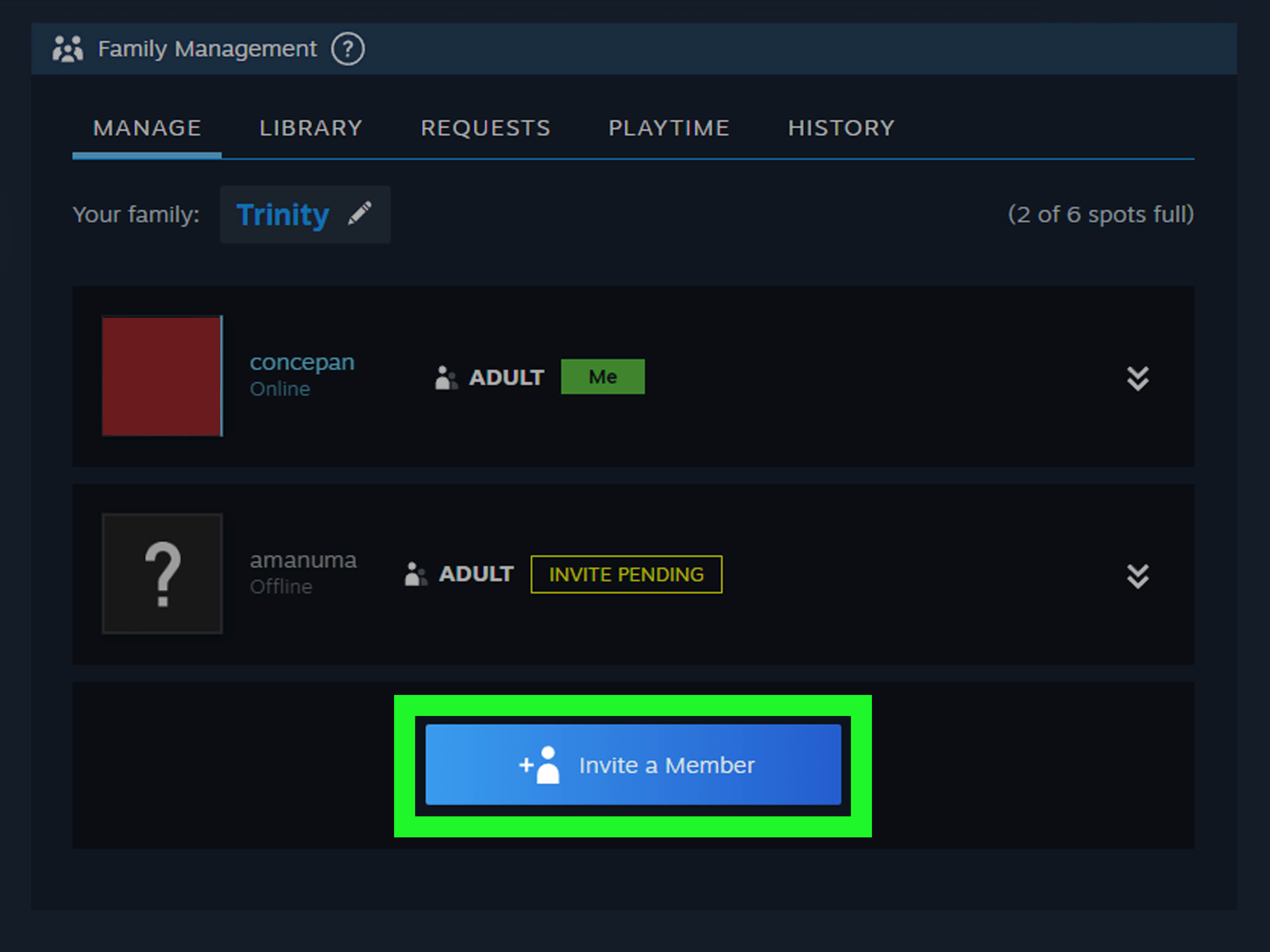
Step 2: Open Family Management
Look for the family management area in your account settings. Depending on your version of the client, this may appear under your account details or family settings. The wording may vary slightly, but the destination is the same: the place where Steam lets you create or manage a family group.
Step 3: Create a Steam Family
Create a new family and invite the people who live in your household or closely match Valve’s intended use case. Steam Families allows up to six members total, which means you plus five others. Adults can manage the group, while child accounts can have restrictions and purchase requests routed through an adult.
Step 4: Let Members Join
Each invited person needs to accept the invitation on their own Steam account. Once joined, eligible games from each member’s library become part of the shared family library. Think of it as a pooled shelf of games, except nobody has to return a scratched disc and say, “It came like that.”
Step 5: Play from the Shared Family Library
After setup, each member will see eligible shared games in the family library area. If a game is shareable, another member can install and play it on their own account. They keep their own save data and achievements, which is a huge improvement for families that do not want one person’s speedrun to overwrite another person’s slow, scenic, mushroom-collecting masterpiece.
Step 6: Understand the Limits
Steam Families is generous, but not magic. Two people cannot play the same copy of the same game at the same time. If your family has one copy of a title and two people both suddenly discover it is the greatest game ever created, someone may need to buy a second copy. This is the digital equivalent of siblings fighting over one controller, but with fewer tangled cords.
How to Use the Classic Steam Family Sharing Method
If your Steam client still shows the older interface, or if you are writing for readers who have not switched over yet, the classic Steam Family Sharing process works like this:
- Enable Steam Guard on the owner’s account.
- Log into the owner’s Steam account on the borrower’s computer.
- Open Steam > Settings > Family.
- Check the option to authorize library sharing on this computer.
- Select the account that will be allowed to use the shared library.
- Log out of the owner’s account and back into the borrower’s own account.
- The borrower should now see eligible shared games in their library.
This older method came with stricter limits. The owner could authorize up to ten devices and up to five accounts, and borrowers generally needed the owner’s library to remain available under the old rules. If you want a more flexible setup, Steam Families is the better long-term option.
What Games Can Be Shared on Steam?
This is where dreams go to meet licensing agreements. While many paid Steam games can be shared, not every title makes the cut.
Games may be excluded if they require:
- a third-party launcher or account,
- an additional subscription,
- a one-time external key,
- special anti-cheat or publisher restrictions,
- or they are free-to-play and already available to anyone.
So if one game appears in your shared library and another mysteriously refuses to show up, do not immediately assume Steam has singled you out for emotional damage. The title may simply not support sharing.
Common Problems and How to Fix Them
The invite will not go through
Double-check that everyone is using updated Steam clients and that the accounts fit the intended household or close-family use case. Steam has become more strict about how the feature is used, especially in the newer system.
The game is missing from the library
The most common reason is that the game is not eligible for sharing. It may also be hidden, uninstalled, or tied to another licensing rule that prevents it from appearing.
Someone cannot play while another person is online
Under Steam Families, multiple people can play different shared titles at the same time. But they cannot play the same single copy simultaneously. That distinction matters. If two people want the exact same game at once, buy a second copy and preserve domestic peace.
Someone left the family and now cannot join another
Steam applies a cooldown period for adults who leave and want to create or join a new family. This is meant to prevent family-hopping and random library tourism. So yes, impulse decisions are once again punished by software.
You want privacy for certain games
One useful 2024-era tip is that Steam’s privacy tools became more relevant alongside family features. If there is a title you would rather not put on public display, marking it private can help keep your library a little less revealing. No judgment. Some people are into niche train simulators. Others are lying about it.
Best Practices for Sharing a Steam Library
- Use separate accounts for everyone. This keeps saves, achievements, and recommendations from blending into one chaotic soup.
- Talk about who owns what. Shared access is not shared ownership. If someone leaves the family, their purchased games remain theirs.
- Buy second copies of favorites. This is the easiest fix for high-demand games.
- Use parental controls for kids. Steam Families is much better at this than the old setup.
- Do not treat the feature like account lending for the internet. It is built for family use, not for creative loophole engineering.
Is Steam Library Sharing Worth It?
Absolutely, if you use it the way Valve clearly intends. For households with multiple gamers, Steam Family Sharing or Steam Families can save real money, reduce duplicate purchases, and make gaming feel less like a series of separate islands. It is especially useful when one person owns a large library and another person just wants to explore new games without committing cash to every curiosity.
The system is not perfect. Some games are excluded, setup can be slightly different depending on your client version, and the one-copy-per-active-player rule still exists. But compared with the older way of sharing a Steam library, the 2024 version is cleaner, more flexible, and much more realistic for families that actually game under one roof.
Real-World Experiences with Steam Library Sharing
Here is what makes the whole feature feel useful in everyday life: it is not really about menus. It is about reducing friction. In one household, a parent might own a big Steam collection built over ten years of sales, bundles, and “I’ll totally play this someday” purchases. A teenager in the house may only care about a handful of games, but that shared access lets them try story-driven titles, indies, or older classics without needing a fresh purchase every weekend. Suddenly, the family library becomes less like a digital warehouse and more like a rotating recommendation list.
Another common experience is the “surprise hit” effect. Someone joins the shared library for one big-name game they already know, then stumbles into three weird, wonderful games they never would have bought themselves. That is one of the best parts of Steam library sharing. The value is not only in saving money. It is in discovery. One person comes for a blockbuster RPG and leaves emotionally attached to a management sim about trains, fish, or medieval taverns. Steam has a special talent for that kind of lifestyle derailment.
Households with a Steam Deck often notice the benefit even more. One person may use a desktop PC, another uses a laptop, and someone else grabs the Deck on the couch. With separate accounts and a shared eligible library, everyone gets a more personal experience. The games feel borrowed, but the progress feels owned. That matters. Nobody wants to inherit another person’s save file where the hero is named “buttlord420” and every moral decision has already been catastrophically made.
There is also a quiet quality-of-life win when families stop sharing one login. That old habit creates confusion fast. Cloud saves get crossed, achievements go to the wrong person, wishlists become nonsense, and recommendations start looking like an algorithm had a nervous breakdown. Proper library sharing fixes that. Each person gets their own account identity while still benefiting from a shared collection.
Of course, some experiences are less magical and more educational. Families quickly learn the difference between “we can all play from the shared library” and “we can all play the same game at the same time.” That realization usually happens about three minutes before game night. It is a rite of passage. The solution is usually simple: either rotate turns or buy a second copy of the household favorite. Annoying? Occasionally. Manageable? Definitely.
Parents also tend to appreciate the control side more than they expect. It is one thing to share games. It is another to approve purchases, monitor access, and set boundaries without turning the PC into Fort Knox. Steam Families in 2024 made those tools feel more like a proper part of the platform instead of an awkward afterthought. For many households, that is the difference between “maybe we will use this feature someday” and “okay, this is actually practical now.”
In the end, the best experiences with Steam Family Sharing come from realistic expectations. It is not unlimited free gaming for everyone you have ever met. It is a structured way to share eligible games with the people you actually live with or closely manage in one household setup. Used that way, it is excellent. Used like a loophole marketplace, it becomes a headache. And frankly, most good software features have the same life lesson baked in.
Final Thoughts
If you want the simplest answer to how to share a Steam library with Family Sharing in 2024, here it is: use Steam Families if it is available in your client, invite the right people, and understand the limits before anyone starts a dramatic argument over who gets the one copy of a game.
The feature is better than the old version, easier to manage, and far more useful for real families. You still need separate accounts, not every game can be shared, and Steam does not want this feature stretched into a neighborhood-wide lending ring. But for a genuine household setup, it is one of the best quality-of-life features on the platform.
And that is the beauty of it: less duplicate spending, more game discovery, separate progress for everyone, and only a moderate chance of sibling diplomacy failing in real time.