Getting Gmail on an iPhone should take less time than deciding whether that suspicious “urgent” email from your bank is real. You have two solid options: add your Google account to Apple Mail, or use Google’s official Gmail app. Both can handle your inbox, send messages, and keep you connected while you pretend not to check work email during dinner.
The best choice depends on how you use email. Apple Mail is ideal when you want Gmail, iCloud, Outlook, and other accounts in one clean inbox. The Gmail app is often better for people who live inside Google’s ecosystem and want Gmail-specific tools, account switching, and more direct notification controls.
This guide explains how to set up Gmail on an iPhone using both Apple Mail and the Gmail app, how to choose between them, and what to do when your inbox decides to play hide-and-seek.
Note: Menu names can vary slightly depending on your iPhone model and iOS version. On newer versions of iOS, Apple places Mail settings under Settings > Apps > Mail.
Choose Your Gmail Setup Method Before You Start
There is no universally “correct” Gmail setup for iPhone users. It is more like choosing between sneakers and sandals: both get you where you need to go, but one may fit your day better.
Option 1: Add Gmail to Apple Mail
Apple Mail is the built-in email app on every iPhone. When you add a Gmail account to Apple Mail, you can read and send Gmail messages alongside iCloud Mail, Microsoft Outlook, Yahoo Mail, work accounts, and other supported providers. This is especially handy for anyone who wants one inbox instead of a small army of separate email apps.
Apple Mail can also sync other Google data, including contacts, calendars, and notes, depending on the options you enable while connecting your account. Google recommends selecting the Google account type when adding Gmail to an iPhone email client, rather than trying to build the account manually.
Option 2: Use the Gmail App for iPhone
The official Gmail app is designed specifically for Gmail and Google Workspace accounts. It supports multiple accounts, Gmail labels, search, inbox categories, Google security prompts, and notification options such as alerts for all new mail or only high-priority messages.
The Gmail app can also manage non-Gmail email accounts, including Outlook, Hotmail, Yahoo, and other providers. Still, its biggest advantage appears when Gmail is your primary email service and you want the familiar Google experience in your pocket.
How to Set Up Gmail on iPhone Using Apple Mail
Adding Gmail to Apple Mail is usually the easiest route for people who want one unified email app. You do not need to type in strange server names, memorize port numbers, or summon a retired IT professional from the basement.
Step 1: Open Mail Account Settings
- Open the Settings app on your iPhone.
- Tap Apps.
- Tap Mail.
- Tap Mail Accounts.
- Tap Add Account.
On older iPhone software versions, you may see Mail, Accounts, or Passwords & Accounts directly in Settings. Apple has moved some menu locations over time, but the goal remains the same: find the option to add an email account.
Step 2: Choose Google as Your Email Provider
From the list of account providers, tap Google. Do not choose “Other” unless you have a specialized work account or your organization specifically instructs you to do so. Selecting Google allows Apple Mail to use Google’s modern sign-in process instead of relying on manual server settings.
Your iPhone may show a message explaining that Apple wants to use Google to sign in. Tap Continue. A secure Google sign-in page should open.
Step 3: Sign In to Your Gmail Account
- Enter your Gmail address.
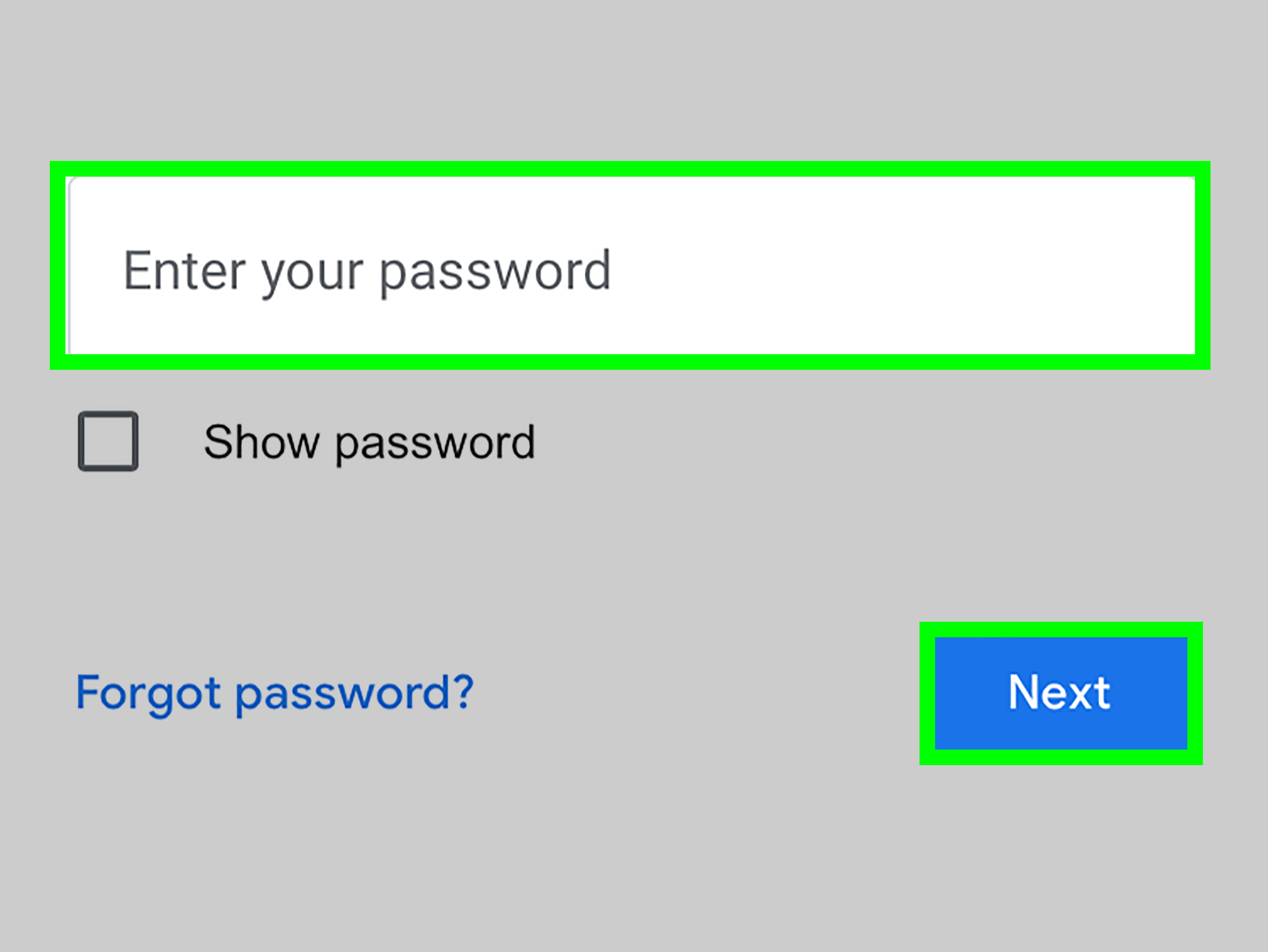
- Tap Next.
- Enter your Google password.
- Complete any verification request, such as a Google prompt, security key, passkey, or text-message code.
- Review the permissions screen and tap Allow.
If you use two-step verification, Google may ask you to approve the login on another trusted device or enter a verification code. This is normal and is much better than letting a random stranger in another time zone enjoy your inbox. Google recommends two-step verification because it helps protect an account even when a password is stolen.
Step 4: Choose What to Sync
After signing in, your iPhone will show synchronization options. You may be able to enable:
- Contacts
- Calendars
- Notes
Turn on Mail at minimum. Turn on Contacts and Calendars if you want Google Contacts and Google Calendar events to appear in Apple’s Contacts and Calendar apps. Then tap Save.
Open the Apple Mail app. Your Gmail inbox should appear within a few moments. If your account has thousands of messages, give it a little time. Email synchronization is fast, but it is not teleportation.
How to Set Up Gmail on iPhone Using the Gmail App
The Gmail app is a great option for users who prefer Google’s native interface. It can be especially useful for people with multiple Gmail accounts, Google Workspace accounts, or an inbox that needs every possible organizational advantage.
Step 1: Download the Gmail App
Open the App Store on your iPhone, search for Gmail, and download the official Google app. Once it installs, open it.
Step 2: Add Your Google Account
- Open the Gmail app.
- Tap your profile image or initial near the top-right corner.
- Tap Add another account.
- Select Google.
- Tap Continue if asked to confirm the sign-in process.
- Enter your Gmail address and password.
- Complete two-step verification if prompted.
Google’s current iPhone instructions direct users to open the Gmail app, tap the profile icon, choose Add another account, and select Google.
Step 3: Allow Notifications
When Gmail asks for notification permission, tap Allow if you want alerts for new messages. Skipping this permission will not break your email, but it may leave you wondering why everyone else knew about the meeting cancellation before you did.
You can adjust Gmail app notifications later by opening Gmail, going to the menu or settings area, selecting your account, and choosing notification preferences. Gmail supports options such as alerts for all new mail or high-priority messages only.
Apple Mail vs. Gmail App: Which One Should You Use?
Both options work well, but they serve different types of iPhone users.
Use Apple Mail If You Want One Inbox for Everything
Apple Mail is a good fit if you manage multiple email providers. For example, you may have a personal Gmail account, an iCloud account for Apple purchases, and an Outlook address for work. Apple Mail can place all of them in one app, making it easier to scan messages without jumping between separate platforms.
Apple Mail also integrates naturally with the rest of iOS. You can use Siri, share content from other apps, attach photos, create VIP contacts, flag important messages, and organize mailboxes. Newer iPhone versions also offer message categories and inbox organization features in Apple Mail.
Use the Gmail App If Gmail Is Your Digital Headquarters
The Gmail app is often the better choice for users who rely heavily on Gmail search, labels, Google Workspace, or multiple Google accounts. It tends to feel more familiar for longtime Gmail users because it keeps Google’s inbox structure and settings close at hand.
It is also useful for people who want Gmail-specific notification choices. For example, you can select “High priority only” instead of allowing every store coupon, shipping alert, and newsletter to vibrate your phone into a state of emotional exhaustion.
Can You Use Both Apple Mail and the Gmail App?
Yes. Many people use Apple Mail as their general inbox while keeping the Gmail app installed for Google-specific features, account management, or faster access to certain Gmail settings. Just remember that both apps may send notifications unless you adjust their alert settings. Two apps yelling about the same email is not productivity; it is a tiny digital parade.
How to Fix Gmail Setup Problems on iPhone
Most Gmail setup issues have simple causes. Before assuming your iPhone has developed a personal grudge against email, try these practical fixes.
Problem: Gmail Will Not Sign In
First, confirm that your Gmail address and password are correct by signing in through a web browser. Then check whether Google is asking for two-step verification. A new phone, new network, or unusual sign-in attempt can trigger an extra identity check.
For most modern iPhones, use the regular “Sign in with Google” process rather than creating an app password. Google states that iPhones and iPads running iOS 11 or later generally do not need app passwords when the app supports Google sign-in.
Problem: Gmail Is Not Updating in Apple Mail
Open Settings > Apps > Mail > Mail Accounts > Fetch New Data. Choose an appropriate setting such as Automatically or a fetch schedule that matches how quickly you need email updates.
Apple notes that when Push is unavailable for an account, the iPhone uses Fetch instead. On newer iOS versions, the Automatically setting may fetch mail in the background only when the iPhone is charging and connected to Wi-Fi.
Problem: The Gmail App Is Not Syncing
Start with the obvious but powerful checklist: confirm that you have internet access, update the Gmail app, pull down on the inbox to refresh, and restart your iPhone. Then check that Background App Refresh is enabled for Gmail under Settings > General > Background App Refresh.
Google recommends enabling Background App Refresh if you want the Gmail app to download messages while you are not actively using it. You can also review Gmail’s sync settings to control how many days of email are stored on the device.
Problem: You Are Not Receiving Gmail Notifications
For Apple Mail, go to Settings > Notifications > Mail and make sure alerts, badges, and sounds are enabled. For the Gmail app, check both iPhone notification permissions and Gmail’s own notification settings.
Notifications must be allowed at the iPhone level and configured inside the email app. A perfectly synced inbox can still be quiet if alerts are disabled.
Problem: A Work or School Gmail Account Will Not Connect
Google Workspace accounts may have additional security rules set by an employer or school. Your organization might require device management, a profile installation, a screen lock, or approval from an administrator before mail can sync.
Google Workspace documentation notes that organizations can manage iOS devices and may require enrollment before users can access work accounts. When a work Gmail account refuses to cooperate, contact your IT administrator before repeatedly entering your password like it owes you money.
Gmail Security Tips for iPhone Users
Setting up Gmail is only half the job. Protecting the account is what keeps a missing password from turning into a full-scale inbox disaster.
- Use a strong, unique Google password.
- Turn on two-step verification or use a passkey.
- Review unfamiliar sign-in alerts immediately.
- Keep iOS and the Gmail app updated.
- Do not approve Google sign-in prompts you did not initiate.
- Run Google’s Security Checkup periodically.
Google recommends regular Security Checkups to help users review account protection settings, connected devices, and potential security concerns.
How to Make Gmail Your Default Mail App on iPhone
If you prefer the Gmail app over Apple Mail, you may be able to set Gmail as your default email app. This means tapping an email link in Safari, Contacts, or another app can open Gmail instead of Apple Mail.
- Open Settings.
- Tap Apps.
- Tap Default Apps.
- Select the email option.
- Choose Gmail.
Apple’s current Default Apps settings allow users to choose another app for supported functions, including email, when the necessary apps are installed and the device is running a compatible version of iOS.
Real-World Experiences: What Using Gmail on an iPhone Is Actually Like
In real life, setting up Gmail on an iPhone is usually less about technical difficulty and more about deciding how much email chaos you are willing to invite into your day. The setup itself is straightforward. The tricky part is realizing that a phone can now deliver every receipt, meeting request, family update, password reset, and “final final final” project email directly into your hand while you are standing in line for coffee.
Apple Mail tends to feel best for people who want email to blend into the iPhone experience. You open one app, see messages from several accounts, and deal with them without thinking too much about which company owns the inbox. A freelancer with personal Gmail, a client Outlook account, and an iCloud address may appreciate this simplicity. Instead of maintaining three email apps, they can view everything in one place and use a unified inbox to decide what deserves attention.
That convenience has a small downside: Apple Mail can make it easier to lose track of Gmail-specific features. Gmail labels, category tabs, and some Google-focused settings may feel less obvious in Apple Mail. A person who uses Gmail labels such as “Receipts,” “Travel,” “Invoices,” or “Clients” may prefer the Gmail app because it presents those tools in a more familiar way. For many Google power users, the Gmail app feels like walking into their usual office instead of borrowing someone else’s desk.
The Gmail app can also be a relief for people with several Google accounts. Think of someone who has a personal Gmail account, a freelance account, and a work Google Workspace account. Switching among them in the Gmail app is simple, and the profile menu makes it easier to confirm which address is active before sending a message. That matters more than people think. Sending a casual message from a work account can create the kind of awkwardness normally reserved for replying “Love you!” to a client.
Notification settings are where personal habits really matter. Some users want instant alerts for every new message because they manage customer support, sales leads, or time-sensitive work. Others need protection from their inbox because a single online shopping spree can generate fourteen shipping updates and three “we miss you” emails before lunch. Setting Gmail notifications to high-priority messages only can make the phone feel calmer without making important communication disappear.
Another common experience is using both Apple Mail and Gmail together. For example, someone may use Apple Mail during the day to check personal and work accounts in one inbox, then open Gmail when they need to search for an old receipt, manage labels, or review account settings. This hybrid approach is not overkill. It is simply using the right tool for the job, like keeping both a hammer and a screwdriver instead of trying to fix the entire house with a spoon.
For most people, the best Gmail setup on iPhone is the one that reduces friction. Choose Apple Mail when you want simplicity across multiple providers. Choose the Gmail app when Gmail is central to your work or personal organization. Either way, take a few minutes to adjust notifications, verify security settings, and confirm that your contacts and calendar are syncing the way you expect. That small amount of setup can turn your iPhone from an inbox stress machine into a genuinely useful communication tool.
Conclusion
Learning how to set up Gmail on an iPhone is simple once you choose the right method. Apple Mail is excellent for combining multiple accounts in one place, while the Gmail app offers a more Google-focused experience with flexible notifications, easier account switching, and familiar Gmail tools.
Whichever option you choose, sign in through Google’s official login screen, enable only the sync features you need, review notification settings, and protect your account with two-step verification. With the right setup, checking email on your iPhone can be quick, organized, and only mildly distracting.